
Laptops are essential tools for work, study, and entertainment—but when they start overheating during charging, performance suffers, components degrade, and in extreme cases, hardware can fail. While some warmth is normal, excessive heat indicates underlying issues that need attention. Understanding the root causes and applying targeted cooling strategies can restore stability, extend device lifespan, and improve user comfort.
Heat buildup during charging often results from a combination of power management inefficiencies, environmental factors, and hardware or software strain. This article breaks down the science behind the problem, outlines real-world solutions, and provides actionable steps to keep your laptop running cooler—even under load.
Why Laptops Overheat During Charging
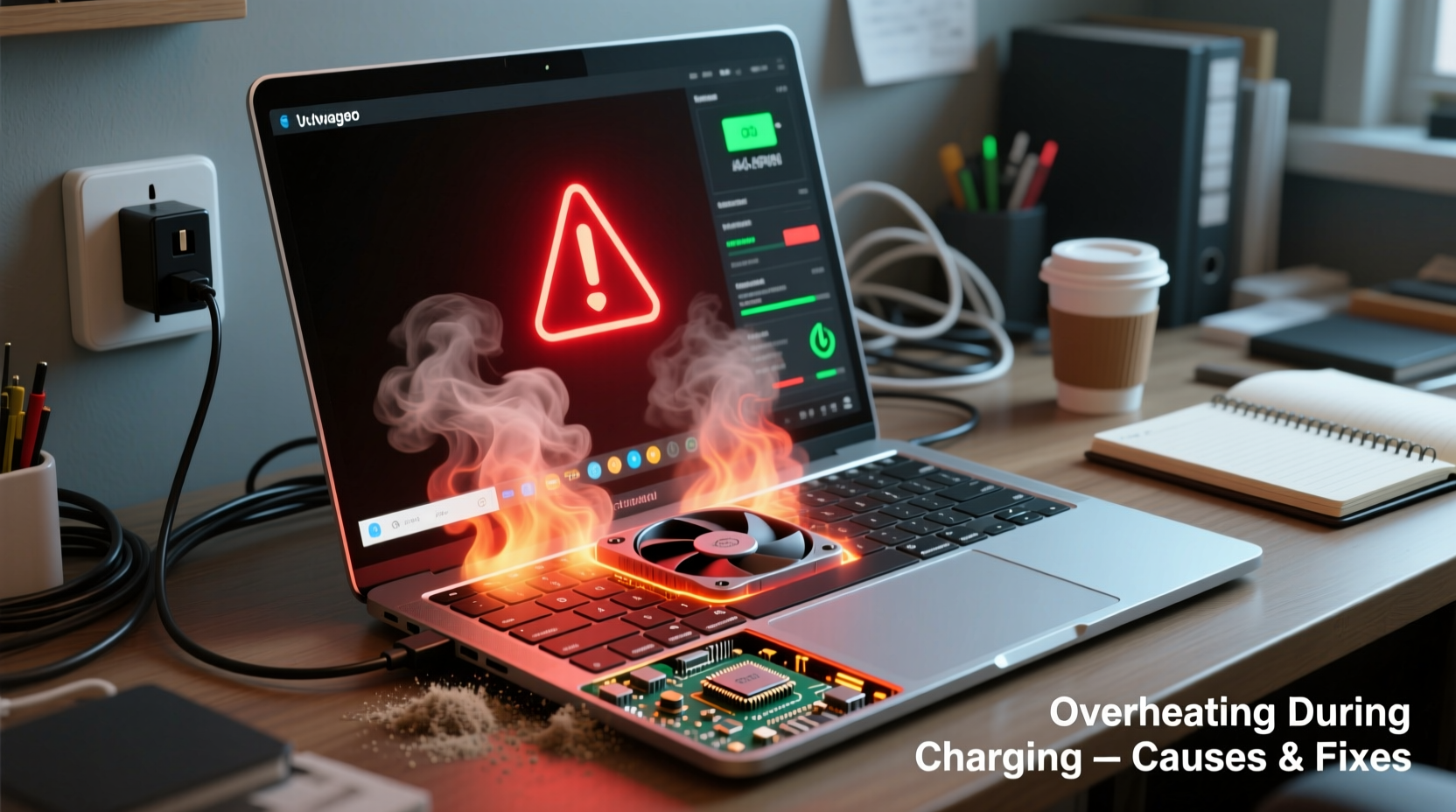
When you plug in your laptop, two major processes occur simultaneously: energy flows into the battery for recharging, and the system continues operating—often at high performance levels. Both activities generate heat, and when combined, they can overwhelm the laptop’s thermal management system.
The primary sources of heat include:
- CPU and GPU usage: Background applications, browser tabs, or active tasks like video rendering increase processor load.
- Charging circuitry: Converting AC power to DC and regulating voltage generates internal heat, especially with fast chargers.
- Battery resistance: As lithium-ion batteries charge, internal resistance produces thermal energy, peaking during the final 20% of the charge cycle.
- Poor ventilation: Dust-clogged fans, blocked vents, or soft surfaces (like beds or couches) restrict airflow.
Modern laptops use dynamic thermal throttling to reduce CPU speed when temperatures rise, but this leads to sluggish performance. Prolonged exposure to high temperatures—especially above 90°C—can degrade battery capacity, warp internal components, and shorten overall lifespan.
Common Causes and How to Diagnose Them
Not all overheating issues stem from the same source. Identifying the specific cause helps apply the most effective solution. Below are frequent culprits and diagnostic methods:
1. Dust Accumulation in Vents and Fans
Dust acts as insulation, trapping heat inside the laptop. Over time, even small amounts can significantly reduce cooling efficiency. If your laptop has been in use for over a year without cleaning, this is likely a contributing factor.
2. High Background Workload
Even when idle, background processes such as Windows updates, antivirus scans, or cloud sync services may consume CPU resources. Use Task Manager (Windows) or Activity Monitor (macOS) to check for sustained CPU usage above 30–40% when not actively working.
3. Outdated or Faulty Drivers
Inefficient power management drivers can prevent the system from entering low-power states. Similarly, outdated GPU drivers may force the graphics card to run at full speed unnecessarily.
4. Aging Battery or Charger
An old battery may struggle to hold a charge efficiently, increasing internal resistance and heat generation. Likewise, using a non-OEM or damaged charger can lead to unstable voltage delivery, exacerbating thermal stress.
5. Ambient Temperature and Placement
Using a laptop in a hot room, direct sunlight, or near heating vents raises baseline temperatures. Combine this with poor positioning—such as closing the lid while charging—and heat gets trapped with no escape route.
“Thermal degradation starts silently. By the time users notice performance drops, irreversible battery wear may already have occurred.” — Dr. Alan Zhou, Electronics Reliability Engineer
Step-by-Step Guide to Cool Down Your Laptop
Follow this structured approach to diagnose, mitigate, and prevent overheating during charging. Each step builds on the previous one for maximum effectiveness.
- Shut down and unplug the laptop. Allow it to cool completely before proceeding. This ensures accurate temperature readings later.
- Clean air vents and fans. Use compressed air to blow out dust from intake and exhaust vents. Hold fans in place with a toothpick to prevent overspinning.
- Check task activity. Boot the system and open your OS’s resource monitor. Identify apps consuming excessive CPU or disk. Disable unnecessary startup programs.
- Update firmware and drivers. Visit your manufacturer’s support site to install the latest BIOS, chipset, and graphics drivers. These often include thermal management improvements.
- Adjust power settings. On Windows, switch to “Balanced” or “Power Saver” mode. On macOS, enable “Automatic graphics switching” and disable “Wake for network access.”
- Elevate the laptop. Use a stand or even stacked books to raise the back edge by 1–2 inches. This improves natural convection and airflow.
- Monitor temperatures. Install tools like HWMonitor (Windows), Macs Fan Control (macOS), or Core Temp to track real-time CPU/GPU temps during charging.
- Test with minimal load. Charge the laptop while shut down or in airplane mode. If it still overheats, the issue is likely hardware-related.
Do’s and Don’ts: Best Practices for Thermal Management
| Do’s | Don’ts |
|---|---|
| Use a laptop cooling pad with independent fans | Place the laptop on blankets, pillows, or your lap |
| Charge in a well-ventilated, cool room (ideally below 25°C) | Leave the laptop in a car on a sunny day |
| Unplug once fully charged to avoid trickle charging stress | Use third-party chargers without proper voltage matching |
| Reapply thermal paste every 2–3 years (for advanced users) | Ignore persistent fan noise or sudden shutdowns |
| Enable battery conservation modes (e.g., Dell Optimizer, Lenovo Vantage) | Run demanding games or apps while fast-charging |
Real-World Example: A Student’s Overheating Dilemma
Jamal, a university student, noticed his laptop would frequently shut down during late-night study sessions. The device felt hot near the hinge, and the fan ran constantly—even when only browsing lecture slides. He was using the laptop on his bed while charging, relying on a generic USB-C charger he bought online.
After reading about thermal risks, Jamal took action. He cleaned the vents with compressed air, switched to the original charger, and began using a foldable laptop stand. He also adjusted his power settings to limit maximum processor state to 80% while on battery saver.
Within days, surface temperatures dropped from 52°C to 38°C during charging. His laptop stopped throttling, and battery life improved due to reduced heat stress. This simple intervention extended the usable life of his device by over a year.
Expert-Recommended Cooling Solutions
While basic maintenance helps, sometimes additional tools are necessary for consistent thermal control.
- Cooling pads: Choose models with adjustable fan speeds and USB-powered operation. Look for mesh surfaces that align with your laptop’s intake zones.
- Undervolting: Advanced users can reduce CPU voltage via tools like ThrottleStop (Intel) or Ryzen Adj (AMD), lowering heat output without sacrificing performance.
- External monitors: Close the laptop lid and use an external display while charging. This reduces internal heat retention and allows better airflow.
- SSD-only systems: Replace HDDs with SSDs where possible—solid-state drives produce less heat and draw less power.
For older laptops, consider professional servicing. Replacing dried-out thermal paste between the CPU and heatsink can reduce operating temperatures by 10–15°C.
Frequently Asked Questions
Is it safe to use my laptop while charging if it gets hot?
Occasional warmth is normal, but sustained high temperatures (above 85°C) accelerate wear. It’s safer to limit intensive tasks while charging, especially on older devices. If the laptop becomes too hot to touch, stop use immediately and investigate the cause.
Can a faulty battery cause overheating?
Yes. A swollen or degraded battery increases internal resistance, leading to excess heat during charging. Signs include visible bulging, rapid discharge, or failure to hold a charge. Replace such batteries promptly through authorized service centers.
Does closing the lid while charging make overheating worse?
It can. Closing the lid may disable active cooling if the system doesn’t detect an external display. Additionally, heat accumulates in the closed space. For prolonged charging, keep the lid open or connect an external monitor to allow proper ventilation.
Checklist: Prevent Laptop Overheating While Charging
- ✅ Clean air vents every 3–6 months
- ✅ Use only OEM or certified chargers
- ✅ Avoid soft or uneven surfaces during use
- ✅ Monitor CPU temperature regularly
- ✅ Update BIOS, drivers, and OS patches
- ✅ Enable power-saving modes during charging
- ✅ Unplug after reaching 100% charge
- ✅ Consider a cooling pad for heavy usage
- ✅ Inspect battery health monthly (via built-in diagnostics)
- ✅ Store and charge in cool, dry environments
Final Thoughts: Protect Your Investment
Your laptop is more than just a machine—it’s a hub for productivity, creativity, and connection. Allowing it to overheat repeatedly isn’t just uncomfortable; it’s costly in the long run. Heat silently degrades performance, shortens battery life, and increases the risk of sudden failure.
The good news? Most overheating issues are preventable with routine care and smart habits. From simple fixes like changing your workspace setup to deeper optimizations like driver updates and thermal maintenance, each step adds up to a cooler, more reliable device.




 浙公网安备
33010002000092号
浙公网安备
33010002000092号 浙B2-20120091-4
Comments
No comments yet. Why don't you start the discussion?