
A flickering laptop screen can be more than just an annoyance—it can disrupt work, strain your eyes, and signal deeper hardware or software issues. Whether the flicker happens intermittently or constantly, understanding the root cause is key to resolving it quickly. The good news? Many common causes are easy to diagnose and fix without professional help. From outdated drivers to loose internal connections, this guide walks through the most frequent reasons behind screen flickering and offers practical, step-by-step solutions you can apply immediately.
Common Causes of Laptop Screen Flickering
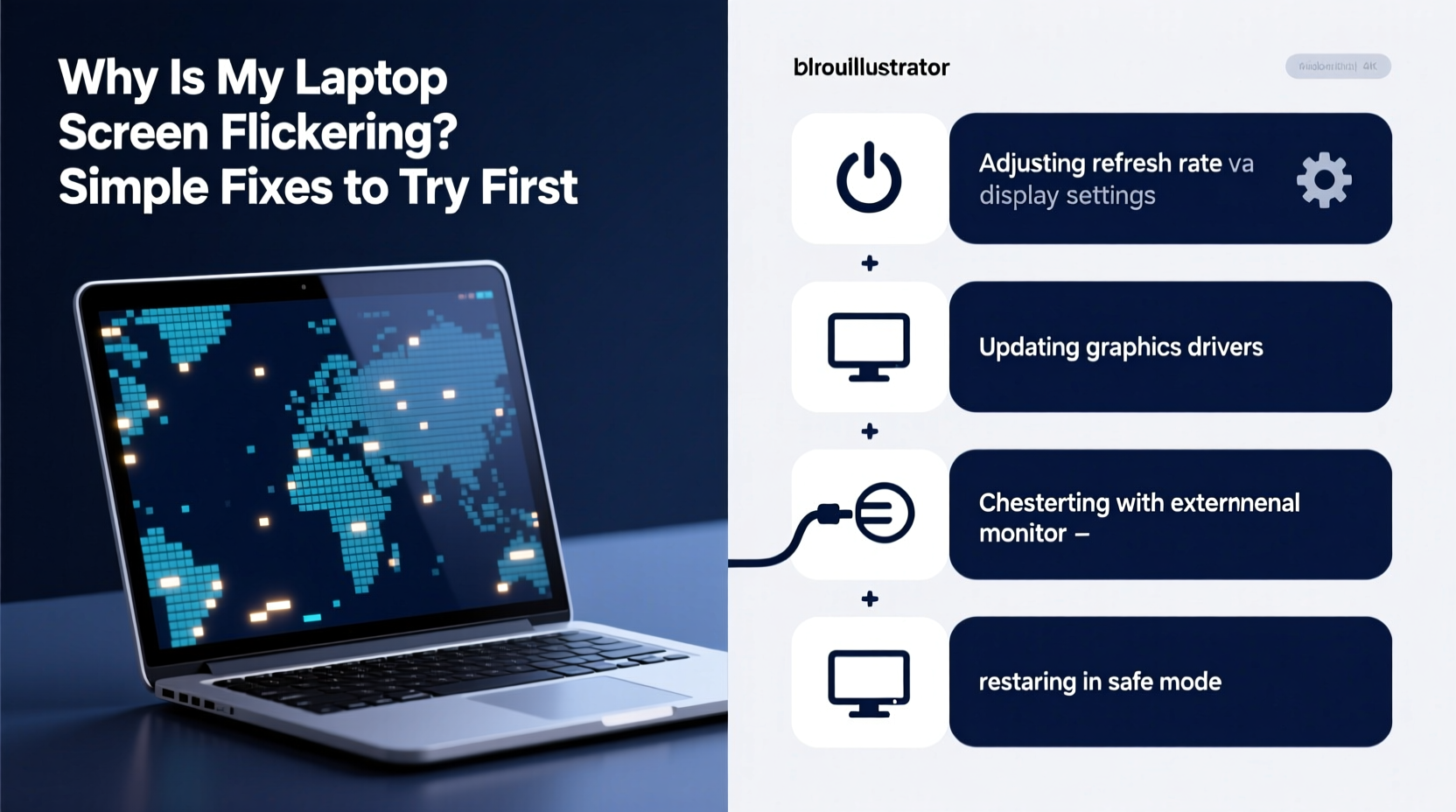
Laptop screen flickering doesn’t always point to a failing display. In fact, the issue often stems from software conflicts, driver problems, or power settings rather than physical damage. Identifying the underlying cause helps determine whether the fix is something you can handle at home or if it’s time to consult a technician.
- Outdated or corrupt graphics drivers: One of the leading causes. Drivers act as a bridge between your operating system and GPU.
- Incompatible or malfunctioning apps: Certain programs, especially those with high graphical demands, can conflict with display output.
- Power-saving settings: Aggressive sleep or dimming features may trigger flickering, particularly on battery.
- Loose or damaged display cable: Internal ribbon cables connecting the screen to the motherboard can become dislodged over time.
- Faulty backlight or inverter (older models): Especially in older laptops with CCFL-backlit screens.
- Windows updates or bugs: Some OS updates introduce display-related glitches.
- Hardware acceleration issues: When apps offload graphics processing to the GPU, errors can manifest as flickering.
Step-by-Step Fixes to Try First
Before opening your laptop or contacting support, try these non-invasive troubleshooting steps. Most users find resolution within the first few attempts.
- Restart your laptop. A temporary software glitch might be causing the flicker. A reboot clears memory and resets display processes.
- Check for external interference. Move away from strong electromagnetic sources like microwaves, routers, or unshielded power cables.
- Unplug all peripherals. Disconnect external monitors, USB devices, docks, or SD cards. Reconnect one by one to isolate the culprit.
- Boot into Safe Mode. This loads Windows with minimal drivers. If the screen stops flickering in Safe Mode, the issue is likely software-related.
- Update your operating system. Pending updates may contain critical display fixes. Go to Settings > Update & Security > Windows Update.
Update or Roll Back Graphics Drivers
Graphics drivers are frequently responsible for screen flickering. An outdated version may lack compatibility with current applications, while a buggy update can destabilize display output.
To update your graphics driver:
- Press Win + X and select Device Manager.
- Expand the Display adapters section.
- Right-click your GPU (e.g., Intel UHD Graphics, NVIDIA GeForce, AMD Radeon) and choose Update driver.
- Select Search automatically for updated driver software.
If flickering began after a recent driver update, roll it back:
- In Device Manager, right-click the graphics driver again.
- Select Properties, then go to the Driver tab.
- Click Roll Back Driver if the option is available.
Disable Hardware Acceleration
Many apps—from browsers to video editors—use hardware acceleration to improve performance. But when misconfigured, they can overload the GPU and cause flickering.
To disable hardware acceleration in Windows:
- Go to Settings > System > Display.
- Scroll down and click Graphics.
- Select Change default graphics settings.
- Toggle off Hardware-accelerated GPU scheduling (if available).
- Restart your laptop.
You should also disable hardware acceleration in individual apps:
- Google Chrome: Settings > System > “Use hardware acceleration when available” — turn off.
- Microsoft Edge: Same path as Chrome.
- Discord, Zoom, Slack: Check app settings under \"Audio & Video.\"
Adjust Power and Display Settings
Power management settings can indirectly affect screen stability. Laptops often reduce screen refresh rate or brightness on battery to save energy, sometimes triggering flicker.
Change Your Power Plan
- Open Control Panel > Hardware and Sound > Power Options.
- Select High performance or Balanced.
- Click Change plan settings next to your selected plan.
- Ensure the display turns off only after a reasonable time (e.g., 10–15 minutes).
- Click Change advanced power settings.
- Expand Display > Display brightness and set both 'On battery' and 'Plugged in' to a stable value.
Modify Refresh Rate
An incorrect refresh rate can cause visible flickering, especially noticeable in low-light environments.
- Right-click desktop > Display settings.
- Scroll down and click Advanced display settings.
- Click Display adapter properties for your built-in display.
- Go to the Monitor tab.
- Under Monitor settings, check the Screen refresh rate. Common options are 60 Hz, 120 Hz, or 144 Hz.
- Select the highest stable rate supported (usually 60 Hz for standard displays).
- Click OK and restart.
“Over 60% of reported screen flickering cases we see are resolved by adjusting driver settings or disabling hardware acceleration.” — Rajiv Mehta, Senior Support Engineer at TechCare Solutions
Troubleshooting Table: Do’s and Don’ts
| Do’s | Don’ts |
|---|---|
| Restart your laptop regularly to clear temporary glitches. | Ignore flickering that occurs only on battery—power settings may be the cause. |
| Keep graphics drivers updated through official sources (Intel, NVIDIA, AMD). | Download third-party driver updaters—they often install incompatible versions. |
| Test the screen in Safe Mode to rule out software conflicts. | Immediately disassemble the laptop unless you’re experienced. |
| Disable hardware acceleration in problematic apps. | Assume the screen is broken without checking software first. |
| Check for BIOS updates from your laptop manufacturer. | Leave known malware-infected systems running—malware can hijack display processes. |
Real-World Example: Fixing a Flickering Dell Inspiron
Sarah, a freelance writer using a three-year-old Dell Inspiron 15, began experiencing intermittent screen flickering during long writing sessions. Initially, she assumed her laptop was failing. She tried restarting multiple times, but the flicker returned within minutes.
She followed basic diagnostics: checked for updates (none pending), disconnected her external mouse and SSD, and noticed no change. Then, she launched Chrome to search for solutions—and realized the flickering intensified when YouTube videos played.
Following online advice, she disabled hardware acceleration in Chrome. The flickering stopped instantly. To confirm, she re-enabled it—flickering returned. She kept the setting off and later updated her Intel UHD Graphics driver through Dell’s support site. Since then, her screen has remained stable across all applications.
This case highlights how a single app feature, combined with an outdated driver, can create persistent display issues—even on otherwise healthy hardware.
When to Suspect Hardware Issues
If software fixes don’t resolve the flickering, hardware may be at fault. These signs suggest a physical problem:
- Flickering persists in BIOS or boot screen (before OS loads).
- Screen flashes only when you move the laptop lid.
- Visible lines, discoloration, or black spots accompany flickering.
- Flickering occurs on an external monitor connected to your laptop.
In such cases, possible hardware culprits include:
- Loose display cable: The flex cable connecting the screen to the motherboard can degrade or detach due to repeated opening/closing.
- Damaged hinge or LCD panel: Physical stress can crack internal layers or backlight components.
- Failed GPU: Rare, but possible—especially in older or overheated systems.
If you suspect hardware failure, avoid DIY repairs unless you have experience. Opening modern laptops risks voiding warranties and damaging fragile components. Instead, contact the manufacturer or a certified repair service.
Quick Checklist: What to Do When Your Screen Flickers
Checklist:
- Restart the laptop.
- Disconnect all external devices.
- Boot into Safe Mode—does flickering stop?
- Update or roll back graphics drivers.
- Disable hardware acceleration in OS and apps.
- Adjust power plan and screen refresh rate.
- Scan for malware using Windows Defender.
- Check for BIOS/firmware updates from the manufacturer.
- Test with an external monitor.
- Contact support if issues persist.
Frequently Asked Questions
Can a virus cause my laptop screen to flicker?
While rare, certain types of malware can interfere with system processes, including display drivers. If your laptop shows other symptoms—like slow performance, pop-ups, or unknown programs running—run a full system scan using Windows Security or a trusted antivirus tool.
Does screen flickering damage my eyes?
Yes, prolonged exposure to flickering screens can lead to eye strain, headaches, and fatigue. The effect is similar to staring at a fluorescent light with a failing ballast. If flickering can’t be fixed immediately, reduce screen brightness, take frequent breaks, and use blue light filters to minimize discomfort.
Will updating Windows fix screen flickering?
Sometimes. Microsoft regularly releases patches for known display issues. However, updates can also introduce new bugs. If flickering started after an update, consider using System Restore to revert to a previous state or uninstall the specific update via Settings > Update & Security > View update history > Uninstall updates.
Final Thoughts: Act Early, Save Time and Money
Screen flickering is rarely a minor quirk—it’s a warning sign that should be addressed promptly. The majority of cases stem from preventable or correctable software issues, not hardware failure. By methodically testing drivers, settings, and application behavior, most users can restore stable display output within an hour.
The key is to act early. Delaying diagnosis can lead to worsening symptoms, data loss during crashes, or unnecessary replacement costs. Even if you’re not tech-savvy, the steps outlined here are designed to be safe and reversible. Start with the simplest fixes—restart, update drivers, disable acceleration—and work your way through the checklist.




 浙公网安备
33010002000092号
浙公网安备
33010002000092号 浙B2-20120091-4
Comments
No comments yet. Why don't you start the discussion?