
Laptop screen flickering can be more than just a minor annoyance—it disrupts productivity, strains the eyes, and may signal deeper hardware or software issues. What makes this problem especially puzzling is when it occurs exclusively when running on battery power. If your laptop display remains stable when plugged in but begins to flicker as soon as you unplug it, you're not alone. Thousands of users report similar behavior across various brands, including Dell, HP, Lenovo, and Apple.
This issue typically points to power management settings, graphics driver conflicts, or voltage inconsistencies between AC and DC power sources. Unlike random flickering under all conditions, the battery-specific nature of this glitch offers a valuable clue: the root cause is likely tied to how the system adjusts performance and display output when operating on limited power.
Understanding the underlying mechanisms helps demystify the problem and leads to targeted solutions. Let’s explore the technical reasons behind this behavior, examine real-world scenarios, and walk through actionable fixes that restore stability—without sacrificing battery life.
How Power Modes Affect Display Performance
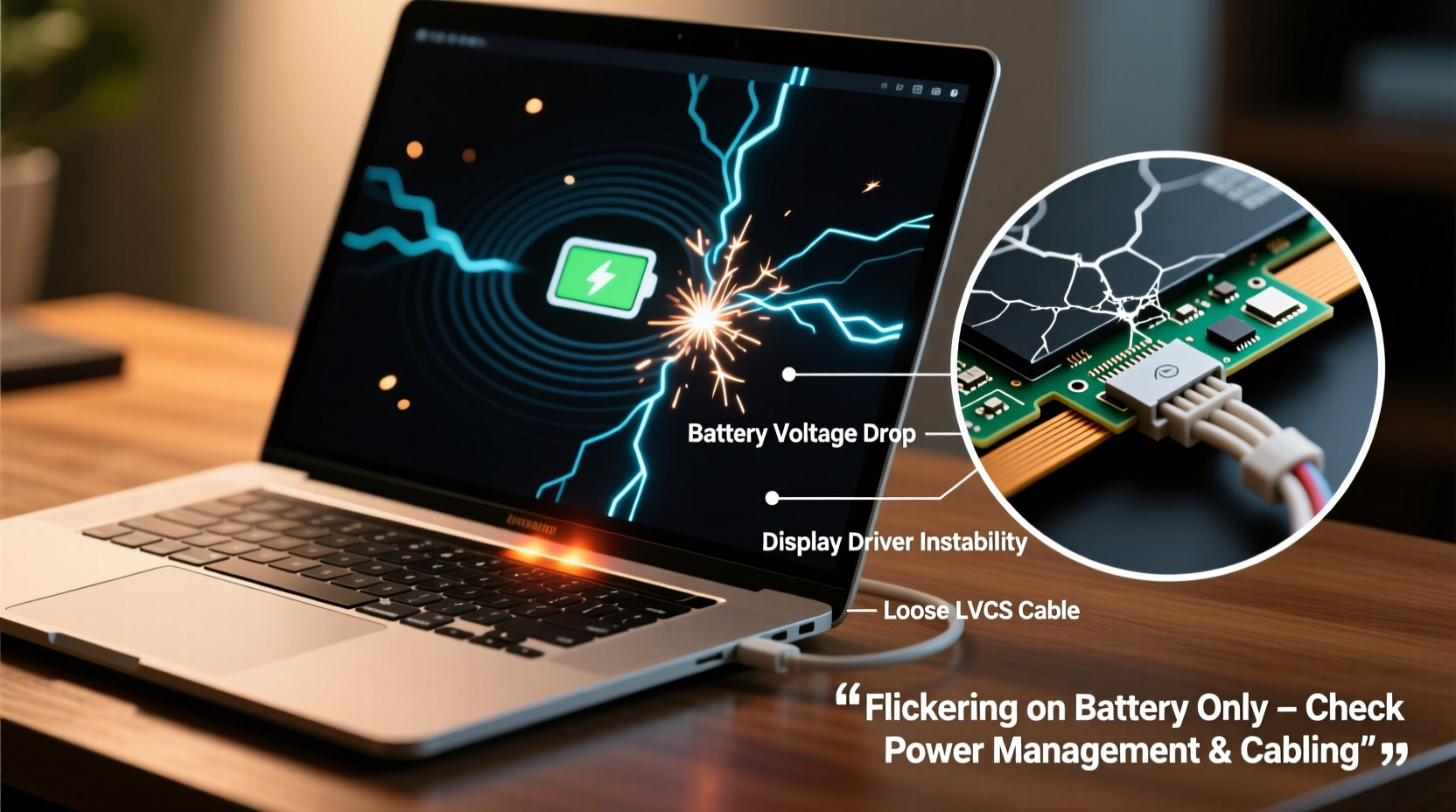
Modern laptops use dynamic power management systems to extend battery life. When running on battery, the operating system activates power-saving profiles that throttle CPU performance, reduce screen brightness, and adjust graphics processing. These changes are designed to conserve energy, but they can inadvertently destabilize display output.
The GPU (Graphics Processing Unit), whether integrated or discrete, receives different power delivery signals depending on the source. On AC power, the system draws consistent voltage, allowing full performance. On battery, however, voltage fluctuates slightly, prompting the OS to switch to a lower-performance graphics mode. This transition can trigger screen flickering if drivers or firmware aren't properly synchronized with the power state change.
Windows, for example, uses three primary power plans: Balanced, Power Saver, and High Performance. The default \"Balanced\" plan often reduces display refresh rates or enables adaptive brightness on battery, which some display panels interpret erratically. macOS has similar energy-saving behaviors, particularly on MacBook models with variable refresh rate displays.
Common Causes of Battery-Only Screen Flickering
While flickering can stem from multiple sources, the fact that it occurs only on battery narrows down the possibilities. Below are the most frequent culprits:
- Outdated or corrupted graphics drivers: Drivers may fail to handle power transitions smoothly, especially after OS updates.
- Incompatible power management settings: Aggressive battery-saving options can force the display into unstable modes.
- Faulty backlight or inverter (older LCDs): Voltage drops on battery may cause inconsistent backlight operation.
- GPU throttling conflicts: Integrated GPUs like Intel UHD or Iris Xe may downclock too aggressively, leading to visual artifacts.
- Firmware or BIOS bugs: Some laptops have known firmware issues that mismanage power states during battery operation.
It's rare for physical screen damage to cause flickering only on battery, as hardware faults usually persist regardless of power source. This further supports a software or power regulation origin.
Real-World Example: The Case of the Dell XPS 13
A software developer in Austin reported that her Dell XPS 13 began flickering shortly after upgrading to Windows 11. The issue appeared only when unplugged, lasting several seconds before stabilizing. Plugging in immediately stopped the flickering. Initial diagnostics ruled out hardware failure.
After testing various configurations, she discovered that Dell's Power Manager was forcing an “Ultra Performance” mode on AC power while switching to “Optimized” on battery, which altered GPU behavior. Disabling automatic power mode switching resolved the flickering. This case highlights how manufacturer-specific power tools can interfere with display stability under battery operation.
“Many modern laptops rely on proprietary power management layers that don’t always communicate cleanly with the OS graphics stack.” — Dr. Rajiv Mehta, Senior Systems Engineer at TechInsight Labs
Step-by-Step Troubleshooting Guide
Follow this systematic approach to diagnose and resolve battery-only screen flickering. Start with the simplest fixes and progress to advanced solutions.
- Test with external power disconnected and brightness fixed: Set brightness manually (not auto-brightness) and observe if flickering persists. Auto-brightness sensors can cause rapid adjustments perceived as flicker.
- Switch to High Performance power plan: In Windows, go to Control Panel > Hardware and Sound > Power Options and select \"High Performance.\" Monitor for changes.
- Update graphics drivers: Visit your laptop manufacturer’s support site or use Device Manager to update Intel, AMD, or NVIDIA drivers.
- Disable adaptive brightness: In Windows Settings > System > Display, turn off \"Change brightness automatically when lighting changes.\"
- Check for BIOS/UEFI updates: Manufacturers often release firmware patches addressing power delivery and display bugs.
- Adjust GPU power settings in device manager: Expand \"Display adapters,\" right-click your GPU, choose Properties, go to the Power Management tab, and disable any power-saving options.
- Boot into Safe Mode on battery: If flickering stops in Safe Mode, a third-party application or startup service is likely interfering.
If none of these steps resolve the issue, consider performing a clean boot to isolate background processes that might affect display output during power transitions.
Do’s and Don’ts: Managing Power and Display Settings
| Do | Don’t |
|---|---|
| Keep graphics drivers updated via manufacturer website | Rely solely on Windows Update for GPU drivers |
| Use manufacturer-provided power utilities cautiously | Enable aggressive battery saver modes without testing display impact |
| Manually set screen brightness to a stable level | Leave adaptive brightness enabled if flickering occurs |
| Regularly check for BIOS updates every 3–6 months | Ignore firmware update notifications from OEMs |
| Monitor event logs for display or power-related errors | Assume the issue is hardware-related without software diagnosis |
Advanced Fixes: Registry and Firmware Adjustments
For persistent cases, deeper system modifications may be necessary. Proceed with caution and back up your data before attempting these steps.
Modify PCI Express Power Settings: Some laptops incorrectly apply link-state power management (ASPM) to the GPU, causing communication hiccups during battery mode. To disable:
- Open Device Manager.
- Expand \"System devices.\"
- Find entries like \"PCI Express Root Complex\" or \"PCI Express Native Control.\"
- Right-click each and go to Properties > Power Management.
- Uncheck \"Allow the computer to turn off this device to save power.\"
Registry Tweak for Intel Graphics (Advanced Users): Intel GPUs allow registry-level control over power behavior. Navigate to:
HKEY_LOCAL_MACHINE\\SOFTWARE\\Intel\\Graphics\\UMD\\Debug
Create a new DWORD value named ForcePerfMode and set it to 1 to prevent dynamic performance scaling. Note: This increases power consumption and should only be used for testing.
Reset EC (Embedded Controller): The EC manages low-level power distribution. Resetting it can clear corrupted power state memory:
- Shut down the laptop completely.
- Unplug the charger and remove the battery (if removable).
- Hold the power button for 60 seconds.
- Reinsert the battery, plug in, and power on.
This process varies by model. Consult your user manual for specific instructions.
Frequently Asked Questions
Can a failing battery cause screen flickering?
Yes, but indirectly. A degraded battery may deliver inconsistent voltage, prompting the system to oscillate between power states. This instability can affect the GPU and display controller. If your battery health is below 70%, consider replacement—even if the laptop still runs on battery.
Why does my laptop flicker only when I move the screen?
If flickering correlates with hinge movement, the issue is likely a damaged display cable. However, if it happens only on battery and regardless of screen angle, the cause is almost certainly software or power management related, not physical.
Will reinstalling Windows fix battery-only flickering?
Possibly. A clean OS install eliminates corrupted drivers, conflicting applications, and misconfigured power policies. Before taking this step, exhaust driver and firmware updates, as reinstallation is time-consuming and doesn’t guarantee resolution if the root cause is firmware-level.
Prevention Checklist
- ✅ Regularly update graphics drivers from the manufacturer’s official site
- ✅ Disable adaptive brightness if not essential
- ✅ Monitor battery health and replace when capacity drops significantly
- ✅ Avoid third-party power optimization apps that override system defaults
- ✅ Perform BIOS updates when available, especially those labeled “display” or “power” fixes
- ✅ Test display behavior monthly in both AC and battery modes
Conclusion: Take Control of Your Laptop’s Stability
Battery-only screen flickering is a frustrating but solvable issue. It stems from the complex interplay between power delivery, graphics processing, and operating system intelligence—all working to balance performance and efficiency. While convenient, these automated systems sometimes clash, resulting in visible glitches like flickering.
The key is methodical troubleshooting: start with power plans and drivers, then move to firmware and advanced settings. Most cases resolve without hardware repair, saving time and cost. By understanding how your laptop manages resources on battery, you gain control over its behavior and ensure a smoother, more reliable experience.




 浙公网安备
33010002000092号
浙公网安备
33010002000092号 浙B2-20120091-4
Comments
No comments yet. Why don't you start the discussion?