
Laptop screen flickering that occurs exclusively when running on battery—yet disappears when plugged in—is a surprisingly common but often misunderstood issue. It’s not just an annoyance; it can disrupt productivity, strain your eyes, and raise concerns about hardware failure. The good news is that in most cases, this behavior stems from software settings, power management features, or minor driver conflicts—not irreversible damage. Understanding why this happens allows you to diagnose and resolve it efficiently without unnecessary repairs or replacements.
The root cause usually lies in how your laptop manages performance and display output under different power conditions. When on battery, systems prioritize energy conservation, which can lead to changes in refresh rate, backlight modulation, or GPU behavior—all of which may trigger visible flickering. Identifying whether the issue is software-based or hardware-related is the first step toward a lasting fix.
Understanding Power Profiles and Display Behavior
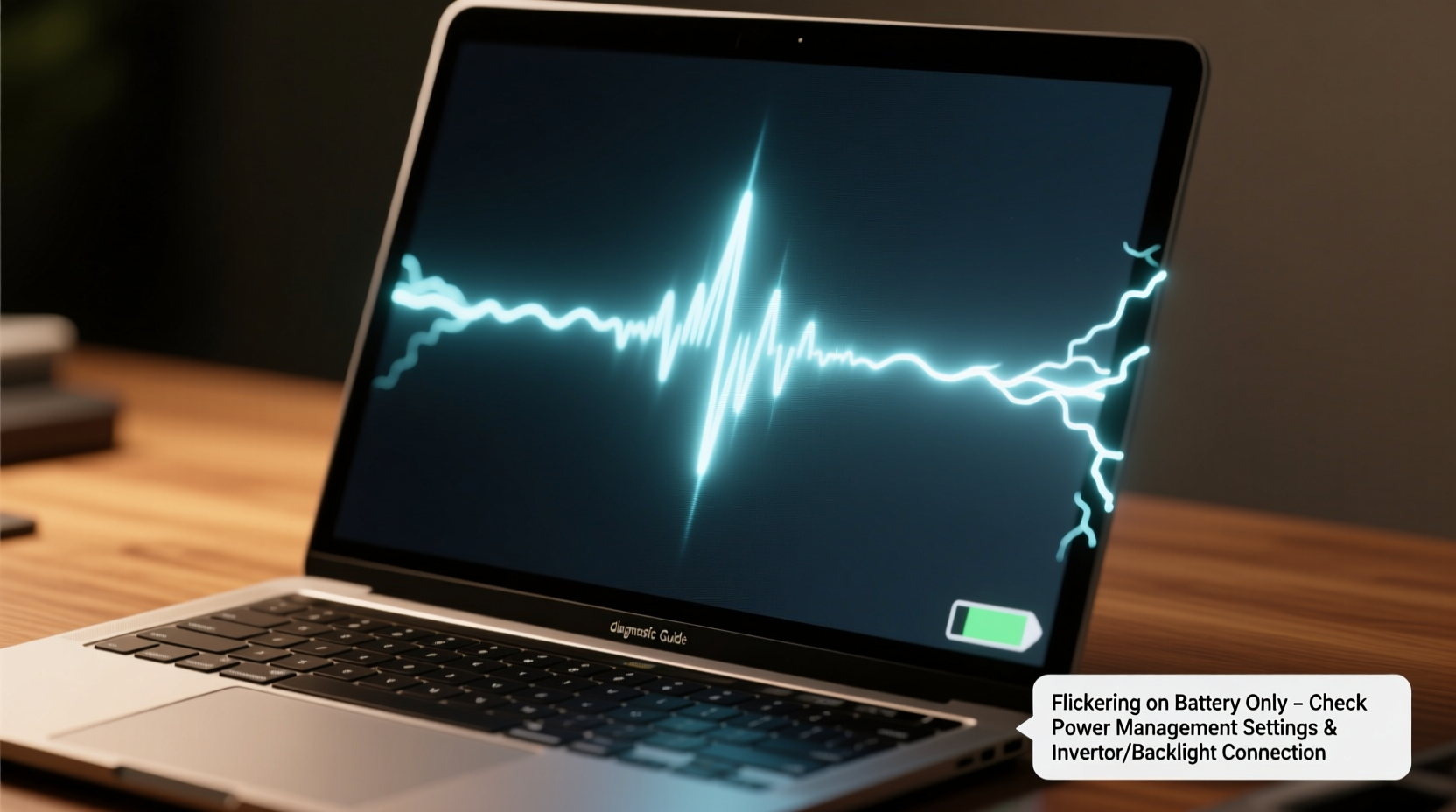
Modern laptops use dynamic power profiles to extend battery life. These profiles adjust CPU performance, screen brightness, graphics processing, and even display refresh rates depending on whether the device is plugged into AC power or running on battery. Windows and macOS both include built-in power plans (like “Balanced” or “Power Saver”) that automatically shift system behavior when switching between power sources.
One key factor behind screen flickering on battery is pulse-width modulation (PWM) used for backlight dimming. Some screens reduce brightness by rapidly turning the backlight on and off. At lower brightness levels—commonly enforced during battery mode—this flicker becomes perceptible to sensitive users. While many people don’t notice it, others experience eye strain or outright visible flickering.
Additionally, integrated and discrete GPUs may switch dynamically based on workload and power source. On battery, the system might default to power-saving graphics modes that interact poorly with certain drivers, leading to display instability.
Step-by-Step Diagnosis and Fixes
Resolving screen flickering requires a methodical approach. Start with software-level fixes before considering hardware implications. Follow these steps in order:
- Check brightness settings: Ensure brightness isn't set too low on battery mode. Low brightness combined with PWM can create visible flicker.
- Update display drivers: Outdated or corrupted GPU drivers are a leading cause. Visit your laptop manufacturer’s support site or use Device Manager (Windows) to install the latest graphics driver.
- Adjust power plan settings: Customize your battery power plan to prevent aggressive display throttling.
- Disable adaptive brightness: This feature can cause erratic brightness changes and flickering. Turn it off in Power Options or System Preferences.
- Test in Safe Mode: Boot into Safe Mode to determine if third-party software is interfering with display output.
- Check for OS updates: Install the latest operating system patches—many contain critical display and power management fixes.
- Monitor temperature and usage: Overheating or high GPU load can exacerbate flickering. Use tools like Task Manager or HWMonitor to check system health.
If the flickering stops when the laptop is plugged in, the problem is almost certainly tied to how power-saving features affect display components—not a failing screen or cable.
Common Causes and Their Solutions
Below is a breakdown of the most frequent reasons for battery-only screen flickering, along with targeted remedies:
| Cause | Symptoms | Solution |
|---|---|---|
| PWM-based backlight dimming | Flickering more noticeable at low brightness, especially in dim environments | Increase brightness on battery; consider using apps like Iris Mini to reduce flicker |
| Outdated GPU drivers | Flickering coincides with recent updates or battery switching | Update Intel, AMD, or NVIDIA drivers via manufacturer website |
| Aggressive power-saving settings | Screen flickers only in \"Battery Saver\" mode | Customize power plan to maintain higher minimum processor state and disable display throttling |
| GPU switching issues | Flickering during video playback or light gaming on battery | Set preferred graphics processor in GPU control panel (e.g., NVIDIA Control Panel) |
| Faulty power profile sync | Inconsistent behavior when plugging/unplugging charger | Reset power plans to default or recreate custom plan from scratch |
It's important to note that while hardware faults like loose display cables or failing inverters can cause flickering, they typically persist regardless of power source. Battery-specific flickering strongly suggests a software or configuration issue.
Mini Case Study: Resolving Flickering on a Dell XPS 13
A freelance graphic designer reported that her Dell XPS 13 screen began flickering whenever she unplugged it from power. The issue didn’t occur during meetings when the laptop was charging, but became distracting during travel. After ruling out physical damage, she followed diagnostic steps:
- First, she updated her Intel UHD Graphics driver through Dell SupportAssist.
- Next, she disabled adaptive brightness in Windows Settings.
- She then customized her battery power plan to keep the minimum processor state at 50% (previously set to 5%).
The flickering stopped immediately. Further investigation revealed that the default power plan was reducing CPU and GPU performance too aggressively, causing timing mismatches in display rendering. By adjusting just one setting, she restored stable screen output on battery.
Expert Insight: What Engineers Say About Power-Linked Flickering
Display engineers emphasize that modern laptops balance performance, heat, and battery life through complex algorithms. Small inconsistencies in how these systems communicate can manifest as visual glitches.
“Many ‘hardware’ issues reported by users are actually firmware or driver-level conflicts triggered by power state transitions. A clean driver reinstall often resolves what appears to be a failing screen.” — Raj Mehta, Senior Hardware Engineer at Notebook Insights
Another expert notes that OEMs sometimes ship laptops with suboptimal default power configurations.
“OEM power profiles are designed for average users, not professionals who need consistent display performance. Customizing these settings is often necessary for reliability.” — Lena Torres, Systems Optimization Specialist
Troubleshooting Checklist
Use this checklist to systematically eliminate potential causes of battery-only screen flickering:
- ✅ Increase screen brightness when on battery
- ✅ Disable adaptive brightness in system settings
- ✅ Update graphics drivers from manufacturer’s website
- ✅ Compare power plan settings between 'Plugged In' and 'On Battery'
- ✅ Set minimum processor state to 20–50% in battery mode
- ✅ Prevent GPU from switching to low-power mode unnecessarily
- ✅ Test with external monitor to isolate LCD panel issues
- ✅ Perform a clean boot to rule out background software interference
- ✅ Reset BIOS/UEFI settings to default if available
- ✅ Contact manufacturer if flickering persists across all configurations
Frequently Asked Questions
Can a bad battery cause screen flickering?
Not directly. A degraded battery won’t cause flickering unless it leads to sudden power drops or unstable voltage delivery. However, such events usually result in shutdowns, not sustained flickering. If your battery holds charge and switches power states smoothly, it’s unlikely to be the cause.
Does flickering on battery mean my screen is failing?
Typically no. Failing screens or damaged display cables cause flickering regardless of power source. If the screen is perfectly stable when plugged in, the issue is more likely related to power management settings, drivers, or GPU behavior than physical hardware failure.
Is screen flickering harmful to my eyes?
Yes, prolonged exposure to flickering displays—even subtle ones—can cause eye strain, headaches, and fatigue. The human eye may not consciously detect rapid fluctuations, but the brain still processes them. If you’re sensitive to flicker, consider adjusting brightness, enabling flicker-free modes (if supported), or using blue light filters.
When to Seek Hardware Repair
If you’ve exhausted all software troubleshooting steps and the flickering continues only on battery, consider deeper diagnostics. While rare, some hardware-related scenarios can mimic power-dependent flickering:
- Loose LVDS or eDP cable: The connection between the motherboard and display can become partially dislodged. Movement or power shifts might temporarily affect signal stability.
- Failing display inverter (on older models): Though mostly obsolete in modern LED-backlit screens, some legacy laptops still use inverters that behave erratically under low power.
- Power regulation circuit issues: Faulty voltage regulators on the motherboard might deliver inconsistent power to the display subsystem when not on AC.
In such cases, professional repair or replacement is necessary. Before proceeding, ensure the issue isn’t reproducible in another operating system (e.g., via a Linux live USB). If the flickering disappears there, the root cause remains software-related.
Conclusion: Take Control of Your Laptop’s Performance
Screen flickering that appears only on battery power is frustrating but rarely catastrophic. More often than not, it’s a solvable issue rooted in power management settings, outdated drivers, or overly aggressive energy-saving features. By understanding how your laptop adjusts its behavior between power sources, you can fine-tune settings for smoother, more reliable performance.
Start with simple adjustments—brightness, adaptive features, and driver updates—then move to deeper power plan customization. Most users resolve the issue within an hour using the steps outlined here. Don’t rush to replace hardware or assume the worst. With careful diagnosis, you’ll restore a stable display and extend the usable life of your device.




 浙公网安备
33010002000092号
浙公网安备
33010002000092号 浙B2-20120091-4
Comments
No comments yet. Why don't you start the discussion?