
If your MacBook trackpad has stopped clicking—either physically or through tap-to-click—the experience can feel jarring. The trackpad is central to navigation, and when it fails to respond, productivity grinds to a halt. Unlike older MacBooks with mechanical buttons, modern models use a solid-state Force Touch trackpad that simulates a click using haptic feedback. This shift in design means issues aren’t always mechanical; they can stem from software misconfigurations, system glitches, or hardware degradation.
Before assuming the worst, it's important to methodically rule out common causes. Many users find their issue resolved with simple adjustments or resets. This guide walks you through diagnosing the root cause and applying proven solutions, whether you're dealing with no response, inconsistent feedback, or phantom clicks.
Understanding the MacBook Trackpad Mechanism
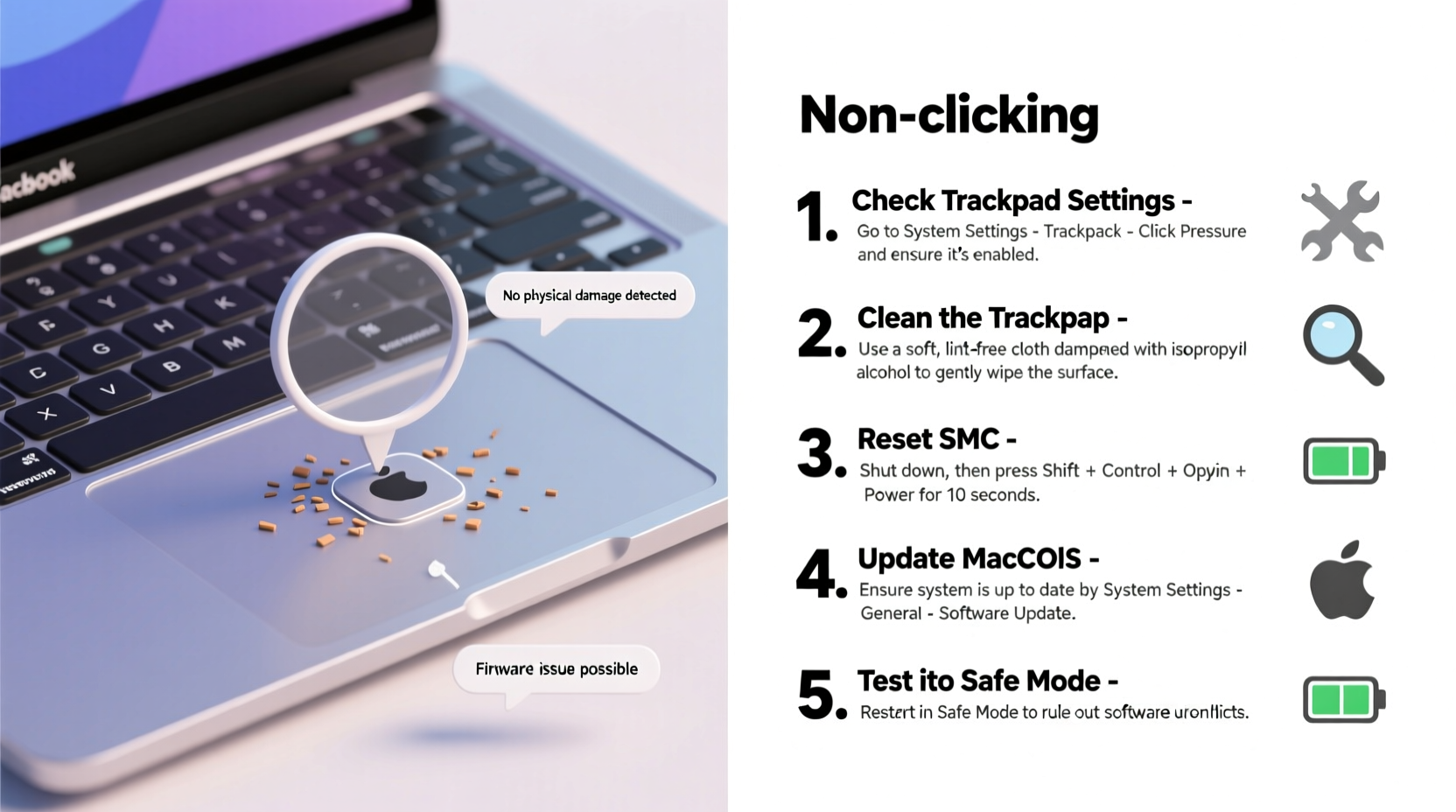
Apple transitioned from traditional moving parts to a unified Force Touch trackpad starting with the 2015 MacBook Pro models. This design spans across current MacBook Airs and Pros. Instead of a physical button that depresses, the entire surface acts as a single unit, relying on sensors and a Taptic Engine to simulate the sensation of a click.
The Taptic Engine generates precise vibrations based on pressure input, creating the illusion of mechanical feedback. This system allows for variable responsiveness, enabling features like secondary clicks (right-click), force clicks for quick lookups, and haptic customization.
Because there’s no actual movement, what feels like a \"click\" is a combination of sensor input and vibration. If any part of this chain fails—pressure sensors, firmware, Taptic Engine, or software settings—the result is a non-responsive or erratic trackpad.
“Modern MacBook trackpads are marvels of engineering, but their complexity means both software and hardware must align perfectly.” — Dr. Lena Torres, Senior Hardware Analyst at TechInsight Labs
Step-by-Step Troubleshooting Guide
When your trackpad stops clicking, follow this structured approach to isolate and fix the issue. Start with the simplest solutions and progress toward more advanced interventions.
1. Check Trackpad Settings
Many “broken” trackpads are simply misconfigured. Navigate to:
- System Settings > Trackpad
- Ensure Click is enabled under the Point & Click tab.
- Adjust the Click Speed slider to Medium or Firm to ensure adequate sensitivity.
- Verify Tap to Click is toggled on if you rely on tapping.
- Test Secondary Click options (e.g., two-finger tap or bottom-right corner).
Sometimes, accidental changes during updates or user error disable these functions. Re-enabling them often restores normal behavior.
2. Restart Your MacBook
A soft reboot resolves many transient software glitches. Hold the power button, select Restart, and allow the system to fully reload. This clears temporary memory and reinitializes drivers, including those managing the Taptic Engine.
3. Reset the SMC (System Management Controller)
The SMC controls low-level hardware functions, including power delivery and peripheral communication. A corrupted SMC state can prevent the Taptic Engine from receiving signals.
For MacBooks with Apple Silicon (M1/M2/M3):
- Shut down your Mac.
- Wait 15 seconds.
- Press and hold the power button for 10 seconds.
- Release, then press again to turn on.
For Intel-based MacBooks:
- Shut down the Mac.
- Press Shift-Control-Option on the left side of the keyboard + Power Button simultaneously.
- Hold for 10 seconds, then release all keys.
- Turn the Mac back on.
After resetting, test the trackpad immediately. You may notice restored haptic feedback.
4. Reset NVRAM/PRAM (Intel Macs Only)
NVRAM stores settings related to sound, display, and input devices. Corrupted data here can affect trackpad calibration.
- Shut down your Mac.
- Turn it on and immediately press Option + Command + P + R.
- Hold for about 20 seconds (or until you hear a second startup chime on older models).
- Release and let the Mac boot normally.
This step is less critical on Apple Silicon Macs, which handle settings differently.
5. Boot into Safe Mode
Safe Mode loads only essential kernel extensions and performs a disk check. It helps determine if third-party software is interfering.
- Shut down your Mac.
- Press the power button and wait for the startup options screen.
- Select your drive, then press and hold Shift before clicking Continue.
- Log in—note that login may take longer than usual.
Once in Safe Mode, test the trackpad. If clicking works, the issue likely stems from a login item, background process, or corrupted preference file.
Common Software Conflicts and Fixes
Third-party applications—especially those modifying input behavior—can override macOS defaults. Examples include:
- Mouse/trackpad enhancers (e.g., BetterTouchTool, Logitech Options+)
- Accessibility tools
- Keyboard remapping utilities
To diagnose:
- Boot into Safe Mode (as above) and test the trackpad.
- If it works, restart normally and open System Settings > General > Login Items.
- Disable non-essential apps one by one, restarting after each.
- Monitor for improvements after each change.
You can also temporarily rename the trackpad preference file to force macOS to regenerate it:
/Library/Preferences/com.apple.driver.AppleBluetoothMultitouch.trackpad.plist
Renaming it to .bak and restarting will prompt the system to create a fresh version. Use Terminal with caution:
sudo mv /Library/Preferences/com.apple.driver.AppleBluetoothMultitouch.trackpad.plist /Library/Preferences/com.apple.driver.AppleBluetoothMultitouch.trackpad.bak
Then restart. The system will rebuild defaults.
Hardware Inspection and Preventive Measures
If software troubleshooting fails, consider physical factors. Even without moving parts, debris, liquid exposure, or impact damage can impair function.
Check for Physical Obstructions
Dust, lint, or pocket debris can accumulate along the trackpad edges, especially on clamshell models. While the surface is sealed, pressure distribution might be affected if the chassis is slightly warped.
Clean the area around the trackpad with a dry microfiber cloth. Avoid liquids or compressed air, which could force contaminants deeper.
Assess for Impact or Liquid Damage
If your MacBook was dropped or exposed to moisture, internal components—including the trackpad cable or logic board connection—may be compromised. Look for:
- Visible dents near the wrist rest
- Discoloration under the palm rest
- Inconsistent behavior across multiple reboots
Liquid spills are particularly damaging. Even small amounts can corrode connectors over time, leading to intermittent failures.
Troubleshooting Checklist
Follow this checklist to systematically address the issue:
- ✅ Verify trackpad settings are enabled and properly configured
- ✅ Restart the MacBook to clear temporary glitches
- ✅ Reset SMC (all Mac models)
- ✅ Reset NVRAM (Intel Macs only)
- ✅ Boot into Safe Mode to test for software conflicts
- ✅ Disable third-party input utilities
- ✅ Regenerate trackpad preference files if necessary
- ✅ Inspect for physical damage or debris
- ✅ Run Apple Diagnostics (hold D during startup on Intel, or use Apple Support app on Apple Silicon)
- ✅ Contact Apple Support or visit an Apple Store if all else fails
Real-World Example: Recovering from a Frozen Trackpad
Sophie, a freelance writer using a 2021 MacBook Air, noticed her trackpad stopped responding to clicks after installing a new note-taking app. She could move the cursor and tap to select, but no amount of pressing triggered a click.
She first checked settings—everything appeared correct. A restart didn’t help. Then she booted into Safe Mode and found the trackpad worked perfectly. That pointed to a software conflict.
She reviewed her login items and disabled the note-taking app’s helper tool, which claimed to enhance gesture navigation. After disabling it, the trackpad resumed normal operation. She uninstalled the app entirely and reported the bug to the developer.
Sophie’s case illustrates how third-party tools can silently interfere with core macOS functions—even when they appear unrelated.
When to Seek Professional Repair
If all troubleshooting steps fail, the issue may be hardware-related. Common failure points include:
- Detached or damaged trackpad ribbon cable
- Failed Taptic Engine
- Logic board malfunction affecting I/O signals
- Corrosion from prior liquid exposure
Apple Stores and authorized service providers can run diagnostic tests using proprietary tools. They can also replace the top case assembly (which includes the trackpad) if needed.
Repairs under AppleCare+ are typically covered for hardware defects. Out-of-warranty repairs vary in cost:
| Model | Estimated Repair Cost (USD) | Notes |
|---|---|---|
| MacBook Air (M1/M2/M3) | $129–$299 | Lower cost due to modular design |
| MacBook Pro 13\" | $199–$399 | Varies by year and damage extent |
| MacBook Pro 14\"/16\" | $299–$599 | Higher labor complexity |
Note: Attempting self-repairs voids warranty and risks further damage. Apple uses pentalobe screws and adhesive seals that require specialized tools.
Frequently Asked Questions
Can I still use my MacBook if the trackpad isn’t clicking?
Yes. Connect an external USB or Bluetooth mouse to regain full control. You can also enable Voice Control or use keyboard shortcuts (e.g., Control + Option + Space for right-click simulation).
Why does my trackpad click sometimes but not others?
Intermittent clicking often indicates a loose connection, failing Taptic Engine, or software glitch. Try resetting the SMC and testing in Safe Mode. Consistency in behavior across reboots helps determine if it’s hardware or software.
Does macOS update break trackpad functionality?
Rarely, but possible. Major updates occasionally introduce bugs affecting driver compatibility. Apple usually releases patches within weeks. If the issue started after an update, check for newer system updates or roll back using a Time Machine backup (if feasible).
Conclusion: Take Action Before It Gets Worse
A non-clicking MacBook trackpad doesn’t have to mean costly repairs or replacement. In most cases, the solution lies in overlooked settings, temporary software states, or manageable conflicts. By following a disciplined troubleshooting path—from basic checks to system resets—you can often restore full functionality without professional help.
However, don’t ignore persistent issues. Delaying diagnosis can lead to worsening symptoms, especially if liquid or impact damage is involved. Early intervention saves time, money, and stress.




 浙公网安备
33010002000092号
浙公网安备
33010002000092号 浙B2-20120091-4
Comments
No comments yet. Why don't you start the discussion?