
A jumping or erratic mouse cursor can turn a simple browsing session into a frustrating ordeal. Whether you're working on an important document, editing photos, or just trying to click a menu, an unstable pointer undermines productivity and user experience. The good news: most causes of cursor jumping are easy to diagnose and resolve—often within minutes. This guide walks through the most common culprits, from hardware glitches to driver conflicts, and provides clear, actionable fixes you can apply immediately.
Understanding the Causes of Cursor Jumping
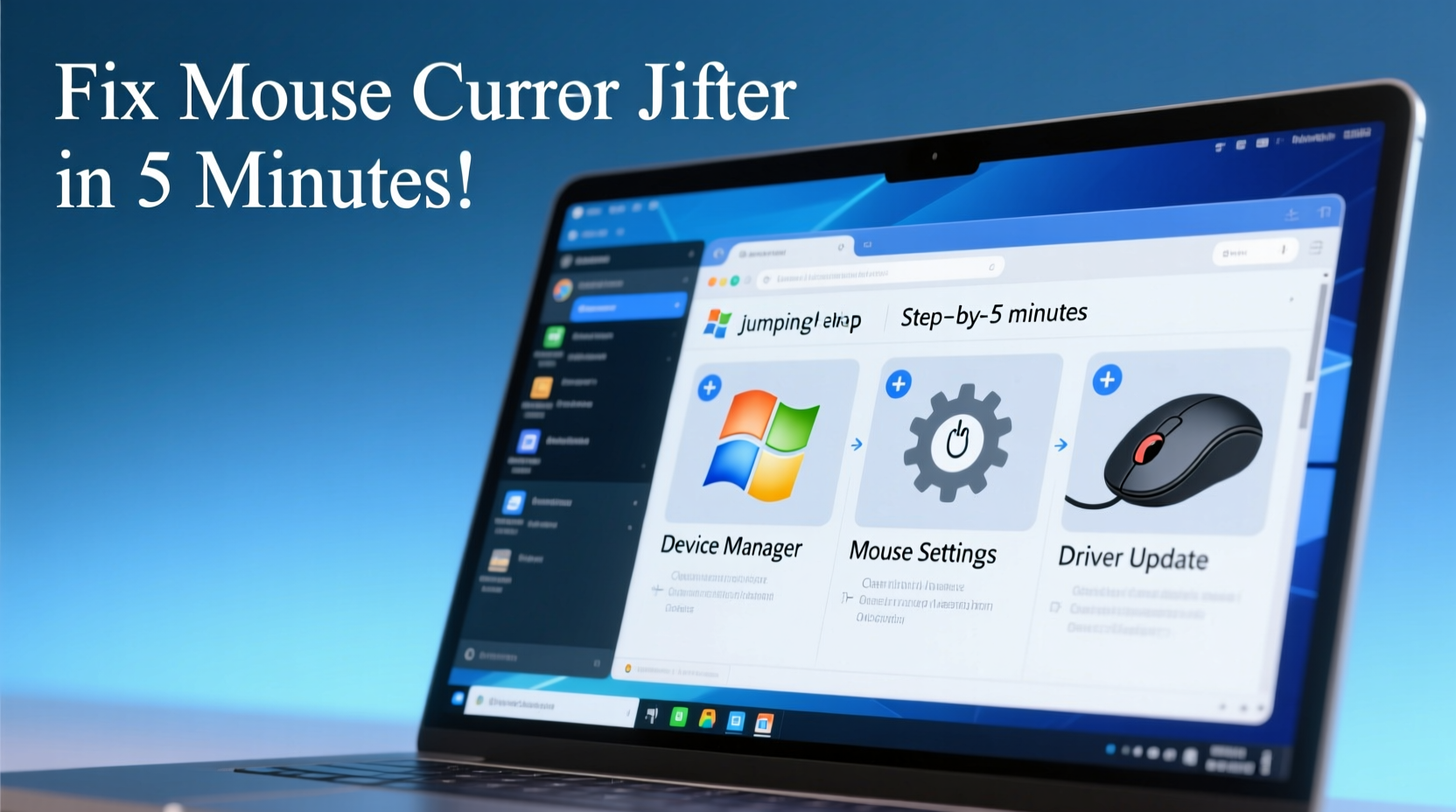
Before diving into solutions, it’s essential to understand what might be making your cursor behave unpredictably. While many assume the issue lies with the mouse itself, the root cause often involves a combination of hardware, software, and environmental factors. Common triggers include:
- Dirt or debris on optical sensors (for wired/wireless mice)
- Interference from nearby electronic devices or wireless signals
- Touchpad sensitivity set too high on laptops
- Outdated or corrupted drivers for mouse or touchpad
- Background applications interfering with input devices
- Physical damage to the mouse or USB port
By systematically ruling out these variables, you can pinpoint the source and apply the correct fix without unnecessary guesswork.
Step-by-Step Guide to Fix a Jumping Mouse Cursor
Follow this structured troubleshooting process to eliminate cursor instability efficiently. Most users resolve the problem by completing the first few steps.
- Switch Surfaces or Use a Mouse Pad
Optical and laser mice rely on consistent surface tracking. Glossy, reflective, or patterned surfaces like glass, marble, or printed desks can confuse the sensor. Try using a plain mouse pad or a sheet of white paper to test responsiveness. - Clean the Mouse Sensor
For wired or wireless mice, flip the device over and inspect the optical lens. Use a soft, dry cloth or compressed air to remove dust, hair, or smudges that may interfere with tracking accuracy. - Disconnect Other USB Devices
Some peripherals—especially those drawing high power—can create electrical interference. Unplug non-essential USB devices and observe if cursor behavior improves. - Test on Another Computer
Plug your mouse into a different machine. If the cursor still jumps, the issue is likely hardware-related. If it works normally, the problem resides in your original system’s software or settings. - Replace Batteries (Wireless Mice)
Low battery levels in wireless mice can cause signal drops and erratic movement. Install fresh batteries and re-pair the device if necessary.
Adjust Touchpad Sensitivity (Laptops)
If you're using a laptop, the built-in touchpad is often the culprit. High palm rejection settings or overly sensitive tracking can make the cursor jump when typing or resting your hand nearby.
To adjust settings on Windows:
- Navigate to Settings > Devices > Touchpad.
- Lower the cursor speed and adjust \"Sensitivity\" to \"Low\" or \"Medium\".
- Enable “Palm rejection” or “Ignore accidental touch” if available.
On macOS:
- Go to System Settings > Trackpad.
- Reduce tracking speed under the \"Point & Click\" tab.
- Ensure \"Tap to click\" is disabled if unintended taps are frequent.
Update or Reinstall Mouse Drivers
Outdated or corrupted drivers are among the top software-related causes of cursor issues. Updating ensures compatibility with your operating system and resolves known bugs.
Updating Mouse Drivers on Windows
- Press Windows + X and select Device Manager.
- Expand the “Mice and other pointing devices” section.
- Right-click your mouse or HID-compliant mouse entry and choose Update driver.
- Select “Search automatically for updated driver software.”
- If no update is found, choose “Uninstall device,” restart your PC, and let Windows reinstall the driver automatically.
For Third-Party Mice (Logitech, Razer, etc.)
Manufacturers often provide enhanced drivers with firmware updates and calibration tools. Visit the official support site:
- Logitech: support.logi.com
- Razer: support.razer.com
- Microsoft: microsoft.com/accessories
Download and install the latest software suite to access advanced diagnostics and performance tuning.
“Driver inconsistencies account for nearly 40% of reported input device malfunctions. Regular updates prevent degradation over time.” — David Lin, Senior Hardware Engineer at Dell Technologies
Check for Software Conflicts and Background Processes
Sometimes, the issue isn’t the mouse at all—it’s another program hijacking or misinterpreting input signals. Applications like remote desktop tools, gaming overlays (e.g., Discord, Steam), or screen recording software can interfere with cursor behavior.
Troubleshoot Using Clean Boot
To identify conflicting software:
- Press Windows + R, type
msconfig, and press Enter. - In the System Configuration window, go to the Services tab.
- Check “Hide all Microsoft services,” then click “Disable all.”
- Go to the Startup tab and click “Open Task Manager.” Disable all startup items.
- Restart your computer.
If the cursor stops jumping after the clean boot, re-enable services and startup apps one by one to isolate the problematic application.
Hardware Diagnostics and Replacement Options
If software fixes fail, the issue may be physical. Here’s how to assess hardware health:
| Symptom | Possible Cause | Solution |
|---|---|---|
| Cursor jumps only when moving slowly | Dirty or failing optical sensor | Clean lens or replace mouse |
| Jitter occurs intermittently, especially during clicks | Worn-out microswitches or internal wiring | Repair or retire the device |
| Mouse works on one PC but not another | USB port or motherboard issue | Try different ports or test with a hub |
| Cursor drifts upward/downward consistently | Calibration error or sensor bias | Re-calibrate or update firmware |
For older mice, replacement is often more cost-effective than repair. Modern budget mice offer reliable performance and plug-and-play compatibility. Consider upgrading to a model with adjustable DPI settings for better control across tasks.
Mini Case Study: Resolving Persistent Cursor Drift
Sarah, a freelance graphic designer, noticed her mouse cursor would suddenly jump to the top-right corner of the screen while editing images. She tried cleaning the mouse and changing surfaces, but the issue persisted. After testing on another computer (where the mouse worked fine), she focused on her workstation.
Using the clean boot method, she discovered that a recently installed clipboard manager was sending phantom input commands. Disabling the app resolved the issue instantly. As a preventive measure, Sarah now reviews permissions and background activity for any new software before full deployment.
Preventive Checklist: Avoid Future Cursor Issues
Stay ahead of problems with this quick-reference checklist:
- ✅ Clean your mouse sensor weekly, especially if used daily
- ✅ Use a high-contrast, non-reflective mouse pad
- ✅ Replace wireless mouse batteries every 3–6 months
- ✅ Update mouse drivers quarterly or after major OS updates
- ✅ Disable unnecessary startup programs to reduce input conflicts
- ✅ Calibrate your mouse if your system supports it (via manufacturer software)
- ✅ Avoid placing phones, speakers, or microwaves near your workspace—RF interference affects wireless signals
Frequently Asked Questions
Why does my mouse jump when I’m typing?
This typically happens on laptops due to touchpad sensitivity. Your palm may be brushing the touchpad while typing. Enable “Palm Check” or “Disable touchpad while typing” in your touchpad settings to prevent accidental input.
Can malware cause mouse cursor issues?
Yes, though rare. Some malicious software simulates mouse movements to manipulate the system or evade detection. If standard fixes don’t work and you notice unexplained behavior (like random clicks or opens), run a full antivirus scan using trusted tools like Windows Defender or Malwarebytes.
Does changing DPI affect cursor stability?
Higher DPI (dots per inch) increases cursor speed, which can exaggerate minor hand tremors or sensor inaccuracies. Lowering DPI to 800–1200 is ideal for most users and improves precision. Adjust via your mouse software or physical DPI switch if available.
Conclusion: Take Control of Your Cursor Today
A jumping mouse cursor doesn’t have to disrupt your workflow. With a methodical approach—starting with simple fixes like surface changes and cleaning, progressing to driver updates and software checks—you can resolve the issue in minutes. Most problems stem from easily correctable causes, not irreversible hardware failure. By applying the steps outlined here, you regain smooth, accurate control over your digital environment.




 浙公网安备
33010002000092号
浙公网安备
33010002000092号 浙B2-20120091-4
Comments
No comments yet. Why don't you start the discussion?