
A slow-moving mouse can turn a productive work session into a frustrating experience. Whether you're navigating spreadsheets, editing photos, or simply browsing the web, laggy cursor movement disrupts workflow and reduces efficiency. While this issue may seem minor, it often points to deeper problems—ranging from outdated drivers to hardware wear. Understanding the root causes and knowing how to systematically troubleshoot them is essential for restoring smooth control.
Common Causes of Slow Mouse Movement
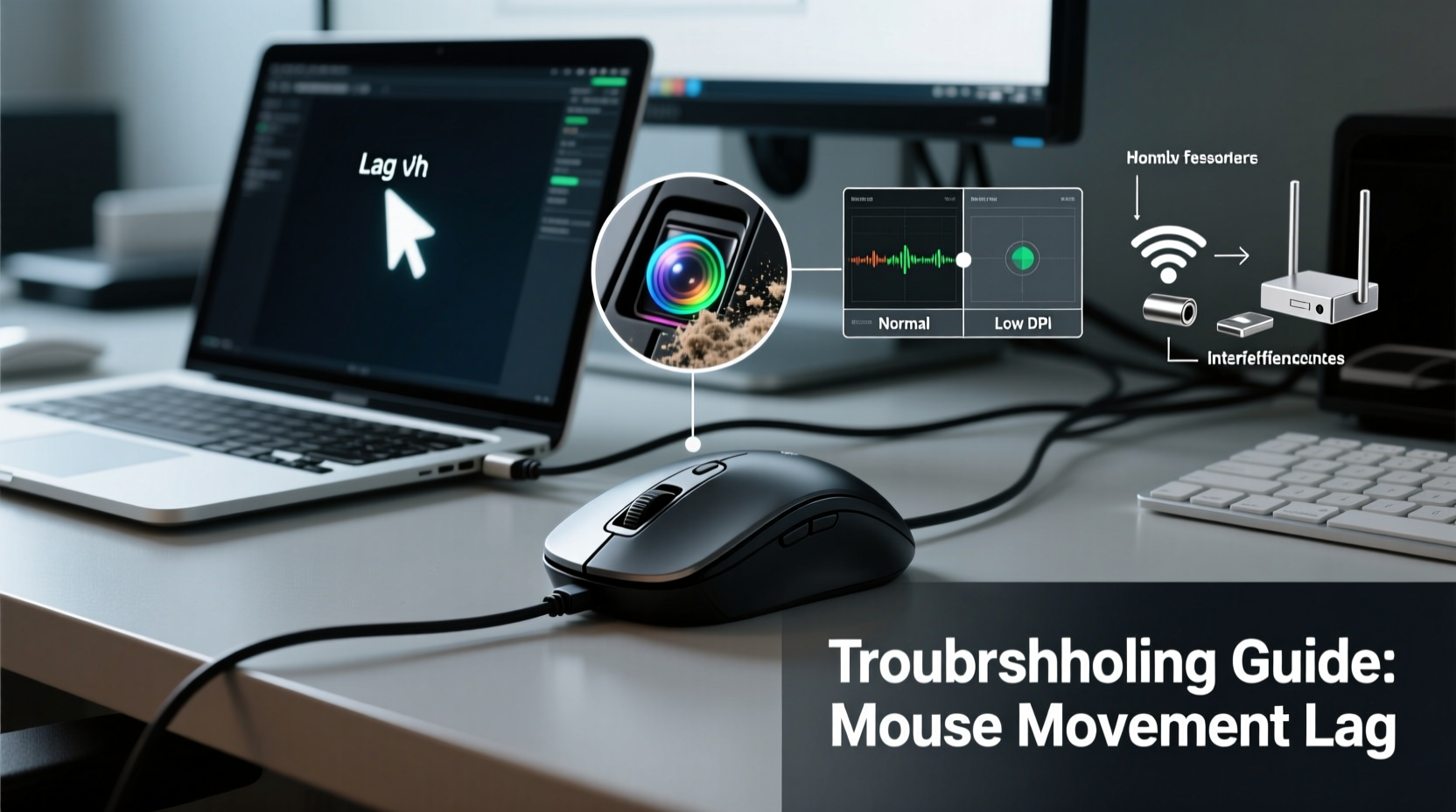
Before jumping into fixes, it's important to identify what might be causing the sluggish response. Several factors—both physical and digital—can affect mouse performance.
- DPI settings too low: DPI (dots per inch) determines how far the cursor moves based on physical mouse movement. A low DPI means slower cursor travel.
- Outdated or corrupt drivers: Drivers act as a bridge between your operating system and hardware. If they’re outdated or damaged, responsiveness suffers.
- Mouse surface interference: Using a glossy, uneven, or reflective surface can confuse optical sensors, especially on older mice.
- Battery depletion (wireless mice): Low battery power in wireless devices often leads to reduced polling rates and delayed input.
- Background processes consuming resources: High CPU or memory usage can delay system responsiveness, including peripheral inputs.
- Hardware degradation: Dust buildup inside the sensor or worn-out mechanical components can impair tracking accuracy.
- Operating system settings: Accessibility features like pointer precision or acceleration may unintentionally alter movement behavior.
Step-by-Step Troubleshooting Guide
Follow this logical sequence to diagnose and resolve the issue efficiently.
- Check the mouse on another computer. Connect it to a different device to determine if the problem follows the mouse or stays with your current system.
- Inspect battery levels (if wireless). Replace or recharge batteries immediately if they are below 30%.
- Clean the mouse sensor. Use a soft brush or compressed air to remove dust from the LED lens at the bottom.
- Update or reinstall mouse drivers. Access Device Manager, locate your mouse under “Mice and other pointing devices,” right-click, and choose \"Update driver\" or \"Uninstall device\" (then restart to reinstall).
- Adjust pointer speed in settings. On Windows, go to Settings > Devices > Mouse > Additional mouse options > Pointer Options. Move the slider toward \"Fast.\"
- Disable Enhance Pointer Precision. This feature applies acceleration that can feel inconsistent. Uncheck it in the same menu.
- Test with a wired connection (if applicable). If using a wireless model with USB receiver, try plugging directly via cable to eliminate signal interference.
- Monitor system performance. Open Task Manager and check for high CPU or disk usage. Close unnecessary background applications.
Do’s and Don’ts When Fixing Mouse Lag
| Do’s | Don’ts |
|---|---|
| Use a high-quality mousepad with a consistent texture | Place the mouse on glass, mirror, or metallic surfaces |
| Keep mouse firmware updated (especially gaming models) | Ignore manufacturer software updates |
| Regularly clean the sensor and buttons | Use wet cloths or liquid cleaners near the sensor |
| Adjust DPI using dedicated software or button (if available) | Assume default settings are always optimal |
| Restart your computer after driver changes | Make multiple changes at once without testing |
Real-World Example: Office Worker Regains Productivity
Sarah, a graphic designer working remotely, noticed her mouse cursor was dragging across the screen, making precise edits nearly impossible. She initially assumed her three-year-old wireless mouse had worn out. Instead of replacing it immediately, she followed a diagnostic process: first cleaning the sensor, then checking battery levels (which were at 15%), and finally adjusting her pointer speed settings. After updating her Logitech driver through the official app, she discovered the DPI had reset to 800 from its usual 1600. Resetting it restored full responsiveness. The entire fix took less than 15 minutes—and saved her $70 on a new device.
“Many users overlook simple configuration issues when blaming hardware failure. In over 60% of cases we see, the solution lies in settings or drivers.” — Rajiv Mehta, Senior Support Technician at PeripheralCare Inc.
Advanced Fixes for Persistent Issues
If basic troubleshooting doesn’t resolve the issue, consider these deeper interventions.
Change Polling Rate (for Gaming/High-Performance Mice)
Polling rate, measured in Hz, indicates how often the mouse reports position to the computer. A standard rate is 125Hz (once every 8ms), but gaming mice support up to 1000Hz (every 1ms). Lower rates contribute to perceived slowness. Use manufacturer software (e.g., Razer Synapse, Logitech G Hub) to increase polling frequency.
Disable Touchpad Interference (Laptops)
On laptops, simultaneous input from both touchpad and external mouse can cause erratic behavior. Disable the touchpad when using an external mouse:
- Go to Settings > Devices > Touchpad
- Toggle off “Leave touchpad on when a mouse is connected”
Perform a Clean Boot
Third-party software—especially security suites or input-enhancing utilities—can interfere with mouse responsiveness. Perform a clean boot to isolate conflicts:
- Press Win + R, type
msconfig, and press Enter. - Select “Selective startup,” uncheck “Load startup items.”
- Go to the Services tab, check “Hide all Microsoft services,” then click “Disable all.”
- Restart the PC. If the mouse works normally, re-enable services one by one to find the culprit.
FAQ: Common Questions About Slow Mouse Movement
Why does my mouse move slowly only in certain programs?
This typically occurs due to application-specific scaling or compatibility modes. For example, legacy software running in compatibility mode may not handle high-DPI displays correctly, distorting input. Right-click the program shortcut > Properties > Compatibility tab, and disable display scaling.
Can viruses cause slow mouse performance?
While rare, malware that consumes significant system resources can indirectly slow down input devices. Run a full system scan using Windows Defender or a trusted antivirus tool to rule this out.
Is there a difference between pointer speed and DPI?
Yes. Pointer speed is a software setting that scales cursor movement within the OS. DPI is a hardware-level sensitivity setting on the mouse itself. Adjusting both gives finer control over responsiveness.
Final Checklist: Restore Your Mouse Performance
- ✅ Clean the mouse sensor and ensure proper lighting on the surface
- ✅ Replace or recharge batteries (wireless models)
- ✅ Update or reinstall mouse drivers via Device Manager
- ✅ Increase pointer speed and disable Enhance Pointer Precision
- ✅ Check and adjust DPI/polling rate using manufacturer software
- ✅ Eliminate background software conflicts with a clean boot
- ✅ Test on another computer to isolate hardware vs. software issues
Take Control Back Today
A slow mouse doesn’t have to derail your day. Most issues stem from easily correctable settings, outdated drivers, or environmental factors—not irreparable hardware damage. By methodically testing each potential cause, you can restore fluid navigation and regain lost productivity. Don’t accept sluggish performance as normal. Apply these solutions now, and experience the difference a responsive mouse makes.




 浙公网安备
33010002000092号
浙公网安备
33010002000092号 浙B2-20120091-4
Comments
No comments yet. Why don't you start the discussion?