
Slow computer performance can turn even the simplest tasks into frustrating delays. Whether you're working on a deadline, streaming video, or just browsing the web, a lagging PC disrupts productivity and patience. The good news is that most causes of slowdown are diagnosable—and often fixable—without needing to replace hardware. Understanding the root causes, from software bloat to failing components, empowers you to restore speed and reliability.
Common Causes of PC Lag
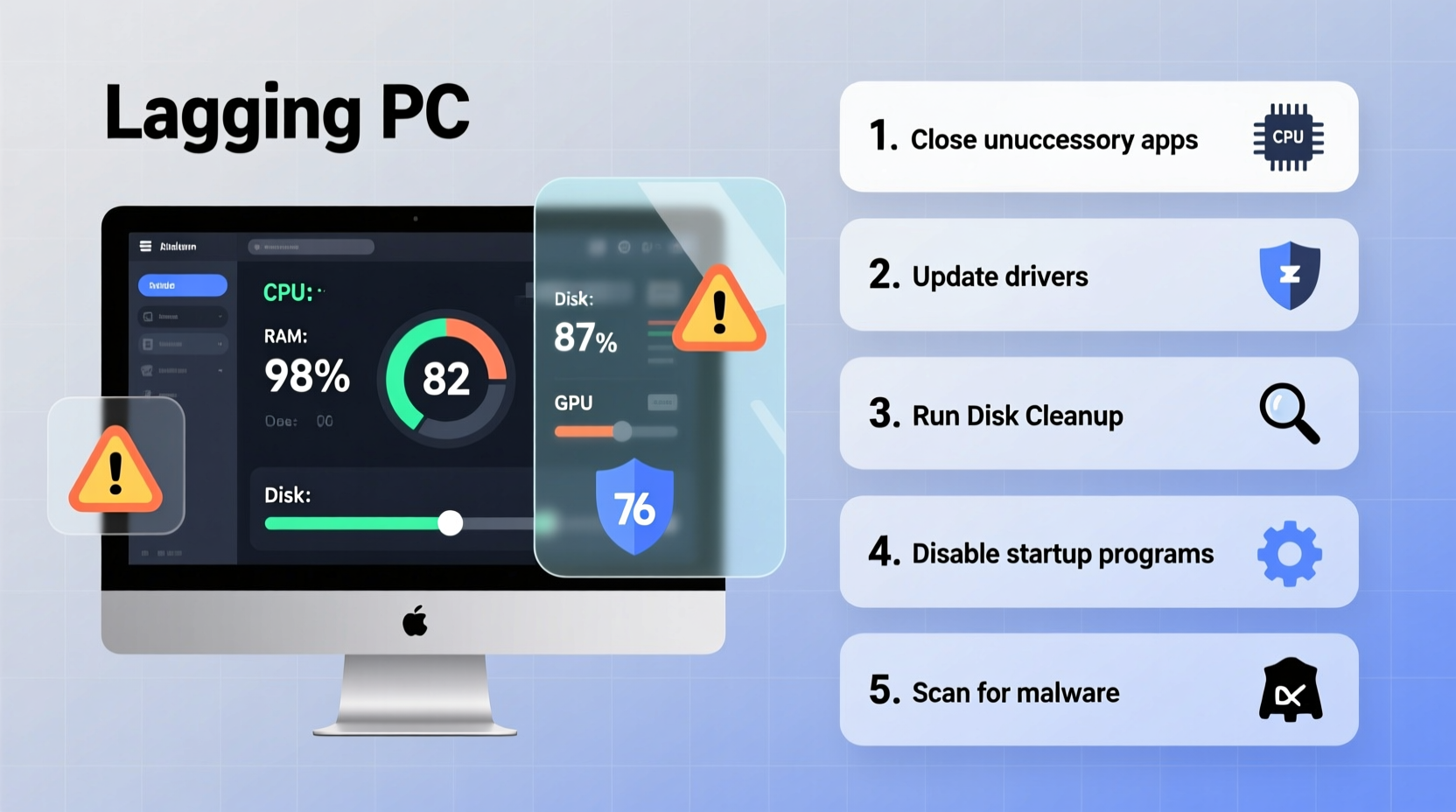
Before diving into fixes, it's essential to identify what might be slowing your system down. Several factors contribute to sluggish performance, some more obvious than others.
- Insufficient RAM: Running multiple applications simultaneously without enough memory forces your system to use virtual memory on the hard drive, which is significantly slower.
- Outdated or fragmented storage: Traditional hard disk drives (HDDs) degrade in performance over time, especially when fragmented or nearly full.
- Background processes and startup programs: Too many apps launching at boot or running silently in the background consume CPU and memory.
- Malware or viruses: Malicious software often runs hidden processes that drain system resources.
- Outdated drivers or operating system: Missing critical updates can result in compatibility issues and inefficient hardware utilization.
- Overheating: When internal components get too hot, CPUs throttle performance to prevent damage.
Step-by-Step Guide to Diagnose and Fix a Slow PC
Follow this structured approach to systematically troubleshoot and improve your computer’s responsiveness.
- Check resource usage via Task Manager
Open Task Manager (Ctrl+Shift+Esc), go to the “Processes” tab, and sort by CPU, Memory, and Disk. Identify any unusually high usage. If a single process consistently uses 80–100%, research it or consider ending the task if non-essential. - Disable unnecessary startup programs
In Task Manager, switch to the “Startup” tab. Disable apps that aren’t essential at boot (e.g., cloud sync tools, updaters). This reduces boot time and frees up RAM. - Scan for malware
Run a full system scan using Windows Defender or a trusted third-party antivirus. Some malware is designed specifically to mine cryptocurrency in the background, consuming significant CPU power. - Update your OS and drivers
Go to Settings > Update & Security > Windows Update. Install pending updates. Also, update graphics, chipset, and network drivers through Device Manager or the manufacturer’s website. - Clean up disk space
Use the built-in Disk Cleanup tool (search for it in Start) to remove temporary files, system cache, and old updates. For deeper cleanup, manually delete large unused files or move them to external storage. - Defragment HDD (not SSD)
If you’re still using an HDD, defragmentation helps. Search for “Defragment and Optimize Drives.” Note: Do not defragment SSDs—it reduces their lifespan and provides no benefit. - Adjust visual effects for performance
Right-click “This PC,” select Properties > Advanced System Settings > Performance Settings. Choose “Adjust for best performance” or manually disable animations and shadows.
Hardware Upgrades That Make a Difference
Software tweaks help, but sometimes the bottleneck is physical. Consider these upgrades based on your current setup:
| Component | Upgrade Benefit | Cost Estimate | Difficulty |
|---|---|---|---|
| HDD to SSD | Dramatically faster boot times and app loading | $50–$100 | Moderate |
| Ram (8GB → 16GB) | Improved multitasking and browser performance | $30–$70 | Easy |
| Cooling system | Reduces thermal throttling; quieter operation | $20–$60 | Moderate |
| Graphics card | Helps only if doing gaming or GPU-intensive work | $150+ | Harder |
“Upgrading from an HDD to an SSD is the single most impactful change most users can make to revive an older PC.” — David Lin, Senior Systems Engineer at TechFlow Labs
Real-World Example: Reviving a 6-Year-Old Laptop
Sarah, a freelance writer, noticed her laptop took over three minutes to boot and froze frequently during video calls. She was considering buying a new machine but decided to troubleshoot first.
Using Task Manager, she discovered Adobe Creative Cloud and several Dropbox instances were consuming 70% of her CPU at startup. She disabled them and ran a malware scan, which detected a crypto-mining script disguised as a PDF reader updater.
After removing the malware and cleaning temporary files, performance improved slightly—but the biggest leap came when she replaced her aging 500GB HDD with a 512GB SSD and upgraded RAM from 4GB to 16GB. Total cost: $120. Boot time dropped to 12 seconds, and applications opened instantly. Her laptop, once deemed unusable, now handles daily tasks smoothly.
Troubleshooting Checklist
Use this checklist to methodically address common causes of lag:
- ✅ Open Task Manager and identify high-resource processes
- ✅ Disable unnecessary startup programs
- ✅ Run a full antivirus and anti-malware scan
- ✅ Install all pending OS and driver updates
- ✅ Free up disk space using Disk Cleanup or manual deletion
- ✅ Defragment HDD (if applicable)
- ✅ Upgrade to SSD if still using HDD
- ✅ Add more RAM if usage regularly exceeds 80%
- ✅ Clean dust from fans and vents to prevent overheating
- ✅ Adjust system settings for best performance
Frequently Asked Questions
Why is my PC suddenly slow after a Windows update?
Sometimes updates introduce bugs or re-enable background services that consume resources. Check Task Manager for unusual activity. Microsoft occasionally releases patches within days to fix performance regressions. You can also roll back the update temporarily via Settings > Update & Security > Recovery.
Is it better to restart or shut down my PC daily?
Restarting is more beneficial for performance. It clears RAM, stops memory leaks, and reloads drivers. Shutting down doesn’t clear volatile memory as effectively. Aim to restart at least once every few days, especially if you notice lag building up.
Can too many browser tabs slow down my computer?
Absolutely. Each tab runs as a separate process and consumes memory. Having 20+ tabs open can easily use 4–6GB of RAM, especially with media-rich sites. Use a tab suspender extension or bookmark pages to revisit later instead of keeping them open.
Conclusion: Take Control of Your PC’s Performance
Lag doesn’t have to be permanent. Most slowdowns stem from avoidable issues like bloated software, outdated drivers, or insufficient hardware. By following a disciplined troubleshooting process—monitoring resource usage, eliminating bloat, scanning for threats, and upgrading key components—you can restore your PC to peak performance.
Don’t accept sluggishness as inevitable. A few hours of focused maintenance can extend your computer’s useful life by years and save hundreds on premature replacements. Start today: open Task Manager, review your startup apps, and take the first step toward a faster, more responsive system.




 浙公网安备
33010002000092号
浙公网安备
33010002000092号 浙B2-20120091-4
Comments
No comments yet. Why don't you start the discussion?