
It’s a familiar frustration: one morning you turn on your PC, go about your routine, and suddenly notice everything feels sluggish. Applications take longer to open, files load slowly, and even basic navigation in File Explorer drags. You didn’t install new software or change any settings—just a routine Windows update. So why is your PC suddenly underperforming? You're not alone. Millions of users report performance drops following Windows updates, especially major feature upgrades or cumulative security patches. While updates are essential for security, stability, and new functionality, they can sometimes introduce compatibility issues, background processes, or resource-heavy changes that impact system responsiveness.
The good news is that most post-update slowdowns are temporary and fixable. Understanding the root causes—and knowing which steps to take—can help you reclaim your PC’s speed without resorting to drastic measures like a full reset or reinstallation.
Common Reasons Your PC Slows Down After a Windows Update
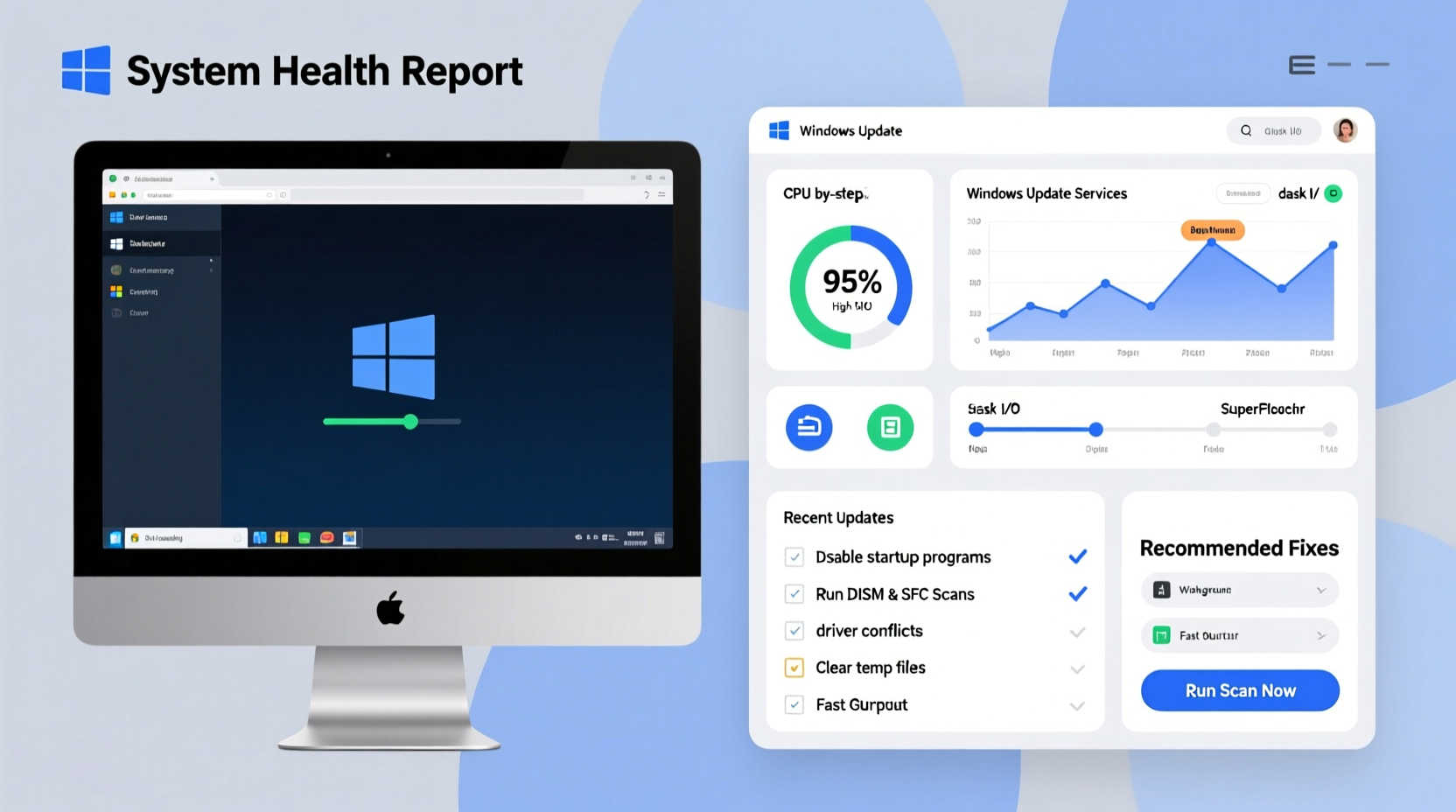
Windows updates aren’t just about patching security holes—they often include new features, driver changes, background services, and system optimizations that can affect how your hardware and software interact. When these changes don’t align perfectly with your system configuration, performance suffers.
- Background Processes and Indexing: After an update, Windows often runs maintenance tasks such as reindexing files, updating search databases, or scanning for malware. These can consume CPU, disk, and memory resources.
- Outdated or Incompatible Drivers: Updates may replace or disable existing drivers, particularly graphics, chipset, or network drivers, leading to poor performance or instability.
- Startup Program Conflicts: Some third-party applications don’t handle updates gracefully and may restart repeatedly or load inefficiently after a reboot.
- System Resource Overload: New Windows services or visual effects introduced in updates (e.g., transparency, animations) can strain older hardware.
- Disk Space Depletion: Updates require temporary space, and old installation files aren’t always cleaned up automatically, leaving gigabytes occupied.
- Bug-Ridden Updates: Occasionally, Microsoft releases updates with known performance bugs. For example, certain builds of Windows 10 and 11 have been linked to high disk usage due to flawed storage optimization logic.
“Post-update slowdowns are often temporary, but if ignored, they can become persistent. The key is identifying whether it’s a short-term system adjustment or a deeper compatibility issue.” — David Lin, Senior Systems Engineer at TechFlow Solutions
Step-by-Step Guide to Diagnose and Fix Post-Update Lag
Follow this structured approach to identify and resolve the cause of your slow PC. Each step targets a specific potential bottleneck.
- Check Task Manager for Resource Hogs
Press Ctrl + Shift + Esc to open Task Manager. Go to the “Processes” tab and sort by CPU, Memory, and Disk usage. Look for processes consuming more than 50% consistently. Common culprits include:Antimalware Service Executable– Windows Defender scanning filesService Host: Superfetch– Preloading apps into memoryWindows Search– Rebuilding index after update
- Wait 24–48 Hours for Background Tasks to Complete
Major updates trigger background operations that can last up to two days. During this time, avoid heavy multitasking. Let the system stabilize before making permanent changes. - Run Disk Cleanup to Remove Update Files
Old Windows installations leave behind large folders likeWindows.old. To remove them:- Open Settings > System > Storage.
- Click “This PC” under Local Storage.
- Select “Temporary files.”
- Check “Previous version of Windows” and “Windows Update Cleanup.”
- Click “Remove files.”
- Update or Roll Back Drivers
Navigate to Device Manager (right-click Start button > Device Manager). Check for warning icons next to devices. Right-click each device (especially Display adapters, Network adapters) and select “Update driver.” If problems started immediately after the update, choose “Roll back driver” if available. - Disable Unnecessary Startup Programs
In Task Manager, go to the “Startup” tab. Disable non-essential apps like Spotify, Skype, or manufacturer utilities. This reduces boot time and background load. - Adjust Visual Effects for Performance
Type “performance” in the Start menu and select “Adjust the appearance and performance of Windows.” Choose “Adjust for best performance” or manually disable animations like fade effects and shadows. - Scan for Malware
Even legitimate updates can expose vulnerabilities. Run a full scan using Windows Security or a trusted third-party antivirus. - Check for Pending Optional Updates
Sometimes, performance fixes are released as optional updates. Go to Settings > Windows Update > Advanced options > Optional updates and install any recommended driver or quality updates.
Do’s and Don’ts After a Windows Update
| Do’s | Don’ts |
|---|---|
| Allow 24–48 hours for background processes to settle | Immediately uninstall the update out of frustration |
| Use Disk Cleanup to remove old update files | Delete system folders like Windows.old manually |
| Update third-party drivers from manufacturer websites | Ignore repeated error messages or crashes |
| Monitor performance using Task Manager or Resource Monitor | Install multiple optimization tools claiming to “speed up” your PC |
| Check Microsoft’s known issues page for your update build | Assume the slowdown means hardware failure |
Real Example: Recovering a Business Laptop After Feature Update
Sarah, a freelance graphic designer, updated her four-year-old Dell XPS 13 to Windows 11 23H2. Within hours, she noticed Photoshop lagged severely, and her laptop fan ran constantly. She initially assumed her SSD was failing. Instead of sending it for repair, she followed diagnostic steps:
First, she opened Task Manager and found “Windows Search” using 98% of her disk. She waited 12 hours, but usage remained high. Next, she used Disk Cleanup and freed 14 GB by removing old update files. Still slow, she checked Device Manager and discovered her Intel Wi-Fi driver had been downgraded during the update. She downloaded the latest driver from Dell’s support site and installed it. Finally, she disabled visual effects and turned off transparency in Settings.
Within a day, her system returned to normal. Photoshop responded instantly, and battery life improved. Sarah learned that patience and methodical troubleshooting were more effective than panic-reinstalling Windows.
When to Consider Rolling Back the Update
If performance doesn’t improve after a week, and no background tasks are active, rolling back may be necessary. Windows allows rollback within 10 days of a feature update:
- Go to Settings > System > Recovery.
- Under “Go back,” click “Go back to the previous version of Windows.”
- Follow prompts and back up critical data first.
Note: This option disappears after 10 days, as Windows deletes the old system files to save space. If you’re beyond this window, a clean reinstall may be required—but only as a last resort.
Frequently Asked Questions
Can a Windows update permanently damage my PC?
No, Windows updates cannot physically damage hardware. However, poorly coded updates or failed installations can cause software corruption, leading to instability or data loss. Always ensure your system is plugged in and not interrupted during updates.
Why does my SSD feel slower after an update?
Even SSDs can appear slow if the system is busy with indexing, virus scans, or fragmented background tasks. Additionally, some updates enable telemetry or cloud sync features that increase disk I/O. Monitor usage in Task Manager and disable unnecessary services if needed.
Will disabling Windows updates prevent slowdowns?
While skipping updates might avoid short-term performance hits, it exposes your system to security risks and compatibility issues with modern software. A better strategy is to delay non-critical updates using Windows Update for Business settings or scheduling installations during off-hours.
Essential Maintenance Checklist
To minimize future slowdowns after updates, follow this checklist regularly:
- ✅ Create a system restore point before major updates
- ✅ Ensure at least 20% free space on your system drive
- ✅ Keep drivers updated via manufacturer websites
- ✅ Disable unnecessary startup programs
- ✅ Run monthly disk cleanup and defragmentation (for HDDs)
- ✅ Monitor event logs for recurring errors (via Event Viewer)
- ✅ Use built-in troubleshooters for performance and hardware issues
“Proactive maintenance is more effective than reactive fixes. Users who manage their systems between updates rarely face severe post-patch slowdowns.” — Maria Chen, IT Support Lead at NexaCorp
Conclusion: Regain Control of Your PC’s Performance
A slow PC after a Windows update is a common but solvable issue. Most delays stem from temporary background processes, outdated drivers, or bloated system files—not irreversible damage. By understanding what happens during and after an update, you can respond calmly and effectively. Use Task Manager to identify bottlenecks, clean up obsolete files, and ensure your drivers are current. Avoid impulsive decisions like factory resets unless all other options are exhausted.
Remember, Windows updates exist to protect and improve your system. With the right care, your PC can emerge faster and more secure than before. Don’t let a brief performance dip discourage responsible updating. Stay informed, stay patient, and keep your machine running smoothly.




 浙公网安备
33010002000092号
浙公网安备
33010002000092号 浙B2-20120091-4
Comments
No comments yet. Why don't you start the discussion?