
It’s a familiar frustration: you wake up, install the latest iOS update with excitement for new features, only to notice your iPhone battery vanishing at an alarming rate by midday. You’re not imagining it—many users report accelerated battery drain immediately following an iOS update. While Apple’s updates often bring security patches, performance improvements, and new functionalities, they can also introduce inefficiencies in power management, especially during the initial days post-installation.
The underlying causes vary—from background processes recalibrating, to apps struggling with compatibility, or even bugs in the update itself. The good news? Most of these issues are temporary and fixable. With the right approach, you can regain control over your battery life and ensure your device runs efficiently again.
Why iOS Updates Often Trigger Battery Drain
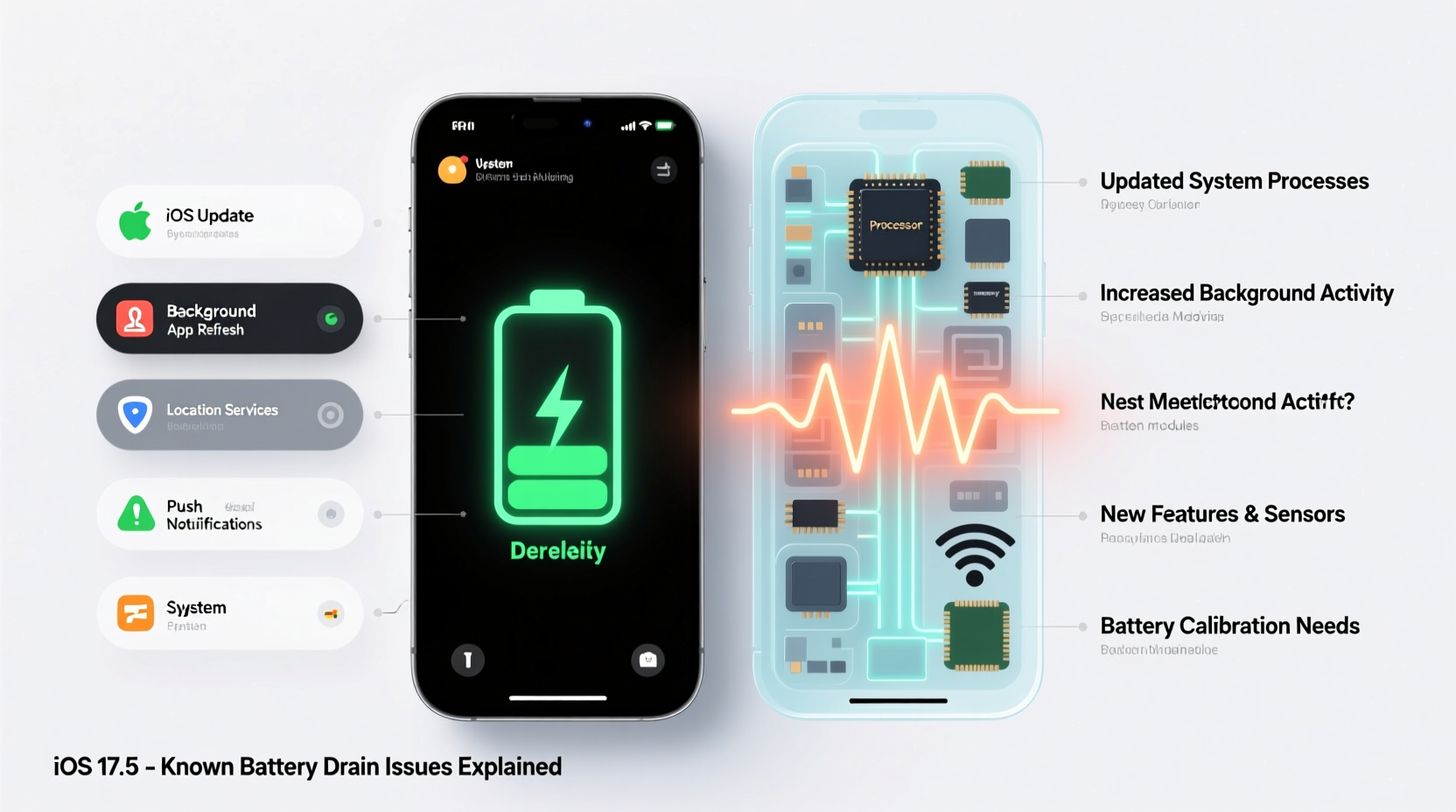
When Apple rolls out a new iOS version, your iPhone undergoes a significant system overhaul. This isn’t just a simple patch—it involves rewriting system files, reindexing data, and updating core services. During this transition, multiple background processes activate simultaneously:
- Indexing and Optimization: Spotlight search, Siri suggestions, and photo analysis may run intensively as the system relearns your usage patterns.
- App Reinstallation and Updates: Some apps automatically update or reset settings, leading to higher CPU and network usage.
- Location Services Recalibration: Maps, weather, and third-party apps may request location access more frequently to adapt to the new OS.
- Bug-Induced Leaks: Occasionally, software bugs cause certain processes to consume excessive power without user awareness.
Apple acknowledges that “battery usage may appear higher than usual” in the first 48 hours after an update. However, if the issue persists beyond that window, intervention is necessary.
“iOS updates require a period of system stabilization. What looks like battery drain is often temporary background activity—but prolonged issues suggest misconfigured settings or outdated apps.” — Dr. Alan Reyes, Mobile Systems Analyst at TechInsight Labs
Step-by-Step Guide to Diagnose and Fix Battery Drain
Follow this structured timeline to identify and resolve the root cause of your battery issues after an iOS update.
Day 1: Immediate Post-Update Actions
- Let the System Settle: Avoid making major changes immediately. Allow 24–48 hours for indexing and background tasks to complete.
- Check Battery Usage: Go to Settings > Battery and review which apps or services are consuming the most power. Focus on those using over 15% in 24 hours.
- Restart Your iPhone: A simple reboot clears temporary cache and stops rogue processes stuck from the update.
Day 2: Optimize Settings and Apps
- Update All Apps: Open the App Store and tap your profile icon. Update any pending apps, especially social media, email, and navigation tools that heavily use background resources.
- Reset Location & Privacy Settings: Go to Settings > General > Transfer or Reset iPhone > Reset > Reset Location & Privacy. This forces apps to re-request permissions, reducing unnecessary tracking.
- Disable Background App Refresh for Non-Essential Apps: Navigate to Settings > General > Background App Refresh and turn it off for apps you don’t need to update in real time (e.g., games, shopping).
Day 3: Deep System Calibration
- Calibrate Battery Reading: Let your iPhone discharge completely to 0%, then charge it uninterrupted to 100%. This helps the OS recalibrate its battery percentage accuracy.
- Toggle Low Power Mode On/Off: Turn Low Power Mode on for a few hours, then disable it. This resets energy-saving thresholds within the system.
- Check for Carrier and Firmware Updates: Sometimes, iOS updates expose outdated carrier settings. Go to Settings > General > About and accept any pop-up carrier updates.
Common Culprits Behind Persistent Battery Drain
Even after basic troubleshooting, some issues linger due to overlooked settings or hardware limitations. Below are the most frequent offenders:
| Issue | Symptoms | Solution |
|---|---|---|
| Excessive Push Email | Email app constantly active, high network usage | Switch to Fetch or Manual in Mail > Accounts > Fetch New Data |
| Poor Cellular Signal | iPhone shows 1 bar, battery drops rapidly | Enable Wi-Fi Calling or use Airplane Mode in low-coverage areas |
| Outdated Apps with Bugs | Crashes, high CPU usage, overheating | Delete and reinstall problematic apps |
| Always-On Display (iPhone 14 Pro+) | Screen dim but still active when locked | Turn off in Settings > Display & Brightness > Always-On Display |
| System UI Glitches | Animations stutter, screen flickers | Restart device or install supplemental update if available |
Real Example: Sarah’s Post-iOS 17 Battery Crisis
Sarah, a freelance designer in Austin, upgraded her iPhone 15 to iOS 17.2 and noticed her battery dropped from 100% to 30% by lunchtime—unheard of before. She followed the standard advice but saw no improvement. After checking Settings > Battery, she discovered that Instagram was consuming 40% of her battery despite minimal usage.
Further investigation revealed that Instagram had pushed an update incompatible with iOS 17.2, causing it to run infinite background sync loops. She deleted and reinstalled the app, which resolved the issue instantly. Her battery life returned to normal within two days. This case underscores how third-party apps—not Apple’s OS—can be the true source of battery drain after an update.
Essential Checklist to Restore Battery Health
Use this checklist to systematically eliminate common causes of post-update battery drain:
- ✅ Restart your iPhone after the update
- ✅ Check battery usage stats daily for 3 days
- ✅ Update all apps via the App Store
- ✅ Disable Background App Refresh for non-critical apps
- ✅ Turn off Push Email; use Fetch every 15 minutes instead
- ✅ Reset Location & Privacy settings
- ✅ Calibrate battery by fully discharging and recharging
- ✅ Disable unnecessary widgets and notifications
- ✅ Ensure your iPhone model supports the latest iOS efficiently (older models may struggle)
- ✅ Install any follow-up patches Apple releases within a week
Frequently Asked Questions
Is it normal for battery to drain faster after an iOS update?
Yes, for the first 24–48 hours. The system runs indexing, optimization, and setup routines that consume extra power. If battery drain continues beyond two days, it's likely due to app issues, misconfigured settings, or a bug requiring manual fixes.
Should I downgrade iOS if my battery life gets worse?
Downgrading is rarely advisable. Apple typically stops signing older versions within days of a new release. Instead, focus on optimizing settings, updating apps, and waiting for a supplemental update. Most battery issues are resolved in patch updates within 1–2 weeks.
Can a software update permanently damage my battery?
No. Software cannot physically degrade lithium-ion batteries. However, poor power management can accelerate wear over time by increasing heat and charge cycles. Keeping your iPhone cool and avoiding constant 0–100% cycles will preserve long-term battery health.
When to Consider Hardware or Professional Help
If, after completing all software fixes, your battery still depletes abnormally fast, the issue may be hardware-related. Signs include:
- Battery dropping 20% in 10 minutes while idle
- iPhone swelling or overheating without heavy use
- \"Service Battery\" warning in Settings > Battery > Battery Health
In such cases, visit an Apple Store or authorized service provider. The battery may have reached end-of-life (typically 500 full charge cycles) or there could be a malfunctioning component drawing excess current.
Note: iOS updates sometimes reveal pre-existing battery degradation that wasn’t noticeable under older, less efficient software. The update doesn’t cause the problem—it exposes it.
Conclusion: Take Control of Your iPhone’s Battery Life
An iOS update shouldn’t mean surrendering your battery life. While temporary drain is expected, persistent issues are fixable with informed action. By understanding how updates affect system behavior, monitoring app usage, and applying targeted optimizations, you can restore—and even improve—your iPhone’s efficiency.
Don’t accept poor performance as inevitable. Use the steps outlined here to diagnose, correct, and prevent future battery problems. Your iPhone is designed to adapt, but it needs your input to perform at its best.




 浙公网安备
33010002000092号
浙公网安备
33010002000092号 浙B2-20120091-4
Comments
No comments yet. Why don't you start the discussion?