
It’s frustrating when your phone loses significant charge overnight while sitting untouched on the nightstand. You didn’t stream videos, play games, or make calls—yet by morning, half the battery is gone. This phenomenon isn’t imaginary, nor is it always a sign of hardware failure. Modern smartphones are designed to be constantly connected, but certain settings, apps, and behaviors can turn that connectivity into a silent battery killer. Understanding the root causes and knowing how to address them can restore hours of battery life without requiring a replacement.
What Causes Battery Drain When the Phone Is Idle?
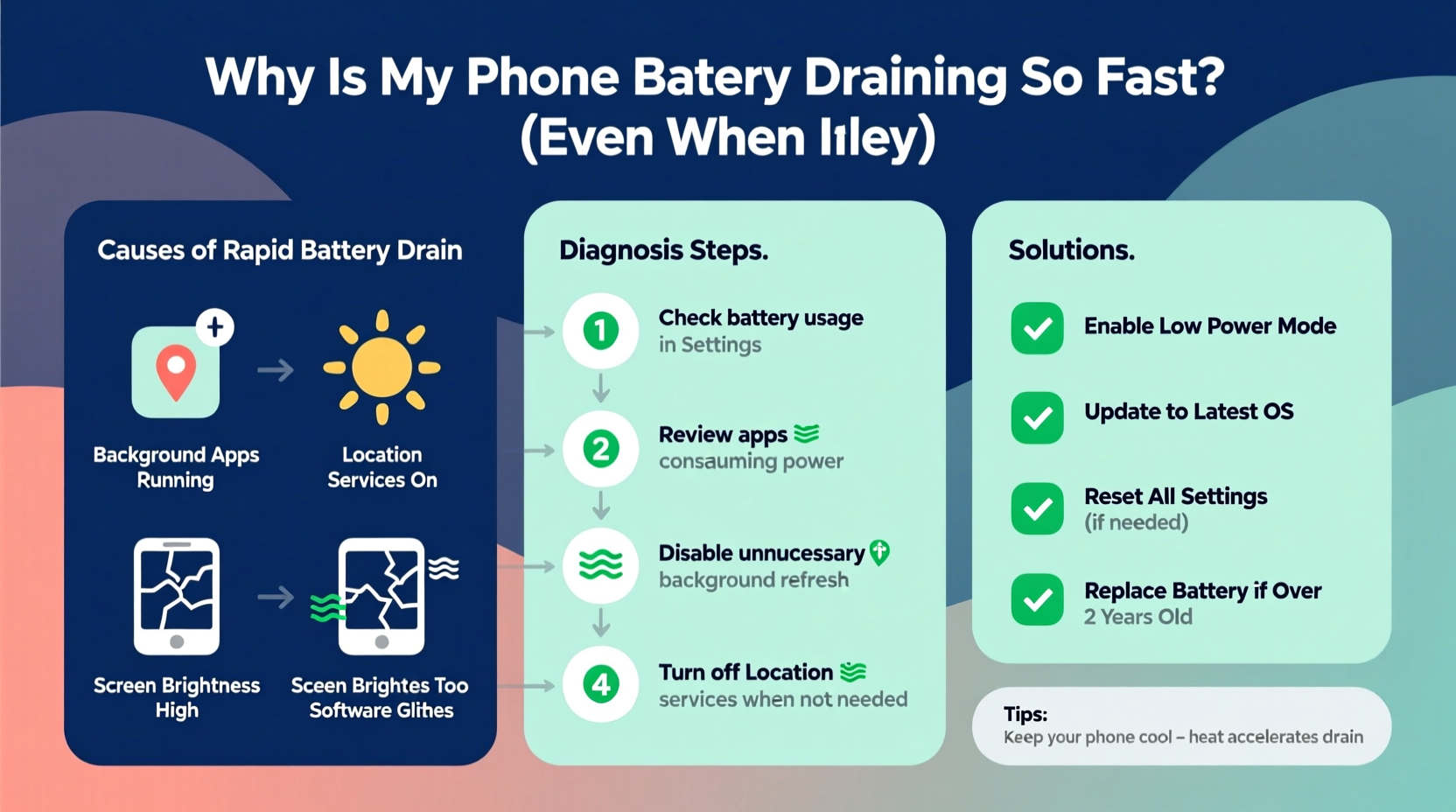
Even when not actively in use, your smartphone continues background operations. These include syncing emails, updating apps, checking location services, receiving push notifications, and maintaining network connections. While each process consumes minimal power individually, their combined effect over several hours can lead to substantial battery drain.
Some common culprits behind excessive idle battery consumption include:
- Background app refresh: Apps like social media, email clients, and news platforms frequently update content in the background.
- Poor signal strength: When your phone struggles to maintain a cellular or Wi-Fi connection, it boosts transmission power, increasing energy use.
- Location services: Certain apps continuously track your location—even when unused—draining the battery rapidly.
- Push notifications: Frequent alerts from messaging apps, shopping platforms, or fitness trackers wake the CPU repeatedly.
- Software bugs or updates: Occasionally, OS updates introduce inefficiencies or memory leaks that affect battery performance.
How to Diagnose Excessive Battery Drain
Before making changes, identify what’s consuming power. Both iOS and Android provide detailed battery usage reports that show which apps and system functions are using the most energy—even during idle periods.
iOS: Check Battery Usage
- Go to Settings > Battery.
- Review “Battery Usage” for the last 24 hours or 10 days.
- Look for apps with high “Background Activity” percentages.
- Note any system processes (e.g., \"Background App Refresh,\" \"Location Services\") using disproportionate power.
Android: Analyze Power Consumption
- Navigate to Settings > Battery > Battery Usage.
- Scroll through the list of apps sorted by consumption.
- Tap “Details” next to an app to see foreground vs. background usage.
- Check if Google Play Services, Location, or Network access shows abnormal spikes.
If an app uses more than 15–20% of your battery in a single day without active use, it’s likely running inefficient background tasks.
“Over 60% of unexplained battery drain stems from poorly optimized apps or misconfigured permissions.” — Dr. Alan Reyes, Mobile Systems Engineer at TechInsight Labs
Proven Fixes to Stop Battery Drain on Idle Devices
Once you’ve identified the sources, apply targeted solutions. The following steps work across both major platforms and often yield immediate improvements.
1. Limit Background App Refresh
This feature allows apps to fetch new data periodically, even when closed. Disable it for non-essential apps.
- iOS: Settings > General > Background App Refresh > Choose “Wi-Fi” or disable entirely.
- Android: Settings > Apps > [App Name] > Mobile Data & Wi-Fi > Background Data > Toggle off.
2. Restrict Location Access
Many apps request constant location access unnecessarily. Review and adjust these settings.
| Platform | Action | Recommended Setting |
|---|---|---|
| iOS | Settings > Privacy & Security > Location Services | Select “While Using the App” or “Never” for non-navigation apps |
| Android | Settings > Location > App Location Permissions | Set to “Only while in use” or deny access for low-priority apps |
3. Reduce Push Notifications
Every notification wakes the screen and processor. Fewer alerts mean less battery strain.
- Disable notifications for shopping, gaming, or promotional apps.
- Use “Scheduled Summary” (iOS) or “Notification Batching” (Android) instead of real-time alerts.
4. Enable Low Power Mode or Battery Saver
These modes automatically limit background activity, visual effects, and automatic downloads.
- iOS: Settings > Battery > Low Power Mode (enable manually or automate via Shortcuts).
- Android: Settings > Battery > Battery Saver (can be set to activate below 20% or always).
5. Turn Off Unnecessary Connectivity
Bluetooth, NFC, and hotspot features draw power even when inactive.
Detecting Hidden Issues: Rogue Apps and System Glitches
Sometimes, no obvious app appears responsible. In such cases, deeper investigation is required.
Mini Case Study: The Mysterious Drain
Sarah, a freelance designer, noticed her iPhone losing 40% battery overnight. She checked battery stats and found nothing unusual. After disabling all third-party apps’ background refresh, the drain persisted. Then she reviewed her widget stack—specifically a weather widget pulling live radar data every five minutes. Disabling the widget stopped the drain completely. Lesson: Even small interface elements can trigger background activity.
To catch similar issues:
- Boot into Safe Mode (Android): Hold power button > Long press “Power off” > Tap “Safe Mode.” If battery stabilizes, a third-party app is the culprit.
- On iOS, delete recently installed apps one by one to test impact.
- Monitor battery usage after each change to isolate the offender.
Another hidden cause is **Google Play Services** (Android), which occasionally enters a loop due to account sync errors. To fix:
- Go to Settings > Accounts > Google.
- Select your account and tap “Sync Now.”
- If it fails repeatedly, remove and re-add the account.
Battery Health and Long-Term Maintenance
Hardware condition matters. Lithium-ion batteries degrade over time, typically retaining about 80% capacity after 500 full charge cycles. If your phone is over two years old, aging could be accelerating perceived drain.
Check Battery Health
- iOS: Settings > Battery > Battery Health & Charging > View “Maximum Capacity.” Below 80%? Consider replacement.
- Android: Dial
*#*#4636#*#*> Phone Information > Scroll to “Battery Status.” Note temperature and health (if available).
Avoid extreme temperatures. Batteries degrade faster above 35°C (95°F) or below 0°C (32°F). Never leave your phone in a hot car or under a pillow while charging.
“Temperature is the second biggest factor in battery longevity—after charging habits.” — Dr. Lena Park, Battery Research Lead at Nexus Energy Labs
Step-by-Step Guide to Fix Idle Battery Drain
Follow this timeline over 24–48 hours to systematically resolve the issue:
- Day 1 – Morning: Check battery usage stats. Note top three power-consuming apps.
- Day 1 – Afternoon: Disable background refresh and location access for non-critical apps.
- Day 1 – Evening: Turn on Low Power Mode and disable Bluetooth/NFC.
- Day 2 – Night: Put phone in Airplane Mode before sleeping. Observe next-morning battery level.
- Day 2 – Morning: Compare results. If improvement, gradually reintroduce features to find the threshold.
- If no improvement: Reset settings (Settings > General > Transfer or Reset iPhone > Reset All Settings) or consult support.
Frequently Asked Questions
Why does my phone lose battery when turned off?
Some phones still draw minimal power when “off” due to features like Fast Startup (Samsung) or Find My Device (Apple). Remove the case and let the device cool if warmth persists. If battery drops significantly while powered down, seek service—the battery may have a defect.
Does closing apps help save battery?
No. On modern iOS and Android systems, swiping away apps doesn’t stop background processes and can increase battery use by forcing apps to reload. Instead, manage permissions and background activity through settings.
Is dark mode better for battery life?
Yes—but only on OLED or AMOLED screens. Dark pixels consume less power than white ones. On LCD screens, the difference is negligible. Enable dark mode if you have an OLED display and notice modest gains in overall battery efficiency.
Essential Battery Care Checklist
- ✅ Review battery usage weekly
- ✅ Disable background refresh for non-essential apps
- ✅ Set location access to “While Using” or “Never”
- ✅ Reduce push notifications from marketing apps
- ✅ Enable Low Power Mode during low-usage periods
- ✅ Avoid full discharges; keep charge between 20%–80%
- ✅ Restart phone once per week
- ✅ Keep software updated but monitor post-update battery behavior
Conclusion: Take Control of Your Phone’s Battery Life
Your phone shouldn’t die by noon just because it was idle overnight. With a methodical approach, most cases of rapid battery drain can be traced and corrected—often within a single day. The key is understanding that battery life isn’t just about screen-on time; it’s shaped by invisible background forces that accumulate silently. By auditing app behavior, adjusting system settings, and maintaining healthy charging habits, you reclaim control over your device’s endurance.
Start tonight: put your phone to bed in Airplane Mode and check the morning charge. Small changes create lasting results. Share your experience or ask questions in the comments—your insight might help someone else solve their mystery drain.




 浙公网安备
33010002000092号
浙公网安备
33010002000092号 浙B2-20120091-4
Comments
No comments yet. Why don't you start the discussion?