
It’s a familiar frustration: you charge your phone overnight, only to find it at 30% by midday—even though you barely used it. Battery drain without heavy usage isn’t just annoying; it can disrupt your routine, compromise productivity, and leave you stranded without power when you need it most. While modern smartphones are engineered for efficiency, numerous factors can cause rapid battery depletion, many of which operate silently in the background. Understanding these hidden culprits is the first step toward regaining control over your device’s power consumption.
Background Apps and Services Running Unseen
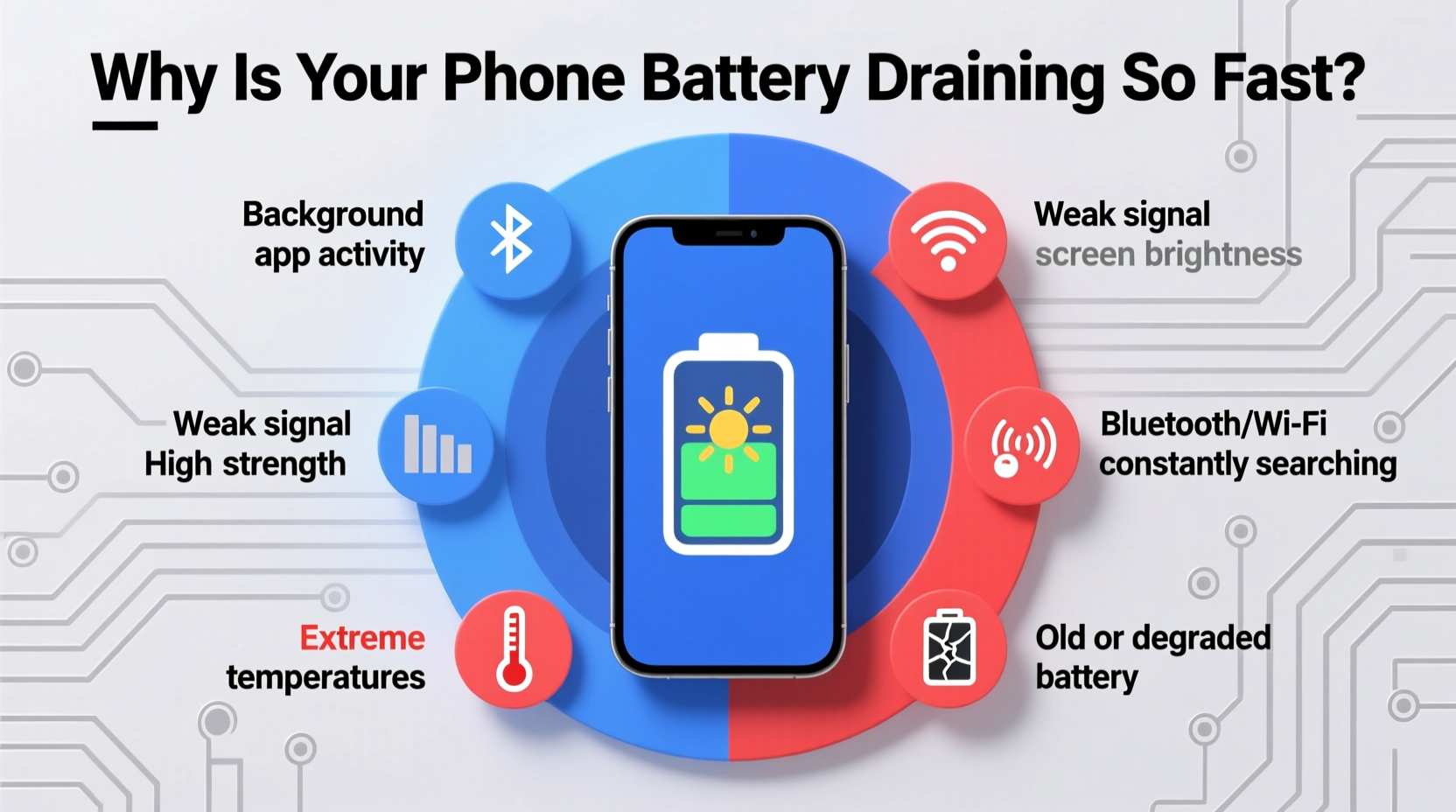
One of the most common reasons for unexpected battery drain is the presence of apps running in the background. Even when you’re not actively using your phone, certain applications continue to perform tasks—checking for updates, syncing data, tracking location, or delivering notifications. Social media platforms, email clients, weather apps, and cloud storage services are notorious for this behavior.
For example, a messaging app might constantly poll servers for new messages, while a fitness tracker could keep GPS active to monitor movement patterns. These processes consume both CPU power and network resources, accelerating battery depletion.
On Android, go to Settings > Battery > Battery Usage. On iPhone, navigate to Settings > Battery. Review the list and consider restricting background activity for high-drain apps.
Poor Network Conditions and Signal Strength
Your phone works harder—and uses more battery—when it struggles to maintain a stable connection. In areas with weak cellular or Wi-Fi signals, your device continuously searches for a stronger signal, ramping up radio frequency (RF) transmission power. This effort significantly increases energy consumption, often without any visible user interaction.
Being in an elevator, basement, rural area, or building with thick walls can force your phone into “search mode,” where it cycles through available networks repeatedly. Similarly, frequent switching between Wi-Fi and mobile data due to unstable connections creates additional strain on the battery.
“Phones can use up to 40% more power in low-signal areas simply trying to stay connected.” — Dr. Lena Patel, Mobile Energy Efficiency Researcher at MIT Media Lab
To mitigate this, disable mobile data or enable Airplane Mode temporarily if you're in a known dead zone. Re-enable connectivity only when necessary.
Location Services and Continuous Tracking
GPS and location-based features are essential for navigation, ride-sharing, and local search—but they come at a cost. When apps have unrestricted access to your location, they may track your movements continuously, even when minimized. Google Maps, Find My, fitness trackers, and social media apps often run location services in the background.
Even brief pings can accumulate over time. A single app checking your position every few minutes adds up across multiple apps, leading to noticeable battery loss.
How to Reduce Location-Based Drain
- Set apps to “While Using” instead of “Always” for location access.
- Disable location services entirely when not needed.
- Use battery-saving mode for GPS on Android devices.
- Turn off Location Services for non-essential apps like games or shopping tools.
Software Glitches and System Updates
Bugs in operating systems or misbehaving apps can cause abnormal battery drain. Sometimes, after a system update—especially major iOS or Android releases—users report sudden drops in battery life. These issues often stem from inefficient code, memory leaks, or compatibility problems introduced during the update process.
For instance, a bug might prevent an app from entering sleep mode properly, causing it to run indefinitely in the background. Similarly, corrupted cache files or failed sync attempts can trigger endless retry loops that deplete power.
Mini Case Study: The Post-Update Drain
Sarah, a freelance designer in Portland, noticed her iPhone dropped from 100% to 45% overnight after updating to iOS 17. She wasn’t using the phone, yet background activity spiked. After checking battery stats, she found “System Services” was the top consumer. A quick reset of location and privacy settings resolved the issue, restoring normal battery behavior within two days.
This scenario highlights how software anomalies—not user behavior—are often behind unexplained drain. In such cases, waiting for a patch or performing a soft reset can help.
Display and Brightness Settings
The screen is one of the most power-hungry components in any smartphone. Even when idle, a bright display or long screen timeout contributes to faster discharge. Features like Always-On Display (AOD), common on Samsung and Pixel phones, keep part of the screen lit to show time, notifications, or widgets. While convenient, AOD can account for 10–15% of daily battery use.
Auto-brightness, intended to optimize power, sometimes fails due to a malfunctioning ambient light sensor, keeping brightness unnecessarily high indoors.
| Setting | Impact on Battery | Recommended Fix |
|---|---|---|
| High screen brightness | High drain, especially on OLED screens | Lower to 50% or enable adaptive brightness |
| Long screen timeout (e.g., 2 minutes) | Moderate drain from accidental unlocks | Reduce to 30 seconds |
| Always-On Display enabled | Constant low-level drain | Disable or limit info shown |
| Dark mode disabled on OLED | Higher power use with white backgrounds | Enable dark theme system-wide |
Adjusting these settings can yield immediate improvements, particularly on devices with high-resolution displays or older batteries.
Step-by-Step Guide to Diagnose and Fix Battery Drain
If your phone loses charge rapidly despite minimal use, follow this diagnostic sequence to isolate and resolve the issue:
- Check battery usage statistics. Identify top-consuming apps and services under battery settings.
- Restart your phone. Clears temporary glitches and stops rogue processes.
- Update all apps and OS. Ensures you have the latest bug fixes and optimizations.
- Disable background app refresh. On iPhone: Settings > General > Background App Refresh. On Android: Settings > Apps > Special Access > Background Restrictions.
- Limit location services. Restrict access to essential apps only.
- Turn off push email. Switch to manual fetch or longer intervals.
- Reduce screen brightness and timeout. Set auto-brightness and shorten screen-off delay.
- Disable unnecessary connectivity. Turn off Bluetooth, Wi-Fi, NFC, and hotspot when not in use.
- Boot into Safe Mode (Android). Identifies if third-party apps are causing the drain.
- Reset settings (if needed). As a last resort, reset network and privacy settings—this won’t erase data but may resolve deep software conflicts.
This systematic approach helps pinpoint whether the issue is software-related, configuration-based, or potentially hardware-driven.
Hardware Aging and Battery Health
No matter how well you manage settings, physical battery degradation is inevitable. Lithium-ion batteries have a finite lifespan—typically 300 to 500 full charge cycles before capacity drops below 80%. As batteries age, they hold less charge and deliver power less efficiently, leading to faster apparent drain.
iOS users can check battery health via Settings > Battery > Battery Health & Charging. If maximum capacity is below 80%, replacement is recommended. Android users may need third-party apps like AccuBattery or rely on manufacturer diagnostics (e.g., Samsung’s Device Care).
“A degraded battery doesn’t just hold less charge—it also increases internal resistance, causing the phone to work harder and heat up, further accelerating drain.” — Mark Tran, Senior Technician at iFixit
Heat exposure accelerates aging. Leaving your phone in a hot car or charging it under a pillow can permanently damage battery chemistry. Avoid extreme temperatures to prolong cell life.
Checklist: Quick Fixes for Fast Battery Drain
Use this checklist to quickly troubleshoot and reduce battery consumption:
- ✅ Check battery usage stats for abnormal app activity
- ✅ Restart the device to clear background processes
- ✅ Disable background refresh for non-critical apps
- ✅ Limit location access to “While Using”
- ✅ Turn off Bluetooth, Wi-Fi, and hotspot when idle
- ✅ Lower screen brightness and timeout duration
- ✅ Disable Always-On Display if not essential
- ✅ Enable Low Power Mode (iOS) or Battery Saver (Android)
- ✅ Update operating system and all apps
- ✅ Assess battery health and consider replacement if aged
Frequently Asked Questions
Why does my phone battery drain overnight?
Nighttime drain is often caused by background syncing, poor signal, or rogue apps. Check battery usage before bed to see what’s active. Also ensure Do Not Disturb or Sleep Mode isn’t being interrupted by notifications. Enabling Airplane Mode or turning off the phone completely can test if the issue persists.
Can malware cause battery drain?
Yes, although rare on official app stores. Malicious apps may run hidden processes like crypto-mining, ad fraud, or data harvesting, all of which consume significant power. Stick to trusted developers, review app permissions, and uninstall anything suspicious. Use built-in security tools like Google Play Protect or Apple’s App Review system.
Does closing apps save battery?
Not usually. Modern smartphones manage app states efficiently. Force-closing apps can actually increase battery use because relaunching them requires more energy than keeping them suspended. Instead of swiping apps away, let the system handle memory management and focus on disabling background activity for power-hungry ones.
Conclusion: Take Control of Your Phone’s Battery Life
Rapid battery drain—even with minimal use—is rarely random. It’s usually the result of identifiable factors like background processes, poor connectivity, outdated software, or aging hardware. By systematically reviewing your settings, monitoring app behavior, and understanding your device’s limitations, you can dramatically improve battery performance.




 浙公网安备
33010002000092号
浙公网安备
33010002000092号 浙B2-20120091-4
Comments
No comments yet. Why don't you start the discussion?