
If you’ve found yourself squinting at your phone screen, struggling to see notifications or read messages even with the brightness turned up, you’re not alone. A dim display can be more than just an annoyance—it can affect usability, strain your eyes, and disrupt your daily routine. While modern smartphones are designed for high visibility in various lighting conditions, multiple factors can cause the screen to appear unusually dark. The issue might stem from software settings, hardware malfunctions, or unnoticed environmental triggers. Understanding the root causes and applying targeted fixes can restore your screen to full clarity without requiring a costly repair or replacement.
Understanding Automatic Brightness and Ambient Light Sensors
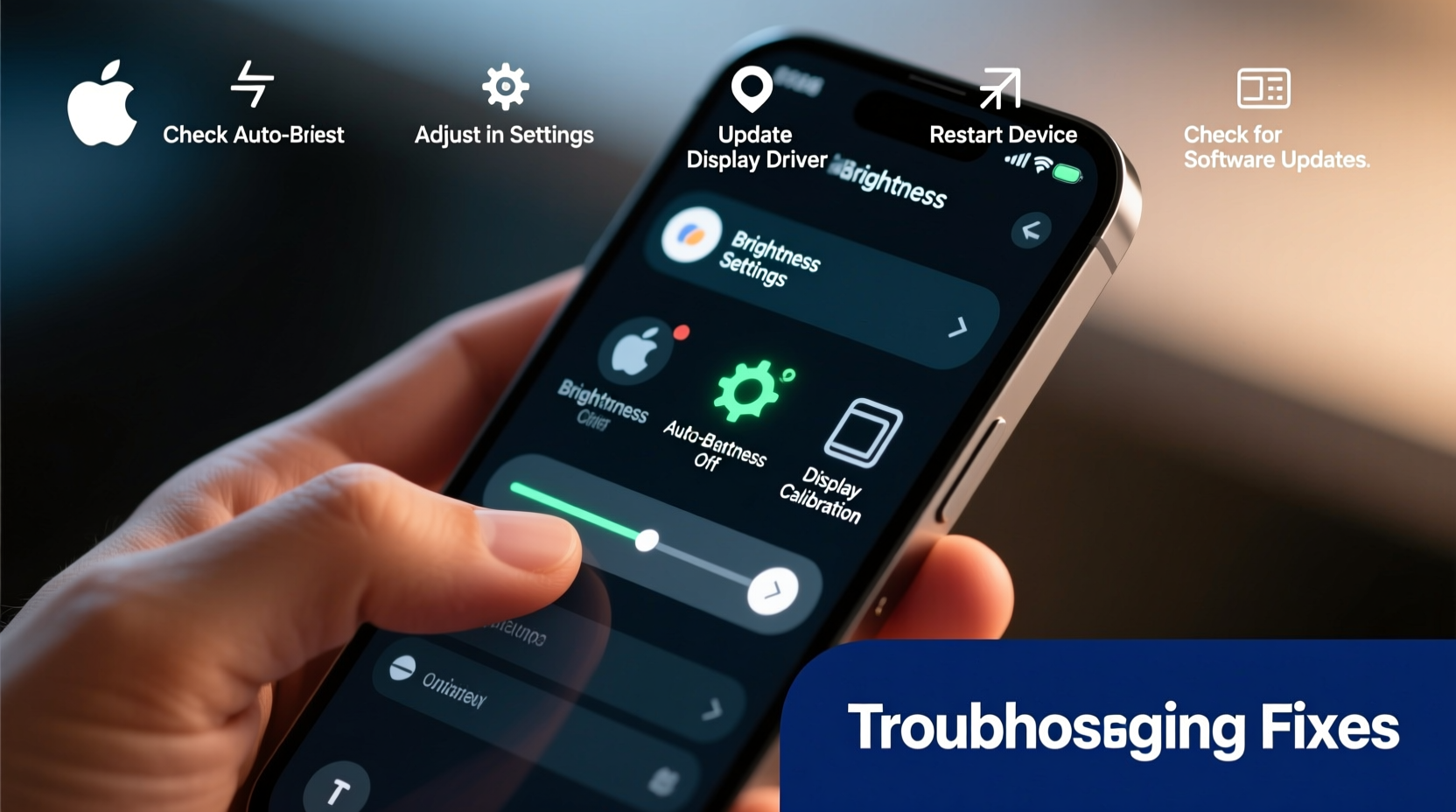
Most smartphones today come equipped with ambient light sensors that automatically adjust screen brightness based on surrounding light conditions. In bright environments, such as outdoors on a sunny day, the screen should increase brightness for better visibility. Conversely, in dim rooms, it dims to reduce eye strain. However, if this system malfunctions, your phone may remain too dim even in well-lit areas.
The sensor is typically located near the front-facing camera. If it’s obstructed by a case, screen protector, or smudge, it may misread lighting conditions and keep brightness unnecessarily low. Similarly, software bugs can prevent the sensor from functioning correctly, even when unobstructed.
Step-by-Step Guide to Diagnose and Fix Low Brightness
Follow this systematic approach to identify and resolve the cause of your phone's low brightness:
- Check Manual Brightness Settings: Swipe down from the top of the screen to open the quick settings panel. Ensure the brightness slider is pulled all the way to the right (maximum).
- Disable Adaptive Brightness: Go to Settings > Display > Brightness and toggle off “Adaptive” or “Auto-Brightness.” This allows manual control over brightness levels.
- Test in Different Lighting: Move to a brightly lit room or step outside during daylight. Observe whether the screen adjusts accordingly. If it remains dim, the sensor or software may be at fault.
- Restart Your Phone: A simple reboot can clear temporary glitches affecting display performance.
- Update Your Operating System: Navigate to Settings > System > Software Update (Android) or Settings > General > Software Update (iOS). Install any pending updates, as they often include display-related bug fixes.
- Boot in Safe Mode (Android): Hold the power button, then long-press “Power off” and select “Safe Mode.” If brightness improves, a third-party app may be interfering.
Common Causes and Their Solutions
Low brightness isn’t always due to user error. Several underlying issues could be responsible:
- Battery Saver Mode: When enabled, this feature reduces screen brightness to conserve power. Disable it in Settings > Battery.
- Night Mode or Blue Light Filter: Features like Night Shift (iOS) or Blue Light Filter (Android) can make the screen appear darker. Adjust or disable them in Display settings.
- Screen Timeout Settings: A short screen timeout may cause the display to dim quickly after inactivity. Extend the duration under Display settings.
- Damaged Hardware: Physical damage to the screen or backlight can permanently reduce brightness. Look for signs like discoloration, flickering, or dead pixels.
- Aging OLED Panels: On older OLED devices, screen burn-in or degradation can lead to reduced luminance over time.
| Cause | Symptom | Solution |
|---|---|---|
| Auto-brightness enabled | Screen dims unexpectedly indoors | Turn off adaptive brightness |
| Battery Saver active | Brightness locked low | Disable battery saver mode |
| Software glitch | No response to brightness adjustments | Restart device or update OS |
| Obstructed light sensor | Screen doesn't brighten outdoors | Clean front sensor area |
| Hardware failure | Flickering, uneven lighting, or black spots | Seek professional repair |
Expert Insight: What Engineers Say About Display Issues
“Over 60% of reported brightness issues are resolved by disabling auto-brightness or cleaning the sensor. True hardware failures are less common than users assume.” — Dr. Lena Torres, Mobile Device Engineer at TechInsight Labs
This insight highlights how easily fixable many brightness problems are. Before assuming the worst, exhaust software-based solutions first.
Real Example: Maria’s Outdoor Visibility Problem
Maria, a delivery driver, noticed her Android phone stayed dim even under direct sunlight, making navigation nearly impossible. She assumed the screen was failing. After reading online forums, she checked her settings and discovered that “Adaptive Brightness” was on, but the sensor was covered by a thick rubber case. Once she adjusted the case and recalibrated the setting, the screen responded instantly to sunlight. A five-minute fix saved her from an unnecessary repair appointment.
Preventive Checklist for Optimal Screen Performance
To avoid recurring brightness issues, follow this monthly maintenance checklist:
- ✅ Clean the front sensor and screen weekly with a microfiber cloth.
- ✅ Review display settings to ensure no unintended modes are active.
- ✅ Keep your operating system updated.
- ✅ Avoid using third-party apps that override display controls unless necessary.
- ✅ Monitor battery health; degraded batteries can trigger power-saving behaviors.
Frequently Asked Questions
Why does my phone get dimmer over time?
Some phones gradually reduce maximum brightness as a protective measure against overheating or battery strain. Additionally, OLED screens degrade slightly with prolonged use, especially if displaying static images for long periods. Regular software updates can mitigate this through improved power management.
Can a screen protector cause low brightness?
While most high-quality protectors don’t interfere with brightness, poorly designed ones—especially matte or anti-glare types—can scatter light and make the screen appear dimmer. They may also partially cover the ambient light sensor if improperly aligned.
Is it safe to run my phone at full brightness all the time?
Prolonged use at maximum brightness increases power consumption and generates more heat, which can shorten battery lifespan and accelerate screen wear. Use full brightness only when necessary, such as in direct sunlight, and rely on auto-brightness in variable conditions.
Conclusion: Take Control of Your Display Experience
Your phone’s screen is your primary interface with the digital world, and dimness shouldn’t stand in the way of clarity and convenience. Most brightness issues are solvable with simple adjustments—often within minutes. By understanding how automatic settings work, recognizing hardware limitations, and performing regular maintenance, you can ensure your device performs at its best. Don’t rush to replace your phone at the first sign of dimness; instead, methodically troubleshoot using the steps outlined here. Chances are, the fix is easier than you think.




 浙公网安备
33010002000092号
浙公网安备
33010002000092号 浙B2-20120091-4
Comments
No comments yet. Why don't you start the discussion?