
You’ve invested in a high-wattage fast charger, plugged it in, and yet your phone creeps from 20% to 30% over an hour. Frustrating? Absolutely. Fast charging technology promises rapid power delivery, but real-world performance often falls short due to overlooked factors. The issue isn’t always the charger — it’s usually a combination of hardware, software, environmental conditions, and usage habits that sabotage charging efficiency.
Understanding the root causes behind slow charging can save time, reduce battery strain, and extend your device’s lifespan. This guide dives deep into the technical and practical reasons your phone might not be charging as quickly as expected — even with a fast charger — and provides tested solutions to get you back on track.
Common Causes of Slow Charging Despite Using a Fast Charger
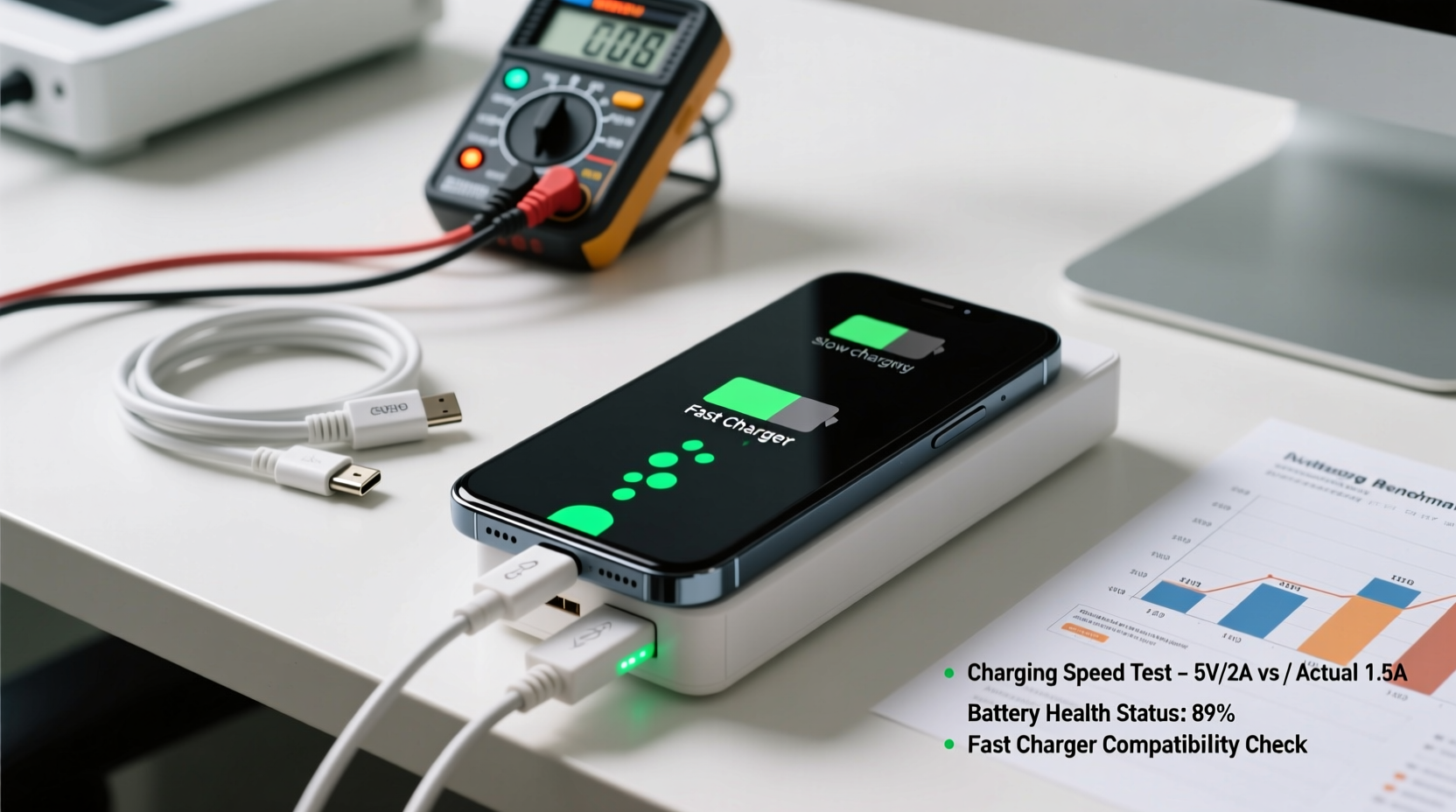
Fast charging relies on a precise ecosystem: compatible hardware, unobstructed power flow, and optimal operating conditions. Any break in this chain can degrade performance. Below are the most frequent culprits behind underperforming fast charging.
1. Incompatible or Low-Quality Cables
The cable is just as critical as the charger. Many users assume any USB-C or Lightning cable will support fast charging, but this isn’t true. Older cables may lack the necessary wiring (e.g., E-Marker chips) to handle higher wattages. Third-party cables that don’t meet USB-IF certification standards often throttle power delivery to prevent overheating or damage.
2. Non-Fast Charging Power Adapter
Just because a charger says “USB-C” doesn’t mean it supports fast charging. A 5W or 10W adapter cannot deliver the 18W, 25W, or 30W+ required by modern smartphones for rapid charging. Check your charger’s output rating — it should match or exceed your phone’s supported fast charging standard (e.g., USB Power Delivery, Qualcomm Quick Charge).
3. Battery Age and Health Degradation
Lithium-ion batteries degrade over time. After 500 full charge cycles, most smartphone batteries retain only 80–85% of their original capacity. As the battery ages, its internal resistance increases, limiting how quickly it can safely accept charge. Even with a top-tier charger, an older battery may default to slower charging to protect itself.
“Battery chemistry changes over time make fast charging less efficient. After two years of regular use, expect noticeable slowdowns.” — Dr. Alan Reyes, Battery Technology Researcher at MIT Energy Initiative
4. Background Activity and Heat Buildup
If your phone is running navigation, streaming video, or syncing large files while charging, energy is diverted from charging to powering those processes. Worse, active apps generate heat, and elevated temperatures trigger thermal throttling — a safety feature that reduces charging speed to prevent damage.
5. Charging Port Blockage or Damage
Dust, lint, or pocket debris can accumulate in the charging port, creating poor electrical contact. This intermittent connection forces the phone to drop to lower charging modes or stop charging altogether. Similarly, bent pins or physical wear can disrupt data and power signaling needed for fast charging negotiation.
Step-by-Step Guide to Diagnose and Fix Slow Charging
Follow this systematic approach to identify and resolve the bottleneck affecting your charging speed.
- Verify Your Charger’s Output: Check the label on your power adapter. Look for terms like “QC 3.0,” “PD 3.0,” or wattage ratings (e.g., 18W, 30W). If it reads 5V/1A (5W), it’s not a fast charger.
- Inspect the Cable: Use the original cable or one explicitly rated for fast charging. Avoid coiled or frayed cables, which increase resistance.
- Clean the Charging Port: Power off the phone. Use a dry toothpick or soft brush to gently remove lint. Do not use metal objects or liquids.
- Test in Airplane Mode: Enable Airplane Mode and disable Bluetooth and Wi-Fi. Reconnect the charger. If speed improves, background activity was the culprit.
- Check Battery Health: On iPhones, go to Settings > Battery > Battery Health. On Android, use apps like AccuBattery or dial *#*#4636#*#*. If health is below 80%, consider replacement.
- Try a Different Outlet: Weak wall circuits or overloaded power strips can limit current delivery. Plug directly into a wall socket.
- Update Software: Install the latest OS update. Manufacturers often release firmware patches to optimize charging algorithms.
Do’s and Don’ts: Charging Best Practices
| Do | Don't |
|---|---|
| Use OEM or certified fast-charging accessories | Use unknown third-party chargers without certifications |
| Charge in cool, shaded environments (15–25°C) | Leave phone charging in direct sunlight or hot cars |
| Keep the charging port clean and dry | Blow into the port or use compressed air aggressively |
| Enable optimized charging features (iOS/Android) | Keep the phone under a pillow or blanket while charging |
| Replace aging batteries proactively | Ignore persistent overheating during charging |
Real-World Case Study: Sarah’s Sluggish Pixel 7
Sarah upgraded to a Google Pixel 7 and purchased a 30W USB-PD charger, expecting a full charge in under 40 minutes. Instead, her phone took over two hours to reach 100%. She assumed the phone was faulty and considered returning it.
After testing different outlets and restarting the device, she noticed no improvement. Then, she checked the cable — a generic USB-C cable bought from a gas station. Upon switching to the original cable from the box, charging speed increased dramatically. The third-party cable lacked proper E-Marker support and defaulted to 5V/1.5A (7.5W) charging.
This case highlights how easily one overlooked component — the cable — can derail the entire fast charging experience. Once Sarah replaced the cable, her Pixel charged from 0% to 70% in 30 minutes, as advertised.
Troubleshooting Checklist
- ✅ Confirm charger output matches phone requirements
- ✅ Use a certified fast-charging cable (USB-IF, MFi, or OEM)
- ✅ Clean the charging port with non-metallic tools
- ✅ Disable heavy apps and enable Airplane Mode during charging
- ✅ Monitor temperature — avoid charging in hot environments
- ✅ Update phone software to the latest version
- ✅ Test with another known-fast-charging setup
- ✅ Check battery health; replace if degraded below 80%
- ✅ Try a different power outlet or surge protector
- ✅ Reset network settings (if charging stalls at specific percentages)
Frequently Asked Questions
Can wireless charging be as fast as wired?
While premium wireless chargers now offer up to 15W (iPhone) or 50W (some Samsung models), they are generally slower than equivalent wired setups and generate more heat. For maximum speed, wired fast charging remains superior. Additionally, wireless charging efficiency drops if the phone is misaligned or wearing a thick case.
Why does my phone charge fast at first, then slow down?
This is normal behavior. Phones use a “constant current” phase early on, delivering maximum power. As the battery approaches 80%, charging shifts to a “taper charge” mode to reduce stress and prolong battery life. Beyond 80%, speeds drop significantly. This protects longevity and is not a sign of malfunction.
Does enabling “Fast Charging” in settings guarantee faster speeds?
Not necessarily. Some Android phones have a toggle labeled “Fast Charging” or “Super Fast Charging,” but it only activates if all conditions are met: compatible charger, proper cable, adequate cooling, and sufficient battery health. The setting enables the feature but doesn’t override hardware limitations.
Expert Tips to Maximize Charging Efficiency
Beyond fixing immediate issues, long-term habits can preserve both charging speed and battery health. Consider these advanced strategies:
- Use Adaptive Charging Features: Both iOS and Android offer learning-based charging that slows down overnight charging to reduce battery wear. While this doesn’t boost speed, it maintains peak charging capability over time.
- Avoid Full Discharges: Lithium-ion batteries perform best between 20% and 80%. Frequent deep discharges accelerate degradation, leading to slower charging later.
- Invest in Multi-Port GaN Chargers: Gallium Nitride (GaN) chargers are smaller, cooler, and more efficient than traditional silicon-based adapters. They maintain stable voltage under load, improving real-world fast charging consistency.
- Monitor Charging Speed Apps: Tools like AccuBattery (Android) log actual charging rates over time. Sudden drops in amperage can signal emerging hardware issues before they become critical.
Conclusion: Regain Control Over Your Charging Experience
Slow charging despite using a fast charger is rarely about one single flaw — it’s usually a cascade of small mismatches in the charging ecosystem. From uncertified cables to degraded batteries, each factor chips away at performance until the difference becomes obvious. The good news? Most of these issues are fixable with simple diagnostics and informed choices.
Start by auditing your current setup: Is your charger truly fast? Is your cable certified? Is your port clean? Address these basics, then move to deeper checks like battery health and software updates. With the right knowledge and tools, you can restore your phone’s charging speed and confidence in its daily reliability.




 浙公网安备
33010002000092号
浙公网安备
33010002000092号 浙B2-20120091-4
Comments
No comments yet. Why don't you start the discussion?