
If you’ve ever picked up your phone to find the dreaded “SOS” or “No Service” label where your signal bars should be, you’re not alone. This issue can strike suddenly—whether you're in a remote area or standing in the middle of a city. The “SOS” indicator means your phone can only connect to emergency services, leaving regular calls, texts, and data inaccessible. While alarming, this problem is often fixable with simple steps. Understanding why it happens and how to resolve it quickly can save time, stress, and potential communication breakdowns.
What Does “SOS Only” Mean?
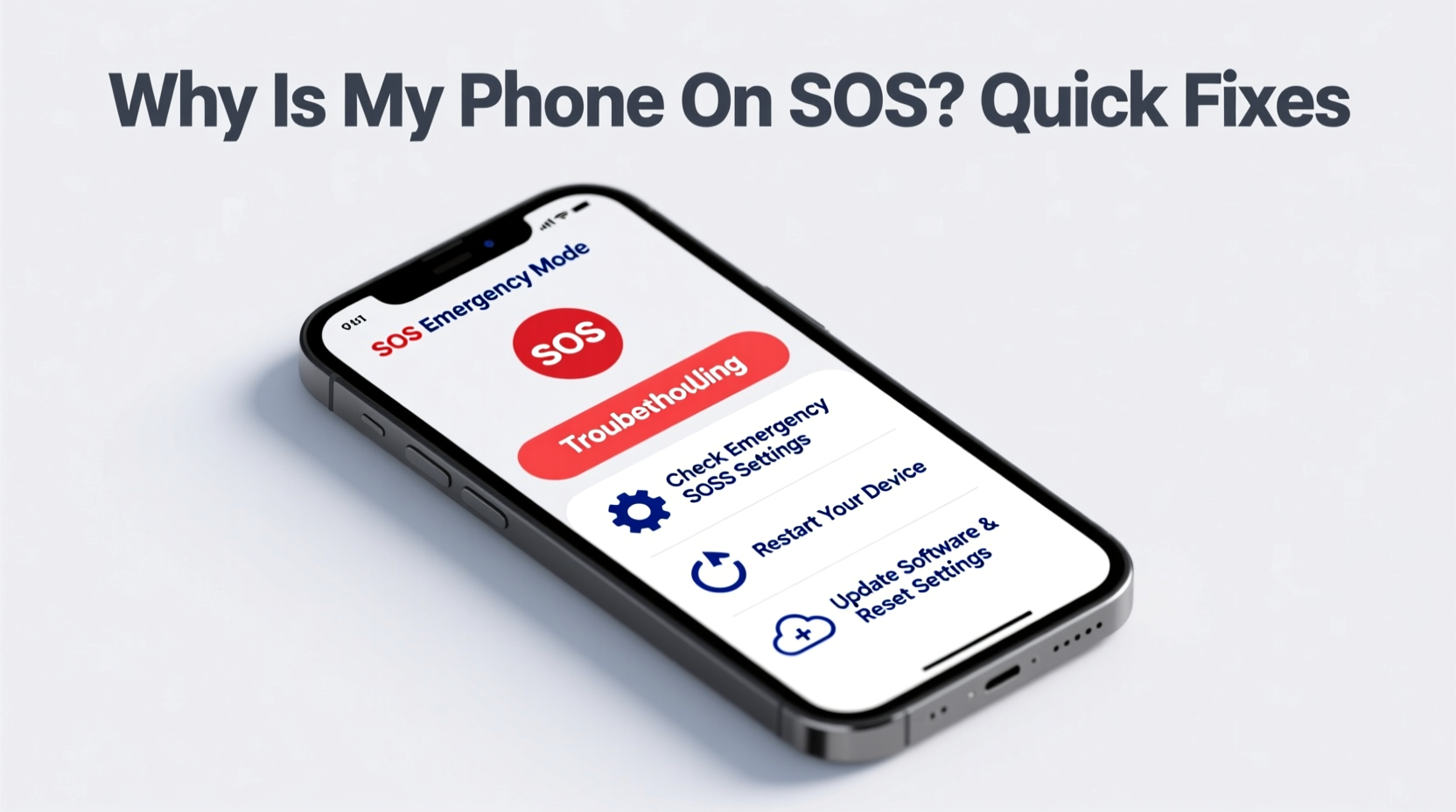
When your phone displays “SOS” or “Emergency Calls Only,” it indicates that the device has lost connection to your carrier’s network but can still reach emergency services like 911. This limitation typically occurs due to network outages, SIM issues, software glitches, or hardware problems. It does not mean your phone is broken—just that normal cellular service is temporarily unavailable.
This status appears on both iPhone and Android devices, though the exact wording may vary. On iPhones, you might see “SOS” in the status bar; on Android phones, it may say “Emergency Calls Only” or show a red exclamation mark over the signal icon.
“Network connectivity issues are among the most common mobile complaints—but the majority are resolvable without technician intervention.” — Dr. Lena Patel, Mobile Network Engineer at CommTest Labs
Common Causes of SOS Mode
Several factors can trigger the SOS-only state. Identifying the root cause helps determine the right solution.
- Weak or No Signal: Being in a basement, rural area, or building with thick walls can block signals.
- Carrier Outage: Temporary network maintenance or regional disruptions affect service.
- Disabled Cellular Settings: Airplane mode, disabled cellular data, or incorrect network selection.
- Outdated Software: Bugs in iOS or Android versions can interfere with network detection.
- Damaged or Loose SIM Card: Physical damage or poor contact prevents proper authentication.
- Incorrect Carrier Settings: Missing or outdated APN (Access Point Name) configurations.
- Hardware Failure: Rarely, antenna or radio module damage disables connectivity.
Step-by-Step Troubleshooting Guide
Follow this logical sequence to diagnose and fix SOS mode efficiently. Start with the simplest solutions before moving to advanced options.
- Check for Network Outages
Visit your carrier’s website or use another device to confirm if there’s a known outage in your area. - Toggle Airplane Mode
Turn on Airplane Mode for 15 seconds, then disable it. This forces your phone to re-scan for networks. - Restart Your Phone
A reboot clears temporary glitches affecting the modem and radio systems. - Ensure Cellular Data Is Enabled
Go to Settings > Cellular (iOS) or Network & Internet > Mobile Network (Android) and verify that cellular service is turned on. - Check SIM Card Placement
Power off the phone, remove the SIM tray, inspect the card for damage, reseat it firmly, and reinsert. - Update Carrier Settings
iPhones: Settings > General > About. If an update is available, install it. Android: Check under Settings > System > Advanced > Carrier Settings. - Reset Network Settings
This restores Wi-Fi, Bluetooth, and cellular settings to default. Note: You’ll need to reconnect to saved networks afterward. - Manually Select a Network
Under network settings, disable “Automatic” and choose your carrier manually from the list. - Update Your Operating System
Install the latest iOS or Android update, which may include critical network patches. - Contact Your Carrier
If all else fails, your account may have service restrictions or the SIM needs replacement.
Troubleshooting Checklist
Use this checklist to methodically address SOS issues:
- ☐ Verify no local network outages
- ☐ Toggle Airplane Mode on/off
- ☐ Restart the device
- ☐ Confirm cellular service is enabled
- ☐ Reseat or replace the SIM card
- ☐ Update carrier settings
- ☐ Reset network settings
- ☐ Manually select your carrier
- ☐ Install OS updates
- ☐ Contact carrier support
Do’s and Don’ts When Fixing SOS Mode
| Do’s | Don’ts |
|---|---|
| Restart your phone regularly to clear network cache | Ignore persistent SOS warnings—intermittent issues can worsen |
| Keep your phone’s software updated | Use third-party tools claiming to “boost signal” — most are scams |
| Store spare SIM cards if traveling internationally | Force eject the SIM tray with sharp objects—risk damaging the slot |
| Test your phone in multiple locations | Assume hardware failure immediately—software fixes work 80% of the time |
Real Example: Recovering From Unexpected SOS Mode
Sarah, a freelance photographer based in Denver, arrived at a mountain shoot location when her iPhone suddenly displayed “SOS.” She couldn’t call clients or upload photos. Initially assuming poor signal, she moved to higher ground with no improvement. Remembering a recent iOS update, she checked for carrier updates under Settings > General > About. A prompt appeared: “Carrier Update Available.” After installing it, her phone reconnected within minutes. The issue wasn’t signal strength—it was outdated carrier settings conflicting with the new OS version.
This case illustrates how seemingly urgent hardware problems can stem from overlooked software mismatches. Regular maintenance prevents such disruptions, especially after system updates.
Frequently Asked Questions
Can I make non-emergency calls when my phone says SOS?
No. When “SOS” or “Emergency Calls Only” appears, your phone cannot place regular calls or send texts unless connected to Wi-Fi calling (if enabled). Emergency services remain accessible regardless.
Will replacing my SIM card fix the SOS issue?
It can—if the current SIM is damaged, expired, or improperly seated. Most carriers provide free replacements. Ensure the new SIM matches your plan type (nano, micro, standard).
Does Wi-Fi Calling help when my phone shows SOS?
Yes, if Wi-Fi Calling is enabled and you’re connected to a stable internet network. iPhones and many Android devices allow calls and texts over Wi-Fi even without cellular service. Enable it in Settings > Cellular > Wi-Fi Calling.
Preventing Future SOS Issues
Proactive habits reduce the likelihood of unexpected connectivity loss. Set monthly reminders to check for system and carrier updates. Avoid dropping your phone, as impacts can loosen internal antennas or the SIM connector. If you frequently travel between areas with spotty coverage, consider a signal booster or switching to a carrier with broader network reach.
For frequent international travelers, ensure your phone is unlocked and compatible with local bands. Some devices sold in one region lack support for frequencies used abroad, leading to false SOS readings despite available networks.
Conclusion: Regain Control Fast
Finding your phone stuck on SOS can be unsettling, but in most cases, the fix is straightforward. By systematically checking signal sources, restarting your device, verifying SIM integrity, and updating software, you can restore full service in minutes. Don’t jump to conclusions about hardware damage—start with the basics. With the right knowledge, you’re equipped to handle connectivity hiccups confidently and keep your phone reliable in any situation.




 浙公网安备
33010002000092号
浙公网安备
33010002000092号 浙B2-20120091-4
Comments
No comments yet. Why don't you start the discussion?