
It’s a familiar scenario: you’re in the middle of an important video call when your phone suddenly feels like it’s about to ignite. The screen dims, the app crashes, or worse — the device shuts down entirely. Overheating during video calls isn’t just inconvenient; it can degrade battery life, slow performance, and even cause permanent hardware damage over time. While modern smartphones are built to handle intensive tasks, prolonged video calling pushes multiple systems to their limits. Understanding the root causes and learning how to manage heat effectively can help you maintain device longevity and enjoy uninterrupted communication.
How Video Calls Push Your Phone to Its Limits
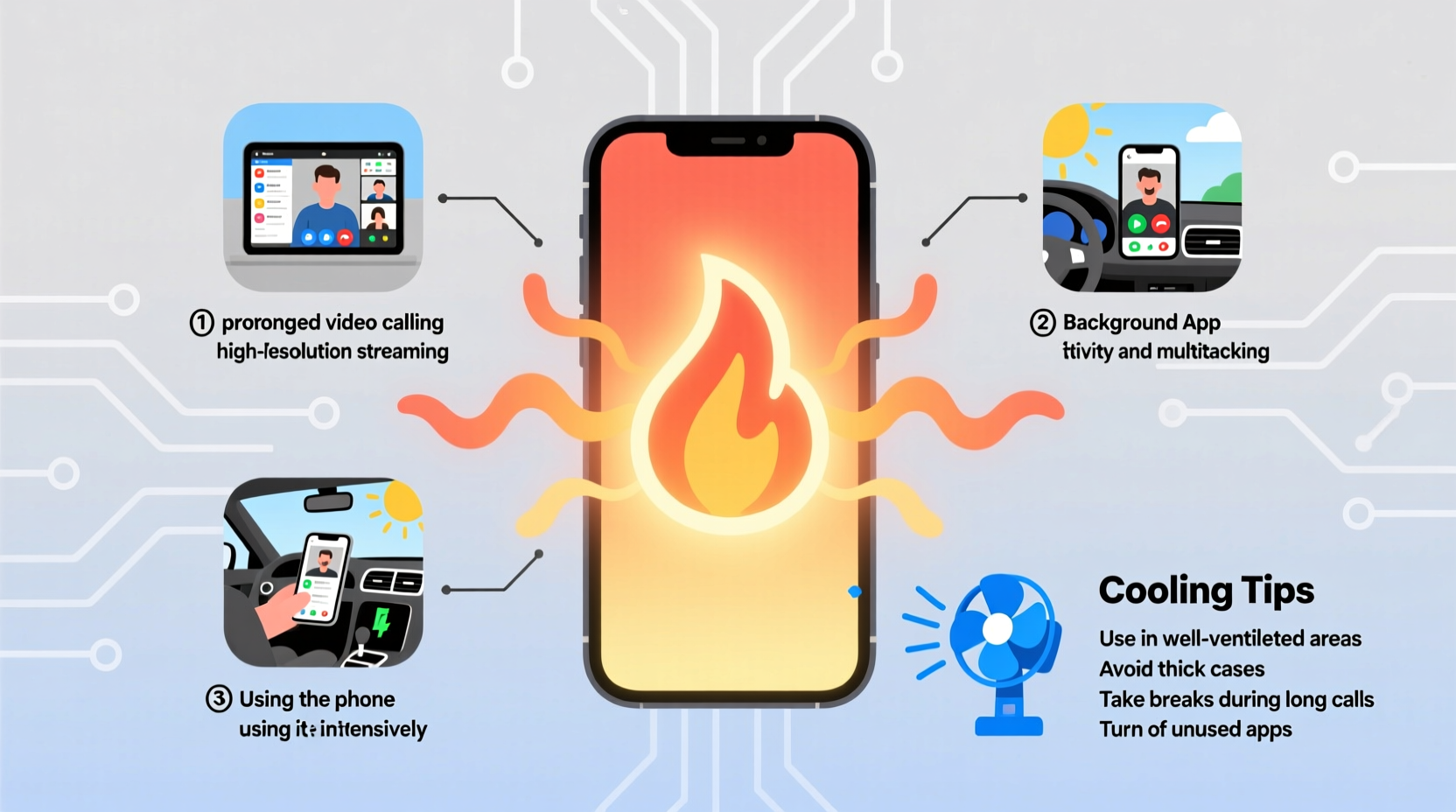
Video calling is one of the most resource-intensive activities for a smartphone. Unlike voice-only calls, video sessions require simultaneous operation of several high-power components:
- Camera sensors — constantly capturing high-resolution video.
- Processor (CPU/GPU) — encoding and decoding video streams in real time.
- Display — running at full brightness with high refresh rates.
- Network radios — maintaining stable Wi-Fi or cellular data connections.
- Microphones and speakers — processing audio input/output continuously.
All these components generate heat. When used together for extended periods — especially in poorly ventilated environments — that heat accumulates faster than the phone can dissipate it. Most phones lack active cooling systems like fans, relying instead on passive conduction through the chassis. As a result, internal temperatures rise, triggering thermal throttling (where the processor slows down) or automatic shutdowns to protect sensitive electronics.
Common Triggers of Phone Overheating During Video Calls
While some heat generation is normal, excessive warming often stems from specific behaviors or environmental factors. Identifying these triggers is the first step toward prevention.
1. Poor Ventilation and Enclosed Spaces
Holding your phone tightly, using thick cases, or placing it on soft surfaces like beds or couches blocks airflow. Without proper ventilation, heat gets trapped inside the device.
2. High Screen Brightness and Resolution Settings
Running your display at maximum brightness while using HD or 1080p video settings dramatically increases power consumption. Many video conferencing apps default to high resolution, which may be unnecessary depending on your connection quality.
3. Background Apps and System Load
Having multiple apps running in the background — especially those syncing data, using GPS, or streaming media — forces the processor to work harder, contributing to thermal stress.
4. Weak Network Signal
When Wi-Fi or cellular signal is weak, your phone boosts its radio output to maintain connectivity. This increased transmission power generates additional heat, particularly during data-heavy tasks like video streaming.
5. Direct Sunlight or Hot Environments
Using your phone outdoors in direct sunlight or leaving it near heaters, car dashboards, or in hot rooms raises ambient temperature. A warm starting point makes overheating more likely during intensive use.
6. Outdated Software or Buggy Apps
Older operating systems or poorly optimized video calling apps may not manage resources efficiently. Bugs can cause processes to run indefinitely, consuming CPU cycles and generating excess heat.
“Smartphones are designed with thermal safety margins, but sustained overheating — especially above 45°C — accelerates battery degradation and reduces long-term reliability.” — Dr. Alan Zhou, Mobile Hardware Engineer at TechInsight Labs
Effective Cooling Tips to Prevent Overheating
You don’t need advanced tools or technical knowledge to keep your phone cool. Simple behavioral changes and smart setup choices make a significant difference.
Step-by-Step Guide: How to Cool Down an Overheating Phone
- End the call immediately if the phone feels uncomfortably hot or displays a warning message.
- Remove the case to allow better heat dissipation through the frame.
- Turn off the screen and place the phone in a shaded, well-ventilated area.
- Avoid rapid cooling methods like refrigerators or ice packs — sudden temperature shifts can damage internal components or cause condensation.
- Wait 10–15 minutes before resuming use to let internal temperatures normalize.
- Restart the device afterward to clear any stuck processes.
Long-Term Prevention Strategies
- Use a minimalist case made of thermally conductive materials like aluminum or silicone without extra layers.
- Lower screen brightness manually during calls instead of relying on auto-brightness.
- Disable unnecessary features such as Bluetooth, GPS, and haptic feedback while on a call.
- Switch to speakerphone or earbuds to avoid holding the phone against your face, which traps heat.
- Prefer Wi-Fi over cellular data when possible — Wi-Fi typically uses less power and generates less heat than 4G/5G under stable conditions.
Do’s and Don’ts: Managing Heat During Video Calls
| Do’s | Don’ts |
|---|---|
| Use your phone in a cool, shaded room | Leave your phone in direct sunlight during a call |
| Close background apps before starting a call | Run gaming or streaming apps simultaneously |
| Take breaks every 30–45 minutes during long meetings | Use the phone continuously for hours without rest |
| Update your OS and calling apps regularly | Ignore software update notifications |
| Enable “Data Saver” mode in Zoom, Teams, or Google Meet | Stream in 1080p unnecessarily on slow connections |
Real-World Example: Remote Worker Avoids Repeated Shutdowns
Sophie, a freelance graphic designer based in Phoenix, Arizona, began experiencing frequent phone shutdowns during client Zoom calls in summer. Her device would overheat within 20 minutes, forcing her to switch to a laptop. After investigating, she realized several factors were at play: she used a bulky rubberized case, conducted calls near a sunny window, and kept screen brightness at 100%. She also had design apps syncing cloud files in the background.
By switching to a thin case, moving to a cooler room, lowering brightness, closing nonessential apps, and using a small desk fan nearby, Sophie reduced her phone’s peak temperature by nearly 12°C. Her phone no longer overheated, allowing her to rely on mobile video calls even during afternoon sessions. This simple adjustment saved her time and improved her workflow flexibility.
Checklist: Keep Your Phone Cool During Video Calls
Before starting your next video conference, run through this quick checklist:
- ✅ Remove thick or insulated phone case
- ✅ Lower screen brightness to 50% or less
- ✅ Close all unused apps (especially social media and games)
- ✅ Connect to a strong Wi-Fi network
- ✅ Disable Bluetooth, GPS, and vibration feedback
- ✅ Position the phone on a hard, flat surface with space around it
- ✅ Use headphones or speaker mode to avoid blocking vents
- ✅ Set a timer to take a 5-minute break every 30 minutes
Frequently Asked Questions
Is it dangerous if my phone gets hot during a video call?
Moderate warmth is normal, but if the phone becomes too hot to hold comfortably or shows a warning message, it's entering a risky zone. Prolonged exposure to high temperatures can permanently reduce battery capacity and strain internal components. Immediate action — pausing usage and allowing cooldown — is recommended.
Can I use my phone while it’s charging during a video call?
It’s best to avoid this. Charging generates heat, and combining it with intensive tasks like video calling multiplies thermal load. If necessary, use a low-wattage charger (like 5W) and ensure excellent ventilation. Never cover the phone with blankets or pillows while charging and calling.
Why does my iPhone get hotter than my friend’s Android during the same app?
Different manufacturers use varying chipsets, thermal designs, and software optimizations. iPhones, for example, often prioritize performance over thermal efficiency, leading to quicker heating under load. Similarly, older devices with degraded batteries work harder to maintain power, producing more heat. Usage habits and case types also contribute significantly.
Protecting Your Device for Long-Term Reliability
Overheating isn’t just a momentary nuisance — it has lasting consequences. Lithium-ion batteries degrade faster when exposed to temperatures above 35°C. Studies show that keeping a battery at 40–50°C for extended periods can reduce its lifespan by up to 35% over a year. Additionally, repeated thermal cycling stresses solder joints and internal circuitry, increasing the risk of premature failure.
The good news is that most overheating issues are preventable with mindful usage. By treating your phone like a precision electronic tool rather than an indestructible gadget, you extend its functional life and maintain optimal performance. Think of it like engine maintenance: regular care prevents costly breakdowns later.
“Thermal management is the silent factor behind smartphone longevity. Users who monitor heat and adjust habits see fewer performance drops and longer battery health.” — Maria Lin, Senior Analyst at MobileTech Review
Final Thoughts and Call to Action
Your phone doesn’t have to overheat every time you join a video meeting. With awareness of the triggers and consistent application of cooling strategies, you can maintain a reliable, responsive device for years. Start small: remove that bulky case, dim the screen, and close background apps. These minor adjustments compound into major gains in stability and lifespan.
If you’ve struggled with overheating or discovered a clever workaround, share your experience. Whether it’s a favorite app setting, a DIY cooling hack, or a lesson learned the hard way, your insight could help others avoid frustration and protect their devices. Technology should serve you — not burn your hands.




 浙公网安备
33010002000092号
浙公网安备
33010002000092号 浙B2-20120091-4
Comments
No comments yet. Why don't you start the discussion?