
If your phone screen keeps dimming without warning, you're not alone. Millions of users experience this daily—often at the most inconvenient moments. Whether you're reading in bed, navigating a map on a sunny street, or trying to catch up on messages, an unexpectedly dark screen can be frustrating. But rather than a glitch, this behavior is usually intentional. Modern smartphones are designed with adaptive systems that adjust screen brightness based on multiple factors. Understanding these mechanisms isn't just about convenience—it's about reclaiming control over your device’s performance, battery life, and visual comfort.
How Automatic Brightness Works: The Science Behind the Dimming
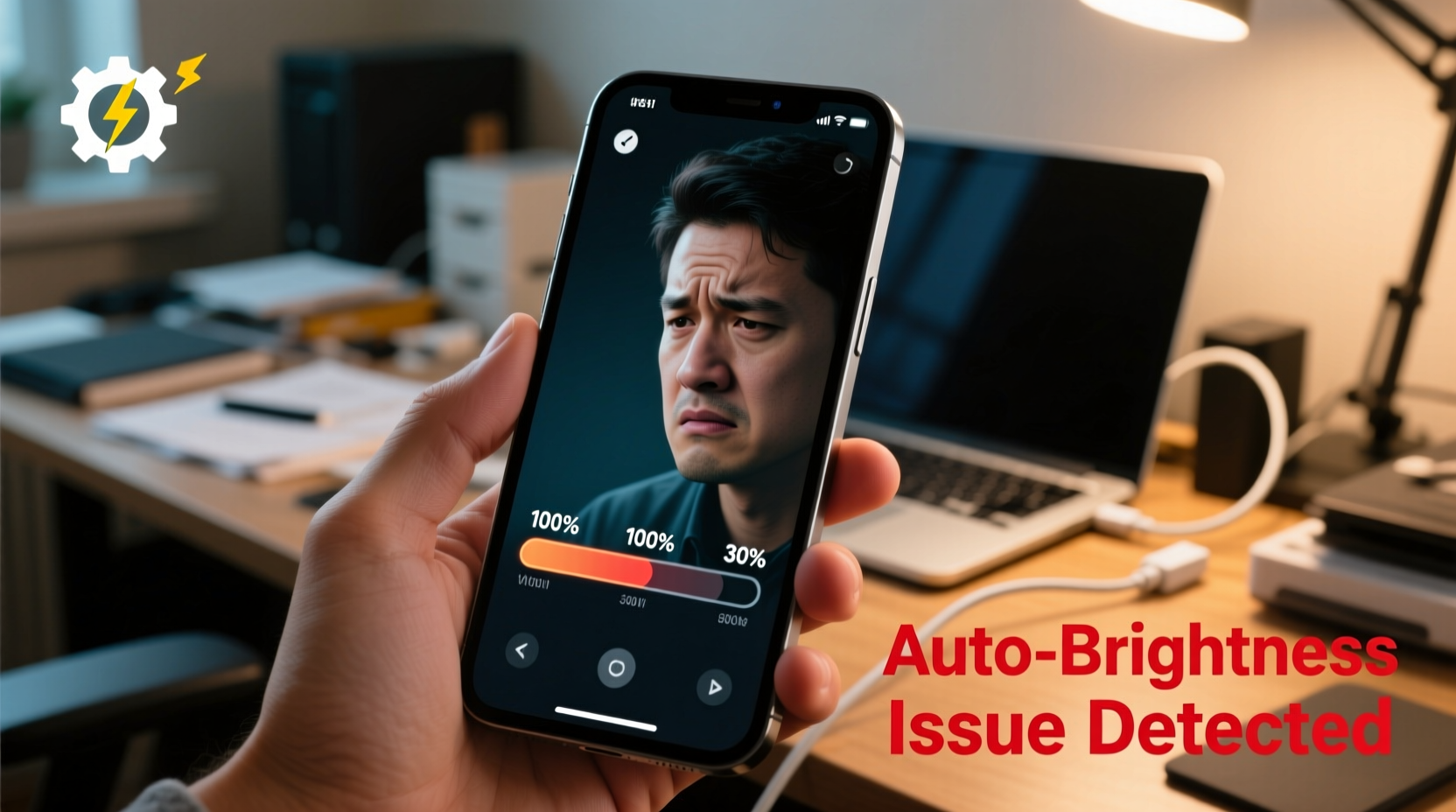
Your phone doesn’t dim randomly. It relies on a combination of hardware and software intelligence. At the core is the ambient light sensor—a small component typically located near the front-facing camera. This sensor detects the amount of light in your environment. When you step into bright sunlight, it signals the system to increase brightness. Conversely, in a dark room, it lowers brightness to reduce eye strain.
Beyond the sensor, modern phones use machine learning models to refine brightness adjustments. For example, iOS devices employ a feature called “True Tone” (on supported models), which adjusts not only brightness but also color temperature based on ambient lighting. Android devices, particularly from Samsung, Google, and OnePlus, use similar AI-driven systems that learn your manual brightness preferences over time and adapt accordingly.
This automation aims to balance visibility and power efficiency. A brighter screen consumes significantly more battery—sometimes up to 30–40% of total usage. By dimming when appropriate, your phone extends battery life while maintaining usability.
Common Causes of Unwanted Screen Dimming
While automatic brightness is helpful, several other features and conditions can contribute to unexpected dimming:
- Adaptive Brightness Learning: Your phone may have learned incorrect patterns. For instance, if you frequently lower brightness in daylight (to save battery), the system might assume that’s your preferred setting even in bright environments.
- Battery Saver Mode: When enabled, this mode often forces screen dimming regardless of ambient light. Some phones even apply aggressive brightness limits during low battery states.
- Screen Timeout Settings: After a period of inactivity, your screen dims slightly before turning off completely. This subtle dimming is often mistaken for automatic brightness issues.
- Temperature Protection: In extreme heat or cold, phones reduce screen brightness to prevent hardware stress or conserve energy.
- Software Glitches: Occasionally, bugs in OS updates interfere with sensor data or brightness algorithms, causing erratic behavior.
The Role of Display Technology
Different display types respond differently to brightness controls. OLED screens, common in premium smartphones, can dim individual pixels to true black, making them more efficient in dark mode and offering deeper contrast. However, OLEDs are also more sensitive to burn-in, so manufacturers sometimes limit maximum brightness duration. LCD screens, while less energy-efficient, offer more consistent brightness across usage scenarios but lack per-pixel control.
“Modern smartphones prioritize energy efficiency and user comfort over static display output. The screen dimming you see is often the result of layered optimization strategies.” — Dr. Lena Patel, Mobile Systems Engineer
Step-by-Step Guide to Diagnose and Control Brightness Behavior
Follow this structured approach to identify and resolve unwanted dimming:
- Check Ambient Light Sensor Obstruction: Ensure the front sensor isn’t covered by a case, screen protector, or dirt. Gently clean the top bezel with a microfiber cloth.
- Test in Different Lighting Conditions: Move between bright and dark areas to observe if the screen responds appropriately. Delayed or no response may indicate a sensor issue.
- Disable Adaptive Brightness Temporarily:
- Android: Settings > Display > Brightness Level > Toggle off “Adaptive brightness”
- iOS: Settings > Accessibility > Display & Text Size > Auto-Brightness > Turn Off
- Manually Adjust Brightness Slider: With auto-brightness off, set the slider to your preferred level and use it consistently for 24 hours to reset learned behavior.
- Review Battery Saver Settings: Disable battery saver mode or check if it includes brightness restrictions. On some Samsung devices, Extreme Power Saving Mode locks brightness at 50%.
- Reset Display Calibration (if available): Some manufacturers include diagnostic tools under Settings > Support or Device Care. Look for “Display calibration” or “Sensor test.”
- Update Your Operating System: Install the latest OS update. Manufacturers regularly patch display-related bugs.
Do’s and Don’ts of Managing Screen Brightness
| Do | Don’t |
|---|---|
| Use auto-brightness in variable lighting environments | Leave auto-brightness on if it consistently misjudges your needs |
| Enable dark mode to reduce perceived brightness and eye strain | Set brightness to maximum for extended periods—this accelerates battery drain and screen wear |
| Calibrate brightness preferences weekly if usage patterns change | Ignore persistent dimming after restarts—it may signal hardware failure |
| Use built-in accessibility features like Night Shift or Blue Light Filter | Apply third-party “brightness booster” apps—they often misuse system permissions and can harm display longevity |
Real-World Example: Sarah’s Commute Conundrum
Sarah, a graphic designer in Chicago, noticed her iPhone kept dimming during her morning commute. She’d pull up design references on the train, only to find the screen fading mid-scroll. Initially, she assumed a battery issue. After disabling Low Power Mode and cleaning her screen, the problem persisted. She tested the ambient light sensor by covering it with her hand—no immediate brightness adjustment occurred. A quick visit to Apple Support revealed that her screen protector was partially blocking the sensor. Replacing it with a precision-cut version resolved the issue instantly. The takeaway? Even minor physical obstructions can disrupt sophisticated sensor systems.
Customizing Brightness for Optimal Comfort and Efficiency
Personalization is key. One-size-fits-all automation rarely works perfectly. Here’s how to tailor your experience:
- Create Usage Profiles: Set different brightness levels for work, leisure, and nighttime. Many Android launchers support automation via apps like Tasker or Bixby Routines.
- Leverage Scheduling Features: Both iOS and Android allow scheduled dark mode and brightness shifts. For example, set brightness to 60% from 9 PM to 7 AM to reduce blue light exposure.
- Use Third-Party Tools Wisely: Apps like Lux (Android) offer granular control over brightness curves, but require careful configuration to avoid over-correction.
- Monitor Battery Impact: In Settings > Battery, review screen-on time and brightness history. If your screen stays above 80% brightness frequently, consider lowering the ceiling manually.
Expert Insight: Balancing Automation and Control
“The ideal brightness setting isn’t fixed—it evolves with context. Users should treat auto-brightness as a starting point, not a final solution. Manual fine-tuning enhances both comfort and efficiency.” — Marcus Tran, UX Researcher at a Leading Smartphone Manufacturer
Frequently Asked Questions
Why does my screen dim even when auto-brightness is off?
This can happen due to thermal throttling, battery saver activation, or display protection features. Some phones have an additional “adaptive display” mode separate from auto-brightness. Check your manufacturer’s settings thoroughly. Also, certain apps (like video players) may override system brightness for playback optimization.
Can I permanently disable screen dimming?
While you can disable auto-brightness, complete elimination of dimming isn’t recommended or always possible. Safety and power management protocols may still trigger reductions. However, you can minimize it by keeping the brightness slider near maximum, disabling battery saver, and ensuring optimal temperature conditions.
Does screen dimming affect eye health?
Properly calibrated dimming improves eye comfort by reducing glare and blue light exposure in low-light environments. However, rapid or inconsistent changes can cause visual fatigue. Maintaining a stable, appropriate brightness level—especially at night—is crucial for long-term eye health.
Conclusion: Take Back Control of Your Viewing Experience
Your phone’s automatic screen dimming isn’t a flaw—it’s a feature designed to make your device smarter and more efficient. But like any automation, it requires oversight and occasional recalibration. By understanding the interplay between sensors, software, and personal habits, you can transform frustration into empowerment. Don’t settle for a screen that fights you. Instead, diagnose the root causes, adjust settings deliberately, and create a viewing experience that aligns with your lifestyle.




 浙公网安备
33010002000092号
浙公网安备
33010002000092号 浙B2-20120091-4
Comments
No comments yet. Why don't you start the discussion?