
If your phone screen keeps dimming unexpectedly—especially during critical moments like reading messages, watching videos, or navigating—you’re not alone. This issue affects both Android and iPhone users and can be more than just an annoyance; it can disrupt productivity, strain your eyes, and even impact battery performance. While automatic brightness adjustments are designed to improve user experience, malfunctions or misconfigurations can cause erratic behavior. The good news is that most cases stem from adjustable settings or minor software glitches that you can resolve quickly.
Understanding the root causes behind random screen dimming empowers you to take control of your device’s display. From ambient light sensors to power-saving modes, several system-level features interact to manage screen brightness. When one of these components behaves incorrectly, the result is often inconsistent lighting that dims without warning. This guide walks you through the most common culprits, actionable fixes, and preventive measures to restore consistent screen performance.
Common Causes of Random Screen Dimming
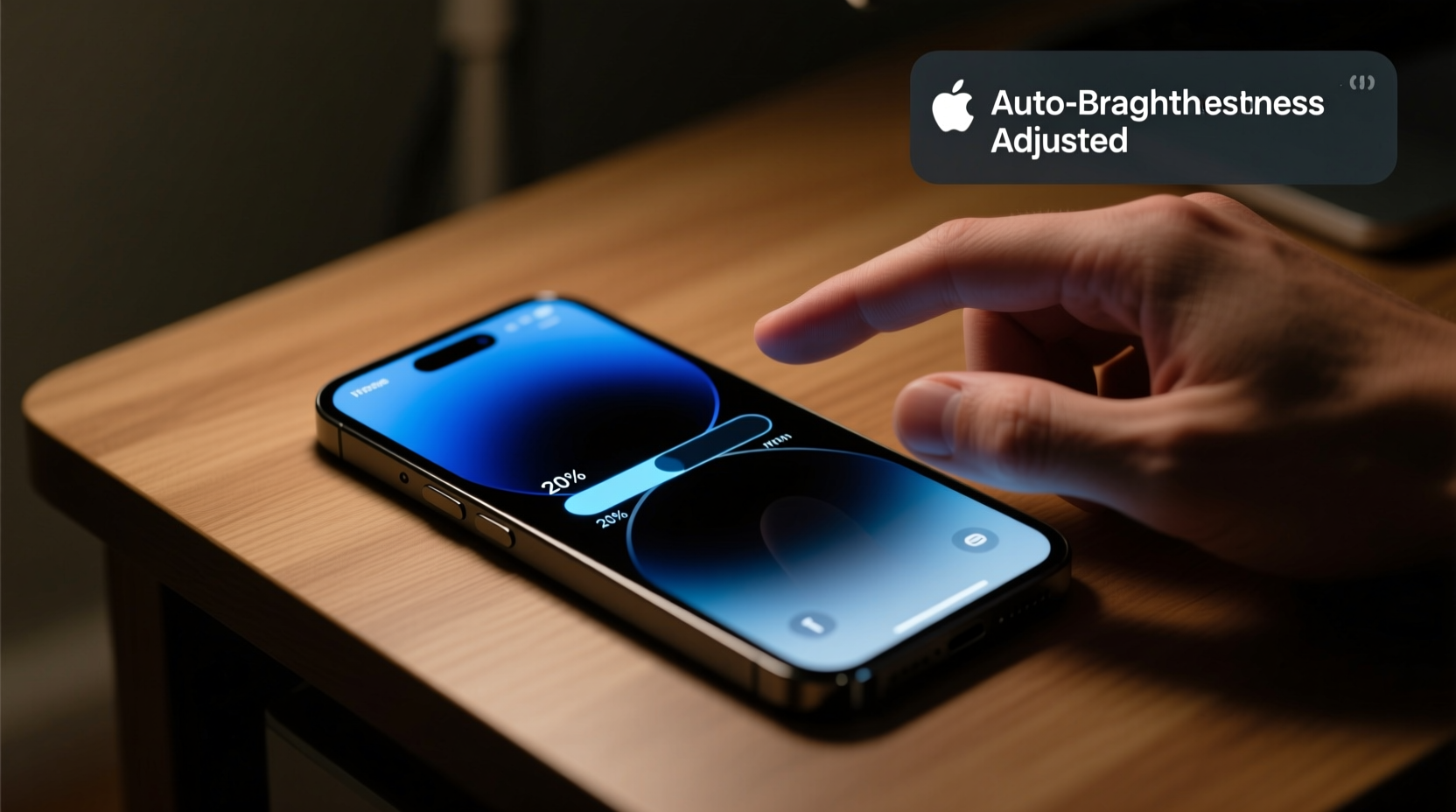
Before diving into solutions, it's important to identify what might be triggering the dimming. Modern smartphones use multiple systems to regulate screen brightness based on usage patterns, environment, and battery status. When any of these systems malfunction or conflict, the screen may dim unpredictably.
- Adaptive Brightness: Uses ambient light sensors and AI to adjust brightness dynamically. If the sensor is blocked or miscalibrated, it can trigger sudden dimming.
- Battery Saver Mode: Automatically reduces screen brightness to conserve power, sometimes activating unexpectedly.
- Screen Timeout Settings: After inactivity, the screen dims before turning off. A short timeout can make this feel abrupt.
- Software Glitches: OS bugs or app conflicts may interfere with display drivers.
- Overheating: Devices reduce screen brightness when internal temperatures rise to prevent damage.
- Faulty Hardware: A damaged display module or failing sensor can cause erratic brightness changes.
Most users experiencing random dimming are dealing with software or settings issues—not hardware failure. That means simple adjustments can often restore normal function.
Settings to Check Immediately
The fastest way to stop random dimming is to review key display and power settings. Here’s a checklist of areas to inspect across both Android and iOS devices.
1. Disable Adaptive/True Tone Brightness
This feature adjusts screen brightness based on surrounding light conditions. While useful, it can overreact or misread environments, leading to sudden drops.
- Android: Go to Settings > Display > Brightness level, then toggle off “Adaptive brightness” or “Auto brightness.”
- iOS: Navigate to Settings > Accessibility > Display & Text Size, then disable “Auto-Brightness.” On newer models, also check “True Tone” and turn it off temporarily to test.
After disabling, manually set your preferred brightness using the slider in Control Center or Quick Settings.
2. Review Battery Saver and Power Modes
Power-saving modes often reduce screen brightness by up to 50%. These can activate automatically based on battery percentage (e.g., below 20%) or schedule.
- Android: Check Settings > Battery > Battery Saver. Ensure it’s off unless needed. Also review “Extreme Battery Saver” if available.
- iOS: Open Settings > Battery > Low Power Mode. Confirm it’s disabled. Note that some third-party apps may still trigger low-light behaviors even when off.
3. Adjust Screen Timeout Duration
A short sleep timer causes the screen to dim and shut off quickly. While this saves battery, it can feel like random dimming if you’re mid-task.
| Device Type | Path to Timeout Setting | Recommended Duration |
|---|---|---|
| Android | Settings > Display > Screen timeout | 2 minutes (adjust based on usage) |
| iOS | Settings > Display & Brightness > Auto-Lock | 2–5 minutes |
Extending the timeout gives you more time before dimming begins, reducing perceived randomness.
4. Calibrate the Ambient Light Sensor
If adaptive brightness remains glitchy, the sensor may need recalibration. There’s no official calibration tool, but you can reset its behavior:
- Turn off Adaptive Brightness.
- Set brightness manually to maximum in a dark room.
- Wait 30 seconds, then move to a brightly lit area and lower brightness manually.
- Repeat once daily for two days to retrain the system.
- Re-enable adaptive mode and observe improvements.
This process helps the sensor relearn environmental cues and respond more accurately.
Step-by-Step Troubleshooting Guide
If adjusting settings doesn’t resolve the issue, follow this systematic approach to isolate and fix deeper problems.
- Restart Your Phone: A reboot clears temporary glitches affecting display processes.
- Check for Software Updates: Go to Settings > System > Software Update (Android) or Settings > General > Software Update (iOS). Install any pending updates—these often include display driver fixes.
- Boot in Safe Mode (Android): Hold power button > long-press “Power off” > tap “Safe Mode.” If the dimming stops, a third-party app is likely interfering. Uninstall recently added apps one by one.
- Reset All Settings (iOS/Android): This resets display, network, and privacy settings without deleting data. Found under System > Reset (Android) or General > Transfer or Reset iPhone (iOS).
- Test Display in Different Apps: Does dimming happen only in specific apps? Try YouTube, Maps, and Messages. If isolated, report the bug to the app developer.
- Inspect for Physical Damage: Cracked screens, water exposure, or pressure marks near the front sensor can impair functionality.
If the problem persists after all steps, consider professional diagnostics.
“Many so-called hardware issues are actually firmware-related. Always exhaust software troubleshooting before assuming component failure.” — David Lin, Senior Mobile Technician at TechCare Labs
Mini Case Study: Resolving Persistent Dimming on a Samsung Galaxy S22
Sarah, a freelance photographer, noticed her Galaxy S22 screen dimming during outdoor shoots, making it hard to frame shots. She initially assumed battery saver was active, but disabling it didn’t help. After checking forums, she realized her screen protector partially covered the ambient light sensor located above the display.
She removed the protector, cleaned the sensor area with a microfiber cloth, and disabled Adaptive Brightness temporarily. After recalibrating the sensor as described earlier, she re-enabled the feature—and the random dimming stopped. Sarah now uses a trimmed screen protector that avoids covering the top bezel, ensuring reliable sensor performance.
This case highlights how small physical obstructions can create major usability issues. Simple awareness and adjustment resolved what seemed like a complex technical fault.
Do’s and Don’ts: Managing Screen Brightness Effectively
| Do’s | Don’ts |
|---|---|
| Keep the front sensor clean and unobstructed | Use thick cases or screen protectors that cover the top bezel |
| Update your OS regularly | Ignore recurring dimming—it could worsen over time |
| Manually adjust brightness if auto-mode feels unreliable | Assume it’s a hardware issue without testing software fixes first |
| Monitor device temperature during heavy use | Leave your phone in direct sunlight while using GPS or video recording |
| Use dark mode to reduce eye strain in low light | Mistake dark mode for brightness issues—brightness and color mode are separate settings |
Frequently Asked Questions
Why does my screen dim even when adaptive brightness is off?
Even with adaptive brightness disabled, other features like Battery Saver, Eye Comfort Mode (on Samsung), or Blue Light Filter schedules can reduce brightness. Check all power and display-related settings to ensure no secondary features are overriding your preferences.
Can overheating really cause screen dimming?
Yes. When your phone exceeds safe operating temperatures—often due to prolonged gaming, GPS navigation, or direct sun exposure—the system throttles performance and dims the screen to reduce heat generation. Letting the device cool down typically restores normal brightness.
Is random dimming a sign of a failing battery?
Not directly. However, a degraded battery may trigger power-saving behaviors more aggressively. If your battery health is below 80% (check via Settings on iPhone or third-party apps on Android), it could contribute to unexpected power management actions, including screen dimming.
Conclusion: Take Control of Your Display Experience
Random screen dimming isn’t something you should have to tolerate. In most cases, it stems from easily correctable settings, environmental factors, or minor software hiccups. By methodically reviewing brightness controls, disabling conflicting modes, and ensuring your device’s sensors remain unobstructed, you can restore smooth, predictable screen behavior.
Your phone’s display is your primary interface with the digital world—keeping it stable and comfortable enhances every interaction. Don’t wait for the issue to escalate. Apply the steps outlined here today, and enjoy a brighter, more reliable user experience.




 浙公网安备
33010002000092号
浙公网安备
33010002000092号 浙B2-20120091-4
Comments
No comments yet. Why don't you start the discussion?