
A flickering phone screen can be more than just annoying—it can disrupt communication, affect productivity, and even cause eye strain. Whether the display flashes intermittently or dances with random lines, this issue often raises concerns about hardware failure or permanent damage. The good news? Not every flicker signals doom. Many causes are software-related or temporary glitches that can be addressed without visiting a repair shop. Understanding the root of the problem is the first step toward an effective fix.
Common Causes of Screen Flickering
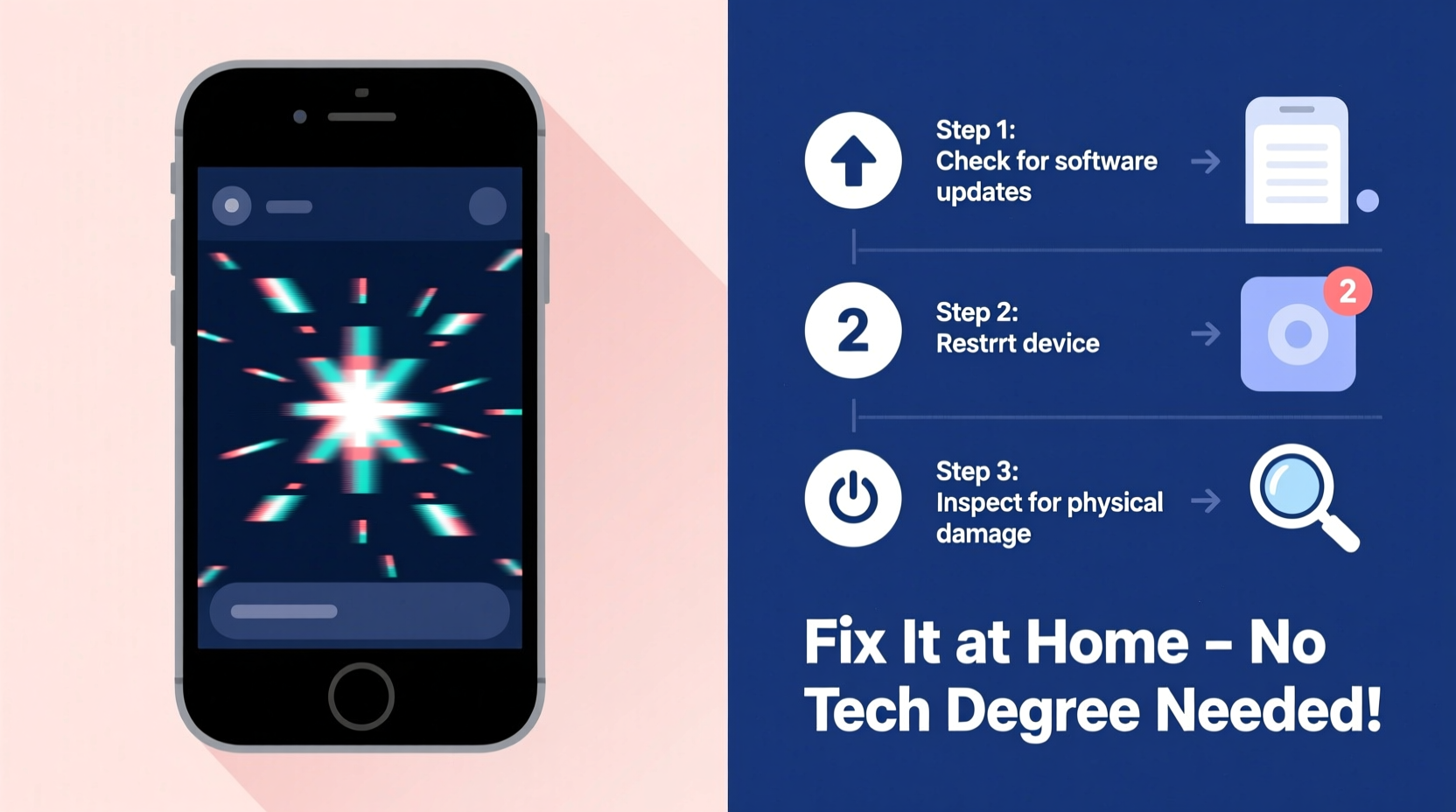
Screen flickering isn't a one-size-fits-all symptom. It can stem from various sources, ranging from minor software bugs to serious physical damage. Identifying the underlying cause helps determine whether a DIY fix is viable or if professional help is needed.
- Software Glitches: Operating system bugs, app conflicts, or failed updates can interfere with display drivers, leading to erratic screen behavior.
- Brightness Settings: Auto-brightness features sometimes malfunction, causing rapid adjustments that appear as flickering, especially under fluorescent lighting.
- Display Mode Issues: Features like Dark Mode, blue light filters, or adaptive refresh rates may conflict with certain apps or settings.
- App Interference: Poorly coded or outdated third-party apps can overload the GPU or interfere with the display manager.
- Physical Damage: Drops or water exposure can compromise internal connections between the screen and motherboard.
- Faulty Hardware: A failing OLED panel, loose display cable, or damaged digitizer can result in persistent flickering.
Step-by-Step Troubleshooting Guide
Before assuming hardware failure, methodically test for simpler fixes. Most flickering issues originate in software or settings and can be resolved at home with patience and precision.
- Restart Your Phone – A simple reboot clears temporary memory and resets display processes. Hold the power button, select \"Restart,\" and wait 30 seconds before powering back on.
- Disable Auto-Brightness – Go to Settings > Display > Brightness and turn off auto-adjust. Set brightness manually to see if flickering stops.
- Turn Off Adaptive Display Features – Disable blue light filter, Dark Mode, or motion smoothing (if available). On Android, check Developer Options for refresh rate settings; on iPhone, disable True Tone and Reduce Motion.
- Boot in Safe Mode (Android) – This disables third-party apps. Press and hold the power button, then long-press \"Power off\" and select \"Safe Mode.\" If flickering stops, an app is likely the culprit.
- Check for System Updates – Navigate to Settings > Software Update (iOS) or System > System Update (Android). Install any pending patches—manufacturers often release fixes for known display bugs.
- Uninstall Recently Installed Apps – If the issue began after installing a new app, remove it immediately. Pay attention to battery-intensive or overlay-permission apps.
- Reset All Settings – This restores system preferences without deleting personal data. On iPhone: Settings > General > Transfer or Reset iPhone > Reset > Reset All Settings. On Android: Settings > System > Reset Options > Reset Wi-Fi, Mobile & Bluetooth.
Hardware Diagnostics and When to Seek Help
If software troubleshooting fails, the issue may be hardware-related. Physical damage or component wear requires careful assessment.
Inspect the screen for visible cracks, discoloration, or pressure marks. Gently press around the edges—if flickering changes or worsens, the display connector may be loose. Water damage indicators (usually small stickers inside the SIM tray or charging port) can reveal past exposure that compromised internal circuits.
“Over 60% of screen flickering cases we see in-store are resolved with a software reset or update. Only about 25% require actual hardware repair.” — Marcus Lin, Senior Technician at MobileFix Pro
While opening the device yourself might seem tempting, modern phones have sealed designs and fragile components. Unauthorized disassembly can void warranties and risk further damage. Unless you have experience with micro-soldering and diagnostic tools, avoid attempting internal repairs.
Tips and Best Practices to Prevent Future Issues
Prevention is more effective—and less stressful—than repair. Adopting smart usage habits reduces the likelihood of screen problems down the line.
- Use reputable screen protectors to absorb impact and reduce micro-scratches.
- Keep your phone away from magnets or strong electromagnetic fields, which can interfere with display signals.
- Install apps only from official stores to minimize malware risks.
- Regularly clear cache partitions (Android) or offload unused apps (iOS) to maintain system performance.
- Enable automatic OS updates to ensure security and stability patches are applied promptly.
Do’s and Don’ts: Quick Reference Table
| Do’s | Don’ts |
|---|---|
| Restart your phone regularly to clear background processes. | Ignore sudden onset of flickering after a drop or spill. |
| Update your operating system and apps consistently. | Use third-party chargers that may deliver unstable voltage. |
| Test in Safe Mode to isolate problematic apps. | Peel back the screen or attempt internal fixes without expertise. |
| Back up data frequently in case a factory reset becomes necessary. | Expose your phone to direct sunlight for extended periods. |
| Monitor battery health—degrading batteries can affect power delivery to the display. | Assume all flickering means immediate replacement is needed. |
Real-World Example: Resolving a Persistent Flicker
Sarah, a freelance graphic designer, noticed her iPhone 12 screen began flickering during client Zoom calls. At first, she assumed it was a hardware defect and considered purchasing a new device. Instead, she followed a structured approach: she restarted the phone, disabled True Tone and Reduce Motion, and updated iOS to the latest version. When the flickering persisted only during video calls, she tested different conferencing apps. She discovered the issue occurred exclusively in Zoom. After uninstalling and reinstalling the app, the problem vanished. The root cause? A corrupted app cache interfering with screen rendering during high-GPU tasks.
This case highlights how environmental factors—like app usage patterns and background processes—can mimic hardware failure. A systematic elimination process saved Sarah hundreds of dollars and preserved her current device.
When Home Fixes Aren’t Enough: Repair Options
If all software remedies fail and the flickering is constant—even after a factory reset—it's time to consider professional service. Start by contacting the manufacturer or carrier, especially if your phone is under warranty. Apple, Samsung, and Google offer limited coverage for display defects within the first year, though accidental damage is typically excluded.
For out-of-warranty devices, compare costs between authorized service centers and independent repair shops. Authorized repairs use genuine parts and preserve future warranty eligibility but come at a premium. Independent shops may offer lower prices but vary in quality. Always request a diagnostic report before approving work.
In some cases, particularly with older models, the cost of repair may approach or exceed the phone’s resale value. Evaluate whether upgrading makes more financial sense than investing in repairs.
Frequently Asked Questions
Can a virus make my phone screen flicker?
True malware that directly controls display hardware is extremely rare on mobile devices due to strict sandboxing. However, malicious apps can overload system resources or exploit display permissions, creating flickering effects. Remove suspicious apps and run a scan using trusted security software like Google Play Protect or Malwarebytes.
Is screen flickering dangerous?
The flickering itself isn’t harmful to your health under normal conditions, but prolonged exposure to erratic screens can cause headaches or eye fatigue. In rare cases, rapidly flashing lights could trigger photosensitive seizures in susceptible individuals. If flickering is severe or strobe-like, stop using the device immediately and seek medical advice if symptoms occur.
Will a factory reset fix a flickering screen?
It can—if the issue is software-related. A factory reset wipes all apps, settings, and cached data, returning the system to its original state. However, it won’t resolve hardware faults like a damaged LCD or broken flex cable. Always back up your data before proceeding, as this action is irreversible.
Final Checklist: Can You Fix It at Home?
Use this checklist to assess whether the flickering can be resolved without professional help:
- ✅ Restarted the phone and observed if the issue persists
- ✅ Disabled auto-brightness and display enhancement features
- ✅ Checked for and installed OS and app updates
- ✅ Booted into Safe Mode (Android) or tested in minimal usage mode (iPhone)
- ✅ Uninstalled recently downloaded apps, especially those with overlay permissions
- ✅ Performed a factory reset (after backing up data)
- ✅ Inspected for physical damage or signs of water exposure
- ❌ If none of the above worked → Likely hardware issue requiring technician evaluation
Conclusion: Take Action Before It Gets Worse
A flickering phone screen doesn’t automatically mean your device is beyond saving. In many cases, a few targeted adjustments to settings or software can restore normal function quickly and inexpensively. The key is acting early, systematically testing potential causes, and resisting the urge to jump straight to worst-case assumptions. By following the steps outlined here, you gain control over the diagnosis process and avoid unnecessary costs.




 浙公网安备
33010002000092号
浙公网安备
33010002000092号 浙B2-20120091-4
Comments
No comments yet. Why don't you start the discussion?