
A flickering phone screen can be more than just a nuisance—it’s often an early warning sign of deeper issues. Whether it happens intermittently or constantly, screen flicker disrupts usability, strains your eyes, and may indicate hardware failure, software bugs, or environmental damage. Ignoring it could lead to complete display failure, costly repairs, or even data loss. The good news: many causes are fixable at home with the right approach. Understanding why it happens and acting quickly can save you time, money, and frustration.
Common Causes of Phone Screen Flickering
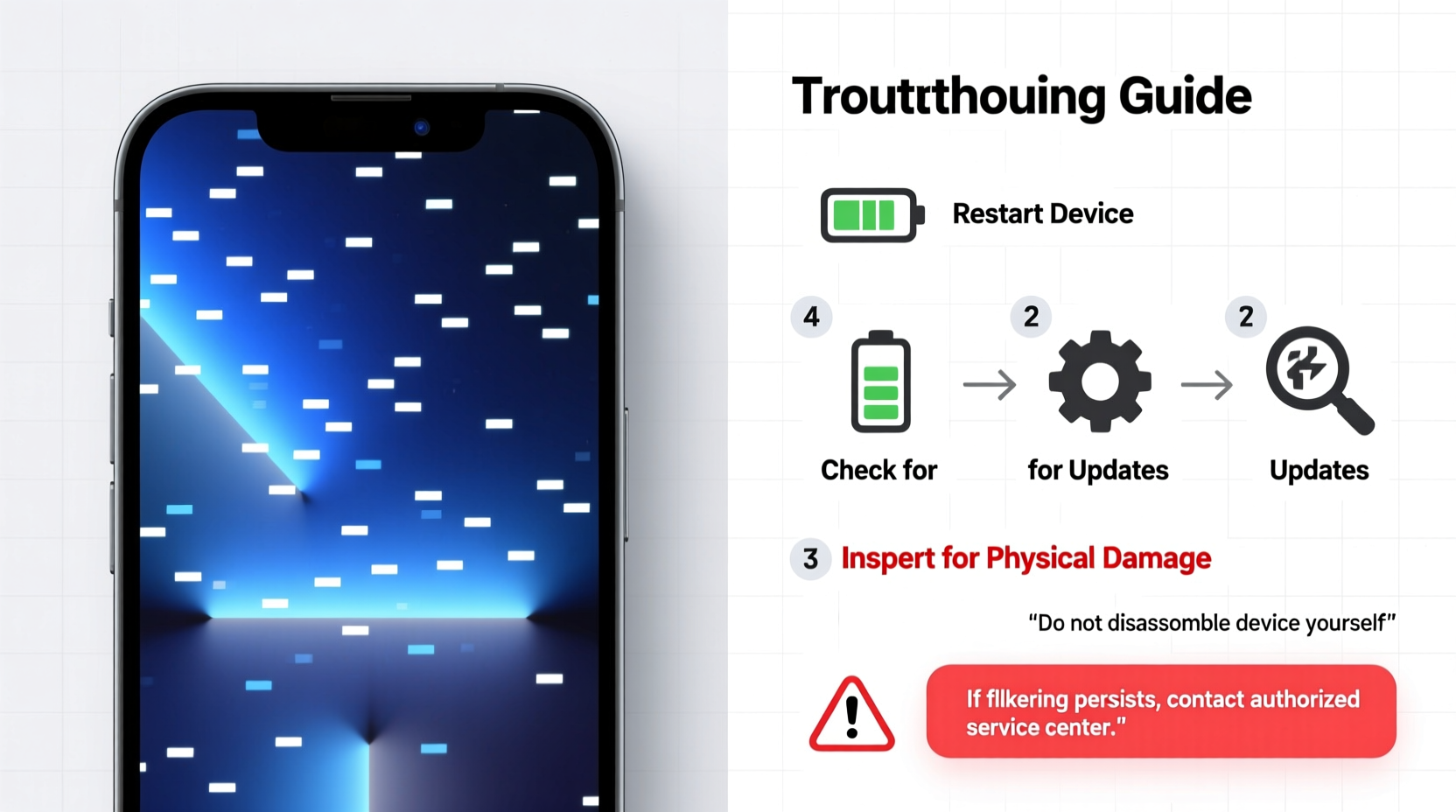
Screen flickering doesn’t happen randomly. It usually stems from one of several identifiable sources, ranging from simple settings misconfigurations to physical damage. Recognizing the root cause is the first step toward resolution.
- Software glitches: Operating system bugs, app conflicts, or failed updates can interfere with display drivers.
- Brightness settings: Auto-brightness features using ambient light sensors may malfunction, causing erratic brightness shifts that appear as flickering.
- Display hardware failure: Damaged OLED or LCD panels, loose internal connections, or pressure on the screen from drops or bends can lead to visual anomalies.
- Third-party apps: Poorly coded apps—especially those modifying screen behavior like blue light filters or screen recording tools—can trigger flicker.
- Water or moisture exposure: Internal corrosion from liquid damage affects circuits connected to the display.
- Low battery or power management issues: In rare cases, voltage fluctuations during charging or extreme battery depletion impact screen stability.
Step-by-Step Guide to Diagnose and Fix the Issue
Before jumping to conclusions—or repair shops—follow this structured troubleshooting process. Many users resolve flickering without spending a dime.
- Restart your phone. A soft reboot clears temporary memory glitches that may affect the display driver.
- Check for visible damage. Inspect the screen for cracks, discoloration, or pressure marks. Even minor impacts can compromise internal connectors.
- Disable auto-brightness. Go to Settings > Display > Brightness and turn off automatic adjustment. Manually set brightness to a mid-level and observe changes.
- Boot into Safe Mode (Android). This disables third-party apps. If flickering stops, an app is likely the culprit. Uninstall recently added apps one by one to identify the offender.
- Update your operating system. Manufacturers regularly release patches for known bugs. Navigate to Settings > System > Software Update to check.
- Reset display settings. On iOS, go to Settings > General > Reset > Reset All Settings. On Android, try resetting app preferences or display calibration if available.
- Test in low-light mode. Enable Dark Mode or Night Light. If flickering persists only in bright themes, it may point to OLED pixel degradation or PWM (pulse-width modulation) sensitivity.
When Hardware Might Be to Blame
If software fixes don’t help, the problem may lie beneath the surface. Physical trauma—even from months ago—can weaken ribbon cables connecting the display to the motherboard. Over time, vibrations or temperature changes cause these connections to degrade, leading to intermittent signals and flickering.
Likewise, water damage—even if the phone seemed fine initially—can corrode micro-components over days or weeks. Look for signs like discolored Liquid Contact Indicators (LCIs), muffled sound, or charging issues alongside screen problems.
“Over 60% of ‘mysterious’ screen flickers we see in service centers trace back to either outdated firmware or minor physical trauma that wasn’t taken seriously at first.” — Rajiv Mehta, Senior Mobile Technician, TechCare Pro
Do’s and Don’ts: Managing a Flickering Screen
| Action | Do | Don't |
|---|---|---|
| When flickering starts | Document symptoms: frequency, triggers (e.g., opening certain apps), lighting conditions | Ignore it or assume it will go away on its own |
| Using the phone | Reduce screen-on time; use voice commands or accessibility features | Continue heavy usage that heats up the device |
| Charging | Use original charger; avoid fast charging temporarily | Charge overnight or use unverified third-party chargers |
| Cleaning | Gently wipe screen with microfiber cloth | Apply liquids directly or use abrasive cleaners |
| Seeking help | Contact manufacturer support or authorized repair | Attempt DIY screen replacement without experience |
Real-World Example: How One User Fixed Flickering After a Drop
Samantha, a freelance photographer, noticed her iPhone XR screen began flickering faintly after she dropped it down a flight of stairs. There were no visible cracks, so she assumed it was fine. Within two weeks, the flickering worsened—especially when zooming in photos or switching apps.
She tried restarting and updating iOS, but the issue persisted. Then, she booted into Safe Mode (via recovery mode by holding volume down + side button during restart). The flickering stopped. That ruled out hardware—at least partially. She suspected an app conflict.
After disabling her third-party camera enhancement app, the screen stabilized. Later, she reinstalled the app and found it had corrupted during the fall due to sudden shutdown. Removing it permanently solved the problem. However, a technician later confirmed slight loosening of the display connector—a hidden consequence of the drop. Had she waited longer, full display failure was likely.
This case shows how multiple factors—physical impact, software instability, and app interference—can combine. Early diagnosis prevented permanent damage.
Preventive Measures to Avoid Future Issues
Once resolved, protect your phone from recurring or new display problems with these habits:
- Use a high-quality case and tempered glass screen protector. These absorb shock and reduce stress on the display assembly.
- Avoid extreme temperatures. Heat accelerates OLED burn-in; cold can temporarily distort touch response and visuals.
- Keep software updated. Updates often include display optimization and security patches.
- Limit screen brightness animations. Features like adaptive refresh rate (ProMotion on iPhone, LTPO on Android) can sometimes glitch. Toggle them off temporarily if flickering occurs.
- Back up data regularly. If display failure leads to unresponsiveness, having a recent backup ensures you don’t lose critical files.
When to Seek Professional Repair
Some situations require expert intervention. Don’t delay professional help if you notice:
- Flickering spreads into vertical or horizontal lines
- Touch responsiveness decreases or fails entirely
- Discoloration (pink, green, or black blotches) appears
- The screen flickers even during boot-up or recovery mode
- You smell a burning odor near the display area
In these cases, internal components such as the display driver IC, flex cable, or backlight may be failing. Attempting self-repair without proper tools risks further damage. Authorized service centers have diagnostic equipment to pinpoint faults accurately.
For older phones nearing end-of-life, weigh repair cost against replacement. A new screen on a three-year-old device might cost 40–60% of its current value—making upgrade a smarter long-term investment.
Frequently Asked Questions
Can a screen protector cause flickering?
No, a standard tempered glass or plastic screen protector does not cause flickering. However, poorly installed protectors with air bubbles or conductive edges may interfere with touch sensitivity, creating illusions of glitches. Ensure compatibility with your model, especially if using stylus or under-display fingerprint features.
Does dark mode help reduce screen flicker?
Yes, particularly on OLED screens. Dark Mode reduces pixel activity and lowers overall brightness, which can minimize flicker caused by PWM dimming. Some users sensitive to screen flicker report relief when using darker themes consistently.
Is screen flickering covered under warranty?
It depends. Manufacturer warranties typically cover defects in materials and workmanship. If flickering arises from normal use within the warranty period (usually 1 year), it may be covered. However, damage from drops, liquid exposure, or unauthorized repairs voids coverage. AppleCare+ and similar extended plans often include accidental damage protection for a fee.
Final Checklist: What to Do Now
Follow this concise action plan to address flickering promptly:
- Restart your phone immediately.
- Turn off auto-brightness and set manual brightness.
- Boot into Safe Mode (Android) or Recovery Mode (iOS) to test.
- Uninstall recently downloaded apps, especially screen modifiers.
- Check for OS updates and install them.
- Inspect for physical or liquid damage.
- Back up your data to prevent loss.
- If unresolved, contact authorized support or visit a repair specialist.
Conclusion: Act Fast, Save Your Screen
A flickering screen is rarely just a minor annoyance—it's often the first symptom of a growing problem. Whether rooted in software quirks or hidden hardware damage, early intervention can prevent total failure. Most fixes are simple and free, requiring only a few minutes of your time. But delaying action risks irreversible damage, higher repair costs, and potential data loss.
Your phone is a vital tool for communication, productivity, and creativity. Treat early warning signs seriously. Apply the steps outlined here, stay proactive about maintenance, and don’t hesitate to seek expert help when needed. By doing so, you extend your device’s lifespan and maintain a smooth, reliable user experience.




 浙公网安备
33010002000092号
浙公网安备
33010002000092号 浙B2-20120091-4
Comments
No comments yet. Why don't you start the discussion?