
A flickering phone screen can be more than just annoying—it can disrupt communication, affect productivity, and signal deeper hardware or software issues. Whether the flicker happens occasionally or constantly, understanding the root cause is essential for a quick and effective fix. Unlike minor glitches that resolve on their own, persistent screen flickering often requires intervention. The good news: many causes are fixable without professional help if addressed early.
This guide breaks down the most common reasons behind screen flickering across Android and iOS devices, outlines practical troubleshooting steps you can take immediately, and helps you determine when it’s time to seek expert repair. From simple settings adjustments to recognizing signs of physical damage, this comprehensive resource empowers you to act fast and protect your device’s functionality.
Common Causes of Phone Screen Flickering
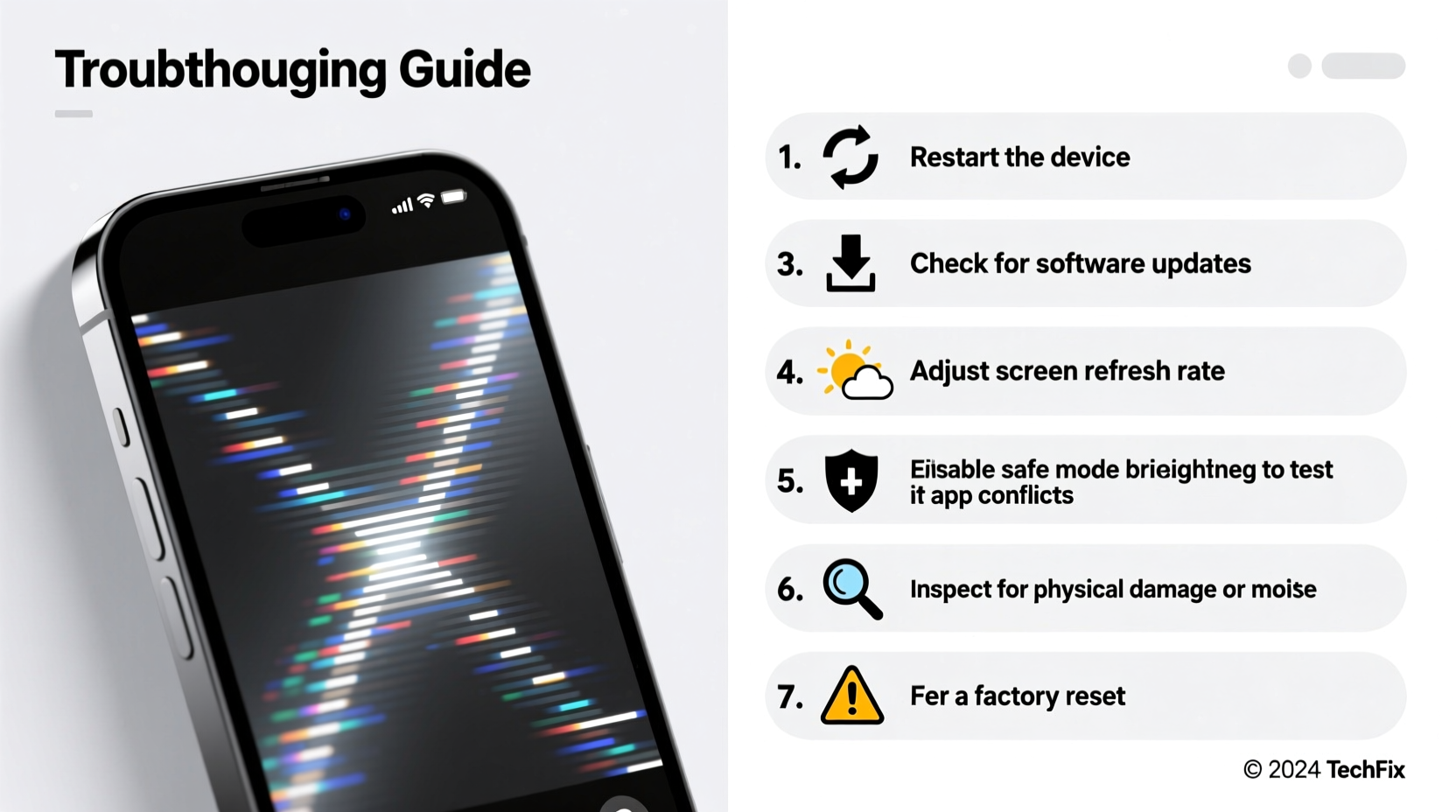
Screen flickering doesn’t always point to a cracked display or failing hardware. In fact, software-related triggers are surprisingly common. Understanding the potential culprits helps narrow down solutions and prevents unnecessary panic or costly repairs.
- Software Glitches: Operating system bugs, especially after an update, can interfere with display drivers and cause erratic screen behavior.
- Brightness Settings: Auto-brightness features using ambient light sensors may malfunction, leading to rapid brightness fluctuations that appear as flickering.
- App Conflicts: Poorly coded third-party apps—particularly those with overlay permissions or dark mode integrations—can conflict with system UI rendering.
- Display Hardware Failure: Physical damage from drops or moisture exposure can compromise the OLED or LCD panel, resulting in visible flickering or lines.
- Loose Display Connector: Internal connections between the screen and motherboard may become dislodged over time, especially in older or frequently handled devices.
- Power Management Issues: Battery degradation or charging circuit problems can lead to inconsistent power delivery, affecting screen stability.
Immediate Troubleshooting Steps You Can Take Now
The first few minutes after noticing screen flickering are critical. Acting quickly can prevent further strain on the display and identify whether the problem is software-based—a much easier fix than hardware failure.
- Restart Your Phone: A forced reboot clears temporary memory and resets active processes. For iPhones, press and hold the side button and volume button until the slider appears. On Android, hold the power button for 10 seconds.
- Disable Auto-Brightness: Go to Settings > Accessibility > Display (iOS) or Settings > Display > Brightness (Android), then toggle off auto-brightness. Manually set brightness to a mid-level value.
- Turn Off Adaptive Refresh Rate (if applicable): High-refresh-rate screens (e.g., 90Hz or 120Hz) can flicker due to driver conflicts. Switch to 60Hz in display settings.
- Boot into Safe Mode (Android only): Press and hold the power button, then long-press “Power off” until “Reboot to safe mode” appears. This disables third-party apps and isolates software conflicts.
- Check for App Updates: Outdated apps may not be optimized for the latest OS version. Update all apps via Google Play Store or Apple App Store.
- Remove Recently Installed Apps: If flickering began after installing a new app—especially screen filters, battery savers, or themes—uninstall it immediately.
When Flickering Persists: Advanced Diagnostics
If basic steps don’t resolve the issue, deeper diagnostics are necessary. These methods help distinguish between software anomalies and irreversible hardware damage.
| Test | Purpose | How to Perform |
|---|---|---|
| Display Test | Detect dead pixels or color inconsistencies | Open a full-screen white image; look for dark spots or flickering areas. |
| Safe Mode (Android) | Rule out third-party app interference | Boot into safe mode; observe if flickering stops. |
| DFU Mode / Recovery Mode | Reset firmware without data loss | Use iTunes (iOS) or OEM tools (Samsung, etc.) to reinstall OS. |
| External Monitor Test (if supported) | Check GPU output integrity | Connect phone to external display via HDMI adapter; if external screen is stable, internal display is likely faulty. |
Hardware vs. Software: How to Tell the Difference
One of the biggest challenges users face is determining whether the flickering stems from software or hardware. Misdiagnosis can lead to wasted time or delayed repairs.
Software-related flickering typically exhibits these traits:
- Occurs intermittently, especially during app transitions or after updates.
- Resolves temporarily after a restart.
- Accompanied by lag, crashes, or unusual app behavior.
- Does not leave permanent visual artifacts like lines or discoloration.
In contrast, hardware-based flickering usually shows:
- Constant flickering regardless of usage or brightness level.
- Visible distortions such as vertical lines, color bleeding, or black patches.
- Worsens with movement or pressure on the device frame.
- Persists even after factory reset or OS reinstallation.
“Over 60% of reported screen flickering cases we see in service centers are actually software-driven, especially following untested beta updates.” — Raj Mehta, Senior Technician at MobileFix Labs
Mini Case Study: Resolving Persistent Flickering on a Samsung Galaxy S22
A user reported sudden screen flickering on their Galaxy S22 after installing a night mode filter app. The flicker was most noticeable in low-light conditions and worsened when switching between apps. Initial attempts—restarting, disabling auto-brightness, and lowering refresh rate—had no effect.
The turning point came when they booted into safe mode. The screen stabilized completely, indicating a third-party app conflict. Upon uninstalling the night filter application, the flickering ceased permanently. No hardware damage was found. This case underscores how seemingly serious display issues can originate from benign software sources.
Preventive Measures and Long-Term Care
Once the immediate issue is resolved, adopting preventive habits reduces the risk of recurrence. Proactive maintenance extends display lifespan and minimizes disruptions.
Checklist: Prevent Future Screen Flickering
- ✅ Regularly update your operating system and apps to ensure compatibility.
- ✅ Avoid downloading apps from unknown sources, especially those requesting overlay permissions.
- ✅ Limit use of aggressive battery-saving modes that alter screen behavior.
- ✅ Use high-quality screen protectors and cases to absorb impact.
- ✅ Keep your phone away from extreme temperatures and moisture.
- ✅ Periodically clear cache partitions (Android) or offload unused apps (iOS).
Additionally, consider enabling “Dark Mode” system-wide if your device uses OLED technology. This reduces pixel burn-in risk and lowers overall screen stress. For users sensitive to flicker, especially under artificial lighting, adjusting the blue light filter or using “True Tone” (iOS) or “Eye Comfort Shield” (Samsung) can improve visual comfort.
Frequently Asked Questions
Can a screen protector cause flickering?
No, a standard screen protector does not cause flickering. However, poorly applied tempered glass with air bubbles or conductive debris underneath can interfere with touch response and, in rare cases, create visual distortion that mimics flickering. Ensure proper installation and clean the screen thoroughly before applying any protector.
Does low battery cause screen flickering?
Indirectly, yes. Severely degraded batteries may deliver unstable voltage, especially during high-demand tasks, which can affect display performance. If flickering occurs primarily when battery is below 10%, and restarting temporarily fixes it, battery health should be evaluated. On iPhones, check Battery Health in Settings; on Android, use diagnostic codes or manufacturer apps.
Will a factory reset fix a flickering screen?
It might—if the cause is software-related. A factory reset removes all apps, settings, and cached data, effectively returning the OS to its original state. However, if flickering persists after reset, the issue is almost certainly hardware-based and requires professional repair. Always back up your data before proceeding.
Conclusion: Act Fast, Save Your Screen
A flickering phone screen is a warning sign—not one to ignore. While some causes are harmless and easily corrected, others indicate impending hardware failure. By following the immediate troubleshooting steps outlined here, you can quickly assess the severity and respond appropriately. Most importantly, early intervention increases the chances of avoiding expensive replacements.
Whether it’s disabling a rogue app, recalibrating brightness settings, or recognizing the need for professional repair, taking action today protects your device’s usability tomorrow. Don’t wait for the flicker to become a blackout.




 浙公网安备
33010002000092号
浙公网安备
33010002000092号 浙B2-20120091-4
Comments
No comments yet. Why don't you start the discussion?