
A flickering phone screen can be more than just annoying—it disrupts readability, affects usability, and may signal a deeper issue with your device. Whether the flicker happens occasionally or constantly, understanding its root cause is essential for finding an effective solution. The problem could stem from software glitches, display settings, app conflicts, or even physical damage. Addressing it early not only improves your user experience but can also prevent further deterioration of your phone’s components.
This guide explores the most common reasons behind screen flickering across smartphones, including both Android and iOS devices. You’ll learn how to diagnose the issue, apply fixes safely, and know when it’s time to seek professional repair. With real-world examples, expert insights, and actionable steps, you’ll be equipped to restore your screen to smooth operation—or make informed decisions about replacement.
Common Causes of Phone Screen Flickering
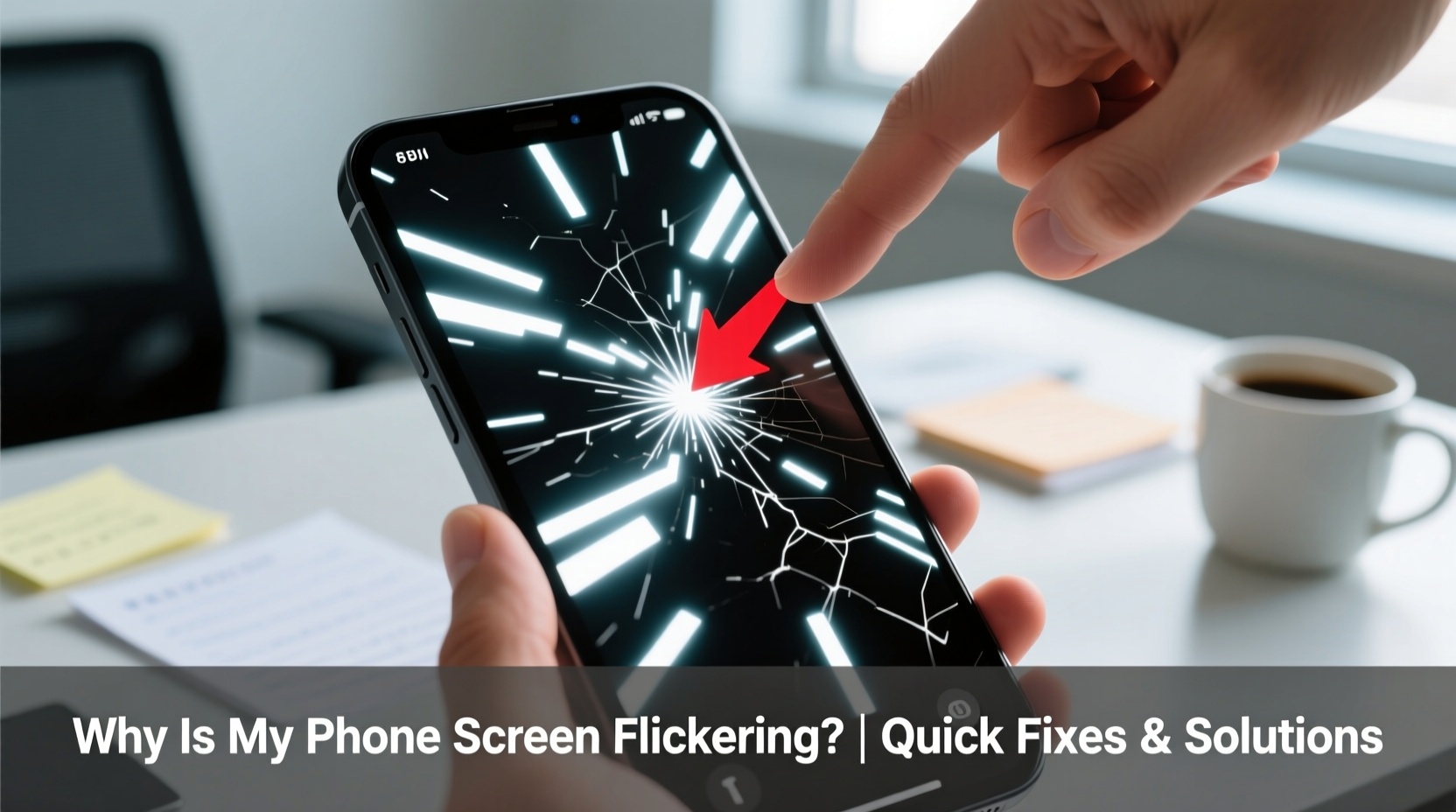
Screen flickering isn’t always a sign of imminent failure. Many times, it’s triggered by correctable software or configuration issues. Identifying the underlying cause helps determine whether you need a quick tweak or a trip to the service center.
- Software bugs or OS updates: A recent system update may introduce display-related bugs that affect rendering.
- Brightness and adaptive settings: Auto-brightness or night mode features can cause flickering under certain lighting conditions.
- Third-party apps: Some poorly optimized apps interfere with GPU processes, leading to visual anomalies.
- Display driver issues: Outdated or corrupted drivers (especially on Android) can result in erratic screen behavior.
- Physical damage: Drops or water exposure can compromise internal connections between the screen and motherboard.
- Faulty OLED panels: In older OLED-equipped phones, pixel degradation can manifest as flickering or shimmering.
- Low battery voltage: When the battery struggles to deliver consistent power, the display may flicker intermittently.
Step-by-Step Troubleshooting Guide
Before assuming hardware failure, rule out software causes using this systematic approach. Most flickering problems can be resolved without opening the device.
- Restart your phone: A simple reboot clears temporary glitches and resets display processes.
- Check brightness settings: Disable auto-brightness and manually set brightness to mid-level to test stability.
- Boot into Safe Mode (Android): This disables third-party apps. If the flickering stops, an app is likely the culprit.
- Update your operating system: Install any pending OS updates that may include display fixes.
- Clear cache partition (Android): Go to recovery mode and clear the cache to remove corrupted temporary files.
- Reset all settings (iOS/Android): This restores system preferences without deleting personal data.
- Test in DFU or Recovery Mode: Booting into these modes bypasses the main OS—if flickering persists here, it's likely hardware-related.
When Software Fixes Fall Short
If the screen continues to flicker through multiple reboots and setting resets, especially in minimal environments like Safe Mode or recovery screens, the issue is likely tied to hardware. At this stage, avoid disassembling the phone unless you're trained—doing so risks voiding warranties or causing further damage.
Do’s and Don’ts: Managing a Flickering Screen
| Do’s | Don’ts |
|---|---|
| Keep your phone charged above 20% during diagnosis | Ignore persistent flickering—early action prevents escalation |
| Back up your data immediately if flickering worsens | Use unverified screen repair apps from third-party stores |
| Try disabling dark mode, blue light filters, or HDR | Apply pressure or tap the screen to “fix” flickering |
| Contact manufacturer support if under warranty | Expose the device to extreme temperatures while troubleshooting |
| Document the issue with video for technician reference | Assume it’s just a glitch—some flickers indicate failing components |
Real-World Example: Sarah’s iPhone 12 Flicker Issue
Sarah noticed her iPhone 12 screen began flickering faintly when scrolling through social media apps. It was subtle at first—like a faint shimmer—but worsened over three days, especially in low light. She restarted the phone multiple times with no change. After reading online, she disabled True Tone and reduced motion in Accessibility settings, which temporarily helped.
She then updated iOS to the latest version, suspecting a software bug. The flickering stopped for a day but returned after installing a new gaming app. Uninstalling the app brought immediate relief. To confirm, she reinstalled it—flickering resumed. She reported the app to Apple and found a similar report on Reddit: the game used high refresh rate rendering incompatible with some iPhone 12 displays.
Sarah concluded the issue was app-triggered, not hardware-based. By avoiding that app and keeping iOS updated, her screen has remained stable for over two months. Her case highlights how third-party software can exploit edge cases in display drivers, mimicking hardware faults.
Expert Insight: What Technicians See in the Field
“Over half the flickering phones we see come in with software-related causes—especially after updates or aggressive battery-saving modes. But once a flicker appears in recovery mode or persists across factory resets, it’s almost always a flex cable or connector issue.” — Carlos Mendez, Senior Mobile Repair Technician, TechFix Labs
Carlos emphasizes that modern smartphones use delicate ribbon cables to connect the display to the logic board. Minor impacts—even those not resulting in visible cracks—can loosen these connections. Over time, thermal expansion and contraction worsen the gap, leading to intermittent signals and flickering.
He also warns against DIY repairs using non-OEM parts: “Aftermarket screens often have lower-quality drivers or improper voltage regulation. They might work at first, but flickering usually develops within weeks.”
Hardware Issues Requiring Professional Attention
When software troubleshooting fails, the problem may lie in physical components. These require specialized tools and expertise to diagnose and repair.
- Loose display connectors: Common after drops; the internal ribbon cable linking the screen to the motherboard may have shifted.
- Damaged digitizer or OLED panel: Physical trauma can create microfractures invisible to the eye but disruptive to display function.
- Water or moisture damage: Corrosion on circuitry can interfere with consistent power delivery to the screen.
- Failing backlight (LCD models):strong> Aging LEDs behind the screen may pulse inconsistently, causing visible flicker.
- Logic board issues: Rare but possible—damage to GPU or power management ICs can disrupt display output.
If your phone was recently repaired, especially for screen replacement, poor installation is a likely factor. Always choose certified technicians for such work.
Preventive Measures to Avoid Future Flickering
While not all flickering can be prevented—especially due to manufacturing defects—you can reduce risk through smart habits.
- Install updates promptly: OS patches often include display driver improvements and bug fixes.
- Avoid aggressive battery savers: Some third-party power apps override system display controls, increasing flicker risk.
- Use genuine accessories: Low-quality chargers can cause voltage fluctuations affecting screen stability.
- Enable automatic brightness cautiously: If flickering occurs in changing light, disable auto-brightness and adjust manually.
- Protect against physical shocks: Use a durable case and avoid placing heavy objects on your phone.
- Limit exposure to moisture: Even water-resistant phones aren’t immune to long-term humidity effects.
Frequently Asked Questions
Can a virus make my phone screen flicker?
True malware that directly manipulates display hardware is extremely rare on mobile devices. However, malicious apps can overload the GPU or alter system settings, creating flicker-like symptoms. Remove suspicious apps and run a security scan using trusted antivirus tools.
Is screen flickering dangerous?
The flickering itself isn’t harmful to your health under normal conditions, but prolonged exposure to erratic screens can cause eye strain or headaches. More importantly, persistent flickering often indicates an underlying fault that could lead to complete screen failure or data loss if ignored.
Will a factory reset fix a flickering screen?
It might—if the cause is software corruption or conflicting settings. However, if the flicker persists after a factory reset, the issue is likely hardware-based. Always back up your data before resetting, as this process erases all personal information.
Action Plan Checklist
Follow this checklist to methodically address screen flickering:
- ✅ Restart the phone
- ✅ Disable auto-brightness, dark mode, and blue light filters
- ✅ Check for and install OS updates
- ✅ Boot into Safe Mode (Android) or DFU Mode (iOS)
- ✅ Uninstall recently added apps, especially performance-heavy ones
- ✅ Clear cache partition (Android)
- ✅ Reset all settings (without erasing data)
- ✅ Back up your data immediately
- ✅ Contact manufacturer or authorized repair if issue persists
- ✅ Document the flickering with a short video for technician review
Conclusion: Take Control Before It Gets Worse
A flickering phone screen doesn’t have to mean a costly replacement. In many cases, a few targeted adjustments can restore normal function quickly and safely. Start with software checks, eliminate environmental factors, and monitor changes closely. Early intervention protects not just your screen, but your data and daily productivity.
If troubleshooting leads you to a hardware conclusion, don’t delay seeking professional help. Continuing to use a compromised display can lead to permanent failure or touch unresponsiveness. Whether your phone is under warranty or out of coverage, reputable repair services offer transparent diagnostics and fair pricing.




 浙公网安备
33010002000092号
浙公网安备
33010002000092号 浙B2-20120091-4
Comments
No comments yet. Why don't you start the discussion?