
Many smartphone users have experienced a sudden and unsettling issue: their screen begins flickering when brightness is lowered, especially in dim lighting or at night. This behavior often doesn’t occur at higher brightness levels, making it easy to overlook initially. However, persistent flickering can strain the eyes, disrupt sleep, and signal deeper hardware or software problems. Unlike random glitches, this specific symptom—flickering exclusively in low brightness mode—is not normal and usually points to a targeted cause. Understanding the root of this issue is essential for preserving both device longevity and user comfort.
The phenomenon is increasingly common across modern smartphones, particularly those using OLED or AMOLED displays, which dominate today’s high-end and mid-range markets. These screens offer deep blacks and vibrant colors but are more sensitive to certain technical behaviors, especially when managing brightness through pulse-width modulation (PWM). While manufacturers implement PWM to control brightness efficiently, some implementations can lead to visible flickering at lower levels, particularly under certain conditions. But not all flickering is inevitable—it may also stem from software bugs, faulty components, or incorrect settings. The key is knowing how to differentiate between design limitations and actual malfunctions.
Understanding Display Brightness Technologies
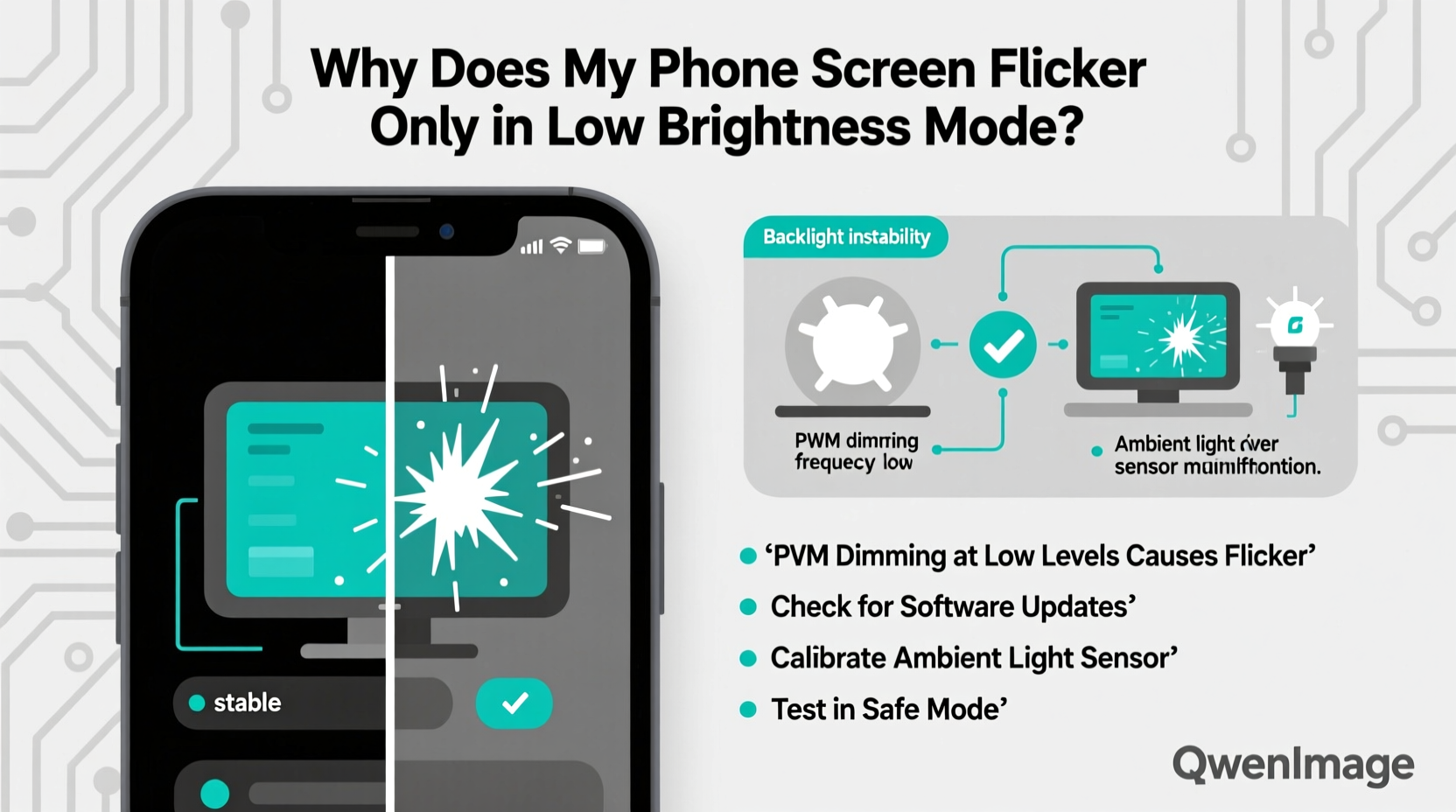
To fully grasp why flickering occurs only at low brightness, it's crucial to understand how smartphone screens regulate light output. Most modern phones use one of two primary methods: DC dimming or PWM (Pulse Width Modulation).
DC dimming adjusts brightness by changing the electrical current supplied to the pixels. It's stable and flicker-free but less efficient on OLED panels, where uneven current distribution can cause color shifts or burn-in over time. As a result, many manufacturers avoid pure DC dimming on OLEDs.
PWM, on the other hand, rapidly turns pixels on and off at a fixed frequency. The longer the \"off\" periods, the darker the screen appears. At full brightness, pixels stay on continuously. But as brightness decreases, the off cycles become more frequent, creating a strobing effect. While most people don’t perceive this flicker due to its high frequency, some individuals—especially those sensitive to light—are able to detect it, particularly in low-light environments.
Certain phones use low-frequency PWM (e.g., 240Hz or below), which increases the likelihood of visible flickering. High-end models may incorporate hybrid systems or high-frequency PWM (above 1000Hz) to reduce perceptible flicker. However, even these aren't immune to issues if firmware mismanages the transition between brightness levels.
Common Causes of Low-Brightness Flickering
Flickering limited to low brightness isn’t typically caused by a single factor. Instead, it arises from a combination of hardware design, software behavior, and environmental triggers. Below are the most frequent culprits:
- PWM Implementation Flaws: Poorly calibrated PWM frequencies can create noticeable flicker when brightness drops below 50%. Some budget devices use cheaper drivers that operate at suboptimal frequencies.
- Software Glitches: Operating system updates or app conflicts may interfere with brightness regulation. For example, dark mode features or third-party screen filters can override default display behavior.
- Auto-Brightness Malfunction: Sensors may struggle to stabilize brightness in fluctuating lighting, causing rapid adjustments that appear as flickering.
- Faulty Display Hardware: Physical damage, aging OLED panels, or loose internal connections can disrupt consistent power delivery to the screen, especially during low-power states.
- Third-Party Screen Protectors or Cases: Metallic or poorly installed accessories can interfere with touch circuitry or generate electromagnetic interference affecting display stability.
“Flickering at low brightness is often a sign of either aggressive PWM or a failing panel driver. Users reporting eye strain should investigate display certification standards like TÜV Rheinland’s Low Blue Light or Flicker-Free ratings.” — Dr. Lena Park, Display Technology Researcher at Mobile Insights Lab
Step-by-Step Diagnosis and Troubleshooting
If your phone flickers only when brightness is reduced, follow this systematic approach to identify and resolve the issue:
- Test in Different Lighting Conditions: Observe the flicker in complete darkness and compare it to a dimly lit room. If it worsens in total darkness, it’s likely related to PWM sensitivity.
- Disable Auto-Brightness: Go to Settings > Display > Brightness and turn off automatic adjustment. Manually set brightness to 20% and observe for flickering.
- Boot into Safe Mode: Restart your phone in safe mode (varies by brand; usually involves holding power + volume down). This disables third-party apps. If flickering stops, an app is likely interfering.
- Check for System Updates: Navigate to Settings > System > Software Update. Install any pending OS patches, as manufacturers often release fixes for display anomalies.
- Inspect for Physical Damage: Look for cracks, discoloration, or pressure marks on the screen. Even minor trauma can compromise internal connections.
- Reset Display Settings: Clear adaptive brightness data or reset all display preferences to default. On Android, this may be under Accessibility or Developer Options.
- Test with Factory Reset (Last Resort): Back up your data and perform a factory reset. If flickering persists, the issue is likely hardware-related.
Real-World Example: Sarah’s Nighttime Flicker Issue
Sarah, a graphic designer, began noticing her phone screen flickering every evening when she lowered brightness for bedtime reading. The issue didn’t occur during the day. Initially, she assumed it was eye fatigue. After testing in safe mode, the flicker disappeared. She discovered a recently installed blue light filter app was overriding system brightness controls, causing unstable PWM transitions. Uninstalling the app resolved the problem instantly. This case illustrates how third-party software can mimic hardware failure while being entirely preventable.
Do’s and Don’ts: Managing Screen Flicker
| Action | Recommended? | Reason |
|---|---|---|
| Use built-in dark mode instead of third-party filters | ✅ Yes | System-level dark modes are optimized for display stability |
| Install screen filter apps from unknown sources | ❌ No | These often conflict with brightness drivers |
| Enable adaptive brightness after calibration | ✅ Yes | Helps maintain consistent viewing experience |
| Ignore persistent flickering thinking it will go away | ❌ No | Could indicate deteriorating hardware |
| Adjust brightness gradually rather than abruptly | ✅ Yes | Reduces stress on display controller circuits |
When to Seek Professional Repair
While software tweaks can resolve many flickering issues, hardware faults require expert intervention. Consider professional service if:
- Flickering persists across all brightness levels after a factory reset.
- Lines, spots, or color distortion accompany the flicker.
- The screen behaves erratically only after physical impact or water exposure.
- The device is under warranty and the issue appeared shortly after purchase.
Reputable repair centers can test the display driver, flex cables, and power management unit—components that regulate voltage to the screen. A failing driver IC, for instance, may deliver inconsistent power during low-brightness operation, triggering flicker. In such cases, screen replacement or board-level repair is often necessary.
Preventive Measures for Long-Term Screen Health
Preventing flicker starts with mindful usage and proper configuration. Implement these habits to protect your display:
- Avoid extreme brightness contrasts: Sudden jumps from max to minimum brightness stress the display controller. Adjust gradually.
- Limit screen-on time in pitch-black environments: Prolonged low-brightness use accelerates OLED pixel degradation.
- Enable “Warm Light” or “Paper Mode” if available: These modes reduce blue light and may use gentler dimming techniques.
- Keep the OS updated: Manufacturers frequently optimize display drivers in updates to improve flicker performance.
- Use certified accessories: Non-OEM chargers or cases with magnetic elements can introduce electrical noise affecting screen stability.
Expert Checklist: Fix Phone Screen Flickering in Low Brightness
- Turn off auto-brightness and manually set screen to 20–30% brightness.
- Boot into safe mode to rule out third-party app interference.
- Check for and install the latest OS update.
- Disable any blue light filter or screen dimming apps.
- Reset display settings or accessibility features related to vision.
- Inspect screen for physical damage or pressure points.
- Record flicker pattern and consult manufacturer support if unresolved.
Frequently Asked Questions
Is screen flickering in low brightness harmful?
While occasional flickering may not damage the phone, prolonged exposure can accelerate OLED wear and contribute to eye strain, headaches, or disrupted melatonin production. Chronic flicker may also indicate underlying hardware instability that could worsen over time.
Can I disable PWM on my phone?
Most consumer phones do not allow direct control over PWM. However, some brands (like OnePlus with “Gentle Pulse” mode or Xiaomi with “DC Dimming”) offer settings to reduce or eliminate PWM at low brightness. Check your display or accessibility settings for options labeled “reduce flicker” or “eye comfort.”
Why does my phone flicker only at night?
This is typically due to lower ambient light making flicker more perceptible. Additionally, nighttime usage often involves reduced brightness settings, activating low-frequency PWM cycles. Blue light filters or dark themes may also interact poorly with display drivers under these conditions.
Conclusion: Take Control of Your Display Experience
Screen flickering in low brightness mode is more than a minor annoyance—it’s a signal that something in your phone’s display ecosystem needs attention. Whether rooted in software misconfiguration, aggressive PWM design, or emerging hardware faults, the issue is addressable with the right knowledge. By systematically diagnosing the cause and applying proven fixes, you can restore smooth, comfortable viewing—especially during evening use when visual comfort matters most.
Don’t dismiss flickering as inevitable. Modern smartphones are capable of flicker-free performance, and understanding your device empowers you to demand better. Apply the steps outlined here, share your findings with others facing similar issues, and advocate for improved display standards in future devices.




 浙公网安备
33010002000092号
浙公网安备
33010002000092号 浙B2-20120091-4
Comments
No comments yet. Why don't you start the discussion?