
If you've noticed your phone screen flickering specifically when the lights are dim or during nighttime use, you're not imagining things. This issue affects users across various smartphone brands, from iPhones to Samsung Galaxy models and budget Android devices. While occasional flicker might seem harmless, persistent flashing—especially under low-light conditions—can strain your eyes, disrupt sleep, and signal deeper hardware or software problems. Understanding the root causes, diagnosing accurately, and applying targeted fixes can restore comfort and functionality to your device.
Understanding Display Behavior in Low Light
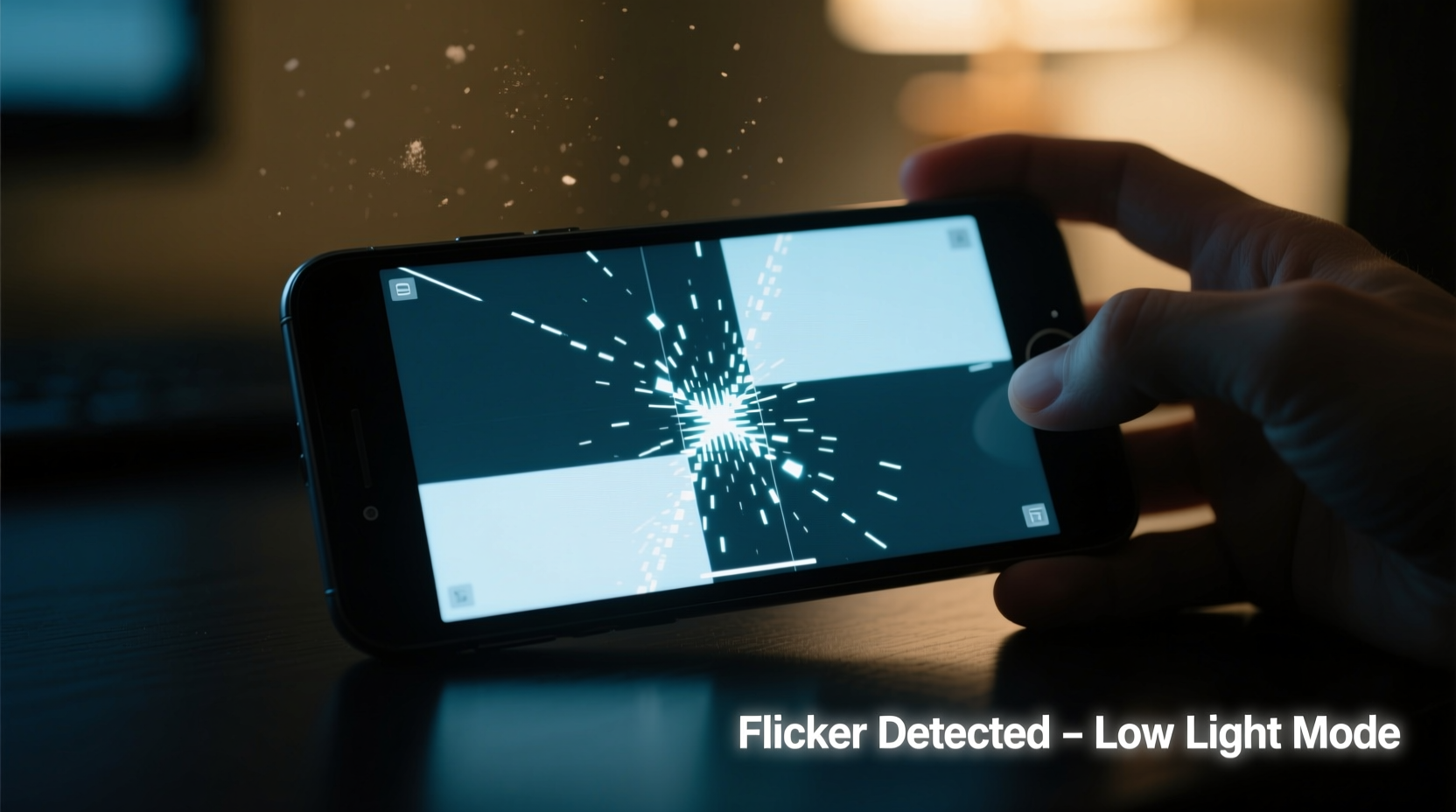
Modern smartphones use adaptive brightness systems and advanced display technologies like OLED or AMOLED that respond dynamically to ambient lighting. In low-light environments, these screens reduce brightness significantly and may switch to lower refresh rates or activate features like Night Mode or Dark Theme. However, certain combinations of software settings, display drivers, and hardware components can trigger unintended visual artifacts—most commonly, screen flickering.
The flicker often appears as a subtle pulsing or shimmering effect, particularly noticeable when viewing dark backgrounds or scrolling through dimly lit apps. Unlike random glitches, this behavior is typically consistent: it starts in dim rooms, worsens at minimum brightness, and disappears when brightness is increased or ambient light returns.
Common Causes of Low-Light Screen Flickering
Flickering under dim conditions isn't random. It usually stems from one of several interrelated factors involving display technology, power management, and user settings.
1. PWM (Pulse Width Modulation) Dimming
OLED and AMOLED displays control brightness using Pulse Width Modulation—a method that rapidly turns pixels on and off to simulate lower light levels. At full brightness, the duty cycle is near constant. But in low light, the \"off\" periods lengthen, creating a strobing effect some users perceive as flicker. While imperceptible to many, individuals with heightened sensitivity may experience eye strain, headaches, or visible pulsation.
“PWM-based dimming is efficient but inherently flickers at low brightness. Some users are simply more neurologically sensitive to this modulation.” — Dr. Lena Torres, Display Vision Researcher, MIT Media Lab
2. Auto-Brightness Calibration Issues
Your phone’s ambient light sensor adjusts screen output based on surroundings. If misconfigured or obstructed, it may overcompensate in dim spaces, causing rapid fluctuations between brightness levels. This instability often mimics flickering, especially when the sensor struggles to stabilize in transitional lighting (e.g., moving from a lit room to bed).
3. Software Bugs or App Conflicts
Operating system updates, third-party apps, or accessibility tools (like blue light filters or screen dimmers) can interfere with native display controls. For example, an outdated night mode app might override system settings and force incompatible brightness curves, leading to erratic behavior only visible in darkness.
4. Hardware Degradation or Damage
Physical wear can also contribute. A damaged display cable, aging OLED panel, or moisture ingress may cause intermittent connections that manifest primarily under specific conditions—such as low voltage states typical in dim-mode operation. Drops, pressure damage, or prolonged exposure to humidity increase the risk.
5. Compatibility with Smart Lighting or Screenshots
In rare cases, flickering coincides with external sources like LED bulbs or fluorescent lights operating at different frequencies. These can create a stroboscopic effect when recorded via camera—but if visible directly on-screen, the source is internal.
Diagnostic Checklist: Is It Your Phone or the Environment?
Before assuming hardware failure, rule out environmental and setting-related triggers. Follow this checklist to isolate the cause:
- ✅ Test the screen in complete darkness versus a softly lit room
- ✅ Disable auto-brightness and manually set levels from 1% to 30%
- ✅ Turn off all third-party screen filters (e.g., Twilight, f.lux)
- ✅ Boot into Safe Mode (Android) or disable extensions (iOS) to check for app interference
- ✅ Observe whether flicker persists during video playback, static images, and scrolling
- ✅ Inspect for physical damage, discoloration, or dead pixels around the edges
- ✅ Try viewing under natural daylight or incandescent lighting to compare
Step-by-Step Guide to Fix Low-Light Screen Flickering
Follow this sequence to systematically resolve the issue without risking data loss or unnecessary repairs.
- Adjust Brightness Settings Manually
Set brightness above 25%. If flickering stops, PWM is likely the culprit. Avoid prolonged use at minimum brightness. - Disable Adaptive Features
Turn off auto-brightness, True Tone (iOS), or Adaptive Display (Samsung). Navigate to Settings > Display and toggle them off. - Update Your Operating System
Check for OS updates. Manufacturers often release patches addressing display anomalies introduced in prior versions. - Remove Third-Party Screen Apps
Uninstall any blue light reducers, grayscale enablers, or battery-saving tools that modify screen output. - Reset Display Calibration (if available)
Some Samsung and OnePlus devices offer display reset options under Developer Settings or Support menus. - Boot Into Safe Mode (Android Only)
Hold the power button, then long-press “Power Off” and select “Safe Mode.” If flickering stops, a downloaded app is interfering. - Test with Factory Reset (Last Resort)
Back up data and perform a factory reset. If the problem vanishes, it was software-related. Reinstall apps one by one to identify the offender. - Seek Professional Repair
If all else fails and flickering persists across brightness levels, consult an authorized service center. Request inspection of the display assembly, flex cables, and backlight system.
Comparison Table: Common Fixes vs. Effectiveness and Risk
| Solution | Effectiveness | Risk Level | Time Required |
|---|---|---|---|
| Increase manual brightness | High (for PWM-related flicker) | Low | 1 minute |
| Disable auto-brightness | Moderate | Low | 2 minutes |
| Update OS | High (if bug-related) | Low | 10–20 minutes |
| Uninstall screen filter apps | High (if app conflict) | Low | 5 minutes |
| Boot into Safe Mode | Diagnostic only | None | 3 minutes |
| Factory reset | Very High | Medium (data loss risk) | 30–60 minutes |
| Hardware repair | Definitive (if faulty component) | Low (with certified technician) | 1–3 days |
Real-World Example: Sarah’s Late-Night Reading Problem
Sarah, a 34-year-old teacher, began noticing her iPhone 13 screen flickering every night while reading e-books in bed. The issue didn’t occur during daytime use or at her desk. She initially assumed eye fatigue, but after weeks of discomfort, she decided to investigate.
She followed online advice and disabled True Tone and Auto-Brightness—no change. Then she uninstalled a third-party blue light filter she’d added months earlier. Immediately, the flickering stopped. Further testing confirmed the app was overriding iOS’s native night mode and forcing a non-standard PWM frequency at low brightness. After removing it and resetting her display settings, her nighttime reading became comfortable again.
This case highlights how seemingly helpful apps can create unintended side effects, especially when they interact poorly with built-in display systems.
Prevention Strategies for Long-Term Stability
Once resolved, maintain your screen’s performance with proactive habits:
- Use built-in night modes instead of third-party alternatives
- Avoid running the screen at minimum brightness for extended periods
- Keep your OS and apps updated regularly
- Clean the front sensor area (near the earpiece) to ensure accurate ambient light detection
- Enable “Reduce White Point” (iOS) or “Eye Comfort Shield” (Samsung) to soften contrast in darkness
“Users should trust native display features over aftermarket solutions. Custom dimmers often lack firmware-level integration and can destabilize rendering.” — Mark Chen, Senior Engineer at Mobile Display Alliance
FAQ: Frequently Asked Questions
Can screen flickering damage my eyes permanently?
No evidence suggests permanent eye damage from typical screen flicker. However, prolonged exposure can cause temporary issues like digital eye strain, headaches, blurred vision, and disrupted circadian rhythms. Reducing flicker improves visual comfort and sleep quality.
Is PWM flicker avoidable on OLED phones?
Not entirely. Most OLEDs use PWM for dimming below ~50% brightness. Some manufacturers (like Xiaomi and OnePlus) offer “DC Dimming” modes in settings that reduce flicker by adjusting voltage instead. Check your display settings for such an option if available.
Why does my screen flicker only when charging in the dark?
This could indicate electrical interference. Poor-quality chargers or cables may introduce current fluctuations affecting the display driver. Try using the original charger and cable. If flickering stops, the accessory was likely the issue.
Conclusion: Take Control of Your Viewing Experience
A flickering phone screen in low light isn’t something you should just live with. Whether driven by PWM sensitivity, software conflicts, or hardware wear, the root cause can be identified and addressed. Start with simple settings adjustments, eliminate third-party variables, and escalate only when necessary. Most cases resolve without repair costs or downtime.
By understanding how your display works and taking preventive steps, you protect both your device and your visual well-being. Don’t ignore persistent flicker—it’s a signal worth responding to.




 浙公网安备
33010002000092号
浙公网安备
33010002000092号 浙B2-20120091-4
Comments
No comments yet. Why don't you start the discussion?