
A sudden green tint or flickering green lines across your smartphone screen can be alarming. Whether it starts as a faint hue in the corner or spreads into full-on visual distortion, this issue disrupts usability and raises concerns about device health. While it might seem like a hardware death sentence, many green screen glitches have straightforward explanations — some software-related, others physical. Understanding the root causes and knowing which fixes to try first can save time, money, and prevent unnecessary panic.
Common Causes of Green Screen Glitches
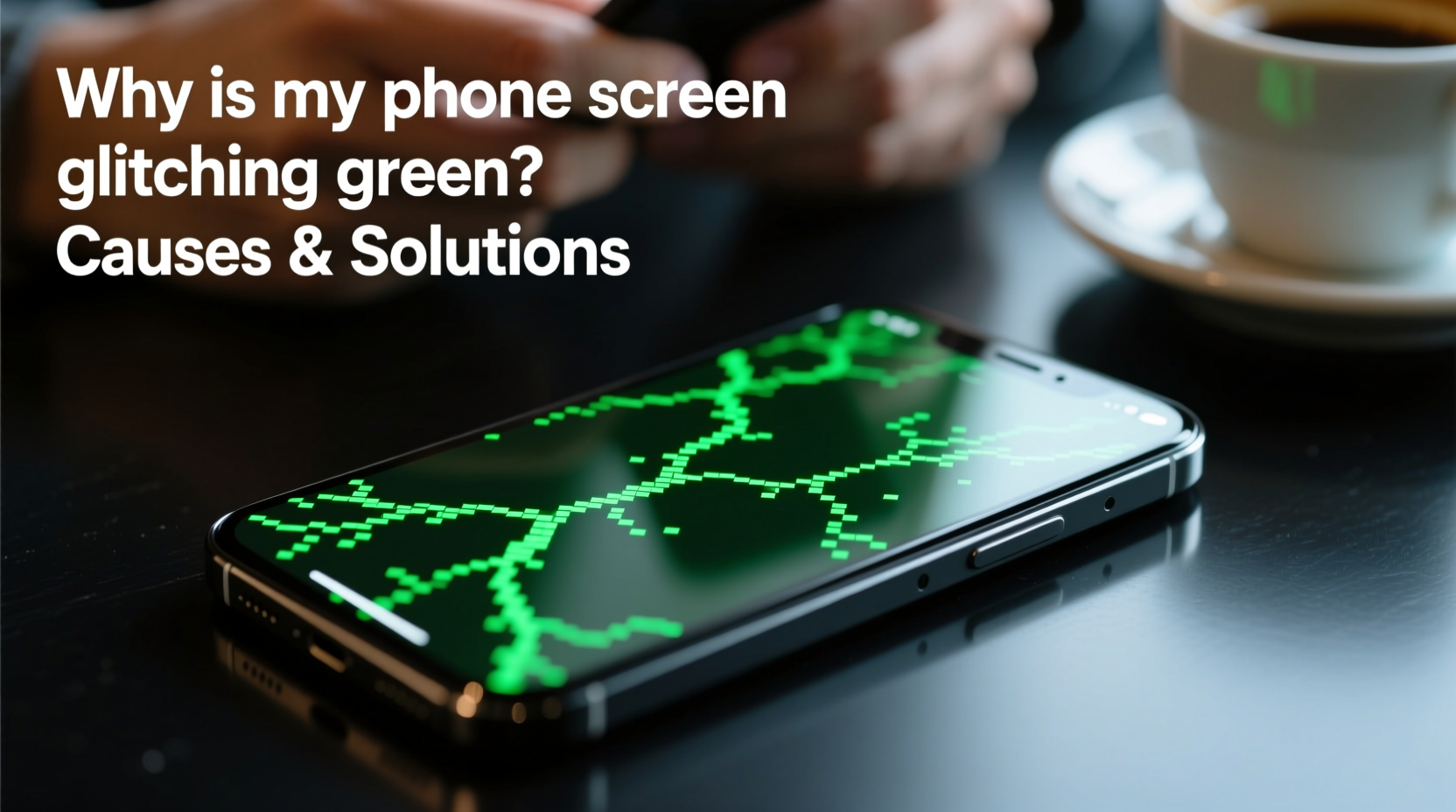
The appearance of green artifacts, streaks, or a uniformly green display typically points to disruptions in how the screen renders visuals. These disruptions stem from several possible sources:
- Software bugs or OS glitches: Updates gone wrong or corrupted system files can interfere with display drivers.
- App conflicts: Certain apps, especially those with high graphical demands or poor optimization, may trigger rendering errors.
- Physical damage: A drop or impact can loosen the display connector or damage internal components, leading to color distortion.
- Faulty display assembly: Defective OLED or LCD panels, particularly after third-party repairs, often exhibit green discoloration.
- Water or moisture exposure: Internal corrosion from liquid ingress can short-circuit display circuitry.
- Overheating: Prolonged usage under heavy load may cause temporary screen anomalies, including green tints.
Identifying whether the issue is intermittent or persistent helps narrow down the culprit. If the green tint appears only during gaming or video playback, software or thermal stress could be responsible. If it's constant, even on boot, hardware failure becomes more likely.
Step-by-Step Troubleshooting Guide
Before visiting a repair shop or replacing your device, follow this logical sequence of checks and actions to isolate and potentially fix the problem.
- Restart your device: A soft reset clears temporary memory and resets display processes. Hold the power button for 10 seconds until the device reboots.
- Boot into Safe Mode (Android): This disables third-party apps. If the green tint disappears in Safe Mode, an app is likely causing the issue. Uninstall recently added apps one by one to identify the offender.
- Check for OS updates: Navigate to Settings > System > Software Update. Install any pending updates, as manufacturers often release patches for known display bugs.
- Reset display settings: On iOS, go to Settings > Display & Brightness and disable True Tone or Night Shift. On Android, go to Settings > Display and turn off any color adjustment features.
- Clear cache partition (Android): Power off the device, then press and hold Volume Up + Power buttons. Use the recovery menu to select \"Wipe Cache Partition.\"
- Test with minimal usage: Let the phone cool down and avoid intensive tasks. If the green tint fades when the device cools, overheating was the trigger.
- Inspect for physical damage: Look closely at the edges of the screen for cracks or separation. Gently press around the frame — if colors shift, the display connector may be loose.
Do’s and Don’ts When Dealing With Green Screen Issues
| Action | Do | Don't |
|---|---|---|
| Troubleshooting | Start with a restart and check for software updates. | Jump straight to hardware replacement without testing software fixes. |
| After Dropping Phone | Power it off and inspect for visible damage. | Keep using it aggressively if display glitches appear. |
| Third-Party Repairs | Choose certified technicians with positive reviews. | Opt for the cheapest repair shop without verifying part quality. |
| Moisture Exposure | Turn off immediately and let it dry in a dry, ventilated area. | Use rice — it’s ineffective and can introduce dust into ports. |
| Data Safety | Back up data as soon as the phone is functional. | Wait until the screen fails completely to back up. |
Real-World Example: Recovering From a Post-Update Glitch
Jamal upgraded his Samsung Galaxy S22 to the latest One UI update and noticed green flickers during YouTube playback. The issue worsened over two days, eventually appearing on the home screen. He tried restarting multiple times with no success. Then, he booted into Safe Mode — the green tint disappeared. Confident it was app-related, he uninstalled a newly downloaded screen filter app. After removal, the screen returned to normal. The app had forced a color overlay incompatible with the new OS version. This case highlights how software conflicts, not hardware, can mimic serious display failure.
Expert Insight on Display Failures
“Over 60% of reported ‘broken screen’ cases we see in diagnostics are actually software-driven display anomalies. Always rule out firmware and app issues before concluding hardware damage.” — David Lin, Senior Mobile Technician at ProFix Labs
This insight underscores the importance of methodical troubleshooting. Even experienced users often assume the worst when confronted with visual defects, but modern smartphones are designed with layered safeguards that sometimes misfire rather than fail outright.
When Hardware Is Likely to Blame
If software steps yield no improvement, hardware issues become the prime suspect. Key indicators include:
- Green lines that persist through factory reset
- Distortion worsening over time, especially after drops
- Screen flickering only when the phone is tilted or pressed
- No change after flashing official firmware
In such cases, the problem may lie with the display flex cable, digitizer, or OLED panel itself. iPhones, particularly models from the iPhone X onward, are prone to “green gate” — a manufacturing defect where the display develops green horizontal lines due to faulty bonding in the OLED module. Similarly, some Samsung Galaxy devices have exhibited early panel degradation under prolonged brightness exposure.
If you've had a third-party screen replacement, substandard parts are a common cause. Many aftermarket displays use recycled or low-grade panels that fail within months. Genuine OEM components significantly reduce the risk of premature glitches.
FAQ: Common Questions About Green Screen Glitches
Can a green screen be fixed without replacing the display?
Yes, if the cause is software-related. Rebooting, updating the OS, uninstalling problematic apps, or resetting settings often resolves the issue. However, persistent hardware-based glitches usually require professional repair.
Does a green tint mean my phone is dying?
Not necessarily. While permanent green discoloration suggests display failure, temporary glitches due to overheating or software bugs don’t indicate broader device deterioration. Address the specific symptom rather than assuming total failure.
Is it safe to keep using a phone with a green screen?
It depends. If the issue is minor and intermittent, usage is generally safe. But if the screen flickers violently or responds poorly to touch, continued use may strain the GPU or mask deeper electrical problems. Stop using the device if it overheats or shows signs of battery swelling.
Conclusion: Take Action Before It Gets Worse
A green screen glitch doesn’t automatically mean your phone is beyond repair. Start with simple software diagnostics — reboot, update, and test in Safe Mode. Rule out apps and settings before suspecting hardware. If physical damage or persistent artifacts are present, seek help from a reputable technician. Avoid cheap replacements that use inferior screens, and always back up your data promptly when display issues arise. Smartphones are complex, but most green screen problems have logical roots and practical solutions. Stay calm, troubleshoot systematically, and extend your device’s life with informed care.




 浙公网安备
33010002000092号
浙公网安备
33010002000092号 浙B2-20120091-4
Comments
No comments yet. Why don't you start the discussion?