
Waking up to a noticeably yellow-tinted phone screen can be jarring. You didn’t spill anything, drop the device, or install strange apps—yet suddenly, everything looks like it’s viewed through an old photograph. This subtle but persistent shift in color temperature often isn't hardware failure or screen degradation. More commonly, it's a software-driven change triggered by automatic display settings that activate during the night. Understanding what causes this yellow cast—and knowing exactly which settings to inspect—can save you from unnecessary repairs or panic.
Modern smartphones are designed with features aimed at improving eye comfort, especially in low-light environments. Unfortunately, these same features can surprise users when they kick in without warning. The good news? In most cases, the yellow tint is reversible with just a few taps. Let’s explore the primary culprits behind overnight screen yellowing and walk through the essential display settings you should verify immediately.
Why Does My Phone Screen Look Yellow Suddenly?
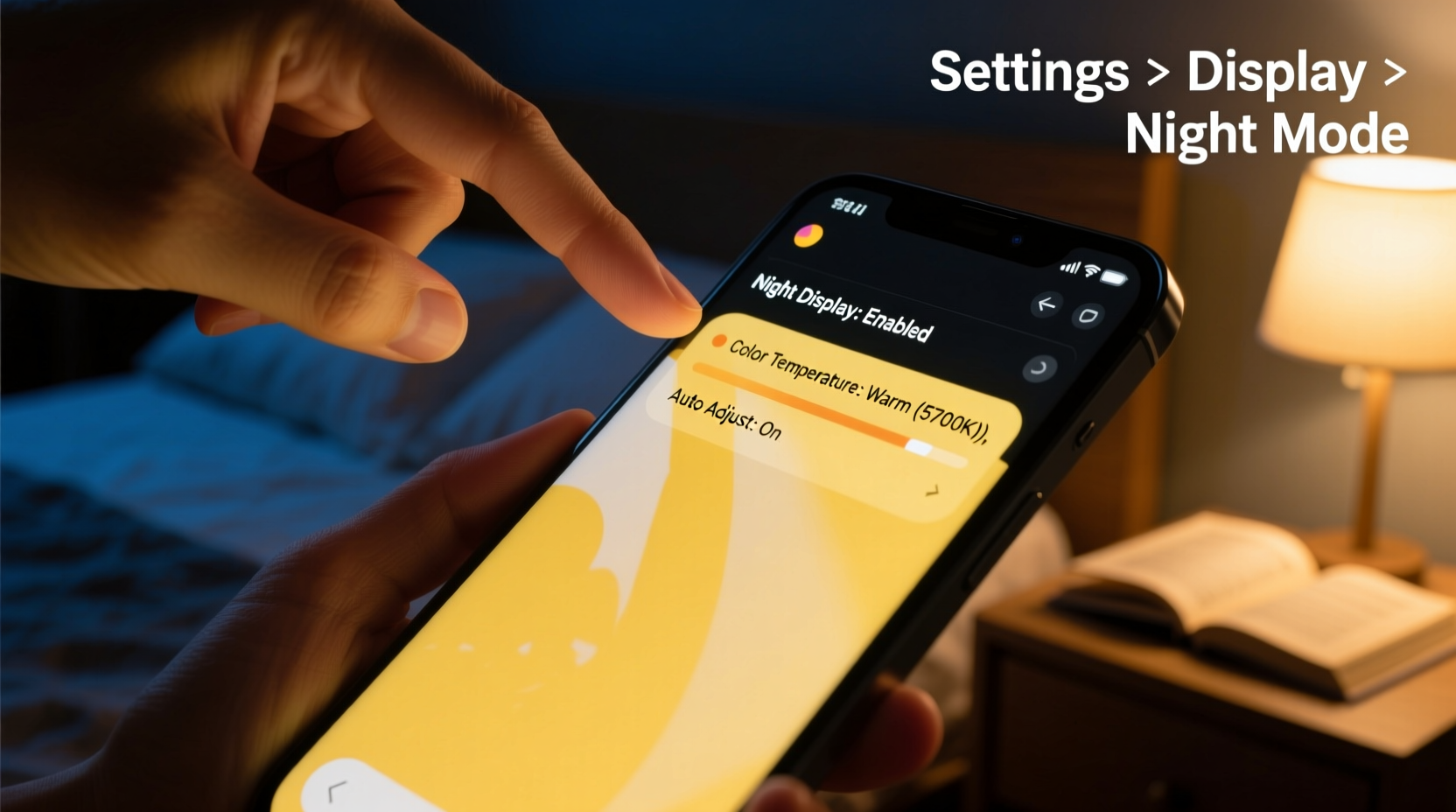
The yellow or warm appearance of your phone’s display typically results from adjustments to color temperature rather than physical damage. Your screen isn’t deteriorating—it’s being filtered. Most high-end and mid-range phones now include adaptive display technologies that modify brightness, contrast, and hue based on time of day, ambient light, or user behavior.
These systems aim to reduce blue light emission in the evening because research shows excessive blue light exposure before bedtime may interfere with melatonin production and disrupt sleep patterns. While well-intentioned, these features can catch users off guard if they aren’t aware they’re enabled—or if they trigger unexpectedly due to a software update, location change, or system glitch.
It’s also worth noting that some manufacturers apply aggressive default settings out of the box. For example, Samsung’s Adaptive Display mode or Apple’s Night Shift are often turned on during initial setup, assuming all users prefer warmer screens after sunset. If you're not familiar with how these work, their sudden activation feels like a malfunction.
“Many users mistake automated blue light reduction for hardware issues. It’s one of the most common ‘false alarm’ support calls we receive.” — Dr. Lena Torres, Mobile UX Researcher at TechInsight Labs
Display Settings to Check First When Your Screen Turns Yellow
If your screen appears unusually warm or yellow upon waking, start troubleshooting with these five critical display settings. Resolving the issue often takes less than two minutes once you know where to look.
1. Night Mode / Night Light / Blue Light Filter
Almost every modern smartphone includes a version of a night mode feature:
- Android: Often labeled “Night Light,” “Blue Light Filter,” or “Screen Warmth”
- iOS: Known as “Night Shift”
- Samsung: Found under “Digital Wellbeing & Parental Controls” or “Display” settings
This setting automatically shifts the screen toward warmer tones (more red/yellow, less blue) between scheduled hours—usually sunset to sunrise. If your clock or location services are accurate, it may have activated overnight without notification.
2. Adaptive Brightness and Auto-Contrast
Your phone may use ambient light sensors to adjust both brightness and color tone. In dim conditions, certain models subtly warm the display even outside formal “night” modes. Some OnePlus and Xiaomi devices, for instance, combine brightness adaptation with dynamic color calibration.
Check whether “Adaptive Brightness” or “Auto-contrast” is enabled. While primarily affecting luminance, these modes sometimes bundle color adjustments that contribute to perceived warmth.
3. Color Mode or Display Calibration
Manufacturers offer multiple display profiles such as “Natural,” “Vivid,” “sRGB,” or “Basic.” A shift from “Natural” to “Warm” or “Custom” color mode can create a consistently yellowish output.
In rare cases, a software bug or failed update can reset your preferred mode. Always verify your current selection:
- Go to Settings > Display > Color Mode (Android)
- Or Settings > Accessibility > Display & Text Size > Color Filters (iOS)
- Select a neutral preset like “Natural” or “Standard”
4. Scheduled Themes or Dark Mode Triggers
Some Android skins (like MIUI, One UI, or OxygenOS) allow users to schedule themes based on time or battery level. Activating a “Dark Theme at Sunset” might also engage companion settings like warmer color balance or reduced saturation.
Review any automation rules tied to time-based triggers. Even third-party launchers or digital wellbeing apps can initiate cascading display changes.
5. Third-Party Apps with Overlay Permissions
Apps like f.lux, Twilight, or reading assistants can override system-level color output. These run in the background and may activate via timers or geolocation.
To rule them out:
- Check recently installed apps
- Review permissions for “Draw over other apps”
- Temporarily disable suspected apps to test screen response
Step-by-Step Guide: Diagnose and Fix Yellow Screen Overnight
Follow this sequence to identify and resolve the cause efficiently:
- Observe the pattern: Is the yellow tint present only in the morning? Does it disappear during daylight? Consistency suggests automation.
- Disable Night Light / Night Shift:
- On iPhone: Settings > Display & Brightness > Night Shift → Turn Off
- On Android: Settings > Display > Night Light → Toggle Off
- Reset display settings to default:
- Navigate to Settings > Display > Advanced > Reset settings (varies by brand)
- Choose “Restore default settings” or similar option
- Check for active schedules:
- Ensure no custom time ranges are set for Night Light (e.g., 8 PM – 7 AM)
- Verify location-based activation isn’t enabled unless desired
- Test under different lighting:
- Move to a brightly lit room
- See if the yellow cast persists—if yes, it’s likely a fixed setting, not ambient adjustment
- Restart your phone: Clears temporary glitches and resets display drivers.
- Update your OS: Bugs in older firmware versions occasionally misfire color filters. Install available updates.
Do’s and Don’ts: Managing Screen Color Temperature
| Do | Don’t |
|---|---|
| Enable Night Light if you read at night frequently | Assume yellowing means screen damage without checking settings |
| Use scheduled activation aligned with your routine | Install multiple blue light filtering apps simultaneously |
| Calibrate display using factory presets periodically | Ignore software updates related to display performance |
| Monitor changes after OS upgrades | Manually tweak RGB sliders unless experienced |
| Turn off location-based triggers if traveling across time zones | Leave unknown overlay apps running indefinitely |
Mini Case Study: Sarah’s Morning Screen Surprise
Sarah, a freelance writer from Portland, woke up to find her Pixel 6 screen looking distinctly amber. Alarmed, she checked forums and nearly booked a repair appointment. But before doing so, she remembered reading about automatic night modes.
She opened Settings > Display > Night Light and saw it was set to “Sunset to Sunrise” with location services enabled. The previous night had been particularly dark due to storms, and her phone interpreted the early darkness as nighttime, activating the filter at 5:30 PM. Since she used her phone mostly indoors under warm lighting, she hadn’t noticed the gradual shift.
After turning off the automatic schedule and adjusting the intensity to zero, her screen returned to its usual crisp white balance. She now keeps Night Light enabled—but only from 9 PM to 7 AM—to avoid future surprises.
Frequently Asked Questions
Can a yellow screen indicate hardware failure?
Rarely. True hardware-related discoloration tends to be uneven—appearing as splotches, lines, or corner browning—and doesn’t reverse with software changes. If disabling all display filters doesn’t restore normal color, consider professional inspection. However, over 90% of reported “yellow screen” cases are resolved through settings adjustments.
Is blue light really harmful? Should I keep Night Light on?
Research indicates prolonged exposure to high-intensity blue light before bedtime may delay sleep onset. The American Academy of Sleep Medicine recommends minimizing screen use one hour before bed or using warmer color temperatures. Using Night Light in moderation—especially during evening reading—is beneficial. Just ensure it aligns with your personal schedule and preferences.
Why did my screen turn yellow after a software update?
Operating system updates sometimes reset display settings to defaults or introduce new wellness features. For example, Android 13 emphasized enhanced digital wellbeing tools, including more aggressive default Night Light activation. Always review display and accessibility settings after major updates to reapply your preferred configuration.
Expert Insight: Balancing Eye Comfort and Visual Accuracy
“The ideal display setting balances biological needs with functional clarity. A slightly warmer screen at night helps circadian rhythm, but excessive yellowing can distort images, affect productivity, and create confusion. Users should have full control—not be subject to opaque automation.” — Dr. Arjun Mehta, Vision Health Specialist, Center for Digital Ergonomics
Dr. Mehta emphasizes customization: “Set your Night Light to begin 60–90 minutes before bedtime, not immediately at sunset. And use a moderate warmth level—around 4500K—rather than the deepest amber setting. That way, you gain the benefits without sacrificing readability.”
Final Checklist: What to Do When Your Screen Turns Yellow Overnight
- ✅ Turn off Night Light / Night Shift temporarily
- ✅ Verify color mode is set to “Natural” or “Standard”
- ✅ Disable adaptive brightness for testing
- ✅ Check for third-party apps with overlay access
- ✅ Review scheduled themes or automations
- ✅ Restart your phone after making changes
- ✅ Update your operating system if options behave erratically
Conclusion: Take Control of Your Display Experience
A yellowed phone screen overnight is rarely a crisis—it’s usually a quiet intervention by your device’s built-in wellness tools. But convenience shouldn’t come at the cost of surprise or loss of control. By understanding the logic behind automatic display adjustments, you reclaim authority over how your phone looks and behaves.
Take a few moments today to audit your display settings. Customize schedules, fine-tune warmth levels, and remove redundant apps. Make informed choices, not reactive ones. Your eyes—and your peace of mind—will thank you tomorrow morning.




 浙公网安备
33010002000092号
浙公网安备
33010002000092号 浙B2-20120091-4
Comments
No comments yet. Why don't you start the discussion?