
It’s a familiar frustration: you wake up, check your phone, and see a notification about an available software update. You install it—expecting better performance, security patches, or new features—only to find your device suddenly sluggish, with a red “Storage Full” alert glaring back at you. What just happened? How did a few hours ago you have 2GB free, and now you’re down to less than 100MB?
The truth is, software updates don’t just add features—they also generate digital debris. From cached system files to redundant app data, the process of upgrading your operating system can silently consume gigabytes of storage. But understanding *why* this happens is the first step toward fixing it. More importantly, knowing how to reclaim that space without risking your personal data is essential for keeping your phone running smoothly.
Why Software Updates Eat Up Your Storage
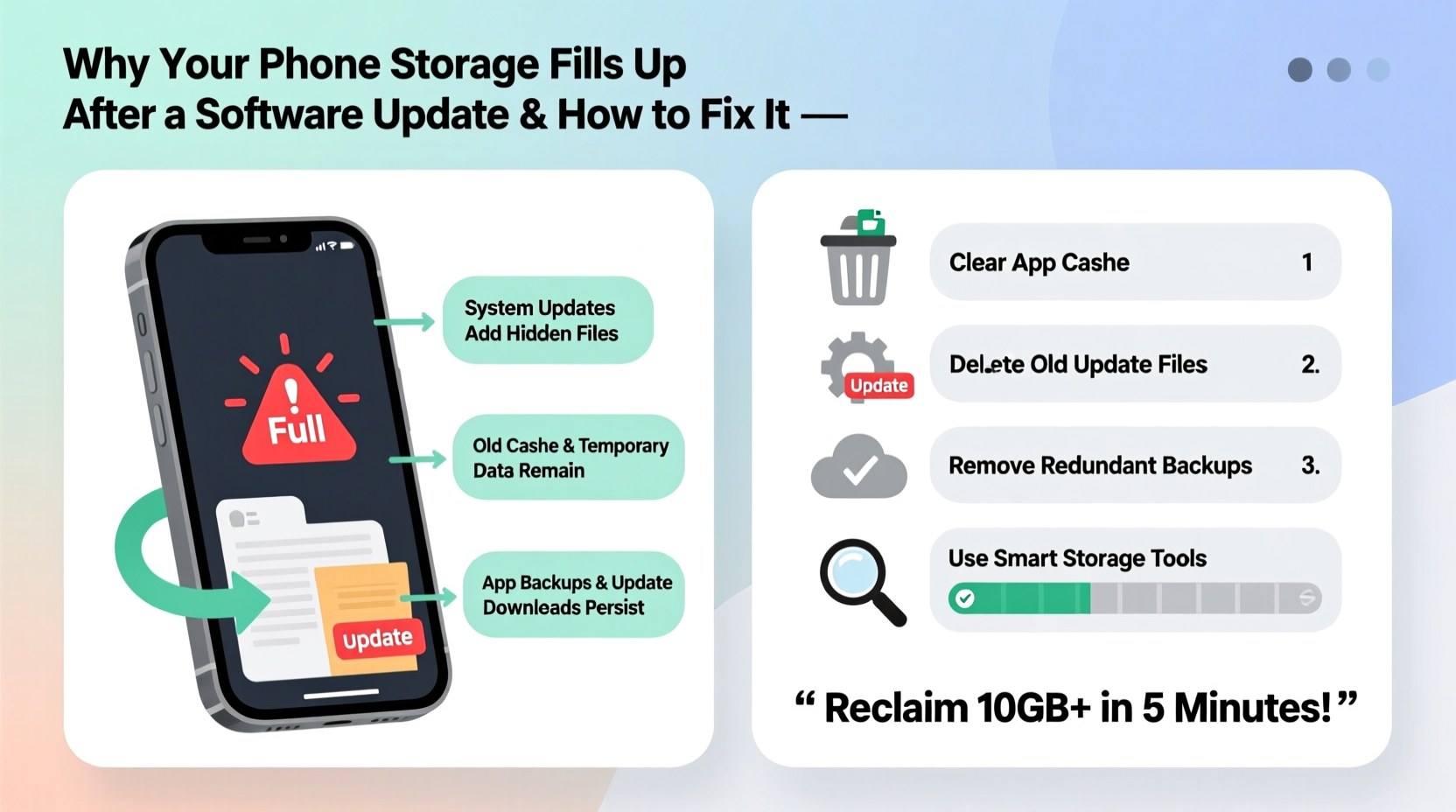
When your phone downloads and installs a software update, it doesn’t simply overwrite the old system. Instead, the update process follows a multi-phase approach designed for safety and rollback capability. Here’s what actually occurs behind the scenes:
- Download phase: The update package (often 1–3 GB) is downloaded and stored temporarily on your device.
- Extraction and installation: The system extracts the update files and creates a parallel version of the OS during installation.
- Old system retention: To allow rollback in case of failure, the previous OS version is kept intact until the update is confirmed stable.
- Cache accumulation: During and after installation, apps rebuild caches, reindex data, and sometimes duplicate files to adapt to the new OS environment.
These processes create temporary bloat. While some of it should be cleaned automatically, many devices fail to purge these files completely—especially if background cleanup tasks are interrupted or disabled.
“Modern smartphones prioritize stability over immediate storage optimization. That means leftover update files and caches often linger far longer than necessary.” — Dr. Alan Reyes, Mobile Systems Analyst at TechInsight Labs
Common Hidden Space Hogs After an Update
Most users instinctively delete photos or uninstall apps when facing low storage. But the real culprits are often invisible. These hidden elements accumulate quietly and can account for hundreds of megabytes—or even multiple gigabytes—of wasted space.
1. System Cache and OTA Update Files
After an update, remnants of the Over-The-Air (OTA) package may remain in system directories like /cache or /data/dalvik-cache. These aren’t accessible through normal file browsers but can take up significant room.
2. App Re-Caching and Data Duplication
Apps like social media platforms, email clients, and streaming services often re-download thumbnails, logs, and metadata after an OS update. This leads to bloated cache folders—even if you haven’t actively used the apps.
3. Log Files and Debug Data
During the update, verbose logging is enabled to capture errors. These logs are rarely purged automatically and can pile up over time, especially if multiple failed attempts occurred.
4. Residual Backup Partitions (Android)
On Android devices using A/B partitioning (seamless updates), the inactive partition retains the old OS. While efficient for updates, it still occupies physical space until garbage collection runs—which may not happen immediately.
5. Bloatware Reactivation
Some manufacturers reset default app settings post-update, re-enabling pre-installed apps that were previously disabled. These apps then begin syncing and caching data again.
Step-by-Step Guide to Reclaim Lost Storage
Follow this structured plan to systematically clean up your device and recover space efficiently. This process takes under 30 minutes and avoids data loss.
- Reboot your phone – A simple restart forces pending cleanup routines to execute. Many temporary files are cleared only after a reboot.
- Clear system cache (Android) – Power off, hold Volume Up + Power to enter recovery mode, select “Wipe Cache Partition,” then reboot.
- Review storage breakdown – Go to Settings > Storage and tap each category (e.g., Apps, Photos, Downloads) to see usage details.
- Clear app caches individually – For top space-consuming apps (like WhatsApp, Instagram, Chrome), go to App Settings > Storage > Clear Cache.
- Delete unnecessary downloads – Check your Downloads folder. Old APKs, PDFs, and ZIP files from the update process may still reside there.
- Offload unused iOS apps (iPhone) – Enable Settings > App Store > Offload Unused Apps. This removes the app but keeps documents and data.
- Remove duplicate photos and screenshots – Use built-in tools (Google Photos’ “Cleaner” or iPhone’s “Recently Deleted”) to purge duplicates and temporary captures.
- Uninstall beta or test versions – If you were testing a beta OS, ensure the final release replaced it fully and remove any lingering developer profiles.
Do’s and Don’ts: Smart Storage Management Table
| Do’s | Don’ts |
|---|---|
| Use cloud backup for photos and videos before deletion | Don’t factory reset immediately—try targeted cleanup first |
| Enable automatic cache clearing in messaging apps | Don’t delete unknown system folders manually via file managers |
| Schedule monthly storage audits | Don’t ignore app-specific storage warnings (e.g., “Chat storage high” in WhatsApp) |
| Use lightweight alternatives for heavy apps (e.g., Firefox Lite instead of Chrome) | Don’t store large files (videos, backups) directly on internal storage |
Real Example: Recovering 4.2GB on a Samsung Galaxy S22
Take the case of Maria, a freelance photographer who updated her Galaxy S22 to One UI 6. After the update, her phone warned of critically low storage despite having deleted old projects. She followed the standard advice—cleared browser history, removed a few apps—but gained only 300MB.
Frustrated, she accessed her phone’s storage settings and noticed “Other” was consuming 5.1GB. Curious, she connected her phone to a computer and browsed the Android/data folder. Inside, she found multiple folders labeled com.android.backup and ota_temp, totaling over 3GB. These were left behind from the update process.
Using a trusted file manager with root access disabled (to avoid system damage), she safely deleted only those specific folders. Combined with clearing cache in YouTube and Instagram, she reclaimed **4.2GB**—without losing a single photo or message.
Maria now schedules a storage review every time she installs a major update, preventing future surprises.
Checklist: Post-Update Storage Recovery Plan
Print or bookmark this checklist to follow after every major software update:
- ✅ Reboot the device after update completion
- ✅ Run built-in storage analyzer (Settings > Storage)
- ✅ Clear system cache (Android via recovery mode)
- ✅ Review and clear cache for top 5 largest apps
- ✅ Delete outdated downloads and temporary files
- ✅ Offload or uninstall unused apps
- ✅ Back up and delete duplicate media files
- ✅ Disable auto-sync for non-essential accounts temporarily
- ✅ Verify no beta profiles or test firmware remain active
- ✅ Schedule next storage check in 30 days
Frequently Asked Questions
Will clearing cache delete my messages or photos?
No. Cache consists of temporary files like thumbnails, search suggestions, and session data. Clearing it will not affect personal content such as messages, photos, or documents. However, apps may take slightly longer to load the first time after cache clearance as they rebuild temporary data.
How long do update leftovers stay on my phone?
There’s no fixed timeline. Some devices automatically purge temporary update files within 7–14 days. Others, especially budget models with limited background maintenance, may retain them indefinitely unless manually removed. It’s best not to rely on automation—proactive cleanup is more reliable.
Can I prevent storage issues before updating?
Yes. Before installing any major update, ensure you have at least 2–3GB of free space. This allows room for the download, installation, and temporary files. Also, back up critical data and disable non-essential apps to reduce post-update re-caching. Doing so minimizes strain on storage and improves update success rates.
Long-Term Strategies to Avoid Future Clutter
One-time cleanup helps, but sustainable habits prevent recurrence. Consider integrating these practices into your digital routine:
- Adopt a “digital declutter” day: Set a monthly reminder to review storage, delete unused apps, and archive old files.
- Use cloud-first storage: Configure camera uploads to Google Photos or iCloud with “Original Quality” backed up and local copies removed after sync.
- Monitor app growth: Pay attention to apps that grow rapidly in size. Messaging apps with media-heavy conversations are common offenders.
- Disable auto-save in social apps: Turn off automatic video and image downloads in WhatsApp, Telegram, and Facebook Messenger.
- Upgrade strategically: If you consistently run out of space, consider switching to a device with expandable storage or higher base capacity.
Conclusion: Take Control of Your Device’s Health
A full storage warning after a software update isn’t inevitable—it’s a sign of unmanaged digital hygiene. While updates are essential for security and functionality, they expose weaknesses in how we maintain our devices. By understanding the hidden mechanisms behind storage consumption and applying consistent cleanup strategies, you regain control over performance, speed, and usability.
Your phone should serve you, not slow you down because of avoidable clutter. Start today: open your storage settings, identify the biggest space hogs, and apply the steps outlined here. Small actions compound into lasting improvements. A faster, leaner device isn’t just possible—it’s within your reach.




 浙公网安备
33010002000092号
浙公网安备
33010002000092号 浙B2-20120091-4
Comments
No comments yet. Why don't you start the discussion?