
After a system or app update, many smartphone users are surprised to find their device suddenly running out of storage—even if they haven’t downloaded anything new. The culprit? Hidden cache files that accumulate silently in the background. While updates bring security patches, performance improvements, and new features, they also generate large temporary data stores that can consume hundreds of megabytes or even gigabytes without warning. Understanding where this data hides and how to manage it is essential for maintaining optimal phone performance.
Why Updates Fill Your Storage with Hidden Cache
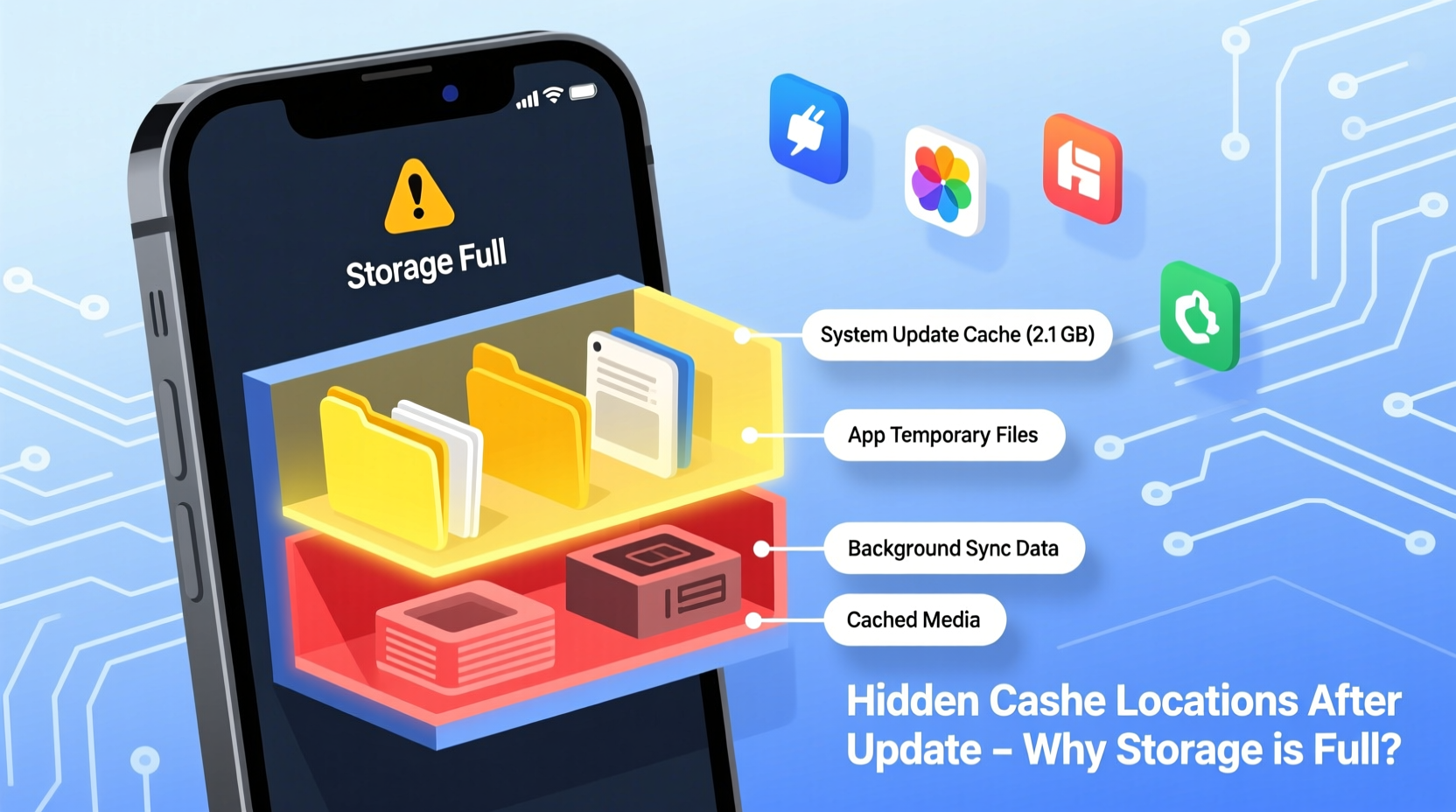
When your phone receives an operating system (OS) update—such as Android’s monthly patch or iOS 17.x—it downloads a full package, often ranging from 500MB to over 2GB. This file isn’t just installed and discarded. During installation, the system extracts components, creates logs, and generates temporary cache files. These files help ensure a smooth rollout but are frequently left behind due to bugs or incomplete cleanup processes.
Similarly, app updates behave the same way. Each time an app like WhatsApp, Chrome, or Instagram updates, it may download additional assets, pre-render media, or store fallback versions—all cached locally. Over time, especially on devices with limited internal storage (32GB or less), these fragments add up quickly.
The most frustrating part? Much of this data is invisible in standard settings menus. You might go to “Storage” and see “System” or “Other,” taking up several gigabytes, with no clear indication of what’s inside.
“Modern OS updates are modular and resource-heavy. They rely on caching strategies that improve speed but often neglect cleanup.” — Dr. Lena Torres, Mobile Systems Researcher at TechInsight Labs
Common Hidden Cache Locations on Android and iOS
Both major mobile platforms use layered caching systems. Some directories are accessible; others require special tools or developer access. Below are the most common hidden cache repositories:
Android: Deep System and App Caches
- /data/data/[package.name]/cache – Per-app cache managed by Android’s internal system. Usually cleared via Settings > Apps, but some apps don’t release all files.
- /cache/ – Temporary partition used during OTA (over-the-air) updates. Should be wiped post-install, but sometimes remnants remain.
- /data/dalvik-cache/ – Stores optimized app bytecode (ODEX files). Grows significantly after updates and is rarely user-accessible without root.
- Download Manager cache – Hidden folder storing partial update downloads, often named
.cmupdateortemp_ota. - Google Play Services cache – One of the largest silent offenders. Can grow beyond 1GB due to background sync, location history, and predictive services.
iOS: Sandboxed but Still Bloated
- App Sandbox /Library/Caches/ – Each app maintains its own cache directory. Safari, Mail, and Photos are top consumers.
- Shared Web Cache – Used by Safari, Messages, and third-party apps using WebKit. Stored in a protected system area and not always cleared manually.
- OS Update Residue – iOS keeps the previous OS version for up to 7 days to allow rollback. This single file can take 4–8GB on iPhones.
- Temporary Files from iCloud Sync – Partially synced documents, thumbnails, and metadata linger even after successful upload.
Step-by-Step Guide to Locate and Clear Hidden Cache
Follow this systematic approach to reclaim storage after an update. These steps work across most modern smartphones, though exact menu paths may vary slightly.
- Reboot Your Device
Start fresh. A restart forces pending cleanup tasks and releases locked cache files. - Check Total Storage Usage
Go to Settings > Storage and note the current usage, especially under “System,” “Apps,” and “Other.” - Clear System Cache (Android Only)
Power off the phone. Hold Power + Volume Up to enter Recovery Mode. Select “Wipe Cache Partition.” This does not delete personal data. - Manually Clear Major App Caches
Navigate to Settings > Apps. Sort by size. Tap the top 5 largest apps (e.g., Chrome, Facebook, Messenger) and select “Clear Cache.” Avoid “Clear Data” unless necessary. - Delete Old OS Backup (iOS)
If you’re on iPhone, go to Settings > General > iPhone Storage. Wait for the list to load. Look for “iOS [version]” with a small “Delete” button. Tap it to remove the old system backup. - Use Built-in Phone Cleaner Tools
On Samsung, use “Device Care.” On Xiaomi, use “Clean Master.” On iPhone, try “Offload Unused Apps” under iPhone Storage settings. - Inspect Download Folders
Open your File Manager. Navigate toDownloads,Android/data, and.cachefolders. Delete any files labeled “update,” “temp,” or “OTA.” - Restart Again and Recheck Storage
Compare your initial reading. Most users recover between 500MB and 3GB using this method.
Do’s and Don’ts: Managing Post-Update Storage
| Do | Don’t |
|---|---|
| Reboot after every major update | Ignore “System” or “Other” storage spikes |
| Clear cache for social media and browser apps monthly | Delete files in /system or /firmware without root/knowledge |
| Use official cleaner tools from OEMs | Install third-party “junk cleaner” apps from unknown sources |
| Enable automatic app updates over Wi-Fi only | Allow background data for non-essential apps |
| Back up photos to cloud and delete local copies | Store large video files in app-specific folders long-term |
Real Example: Recovering 4.2GB After Android 14 Update
Sarah, a digital marketer in Austin, upgraded her Google Pixel 6 to Android 14. Immediately after, her phone warned of low storage—only 1.3GB free on a 128GB device. She hadn’t added new apps or media. Using the method above, she discovered:
- Google Play Services was using 1.8GB in cache.
- An incomplete OTA file named
ota_temp.zip(1.2GB) remained in/data/cache/. - The system labeled 1.1GB as “Miscellaneous,” which disappeared after wiping the cache partition.
By clearing app caches, entering recovery mode, and deleting residual files via a file explorer with root access, Sarah reclaimed 4.2GB. Her phone returned to normal operation within 20 minutes.
Advanced Tips for Persistent Storage Issues
If standard methods fail, consider deeper interventions—especially if your device consistently reports high “Other” or “System” usage.
For Android Users
- ADB Commands: Connect your phone to a PC and use Android Debug Bridge to clear deep cache:
adb shell pm trim-caches 1073741824
This requests the system to free up to 1GB of cached data. - Adoptive Storage Reset: If using adopted SD cards, updating the OS can corrupt cache mapping. Format the SD card as portable and reassign.
For iPhone Users
- Restore via iTunes/Finder: As a last resort, back up your phone and perform a full restore. This wipes all cache layers and reinstalls iOS cleanly.
- Check for Phantom Storage: Sometimes iOS misreports storage. Wait 24–48 hours after an update—background optimization may reduce “Other” automatically.
“Users often underestimate how much legacy update data lingers. A clean install every 12–18 months can significantly improve responsiveness.” — Mark Chen, Senior Support Engineer at Apple Authorized Service Center
Frequently Asked Questions
Can clearing cache delete my photos or messages?
No. Cache consists of temporary files like thumbnails, login tokens, and preloaded content. Your personal data—photos, messages, contacts—is stored separately. However, avoid tapping “Clear Data” instead of “Clear Cache,” as that resets app settings and may log you out.
Why does ‘Other’ storage grow so large on iPhones?
“Other” includes system logs, caches, Siri voices, keyboard dictionaries, and fragmented files. After an update, iOS temporarily stores both old and new system versions. This usually clears within a week, but manual deletion of the old OS (via iPhone Storage settings) speeds it up.
How often should I clear hidden cache?
Monthly maintenance is ideal. After any major OS or app update, perform a targeted cleanup. Devices with less than 64GB benefit from bi-weekly checks, especially if used for media-heavy apps.
Essential Maintenance Checklist
Use this checklist monthly or after any major update to prevent storage bloat:
- ✅ Reboot the device
- ✅ Check storage breakdown in settings
- ✅ Clear cache for top 5 largest apps
- ✅ Delete old OS backup (iOS) or wipe cache partition (Android)
- ✅ Review Downloads and temporary folders
- ✅ Offload unused apps
- ✅ Back up and delete large media files
- ✅ Verify freed space with a second reboot
Conclusion
A full phone after an update doesn’t mean you’ve done anything wrong—it’s often the result of poorly cleaned temporary files and hidden cache accumulation. By understanding where these files reside and adopting a disciplined cleanup routine, you can regain valuable space and keep your device running smoothly. Don’t wait until your phone warns of critical storage. Proactive management today prevents frustration tomorrow.




 浙公网安备
33010002000092号
浙公网安备
33010002000092号 浙B2-20120091-4
Comments
No comments yet. Why don't you start the discussion?