
You’ve uninstalled unused apps, cleared your downloads folder, and even offloaded media to the cloud—yet your phone still warns you about low storage. This frustrating cycle is more common than you think. The truth is, deleting apps doesn’t always free up as much space as expected, and hidden files often continue consuming gigabytes in the background. Understanding where that invisible data lives—and how to reclaim it—is key to keeping your device running smoothly.
Why Deleting Apps Doesn’t Always Free Up Space
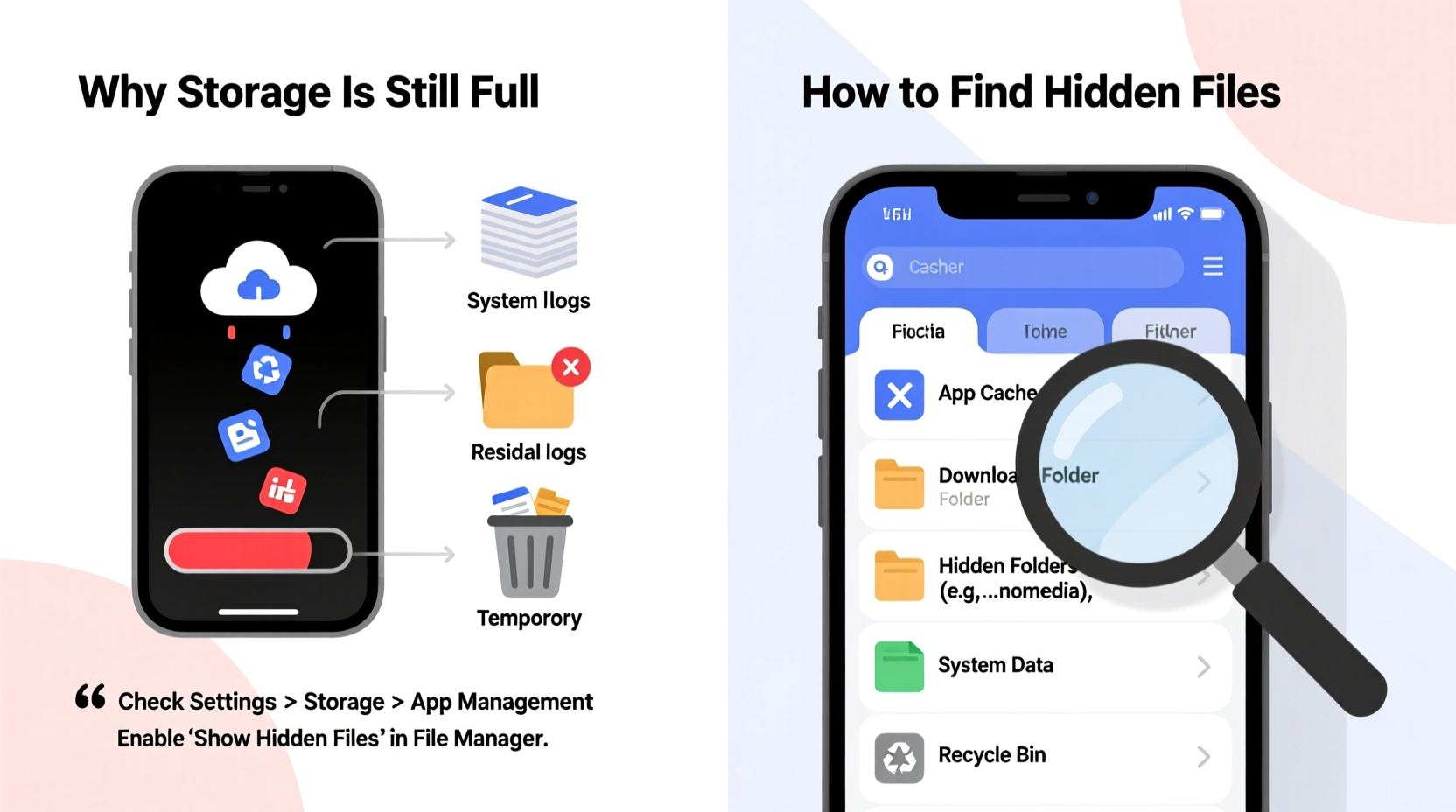
When you uninstall an app, most users assume all associated data vanishes. In reality, remnants often remain. App caches, residual configuration files, offline media, and user-generated content can persist long after the app icon disappears from your home screen.
For example, social media platforms like Instagram or TikTok automatically cache videos and images for faster loading. Even if you delete the app, those cached files may linger in system directories. Similarly, messaging apps such as WhatsApp store media locally by default, and simply removing the app won’t erase photos, videos, or documents saved during chats unless explicitly deleted.
Android and iOS handle app data differently, but both systems prioritize user experience over aggressive cleanup. As Google engineers explain: “Preserving certain data allows for smoother reinstallation and reduces friction when users reinstall apps.” While convenient, this design choice contributes significantly to phantom storage usage.
“App deletion isn’t a clean slate—it’s more like moving out but leaving furniture behind.” — Dr. Lena Torres, Mobile Systems Analyst at TechInsight Labs
Common Sources of Hidden Storage Drain
Hidden files aren’t necessarily malicious or secret—they’re just not visible through standard file browsers. These files accumulate silently across several categories:
- Cache Files: Temporary data stored by apps to speed up performance. Over time, these can grow into hundreds of megabytes.
- Residual App Data: Folders left behind after app removal, including preferences, logs, and temporary downloads.
- System Logs & Diagnostics: Your phone generates diagnostic reports, crash logs, and usage analytics that are rarely accessed but take up space.
- Offline Maps & Downloads: Navigation apps like Google Maps or Waze allow offline area downloads, which aren’t always obvious or easy to locate.
- Duplicate Media: Multiple copies of screenshots, edited photos, or auto-saved drafts clutter internal storage without clear labeling.
- Backup Fragments: Partial backups created during failed syncs or interrupted iCloud/Google Drive uploads.
How to Find and Remove Hidden Files
Locating hidden files requires digging deeper than the standard settings menu. Below is a step-by-step guide tailored for both Android and iOS users.
Step-by-Step Guide: Uncovering Hidden Storage Hogs
- Access Storage Settings: Go to Settings > Storage (iOS: Settings > General > iPhone Storage; Android: Settings > Storage).
- Analyze Storage Breakdown: Review categories like Apps, Photos, Audio, and “Other” (iOS) or “Cached Data” (Android).
- Check App-Specific Data: Tap individual apps to see total size, including cache and documents. Look for unusually large entries.
- Clear Cache (Android): For each app, tap “Clear Cache.” Avoid “Clear Data” unless you want to reset the app entirely.
- Use File Manager Tools: On Android, use built-in tools like “Files by Google.” On iOS, connect to a computer and explore via Finder (macOS) or iTunes (Windows).
- Enable Show Hidden Files (Advanced): On rooted Android devices or jailbroken iPhones, file explorers can reveal dot-prefixed folders (e.g., .thumbnails). Proceed with caution.
- Delete Offline Content: Open maps, podcast, or video streaming apps and manually remove downloaded regions or episodes.
- Search for Large Files: Use third-party tools like DiskUsage (Android) or PhoneExpander (iOS) to visualize file sizes and pinpoint oversized items.
Real Example: Maria’s Storage Mystery Solved
Maria, a freelance photographer, noticed her iPhone showed only 2GB free despite deleting multiple editing apps and transferring photos to iCloud. After checking iPhone Storage, she found “Other” occupied 18GB. Using a Mac, she connected her phone and browsed the file system using Finder. Inside a hidden folder named .com.apple.mobileslideshow, she discovered over 12GB of duplicated slideshow caches from an old presentation app she had removed months earlier. Manual deletion freed up nearly 15GB instantly.
Do’s and Don’ts When Managing Hidden Files
| Do’s | Don’ts |
|---|---|
| Regularly review app storage usage in settings | Don’t delete system folders like .android or .AppleSystemLog without research |
| Use trusted file manager apps with clear permissions | Don’t format internal storage without backup |
| Back up important data before clearing caches | Don’t ignore update prompts—new OS versions often optimize storage |
| Clear browser cache monthly | Don’t rely solely on “Cleaner” apps promising instant fixes |
| Uninstall unused apps instead of just disabling them | Don’t store raw camera footage indefinitely on-device |
Proactive Strategies to Prevent Future Buildup
The best way to manage storage isn’t reactive cleanup—it’s prevention. Implementing routine habits ensures your phone remains responsive and avoids recurring alerts.
Monthly Maintenance Checklist
- ✅ Review top five largest apps by storage usage
- ✅ Clear cache in messaging and social media apps
- ✅ Delete duplicate photos and screenshots
- ✅ Remove outdated offline maps and podcast downloads
- ✅ Back up photos to cloud services (Google Photos, iCloud, Dropbox)
- ✅ Restart your phone to purge temporary memory leaks
- ✅ Audit downloads folder for forgotten files
Additionally, consider adjusting default behaviors. For instance, disable automatic download of media in WhatsApp or Telegram. On iOS, enable “Optimize iPhone Storage” under Photos settings to keep smaller versions of images while storing originals in the cloud. Android users can activate “Free up space” suggestions in the Device Care section.
Frequently Asked Questions
Why does “Other” storage take up so much space on my iPhone?
“Other” includes system files, caches, logs, Siri voices, keyboard dictionaries, and temporary data. It grows when apps fail to clean up properly or when software updates leave behind transitional files. To reduce it, back up your phone, erase all content and settings, then restore from backup—a fresh start often shrinks “Other” significantly.
Can hidden files contain malware or viruses?
On stock Android and iOS devices, true malware is rare due to sandboxed app environments. However, poorly coded apps can create bloated or corrupted hidden files. Stick to official app stores and avoid sideloading unknown APKs or IPA files. If your phone shows suspicious behavior (overheating, rapid battery drain), perform a factory reset after backing up essential data.
Are third-party cleaner apps safe to use?
Most “phone booster” or “junk cleaner” apps offer minimal real benefit and may collect personal data. Google has cracked down on misleading cleaner apps in the Play Store, but some still slip through. Stick to first-party tools like Files by Google or Apple’s native storage management. If you must use a third-party tool, choose one with transparent privacy policies and high user ratings.
Conclusion: Take Control of Your Digital Clutter
Your phone’s storage isn’t just a technical specification—it’s a reflection of your digital habits. The files piling up behind the scenes represent choices made over weeks or months: autoplaying videos saved temporarily, messages with embedded media, maps downloaded for a trip last summer. Recognizing that deletion isn’t deletion until you verify what’s truly gone is the first step toward mastery.
By understanding where hidden data hides, using the right tools, and establishing simple maintenance routines, you can transform a sluggish, full-storage device into a fast, reliable companion. Don’t wait for the red warning banner. Start today—open your storage settings, investigate one app’s data footprint, and reclaim even 500MB. Small actions compound into lasting control.




 浙公网安备
33010002000092号
浙公网安备
33010002000092号 浙B2-20120091-4
Comments
No comments yet. Why don't you start the discussion?