
You’ve uninstalled unused apps, cleared your downloads folder, and even deleted old photos—yet your phone still warns of low storage. This frustrating experience affects millions of smartphone users every year. The truth is, removing an app doesn’t always remove all its data. Hidden files, cached content, and system backups linger in the background, silently consuming gigabytes. Understanding what happens behind the scenes when you delete an app—and what doesn’t get deleted—is the first step toward reclaiming your storage space.
What Happens When You Delete an App?
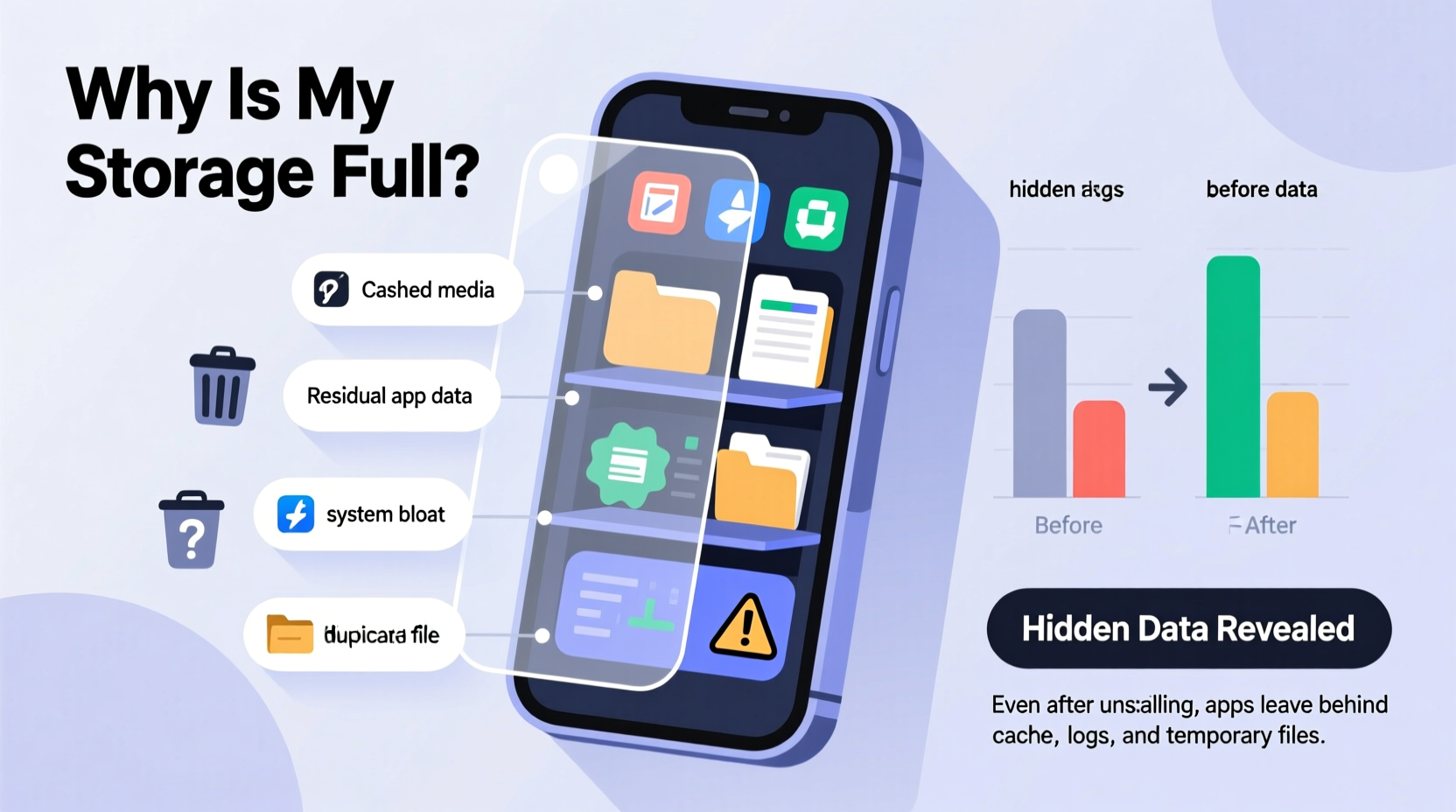
When you tap “Uninstall” or drag an app to the trash, your phone removes the core application package—the executable file that runs the app. However, associated data such as cache, logs, media files, and offline databases often remain stored in various directories across your device. These remnants are not automatically purged because:
- Android and iOS preserve user-generated content—like saved games, downloaded videos, or documents—for potential reinstallation.
- System-level caches may be shared among multiple apps and aren't tied directly to one app’s lifecycle.
- Cloud sync services sometimes leave local copies behind for quick access, even if the app is gone.
This leftover data can accumulate over time, especially with media-heavy apps like social networks, streaming platforms, or productivity tools.
Common Sources of Hidden Storage Drain
The following components often survive app deletion and continue occupying space without your knowledge:
1. Cache Files
Apps generate temporary files (cache) to speed up loading times. While useful, these files rarely self-delete. Over months, they can grow into hundreds of megabytes per app—even for ones you no longer use.
2. Media and Download Folders
Many apps save images, audio, or video directly to your phone’s public storage (e.g., DCIM, Downloads, or Movies folders). Deleting the app won’t touch these files. For example, WhatsApp stores received media in a dedicated folder that persists after uninstallation.
3. Offline Data and Backups
Streaming apps like Spotify, Netflix, or Kindle download content for offline use. If you don’t manually delete these files, they stay on your device indefinitely. Similarly, some apps create local backups of settings or progress that aren’t linked to the main app binary.
4. App-Specific Databases
Games and productivity apps store databases locally. These might include game saves, notes, or indexed search results. On Android, such data lives in /Android/data/ and /Android/obb/ directories. iOS hides similar files within sandboxed containers, but they’re still present.
5. Synced Cloud Content
Services like Google Photos, iCloud Drive, or Dropbox keep local copies of synced files marked for “offline availability.” Even after removing the app, those files may remain unless explicitly deleted through the device’s file manager.
“Most users assume uninstalling removes everything, but mobile operating systems prioritize data preservation over aggressive cleanup.” — Dr. Alan Reyes, Mobile Systems Analyst at TechInsight Labs
Step-by-Step Guide to Fully Remove App Residue
To completely eliminate hidden app data, follow this systematic approach:
- Before Uninstalling: Clear App Data
Go to Settings > Apps > [App Name] > Storage > Clear Data & Clear Cache. This wipes internal storage tied to the app. - Delete Associated Media Manually
Use your phone’s built-in file manager or a third-party tool to navigate to:- Android: Internal Storage > DCIM, Downloads, Android/data/, Android/obb/
- iOS: Open Files app and check locations like “On My iPhone” or app-specific folders under “Locations”
- Use Built-In Storage Tools
On Android: Settings > Storage > Cleanup Suggestions or Free Up Space.
On iPhone: Settings > General > iPhone Storage. Wait for it to analyze usage, then tap individual apps to see document sizes and offload options. - Remove Offline Content
Reinstall the app temporarily if needed just to access settings where you can delete offline playlists, books, or maps. - Restart Your Device
After deletion, restart your phone. This forces the OS to rebuild file indexes and may reveal lingering orphaned files.
Do’s and Don’ts of Managing Phone Storage
| Action | Do | Don’t |
|---|---|---|
| Deleting Apps | Clear cache and data first, then manually check related folders. | Assume uninstallation removes all traces. |
| Managing Media | Regularly review Downloads and DCIM folders. | Leave old screenshots and memes for months. |
| Using Cloud Services | Enable auto-sync and disable “keep offline copy” unless necessary. | Download entire photo libraries without periodic cleanup. |
| Storage Analysis | Use native tools monthly to identify space hogs. | Rely solely on third-party “cleaner” apps, many of which offer false promises. |
Mini Case Study: Recovering 8 GB from a Seemingly Clean Phone
Sophia, a freelance photographer using an Android phone with 64 GB total storage, frequently received low-memory alerts despite having only 12 apps installed. She had deleted several editing apps she used during a past project but never noticed her storage improve.
After running a file analysis using her device’s storage settings, she discovered:
- Over 3 GB in the
/Android/data/com.adobe.premiererush/folder from a video editor she’d removed months ago. - Nearly 2 GB of cached thumbnails in the Google Photos cache.
- Another 1.5 GB in old WhatsApp media stored in
/WhatsApp/Media/, including voice messages and documents.
By manually deleting these folders via the Files app and clearing system cache, Sophia reclaimed nearly 7.8 GB—more than 12% of her total capacity—without losing any personal photos or contacts.
Expert Tips to Prevent Future Storage Bloat
Maintaining optimal storage isn’t just about fixing current issues—it’s about building sustainable habits. Consider these long-term strategies:
- Use Offload Unused Apps (iOS): Enable this feature in Settings > App Store. It automatically removes app binaries while preserving documents and data, letting you reinstall quickly when needed.
- Limit Auto-Save Features: Disable automatic saving of screenshots, GIFs, or app clips unless essential.
- Move Media to the Cloud: Regularly back up photos and videos to Google One, iCloud, or another secure service, then delete local copies.
- Avoid “Cleaner” Apps: Most so-called junk cleaners on app stores provide minimal real benefit and may collect your data. Stick to built-in tools.
- Monitor App Behavior: Check which apps write large amounts of data by reviewing Settings > Storage breakdown.
Frequently Asked Questions
Does deleting an app delete all its data?
No, not always. While core app data is usually removed, media files, cache, and offline content often remain in your phone’s storage, particularly in public directories like Downloads or DCIM. You must delete these manually or use system tools to find them.
Why does my phone say storage is full when I have few apps?
App count doesn’t reflect actual storage usage. A single app like Instagram or TikTok can generate gigabytes of cached videos and images. Additionally, system data, logs, and hidden files contribute significantly. Use your phone’s storage analyzer to see what’s truly taking up space.
Can hidden app data slow down my phone?
Indirectly, yes. While leftover files don’t directly impact processing speed, a nearly full storage drive reduces system efficiency. Both Android and iOS require free space for virtual memory, caching, and background operations. Keeping at least 10–15% of storage free helps maintain performance.
Final Checklist: Reclaim Your Phone Storage
Follow this checklist monthly to keep storage under control:
- Open Settings > Storage and review top space-consuming categories.
- Clear cache for major apps (especially browsers, social media, and streaming).
- Navigate to file manager and delete obsolete folders in Downloads, DCIM, and Android/data.
- Revoke offline access permissions for cloud apps you no longer need.
- Restart your device to refresh storage indexing.
- Back up important files and consider factory resetting if bloat persists (after backup).
“The average smartphone user loses over 10 GB annually to invisible data residue. Proactive management turns this around.” — Mobile Performance Report, 2023, Consumer Tech Institute
Take Control of Your Digital Space
Your phone should serve you—not slow down because of forgotten files. The illusion of “deleting an app” being enough is one of the most common misconceptions in mobile device management. Now that you know hidden data persists long after uninstallation, you have the power to act. Take just 15 minutes this week to dig into your storage settings, explore file directories, and clean up what no longer serves you. Not only will you gain valuable space, but you’ll also boost your phone’s responsiveness and extend its usable life. In a world where digital clutter accumulates faster than ever, mindful maintenance is the ultimate upgrade.




 浙公网安备
33010002000092号
浙公网安备
33010002000092号 浙B2-20120091-4
Comments
No comments yet. Why don't you start the discussion?