
You’ve deleted old photos, uninstalled unused apps, cleared your downloads folder, and even restarted your phone—yet your device still warns of low storage. It’s frustrating, especially when you’re certain you’ve removed everything unnecessary. The truth is, visible files are only part of the story. Hidden cache, system junk, app residuals, and background processes quietly consume gigabytes without your knowledge. Understanding these invisible storage hogs is the first step toward regaining control of your phone’s performance.
The Illusion of a Clean Phone
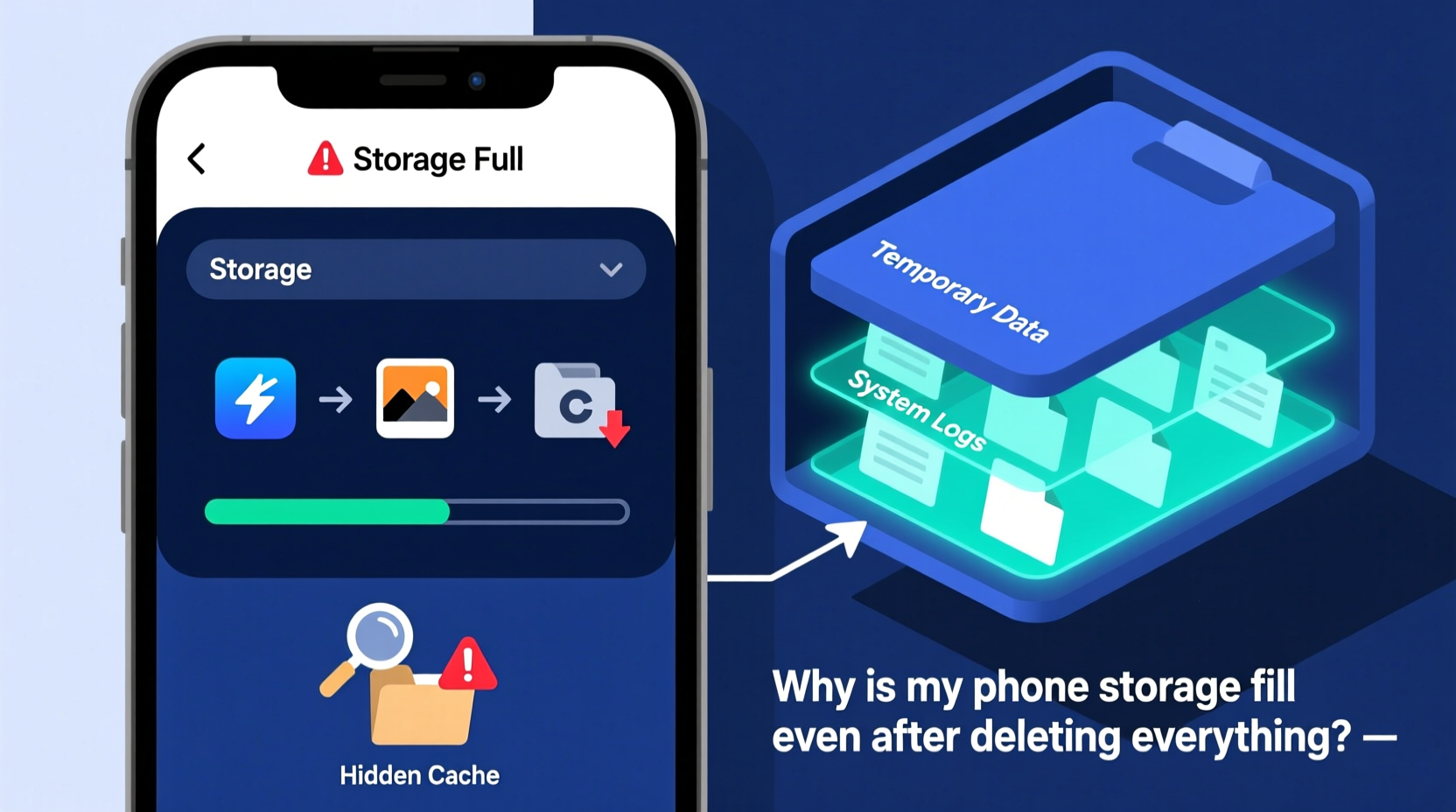
Deleting files from your gallery or uninstalling apps gives the impression of a fresh start. But modern smartphones operate like digital ecosystems: every action leaves behind traces. Apps store temporary data, operating systems generate logs, and media previews accumulate in the background. These fragments may seem harmless individually, but collectively they can occupy tens of gigabytes—especially on devices used daily for months or years.
Unlike desktop computers, mobile operating systems limit user access to system-level directories. This design enhances security but also hides critical storage information from casual users. As a result, people often believe their phones are “clean” when, in reality, deep layers of cached data remain untouched.
What Is Cache, and Why Does It Persist?
Cache refers to temporary data stored by apps and the operating system to speed up performance. When you open Instagram, it caches profile images, stories, and videos so they load faster on subsequent visits. Similarly, web browsers save website elements like scripts and images locally. While cache improves responsiveness, it rarely self-cleans efficiently.
Many users assume that clearing app cache through settings removes all temporary files. However, some apps re-download large chunks of data immediately upon reopening. Others create multiple cache folders across different directories—some accessible, others buried in protected system areas. Over time, this creates a cycle where cache grows faster than it's cleaned.
Android and iOS handle cache differently. On Android, each app has its own isolated cache partition, accessible via Settings > Storage > App Info. iOS consolidates more system-level caching, making individual app cache harder to monitor. In both cases, automatic management is inconsistent. High-usage apps like Facebook, TikTok, and Chrome are notorious for aggressive caching.
“Cache is essential for smooth operation, but unchecked growth leads to what we call ‘storage debt’—a gradual accumulation of invisible files that degrade user experience.” — Dr. Lin Zhao, Mobile Systems Researcher at TechInsight Labs
Hidden Storage Hogs You’re Not Seeing
Beyond standard cache, several less obvious sources consume significant space:
- App residuals: Even after uninstalling an app, leftover data such as preferences, logs, or partial downloads may remain.
- System logs and diagnostics: Phones record error reports, usage patterns, and network activity for troubleshooting. These logs aren’t automatically purged.
- Media thumbnails: Every photo and video generates preview images stored in hidden folders (e.g., .thumbnails or .cache).
- Offline content: Streaming apps like Spotify, Netflix, and YouTube Music download content for offline use, which isn’t always clearly labeled.
- Backups and sync data: Local backups, message attachments, and cloud sync buffers take up space even if you think they’re stored online.
On Android, navigating to /Android/data and /Android/obb directories reveals massive folders tied to games and productivity apps—often totaling several gigabytes. iOS users face similar issues within app sandboxes, though file-level access requires third-party tools or computer-based exploration.
Step-by-Step: How to Find and Remove Hidden Cache
- Access Device Storage Settings: Go to Settings > Storage. Review the breakdown of used space by category.
- Analyze App Storage Usage: Tap on individual apps with high storage consumption. Look for “Clear Cache” buttons—use them selectively.
- Delete Offline Content: Open streaming apps and manually remove downloaded music, videos, or podcasts.
- Use Built-in Cleanup Tools: Android’s “Smart Storage” or iOS’s “Offload Unused Apps” feature can automate some cleanup.
- Connect to a Computer: For deeper inspection, connect your phone to a PC/Mac and browse internal storage using file explorer (enable USB debugging if needed).
- Remove Thumbnail Folders: Safely delete folders named
.thumbnails,.cache, orDCIM/.thumbnails. - Factory Reset (Last Resort): Backup important data and perform a reset to eliminate all hidden files permanently.
Do’s and Don’ts of Managing Phone Storage
| Do’s | Don’ts |
|---|---|
| Regularly review app storage usage in settings | Assume “deleted” means “gone forever” |
| Enable auto-sync only for essential apps | Store original photos locally without cloud backup |
| Use cloud services (Google Photos, iCloud) with optimization enabled | Download large files directly to internal storage |
| Clear cache monthly for top 5 heaviest apps | Grant unnecessary permissions that lead to background data collection |
| Move media to external SD cards (if supported) | Ignore system update notifications that include storage optimizations |
Real Example: Maria’s Storage Mystery Solved
Maria, a freelance photographer, noticed her Samsung Galaxy S21 was constantly running out of space despite having no videos and fewer than 500 photos. She had cleared cache multiple times, yet storage remained at 98% capacity. After connecting her phone to her laptop, she discovered a 12GB folder named Android/data/com.spotify.mobile.android.ui/files/OfflineTracks. She hadn’t realized Spotify was storing entire albums for offline listening—even after canceling her premium subscription. Another 4GB came from WhatsApp’s auto-saved media, which was set to download all photos and videos by default. By adjusting app settings and deleting offline content, Maria freed over 17GB without losing any personal files.
Expert Strategies to Prevent Future Buildup
Prevention is more effective than periodic cleanup. Implementing long-term habits reduces the risk of recurring storage issues:
- Schedule Monthly Audits: Set a calendar reminder to review storage usage and clear cache for top apps.
- Limit Background Data: Restrict apps from refreshing in the background, which reduces automatic downloads and cache generation.
- Optimize Media Settings: Use “High Efficiency” formats (HEIC on iPhone, WebP/HEVC on Android) to reduce file sizes.
- Enable Cloud Optimization: Let iCloud or Google Photos store originals in the cloud and keep only thumbnails locally.
- Uninstall Bloatware: Remove pre-installed apps you never use, especially social media and trial software.
“The key isn’t just cleaning—it’s configuring your phone to generate less waste from the start.” — Jamal Reeves, Senior UX Engineer at MobileCare Solutions
Frequently Asked Questions
Does clearing cache delete my photos or messages?
No. Clearing cache only removes temporary files used to speed up app performance. Your personal data, including photos, messages, and account logins, remains intact. However, apps may take slightly longer to load the next time you open them as they rebuild necessary cache.
Why does my storage fill up overnight?
This often happens due to automatic updates, background syncing, or scheduled backups. Apps like Facebook, email clients, and cloud storage services may download large files when connected to Wi-Fi during idle hours. Check your settings to manage auto-update and sync behaviors.
Is it safe to delete files in the Android/data folder?
Yes, but cautiously. Files in Android/data are typically app-specific and non-system-critical. Deleting them may require you to re-download content or reconfigure settings. Always close the associated app before removing its folder, and avoid deleting anything unless you’re certain of its purpose.
Final Checklist: Reclaim Your Phone’s Storage
- Review total storage usage in device settings
- Identify the top 5 apps consuming the most space
- Clear cache for each of those apps
- Check for offline content in streaming and messaging apps
- Delete duplicate or unwanted downloads
- Remove hidden thumbnail and cache folders via file browser
- Adjust settings to prevent future buildup (disable auto-download, enable cloud optimization)
- Restart your phone to finalize changes
Take Control of Your Digital Space
Your phone should work for you—not against you. Persistent storage warnings don’t mean you’re doing something wrong; they reflect how modern apps and operating systems prioritize convenience over efficiency. Now that you understand the hidden forces behind full storage, you can act with precision. Regular maintenance, smarter settings, and informed deletions will keep your device running smoothly for years. Don’t wait until your phone slows to a crawl—start today by opening your storage settings and uncovering what’s really taking up space.




 浙公网安备
33010002000092号
浙公网安备
33010002000092号 浙B2-20120091-4
Comments
No comments yet. Why don't you start the discussion?