
You’ve cleared your downloads, offloaded old photos, uninstalled unused apps, and even rebooted your phone—but your storage is still nearly full. It’s frustrating, especially when you’re certain you’ve deleted everything. The truth is, digital clutter doesn’t always disappear when you hit “delete.” Hidden caches, system bloat, background processes, and app residue often continue consuming space long after you think it’s gone. Understanding these invisible storage hogs is the first step toward truly freeing up room on your device.
The Illusion of Deletion
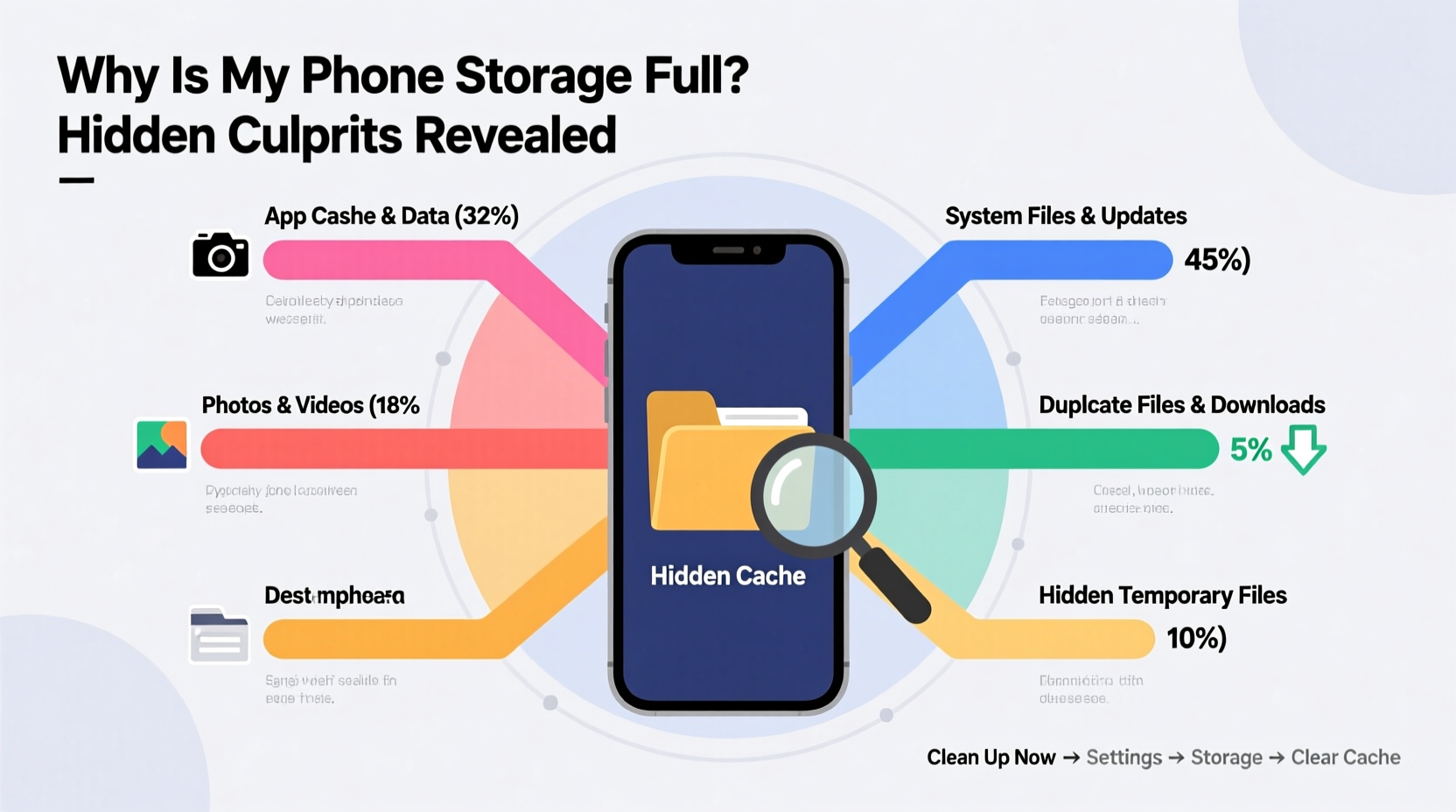
When you delete a photo, message, or app, most users assume that file vanishes completely. But in reality, deletion on smartphones often means marking the space as “available” rather than erasing the data immediately. The actual files may linger until new data overwrites them. Worse, some apps don’t fully uninstall—they leave behind caches, logs, and configuration files that quietly accumulate over time.
Additionally, many apps automatically generate temporary files and cache data to improve performance. These are rarely cleaned up automatically, even after the app is removed. This creates a cycle where your phone appears clean on the surface but remains burdened by hidden digital debris.
Hidden Storage Culprits You’re Overlooking
Even if you’ve manually deleted visible content, several behind-the-scenes elements can silently consume gigabytes of storage. These are often invisible in your regular file manager but show up in your device’s storage breakdown under vague labels like “Other,” “System,” or “Cached Data.”
1. App Caches and Temporary Files
Every app you use—social media, browsers, streaming platforms—stores temporary data to load faster. For example, Instagram caches thumbnails, videos, and story previews; Chrome saves website assets; messaging apps store media previews. While helpful, these caches can grow into hundreds of megabytes or even gigabytes over time.
2. System Data and Firmware Residue
Your operating system (iOS or Android) reserves space for updates, logs, and internal processes. After a major OS update, remnants of the previous version may remain stored temporarily. On Android, this can include A/B partition backups; on iOS, update files sometimes stay behind even after installation.
3. Media File Previews and Thumbnails
Both iOS and Android generate thumbnails for every photo and video to enable fast gallery browsing. These small files add up quickly, especially if you frequently receive or download media. They’re stored in hidden directories like .thumbnails or DCIM/.thumbnails, invisible to most users but collectively occupying significant space.
4. Offline Content and Background Syncs
Apps like Spotify, YouTube Music, Google Maps, and Netflix allow offline downloads. Even if you think you’ve deleted them, cached maps or saved episodes might persist in app-specific folders. Similarly, cloud sync services such as Google Photos or iCloud may keep local copies of backed-up files unless explicitly disabled.
5. Bloatware and Carrier Apps
Many phones come preloaded with apps you never use—often called bloatware. These can’t always be uninstalled, only disabled, and they continue to run background processes and store data. Carrier apps, manufacturer utilities, and trial subscriptions are common offenders.
“Users often overlook the cumulative impact of micro-caches. A few MB here and there from dozens of apps can easily total 5–10GB over six months.” — David Lin, Mobile Systems Analyst at TechInsight Labs
Step-by-Step Guide to Reclaim Hidden Storage
Follow this systematic approach to identify and eliminate the real causes of full storage—even after apparent cleanup.
- Check Your Storage Breakdown
Go to Settings > Storage. Review each category (Apps, Photos, System, etc.). Pay attention to “Cached Data” and “Other” or “System.” If “Other” exceeds 10–15% of total storage, hidden files are likely the issue. - Clear All App Caches (Android)
Navigate to Settings > Storage > Cached Data. Tap “Clear Cache.” Alternatively, go to each app in Settings > Apps, open its storage settings, and tap “Clear Cache.” Avoid “Clear Data” unless necessary—it resets the app. - Offload Unused Apps (iOS)
Enable Settings > General > iPhone Storage > Offload Unused Apps. This removes the app but keeps documents and data, allowing quick reinstallation without losing progress. - Delete Old Messages and Attachments
In Messages (iOS) or SMS apps (Android), set auto-delete for conversations older than 30 days or one year. Manually delete large attachments like videos sent via MMS. - Review Download Folders
Use a file manager to navigate to/Downloads,/Documents, and external SD folders. Sort by size and delete outdated APKs, PDFs, or duplicate files. - Remove Offline Content
Open apps like Spotify, YouTube, or Google Maps. Navigate to their download or offline sections and delete saved content you no longer need. - Restart After Cleaning
A reboot forces the system to rebuild caches from scratch, ensuring old temporary files aren’t reloaded.
Do’s and Don’ts: Managing Phone Storage Wisely
| Do | Don't |
|---|---|
| Regularly clear app caches every 2–3 weeks | Delete entire app data unless absolutely necessary |
| Use cloud storage for photos and videos | Store sensitive files in public download folders |
| Uninstall apps you haven’t used in 30+ days | Ignore system update notifications—they often include storage optimizations |
| Enable automatic photo backup and turn off local saving | Assume “deleted” files are gone forever—recoverable data lingers |
| Check storage usage monthly | Install third-party “cleaner” apps that promise miracles |
Real Example: Maria’s Storage Mystery Solved
Maria, a freelance photographer, noticed her iPhone 13 was constantly showing “Storage Almost Full” despite having only 1,200 photos and no videos. She had deleted old projects and messages multiple times. When she checked Settings > General > iPhone Storage, she saw 28GB labeled as “Other”—nearly 40% of her 75GB used space.
After backing up her phone, she offloaded all non-essential apps, cleared Safari’s website data, and disabled iCloud Photos’ “Optimize iPhone Storage” before re-enabling it. She also discovered a hidden folder created by a photo editing app that contained 14GB of temporary export files. By manually deleting those through a file browser app, she reclaimed over 22GB overnight. Her “Other” storage dropped to 6GB, and her phone’s performance improved noticeably.
Advanced Cleanup: Accessing Hidden Folders
On Android, use a reliable file manager like Solid Explorer or FX File Explorer to access root directories. Look for:
/Android/data/– Contains cache and data folders for each app. Some can be safely deleted./cache/– System-level temporary files. Can be wiped in recovery mode..thumbnails/– Stores image previews. Safe to delete; regenerates as needed.LOST.DIR/– Holds corrupted or orphaned files. Often safe to empty.
On iOS, direct file system access is limited, but you can use iTunes or Finder (macOS Catalina+) to inspect synced content. Alternatively, apps like Documents by Readdle can reveal hidden app containers where cached files reside.
Checklist: Monthly Phone Storage Audit
Perform this checklist once per month to prevent storage buildup:
- ✅ Review storage usage in Settings
- ✅ Clear cache for top 5 heaviest apps (e.g., social media, browsers)
- ✅ Delete downloaded media from messaging apps
- ✅ Remove offline maps, music, or videos no longer needed
- ✅ Empty Downloads and Documents folders
- ✅ Back up and delete old voice memos or call recordings
- ✅ Restart device after cleanup
- ✅ Verify cloud backup status (iCloud, Google Drive, etc.)
Frequently Asked Questions
Why does “Other” take up so much space on my iPhone?
“Other” includes system files, caches, logs, keyboard dictionaries, and partial updates. It grows when apps store temporary data or when iOS fails to clean up after updates. Regular restarts and cache clearing help reduce it.
Can I delete “System” data on Android?
No—system data is essential for your OS. However, you can reduce it by uninstalling bloatware, removing unused language packs, and avoiding custom ROMs that increase footprint. Factory reset is the only way to fully clear system bloat, but back up first.
Does clearing cache delete my passwords or login info?
No. Cache stores temporary performance files, not account credentials. Login details are kept in app data or browser profiles. To preserve logins while freeing space, only clear cache—not data or storage.
Conclusion: Take Control of Your Digital Space
Your phone’s storage isn’t just about photos and apps—it’s a dynamic ecosystem where invisible files accumulate silently. Simply deleting visible content isn’t enough. True optimization requires understanding the hidden layers: caches, system logs, thumbnail databases, and offline remnants. By adopting regular maintenance habits and using built-in tools wisely, you can keep your device running smoothly and avoid the recurring panic of “storage full” warnings.
Don’t wait until your phone slows down or stops taking photos. Schedule a monthly cleanup, follow the checklist, and treat your storage like a physical closet—one that needs consistent organizing to stay functional. Your phone works hard for you; give it the breathing room it deserves.




 浙公网安备
33010002000092号
浙公网安备
33010002000092号 浙B2-20120091-4
Comments
No comments yet. Why don't you start the discussion?