
You charge your phone, open a few apps, maybe take the occasional photo—and suddenly, a notification pops up: “Storage almost full.” You haven’t downloaded movies or saved hundreds of videos. So why is your phone running out of space? The answer often lies not in what you see, but in what you don’t: hidden files, cached data, and system bloat that accumulate silently in the background. These invisible space-hoggers can consume gigabytes without your knowledge, leaving little room for new content and slowing down performance.
Understanding how storage works on modern smartphones—especially Android and iOS—is essential to managing it effectively. Unlike traditional computers, phones automatically generate large amounts of temporary and residual data. Over time, this builds up into a digital clutter that’s rarely visible through standard file browsers. This article breaks down the most common hidden storage culprits, shows you exactly where to find them, and provides actionable steps to reclaim lost space—without risking your personal data.
The Hidden Storage Thieves You’re Not Seeing
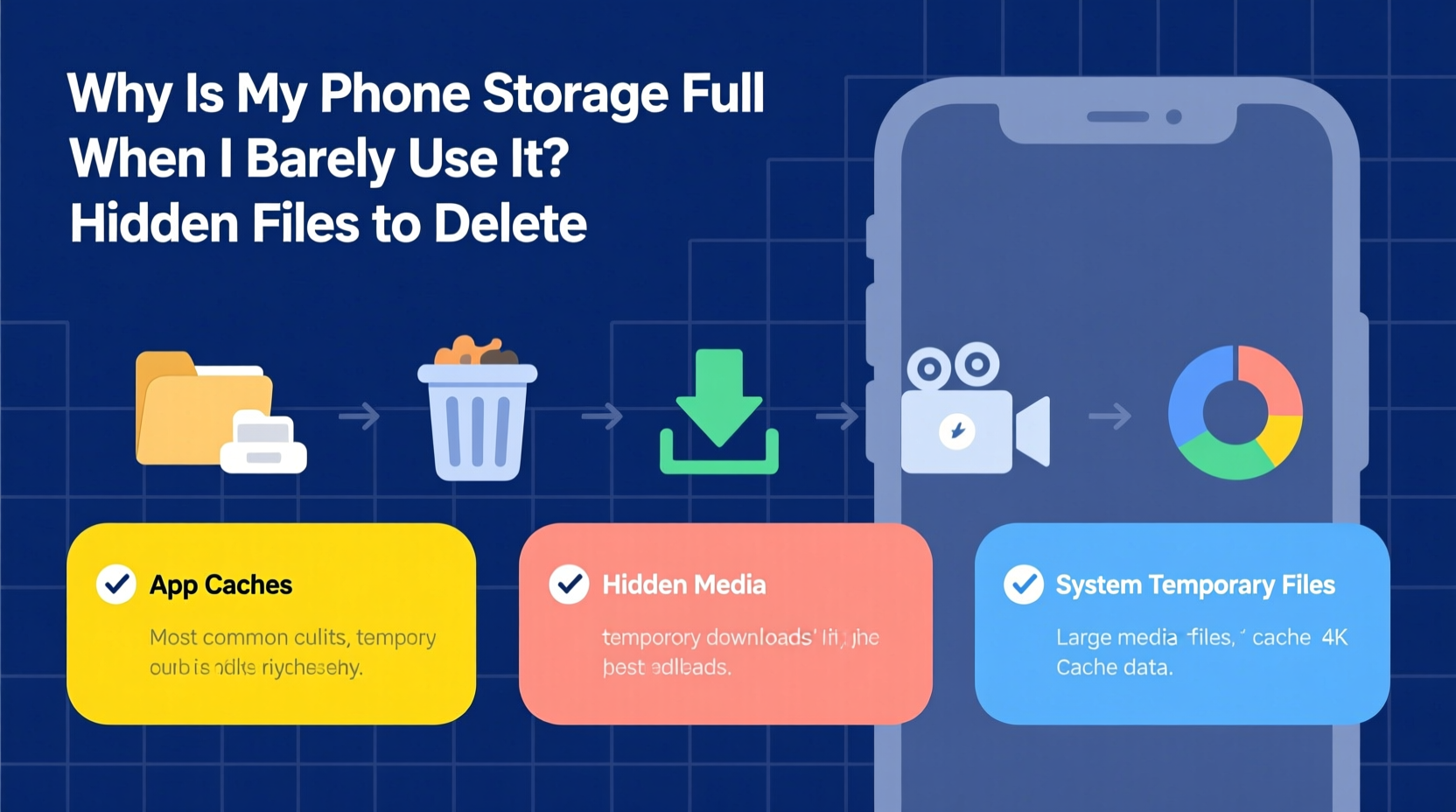
Most users assume that their photos, apps, and music are the primary consumers of storage. While those do take up space, they're usually not the main reason behind sudden storage warnings. Instead, three categories of hidden files dominate unnoticed:
- App cache and residual data: Every app stores temporary files to improve load times. Over weeks or months, these caches grow significantly.
- System logs and diagnostic files: Your phone constantly records performance metrics, error reports, and usage analytics—many of which are never purged automatically.
- Orphaned media and duplicate downloads: Files created by messaging apps, social networks, or failed uploads often remain buried in obscure folders.
These files aren’t typically accessible via the default gallery or file manager. They reside in directories like /Android/data/, .thumbnails, or DCIM/.thumbnails on Android, or within sandboxed app containers on iOS. Without digging deeper, they remain invisible yet impactful.
Common Hidden File Types That Steal Space
Below is a breakdown of the most frequently overlooked file types consuming your phone's storage, along with guidance on whether they’re safe to delete.
| File Type | Location Example | Size Impact | Safe to Delete? |
|---|---|---|---|
| App Cache (e.g., WhatsApp, Instagram) | /Android/data/com.whatsapp/cache/ | 50 MB – 2 GB+ | Yes, temporarily stored media |
| Thumbnails Cache | /DCIM/.thumbnails/ | 200 MB – 1 GB | Yes, regenerates as needed |
| Downloaded Updates (Failed OTA) | /cache/recovery/ | 500 MB – 1.5 GB | Yes, after successful update |
| Residual App Data (Uninstalled Apps) | /Android/obb/ or /data/user_de/ | 100 MB – 3 GB | Sometimes — verify source first |
| iOS Offline Web Content | On-device Safari cache & website data | Up to 2 GB | Yes, clears browsing history |
Many of these files serve functional purposes during normal operation. For example, thumbnails allow your gallery to load images faster, and app caches speed up navigation within frequently used apps. However, once they reach excessive sizes or become outdated, they provide no benefit while still occupying valuable storage.
“Phones today are designed to prioritize performance over storage efficiency. That means they’ll keep more temporary files than necessary to make apps feel snappier—even at the cost of available space.” — Dr. Lena Tran, Mobile Systems Analyst at TechInsight Labs
Step-by-Step: How to Find and Delete Hidden Files Safely
Reclaiming space from hidden files requires methodical access to system-level directories. Follow this sequence to identify and remove unnecessary data without compromising device stability.
- Access Internal Storage via File Manager
Open your phone’s built-in file browser (or download a trusted third-party app like Solid Explorer or FX File Explorer). Navigate to “Internal Storage” or “Phone Storage,” then explore key folders such as:/Android/data/— Contains per-app data including caches/Download/— Often holds forgotten APKs, PDFs, or media/DCIM/.thumbnails/— Hidden image previews folder/cache/— System-wide temporary files
- Sort by Size
In your file manager, enable sorting by size. This reveals which folders are consuming the most space. Folders exceeding 100 MB should be inspected closely. - Delete App-Specific Caches
Enter the/Android/data/directory. Look for subfolders matching popular apps (e.g.,com.instagram.android,com.facebook.orca). Inside each, locate thecachefolder and delete its contents. Avoid deleting entire app folders unless the app has been uninstalled. - Clear Thumbnail Databases
Go to/DCIM/.thumbnails/and delete all files inside. Also check for a file named.thumbnails.db—this is a database that rebuilds itself when needed. Removing it forces regeneration later but frees immediate space. - Scan for Duplicate Downloads
Some apps automatically save media even if you didn’t request it. Check folders like/WhatsApp/Media/or/Telegram/Telegram Documents/for redundant copies. Disable auto-download settings in these apps afterward. - Use Built-In Storage Tools
On Android: Go to Settings > Storage > Cleanup Suggestions.
On iPhone: Settings > General > iPhone Storage — review recommendations and offload unused apps.
Real Case: Recovering 4.2 GB from a Seemingly Empty Phone
Sophia, a freelance writer using a mid-range Android phone, received constant low-storage alerts despite having only a handful of apps installed and fewer than 200 photos. She hadn’t downloaded any large files recently and assumed her phone was faulty.
After connecting her device to a computer and enabling \"Show Hidden Files,\" she discovered:
- A 1.7 GB folder named
/Android/data/com.spotify.music/cache/ - Over 900 MB in
/DCIM/.thumbnails/ - A leftover 1.1 GB OTA update file in
/cache/from an interrupted system upgrade - Multiple duplicate voice memos saved simultaneously by two note-taking apps
By selectively removing cache data and obsolete updates, Sophia freed up 4.2 GB of space—nearly doubling her usable storage. Her phone also ran noticeably faster due to reduced background indexing overhead.
This case illustrates how passive usage—streaming music, browsing the web, using cloud-synced apps—can generate massive hidden footprints. No single action caused the issue; it was the cumulative effect of unchecked background operations.
Essential Checklist: Free Up Space in Under 15 Minutes
Use this quick checklist weekly or whenever you receive a storage warning:
- ✅ Clear app caches through Settings > Apps > [Select App] > Storage > Clear Cache
- ✅ Delete contents of
/DCIM/.thumbnails/using a file explorer - ✅ Uninstall unused apps, especially social media and shopping platforms known for heavy caching
- ✅ Turn off automatic media downloads in WhatsApp, Telegram, and Facebook Messenger
- ✅ Offload infrequently used apps on iPhone (Settings > General > iPhone Storage)
- ✅ Move old photos and videos to Google Photos or iCloud with original quality backed up
- ✅ Restart your phone after major cleanup to reset memory allocation
Completing this list typically recovers between 500 MB and several gigabytes, depending on device age and usage patterns.
Frequently Asked Questions
Can I accidentally delete something important when clearing hidden files?
Generally, no—if you stick to cache folders, thumbnail directories, and temporary files. Never delete entire app folders unless you’ve uninstalled the app. System-critical files are protected, but user-generated caches are fair game. When in doubt, back up first or skip the folder.
Why does my storage fill up even though I have cloud backup enabled?
Cloud backup doesn’t automatically remove local copies. Photos uploaded to Google Photos or iCloud often remain on your device unless you manually delete them or enable “Free Up Space” features. Additionally, app data and caches aren’t synced to the cloud and must be managed separately.
Is it safe to use third-party cleaner apps?
Proceed with caution. Many so-called “phone booster” or “junk cleaner” apps display inflated savings and may collect personal data. Stick to reputable tools like Files by Google (Android) or Apple’s native storage management (iOS). Avoid apps requesting excessive permissions like Accessibility Services just to clean cache.
Conclusion: Take Control Before Performance Suffers
Running out of phone storage isn’t just about inconvenience—it impacts battery life, app responsiveness, and overall usability. When your device operates near capacity, even simple tasks like launching the camera or receiving messages can lag. The root cause is rarely obvious because the biggest offenders hide in plain sight, masked as system processes or benign app components.
The solution isn’t buying a new phone or paying for cloud upgrades. It’s developing a habit of periodic digital hygiene. Just as you wouldn’t let physical clutter pile up indefinitely, your phone deserves regular maintenance. By understanding where hidden files live and how to manage them safely, you regain control over your device’s performance and longevity.




 浙公网安备
33010002000092号
浙公网安备
33010002000092号 浙B2-20120091-4
Comments
No comments yet. Why don't you start the discussion?