
High ping can turn an intense gaming session into a frustrating experience. You see enemies before they move, your shots land seconds late, or worse—your character freezes mid-battle. For competitive players, latency isn’t just annoying; it’s game-breaking. But what exactly causes high ping, and more importantly, how can you reduce it? This guide breaks down the real reasons behind elevated ping and provides actionable solutions tailored for serious gamers.
Understanding Ping: What It Means for Gamers
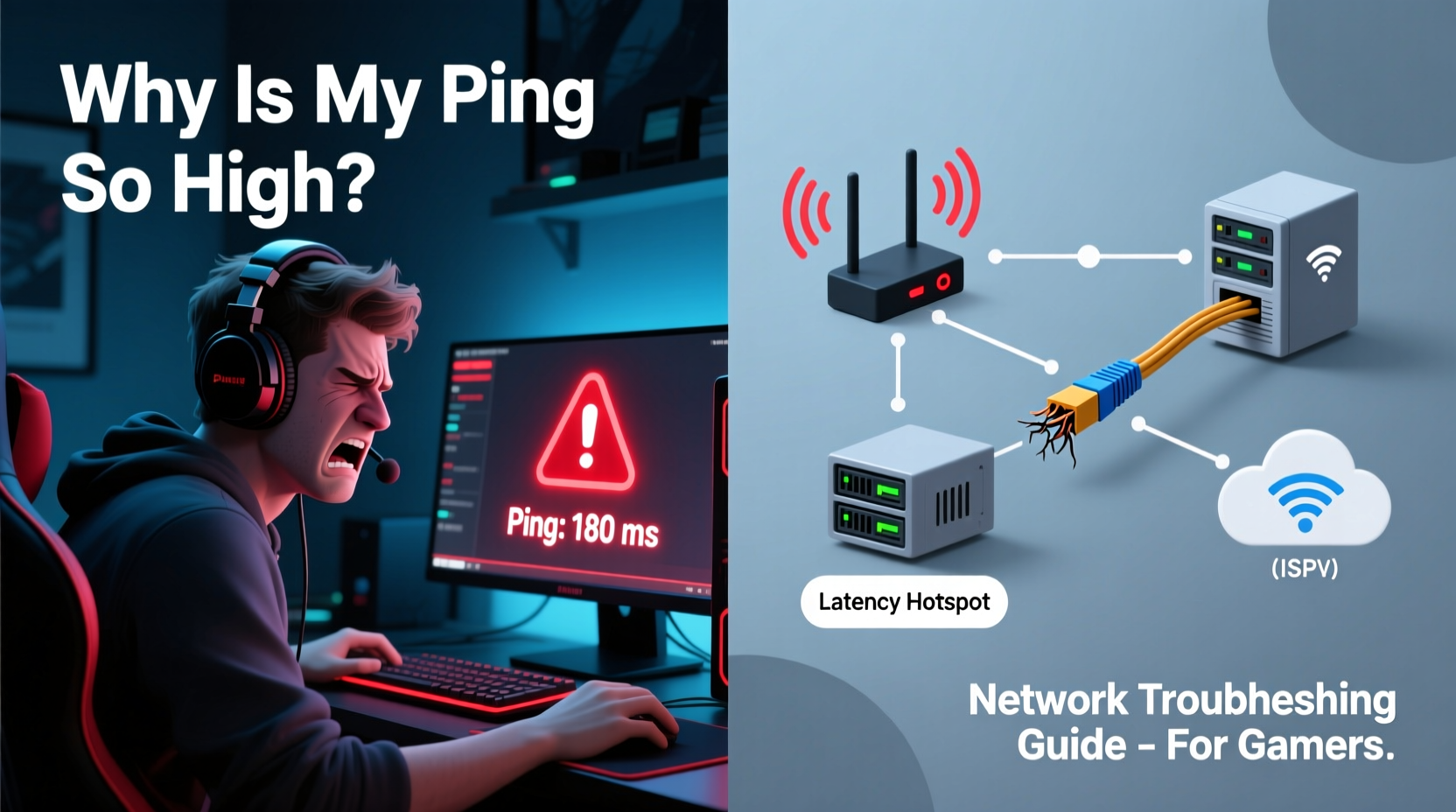
Ping measures the round-trip time it takes for a data packet to travel from your device to a game server and back, expressed in milliseconds (ms). A lower ping means faster communication between you and the server, resulting in smoother gameplay. Ideally, ping under 30 ms is excellent, 30–60 ms is good, while anything over 100 ms starts to impact performance. Over 150 ms often leads to noticeable lag.
Latency doesn't just affect responsiveness—it impacts hit registration, movement accuracy, and even matchmaking. High ping may force you into regional lobbies far from your actual location, increasing delay further. The root causes vary widely, from hardware limitations to ISP routing inefficiencies.
Common Causes of High Ping in Online Gaming
Before applying fixes, identify the source of the problem. High ping rarely stems from a single issue—it's usually a combination of factors. Here are the most frequent culprits:
- Wi-Fi Interference: Wireless signals degrade due to walls, appliances, or neighboring networks.
- Network Congestion: Multiple devices streaming, downloading, or updating simultaneously consume bandwidth.
- Background Applications: Cloud sync tools, software updates, or browser tabs running in the background use up upload/download capacity.
- Suboptimal Routing by ISP: Your internet provider might route traffic through inefficient paths, adding unnecessary hops.
- Server Distance: Playing on servers located thousands of miles away increases physical signal travel time.
- Outdated Hardware: Old routers, modems, or network adapters struggle with modern traffic demands.
- Packet Loss: Dropped packets require retransmission, increasing effective latency.
“Even with fast download speeds, poor routing or inconsistent jitter can cripple gaming performance.” — David Lin, Network Engineer at GameNet Labs
Step-by-Step Guide to Reduce Your Gaming Ping
Follow this structured approach to systematically eliminate sources of high ping. Each step targets a specific layer of your network stack.
- Switch to Ethernet
Replace Wi-Fi with a wired connection. Even the best wireless setup introduces variable latency. Use a Cat 6 cable for optimal throughput and interference resistance. - Restart Your Network Equipment
Power cycle your modem and router. Unplug both for 60 seconds, then restart in order: modem first, then router. This clears temporary routing issues and resets IP assignments. - Close Bandwidth-Hogging Apps
Shut down cloud backups, torrents, streaming services, and automatic updates. On Windows, open Task Manager > Performance > Ethernet to monitor real-time usage. - Optimize Router Settings
Log into your router’s admin panel (usually via 192.168.1.1) and enable QoS (Quality of Service). Prioritize your gaming device or set its MAC address as top priority. - Select the Closest Server Region
Manually choose the geographically nearest server in your game settings. Avoid auto-match if it frequently places you in distant regions. - Update Firmware and Drivers
Check your router manufacturer’s website for firmware updates. Similarly, update your PC’s network adapter drivers through Device Manager or the vendor’s site. - Use a Gaming VPN (Selectively)
While counterintuitive, some gaming-focused VPNs like ExitLag or Mudfish optimize routing paths to game servers, bypassing congested ISP routes. Test carefully—many consumer VPNs increase latency. - Limit Connected Devices
Disconnect unused phones, tablets, or smart home gadgets during play sessions. Every connected device competes for bandwidth and processing power on your router.
Tips Box: Quick Wins to Lower Ping Immediately
Tip: Set your DNS to Google (8.8.8.8 / 8.8.4.4) or Cloudflare (1.1.1.1) for faster domain resolution.
Tip: Enable “Gaming Mode” if your router supports it—this often activates built-in QoS and port prioritization.
Do’s and Don’ts: Network Optimization Table
| Do’s | Don’ts |
|---|---|
| Use a wired Ethernet connection | Game exclusively over public Wi-Fi |
| Enable QoS and prioritize your gaming device | Run large downloads while playing competitively |
| Choose servers closest to your region | Assume high download speed equals low ping |
| Update router firmware regularly | Ignore persistent packet loss warnings |
| Test ping with traceroute tools | Use outdated networking hardware without evaluation |
Real Example: How One Player Fixed 200+ ms Ping
Mark, a competitive *Valorant* player in Toronto, consistently experienced 200–250 ms ping despite having a 200 Mbps fiber connection. His Wi-Fi signal strength was strong, but gameplay remained unplayable. After testing with WinMTR, he discovered his traffic was being routed through Chicago and Denver before reaching the East Coast game server—a detour of over 3,000 extra miles.
He switched to a wired connection, updated his router firmware, and enabled QoS for his PC. Then, he contacted his ISP and requested a static route adjustment. Though not always possible, some providers allow basic path optimization upon request. Combined with manually selecting the New York server cluster, his ping dropped to a stable 42 ms. The difference was immediate: abilities registered instantly, and his K/D ratio improved within days.
Advanced Troubleshooting: Diagnosing Beyond the Basics
If standard fixes don’t resolve high ping, dig deeper into network behavior.
Check for Packet Loss
Open Command Prompt and run:
ping -n 100 [game-server-ip]
Analyze results. If more than 1–2% of packets are lost, investigate further. Try the same test over Ethernet vs. Wi-Fi to isolate the cause.
Analyze Routing Paths
Use WinMTR (Windows) or mtr (Linux/macOS) to trace your connection path. Look for:
- Hops with high latency spikes
- Geographically illogical routing (e.g., traffic going overseas unnecessarily)
- Repeating or unstable nodes
Screenshots of these traces can be valuable when contacting your ISP for support.
Router Bufferbloat Test
Bufferbloat occurs when routers hold too many packets in queue, increasing latency under load. Visit Waveform Bufferbloat Test to check. If your score is B or below, consider upgrading to a router with SQoS (Smart Queue Management), such as models running OpenWrt, DD-WRT, or Asuswrt-Merlin.
Gaming Network Checklist
- ✅ Connect via Ethernet instead of Wi-Fi
- ✅ Restart modem and router
- ✅ Close all non-essential apps and background downloads
- ✅ Enable QoS and prioritize gaming device
- ✅ Update router firmware and network drivers
- ✅ Switch to a reliable DNS (1.1.1.1 or 8.8.8.8)
- ✅ Choose the closest server region manually
- ✅ Run a traceroute to detect routing inefficiencies
- ✅ Test for packet loss and bufferbloat
- ✅ Consider a gaming-optimized network solution (e.g., dedicated router or VLAN)
Frequently Asked Questions
Can a better router really reduce ping?
Yes. Modern routers with Quality of Service (QoS), MU-MIMO, and support for the latest Wi-Fi 6/6E standards manage traffic more efficiently. Older routers may bottleneck your connection, especially under load. A high-performance router won’t change your base latency to the server, but it reduces local network congestion and jitter.
Does ping matter more than download speed for gaming?
Absolutely. Most online games require minimal bandwidth (often under 3 Mbps), but they demand consistent, low-latency connections. A 100 Mbps connection with 150 ms ping will feel slower than a 25 Mbps line with 20 ms ping. Focus on stability and response time, not raw speed.
Is it worth upgrading to a gaming ISP or plan?
Not always. Many \"gaming\" internet plans are marketing gimmicks. What matters more is network consistency, peering agreements, and routing efficiency. Some ISPs, however, offer features like static IPs, lower contention ratios, or DDoS protection that benefit hardcore gamers. Research community feedback for your area before switching.
Final Thoughts: Take Control of Your Connection
High ping doesn’t have to be a permanent obstacle. With methodical troubleshooting and a few strategic upgrades, most gamers can achieve stable, responsive connections—even on mid-tier internet plans. The key is understanding that ping isn’t just about speed; it’s about the entire journey your data takes from keyboard to server.
Start with the basics: go wired, clear background noise, and optimize your router. Then, analyze deeper issues like routing and packet loss. Small changes compound into major improvements in gameplay precision and confidence. Don’t accept lag as inevitable—diagnose, adjust, and dominate.




 浙公网安备
33010002000092号
浙公网安备
33010002000092号 浙B2-20120091-4
Comments
No comments yet. Why don't you start the discussion?