
High ping in Valorant can be one of the most frustrating experiences for competitive players—especially when your internet speed tests show excellent download and upload rates. You're not alone. Many players report low Mbps readings on speed tests yet suffer from lag, rubberbanding, or delayed reactions in-game. The truth is, internet speed and ping are related but fundamentally different metrics. While bandwidth affects how much data you can transfer, ping measures latency—the time it takes for data to travel between your device and the game server. This article breaks down why your ping might still be high despite a fast connection and provides actionable, tested solutions to fix it.
Understanding Ping vs. Internet Speed
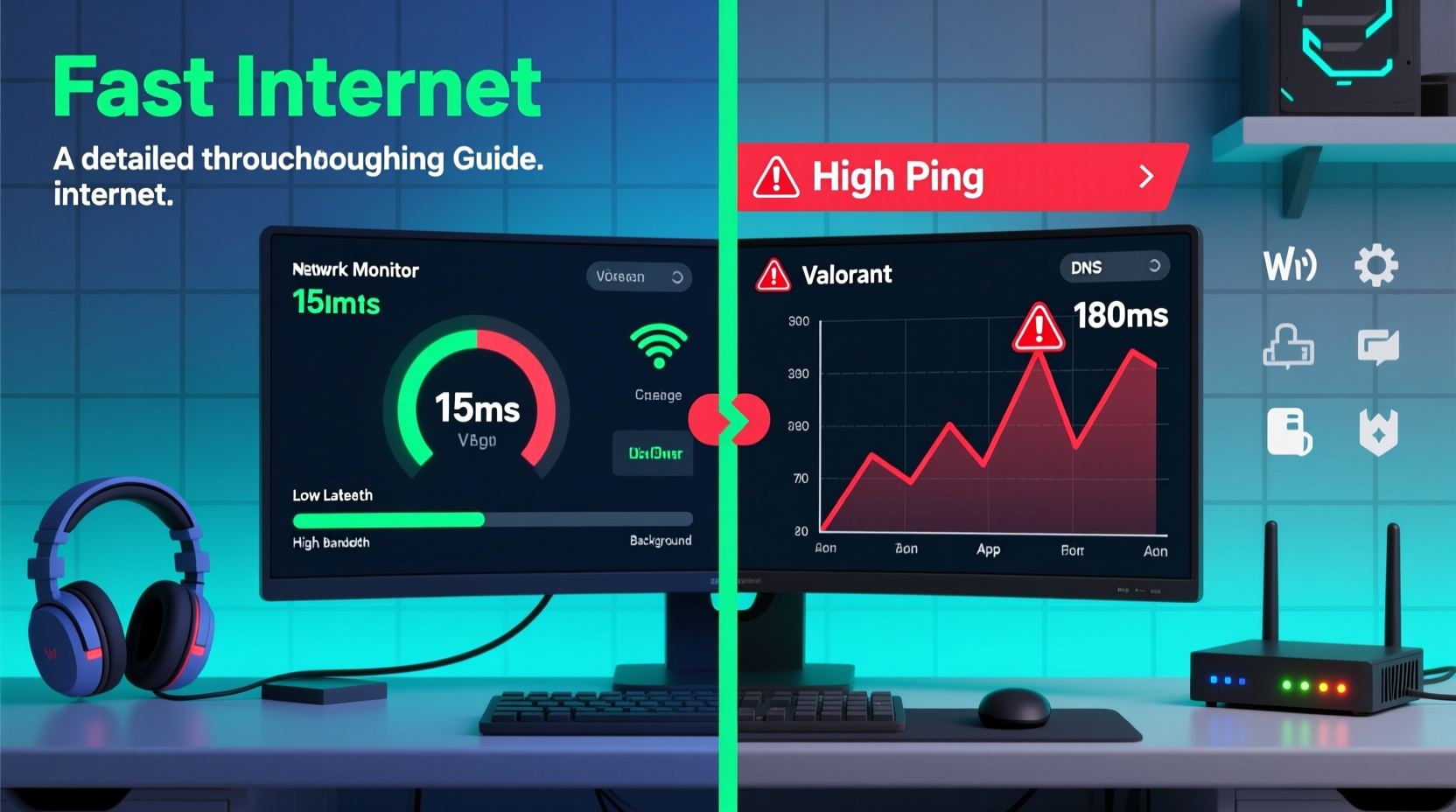
Before diving into fixes, it’s crucial to distinguish between internet speed and ping. Internet speed refers to bandwidth: how much data your connection can handle per second, measured in megabits per second (Mbps). Ping, on the other hand, is measured in milliseconds (ms) and reflects the round-trip time for a signal sent from your computer to a server and back.
A fast internet connection ensures smooth downloads and streaming, but it doesn’t guarantee low latency. For online gaming, especially a precision-based first-person shooter like Valorant, low ping is far more important than high bandwidth. A 100 Mbps connection with 120 ms ping will feel worse than a 25 Mbps connection with 30 ms ping.
“Latency is the silent killer in competitive gaming. Even with gigabit speeds, poor routing or network congestion can cripple responsiveness.” — David Lin, Network Engineer at Riot Games
Common Causes of High Ping Despite Fast Internet
Several behind-the-scenes factors can cause high ping even if your ISP promises blazing-fast speeds. Here are the most frequent culprits:
- Network Congestion: Multiple devices using the same network can saturate bandwidth, increasing latency.
- Wi-Fi Interference: Wireless signals are prone to interference from walls, appliances, and neighboring networks.
- Suboptimal Routing: Your data may take inefficient paths to reach Valorant servers due to ISP routing decisions.
- Background Applications: Cloud backups, updates, and streaming apps consume bandwidth silently.
- Server Distance: Physical distance to Riot’s game servers significantly impacts ping.
- ISP Throttling or QoS Settings: Some ISPs deprioritize gaming traffic during peak hours.
Step-by-Step Guide to Reduce Ping in Valorant
Follow this structured troubleshooting sequence to identify and resolve the root cause of high ping:
- Verify Your Current Ping
Launch Valorant and check your in-game ping (visible in the top-right corner). Then, run a separate ping test to Riot’s server via Command Prompt:
ping 104.160.131.3(Riot’s primary NA server IP)
Compare results to confirm consistency. - Switch to a Wired Connection
If you’re on Wi-Fi, connect your PC directly to the router using an Ethernet cable. This eliminates wireless interference and improves stability. - Restart Your Network Equipment
Power cycle your modem and router. Unplug both for 60 seconds, then plug the modem back in, wait for it to reconnect, and power on the router. - Close Bandwidth-Hogging Applications
Shut down any background programs using the internet: Steam updates, Discord file transfers, cloud sync tools, video streaming, etc. - Change DNS Servers
Default ISP DNS can be slow. Switch to faster alternatives like Google DNS (8.8.8.8, 8.8.4.4) or Cloudflare (1.1.1.1, 1.0.0.1) via your network adapter settings. - Enable Quality of Service (QoS) on Your Router
Log into your router’s admin panel and prioritize your gaming device. Assign higher priority to UDP ports used by Valorant (typically 5000–6000). - Select the Optimal Game Server Region
In Valorant’s settings, manually select the region closest to you—even if auto-detect is enabled. Sometimes the game defaults to a suboptimal server. - Update Network Drivers
Outdated NIC (Network Interface Card) drivers can cause inefficiencies. Visit your motherboard or laptop manufacturer’s website to download the latest version. - Test During Off-Peak Hours
Run a ping test late at night or early morning. If ping drops significantly, your ISP may be oversubscribed during peak times. - Contact Your ISP
If all else fails, ask if they’re throttling gaming traffic or if there are known issues in your area. Request a line quality test.
Checklist: Quick Fixes to Try Immediately
Use this checklist for rapid diagnosis and improvement:
- ✅ Connect via Ethernet instead of Wi-Fi
- ✅ Restart modem and router
- ✅ Close all non-essential apps (Discord, Chrome, Steam)
- ✅ Set Valorant region manually in settings
- ✅ Change DNS to 1.1.1.1 or 8.8.8.8
- ✅ Disable Windows Auto-Tuning (run: netsh interface tcp set global autotuninglevel=restricted)
- ✅ Update network adapter drivers
- ✅ Enable UPnP or port forward UDP 5000–6000 on your router
Real-World Example: Fixing High Ping on a 200 Mbps Connection
Consider Mark, a competitive Valorant player in Chicago with a 200 Mbps fiber plan. His speed tests showed 190 Mbps down and 180 Mbps up, yet his in-game ping hovered around 110 ms. Frustrated, he assumed his ISP was misleading him.
After testing, he discovered he was connected via Wi-Fi 5 to a dual-band router placed two floors away. He switched to a Cat 6 Ethernet cable directly to the router. His ping dropped to 68 ms immediately. Next, he changed his DNS to Cloudflare and disabled automatic updates on Steam. Finally, he manually selected “Central US” instead of “Auto” in Valorant’s region settings. Final ping: 42 ms—on the same internet plan.
This case illustrates that hardware setup, configuration, and routing choices often matter more than raw bandwidth.
Ping Optimization Table: Do’s and Don’ts
| Action | Do | Don’t |
|---|---|---|
| Connection Type | Use wired Ethernet (Cat 6 or better) | Rely on Wi-Fi unless unavoidable |
| DNS Configuration | Use 1.1.1.1 (Cloudflare) or 8.8.8.8 (Google) | Stick with default ISP DNS |
| Router Settings | Enable QoS, UPnP, or port forwarding | Leave factory settings untouched |
| Background Usage | Close torrents, streams, and updates | Run large downloads while gaming |
| Game Settings | Manually select nearest server region | Trust auto-region detection blindly |
Advanced Fixes for Persistent High Ping
If basic steps don’t resolve the issue, consider these advanced strategies:
1. Use a Gaming VPN (Carefully)
While most VPNs increase latency, specialized gaming services like ExitLag or WTFast optimize routing paths to game servers. They use private peering or direct tunnels to bypass congested public routes. Note: Avoid standard consumer VPNs like Nord or ExpressVPN—they’ll likely make ping worse.
2. Upgrade Your Router
Older routers may lack QoS, MU-MIMO, or proper firmware support. Invest in a modern gaming router (e.g., ASUS ROG Rapture, Netduma R1) designed for low-latency prioritization.
3. Test with a Different Device
Try playing Valorant on another PC or laptop connected to the same network. If ping is lower, the issue lies with your original device’s hardware or software configuration.
4. Check for Packet Loss
Run a continuous ping test:
ping -t 104.160.131.3
Let it run for 5 minutes while gaming. If more than 1–2% of packets are lost, contact your ISP—this indicates network instability.
5. Disable IPv6
Some ISPs implement IPv6 poorly, causing routing delays. In your network adapter settings, uncheck “Internet Protocol Version 6 (TCP/IPv6)” and restart.
Frequently Asked Questions
Can antivirus software cause high ping?
Yes. Overzealous real-time scanning can delay network packets. Add Valorant and its launcher to your antivirus exclusion list. Avoid running full system scans during gameplay.
Does RAM or CPU affect ping?
Not directly. However, if your system is bottlenecked (high CPU/RAM usage), the game may struggle to process incoming data quickly, creating the illusion of high ping. Ensure your PC meets or exceeds Valorant’s recommended specs.
Is it better to use 2.4 GHz or 5 GHz Wi-Fi for gaming?
5 GHz offers faster speeds and less interference but has shorter range. If you’re close to the router, use 5 GHz. If far away or through walls, 2.4 GHz may provide a more stable connection despite higher latency. Still, Ethernet remains superior.
Final Thoughts: Take Control of Your Connection
High ping in Valorant despite fast internet isn’t a mystery—it’s a symptom of misaligned network conditions. Bandwidth is just one piece of the puzzle. Latency depends on signal path efficiency, local network management, and hardware setup. By systematically addressing each potential bottleneck, you can achieve dramatically lower ping without upgrading your internet plan.
Start with the basics: go wired, close background apps, and verify your server region. Then progress to DNS changes, router settings, and driver updates. Most players see improvements within minutes. For persistent issues, investigate deeper causes like ISP routing or hardware limitations.




 浙公网安备
33010002000092号
浙公网安备
33010002000092号 浙B2-20120091-4
Comments
No comments yet. Why don't you start the discussion?