
Ping is the silent killer of competitive gaming. In a game like Valorant, where split-second decisions determine victory or defeat, even a 50ms spike can mean missing a crucial headshot or getting flanked by an enemy you never saw coming. If you're experiencing consistently high ping despite having a strong internet plan, the issue likely lies within your network setup—specifically your router configuration or Internet Service Provider (ISP) performance. This guide breaks down the technical and practical causes of high ping in Valorant and delivers actionable solutions to reclaim low-latency gameplay.
Understanding Ping and Why It Matters in Valorant
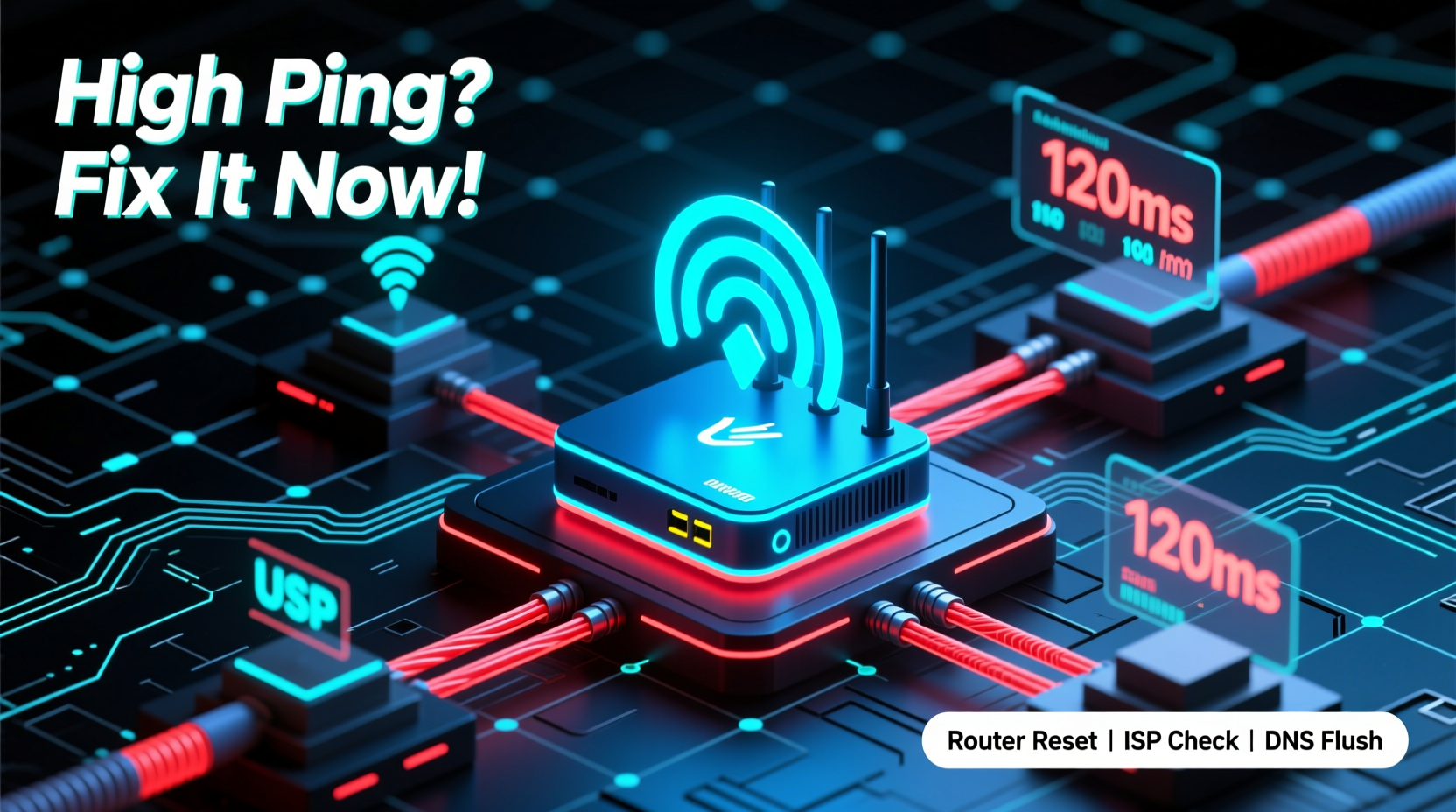
Ping measures the round-trip time it takes for a data packet to travel from your device to the game server and back, expressed in milliseconds (ms). Lower ping means faster communication with the server, which translates to more responsive aiming, quicker ability activation, and accurate hit registration. In competitive shooters like Valorant, anything above 40ms starts to impact performance; above 100ms, and you're effectively playing at a disadvantage.
While bandwidth (download/upload speed) affects how much data you can transfer, ping reflects connection quality and responsiveness. You can have a 300 Mbps connection and still suffer from high ping if latency issues exist in your network path. Common culprits include Wi-Fi interference, suboptimal routing, ISP throttling, or distant game servers.
“Latency is the most critical factor in real-time multiplayer games. A player with 30ms ping will always have a mechanical edge over one at 120ms.” — Dr. Alan Park, Network Performance Analyst at GameLabs Research
Router Issues That Cause High Ping in Valorant
Your router is the gateway between your PC and the internet. If it's outdated, misconfigured, or overwhelmed, it can introduce delays that inflate your ping. Below are common router-related issues and their fixes:
Outdated Firmware or Hardware
Older routers may not support modern networking standards like MU-MIMO or Quality of Service (QoS), leading to inefficient traffic handling. Firmware updates often include performance improvements and security patches that stabilize connections.
Wi-Fi Interference and Signal Degradation
Wireless signals are vulnerable to interference from walls, appliances, neighboring networks, and even microwaves. The 2.4 GHz band, while longer-range, is especially congested and prone to latency spikes.
Solution: Use the 5 GHz band for gaming—it offers faster speeds and less interference. Position your router centrally, away from metal objects and electronic devices. For best results, hardwire your PC via Ethernet.
Lack of QoS (Quality of Service) Settings
Without QoS, your router treats all traffic equally. Streaming video on another device can starve your game of bandwidth, causing ping spikes.
Enable QoS in your router settings and prioritize your gaming PC by assigning it a higher priority. Some routers allow you to prioritize specific applications or ports used by Valorant.
Double NAT or Multiple Routers
If you’re using a modem-router combo and then connecting to another router, you create a double NAT environment. This adds processing overhead and can disrupt UPnP (Universal Plug and Play), increasing latency.
To fix this, switch your secondary router to “Access Point” mode or disable its routing functions. Alternatively, connect directly to the primary modem-router.
ISP-Related Causes of High Ping
Even with perfect home networking, your ISP can be the bottleneck. Here’s how:
Network Congestion During Peak Hours
Many ISPs oversell bandwidth, assuming not all users will max out their connections simultaneously. But during evenings or weekends, increased traffic can lead to congestion, resulting in higher ping and jitter.
Monitor your ping at different times. If latency worsens between 7–10 PM, congestion is likely the cause. Consider upgrading to a business-tier plan or switching providers with better peering agreements.
Traffic Throttling or Poor Routing
Some ISPs throttle traffic to gaming servers or use inefficient routing paths. They may route your connection through distant hubs before reaching Riot’s servers, adding unnecessary hops and latency.
You can test this using tracert valorant.riotgames.com in Command Prompt. Look for unusually long routes or high delays at intermediate nodes. If multiple hops exceed 50ms before reaching Riot, your ISP may be using suboptimal peering.
Distance to Game Servers
Riot operates regional Valorant servers. If you're physically far from your assigned region (e.g., playing on North American servers from South America), your base ping will naturally be higher.
Check your current server region in Valorant under Settings > Social. If possible, switch to a geographically closer region. Note: This may require changing your Riot account region, which isn’t always permitted.
Data Caps and Bandwidth Management
ISPs with data caps may deprioritize your connection once you exceed certain thresholds. Even if you haven’t hit the cap, some providers use \"soft shaping\" to manage network load, subtly increasing latency during heavy usage.
Use a wired connection and limit background downloads to minimize exposure to such policies.
Step-by-Step Guide to Reduce Ping in Valorant
Follow this sequence to systematically eliminate sources of high ping:
- Switch to Ethernet: Disconnect from Wi-Fi and use a Cat 6 or higher Ethernet cable.
- Restart Your Router and Modem: Power cycle both devices to clear temporary glitches.
- Update Router Firmware: Visit your router’s admin panel (usually 192.168.1.1) and check for updates.
- Enable QoS: Assign highest priority to your gaming PC’s IP or MAC address.
- Disable Background Applications: Close cloud sync tools, streaming apps, and downloads.
- Run a Traceroute: Open Command Prompt and type
tracert valorant.riotgames.com. Identify any hop with excessive delay. - Change DNS Servers: Use Google DNS (8.8.8.8 / 8.8.4.4) or Cloudflare (1.1.1.1) for faster domain resolution.
- Contact Your ISP: Report high latency and request a line test or routing optimization.
- Test During Off-Peak Hours: Compare ping at 2 AM vs. 8 PM to assess congestion.
- Consider a Gaming VPN (Cautiously): Some premium gaming VPNs optimize routing to game servers, but many add latency. Test thoroughly.
Checklist: Quick Fixes for Immediate Ping Reduction
- ✅ Connect via Ethernet instead of Wi-Fi
- ✅ Restart your router and modem
- ✅ Close bandwidth-heavy apps (Steam, Discord uploads, etc.)
- ✅ Set your PC’s power plan to “High Performance”
- ✅ Disable Windows auto-updates during gameplay
- ✅ Enable UPnP in router settings
- ✅ Update network adapter drivers
- ✅ Change DNS to 1.1.1.1 or 8.8.8.8
- ✅ Verify Valorant server status on Downdetector
- ✅ Contact ISP if consistent ping exceeds 100ms without local cause
Real-World Example: Fixing Chronic Lag in a Shared Household
Daniel, a ranked Valorant player from Denver, experienced frequent ping spikes from 40ms to over 180ms during matches. His internet plan was 200 Mbps, and he used a mid-tier mesh Wi-Fi system. After testing, he discovered his roommate was running a 4K Netflix stream and downloading large files on Steam simultaneously.
He implemented several changes: switched to a wired connection, enabled QoS on his ASUS router to prioritize his PC, and scheduled large downloads for after midnight. He also changed his DNS to Cloudflare and updated his router firmware. Within two days, his average ping stabilized at 38ms with no spikes above 55ms—even during peak hours.
The key wasn’t upgrading his internet but optimizing how existing bandwidth was allocated and routed.
Do’s and Don’ts: Router and ISP Best Practices
| Do | Don't |
|---|---|
| Use a wired Ethernet connection for gaming | Rely on Wi-Fi for competitive play |
| Enable QoS and prioritize your gaming device | Let all devices share bandwidth equally |
| Update router firmware regularly | Ignore firmware update notifications |
| Contact your ISP with traceroute data | Assume high ping is always your fault |
| Choose a closer server region if available | Play on distant servers for convenience |
| Monitor background bandwidth usage | Leave torrents or cloud backups running |
Frequently Asked Questions
Can a better router reduce my ping in Valorant?
Yes—if your current router lacks QoS, modern firmware, or supports only outdated Wi-Fi standards. A gaming-grade router with traffic prioritization and stable firmware can reduce latency, especially in congested networks. However, it won’t compensate for poor ISP routing or physical distance to servers.
Is my ISP intentionally slowing down my Valorant connection?
Most major ISPs don’t throttle specific games, but they may deprioritize traffic during congestion. Additionally, inefficient routing can make it seem like throttling is occurring. Use tracert to analyze your path to Riot’s servers. If you see excessive hops or delays outside your local network, contact your ISP with evidence.
Why is my ping high even with fast internet speeds?
Bandwidth and ping are different metrics. High download speeds don’t guarantee low latency. Ping depends on signal travel time, number of network hops, server distance, and network stability. You can have gigabit fiber and still experience high ping due to routing inefficiencies or Wi-Fi interference.
Conclusion: Take Control of Your Connection
High ping in Valorant isn’t just frustrating—it undermines your skill and progress in a precision-based shooter. While you can’t control the distance to Riot’s servers or every aspect of your ISP’s infrastructure, you *can* optimize your local network, configure your router wisely, and advocate for better service when needed. Start with the basics: go wired, enable QoS, update firmware, and monitor your connection objectively. Small adjustments often yield dramatic improvements in gameplay smoothness.




 浙公网安备
33010002000092号
浙公网安备
33010002000092号 浙B2-20120091-4
Comments
No comments yet. Why don't you start the discussion?