
High ping in Valorant can turn a competitive edge into frustrating defeat. Even with a powerful PC and fast internet, players often experience sudden lag spikes, rubberbanding, or delayed responses during critical moments. Unlike frame rate drops, which affect visuals, high ping directly impacts gameplay responsiveness—making shots miss, abilities fail, and movements unpredictable. The root causes are rarely about hardware alone. Instead, they stem from network configuration, routing inefficiencies, background processes, or external interference. Understanding these factors—and knowing how to diagnose and correct them—is essential for any serious player.
Understanding Ping and Its Impact on Valorant
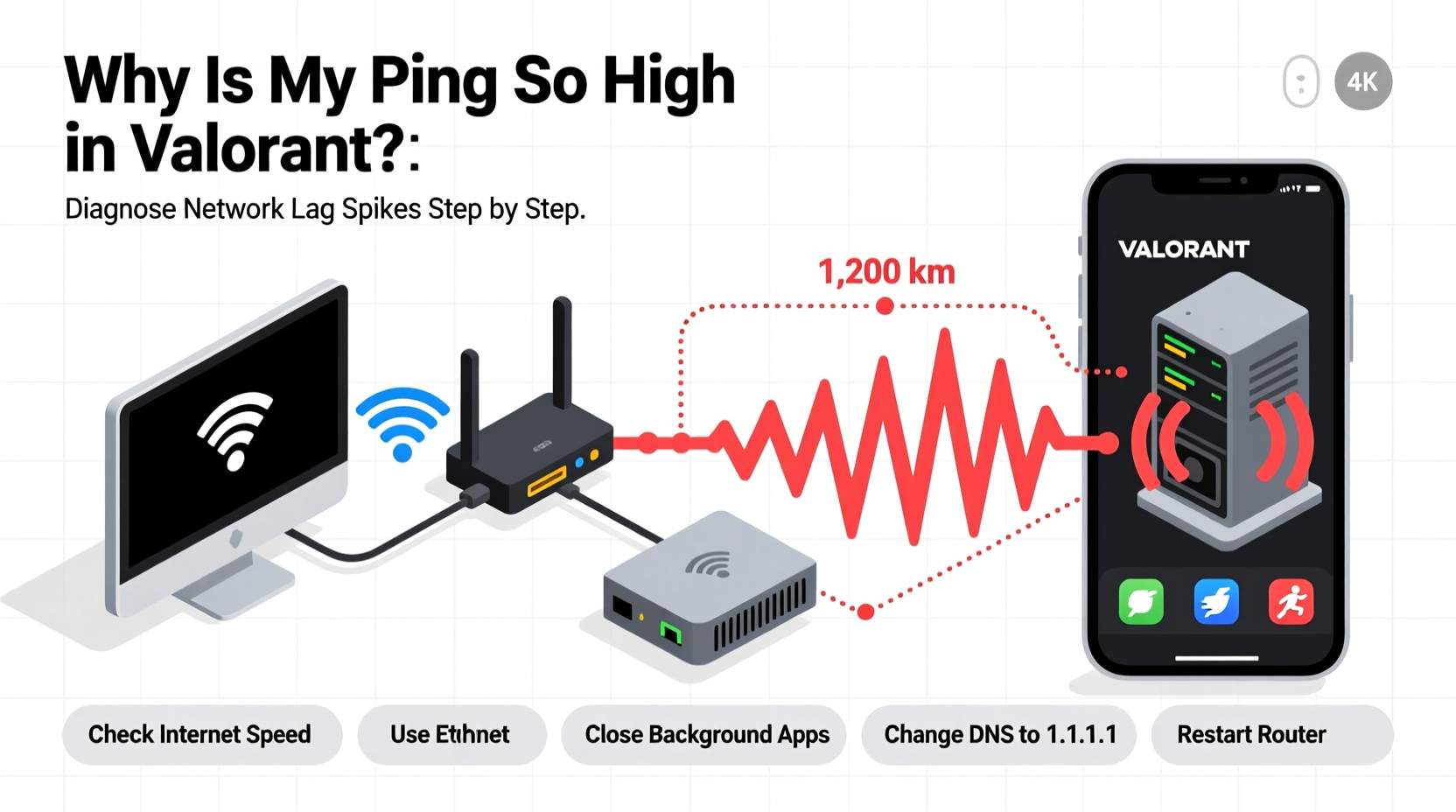
Ping measures the round-trip time it takes for data to travel from your device to Riot’s game server and back, expressed in milliseconds (ms). In Valorant, where split-second decisions determine match outcomes, a low and stable ping—ideally under 40ms—is crucial. When ping exceeds 100ms, actions like shooting or casting abilities suffer noticeable delay. Spikes above 150ms can result in missed headshots, desynced movement, and even disconnections.
Riot Games operates dedicated servers globally, but your connection path to those servers depends on your ISP, physical location, and network setup. A fiber-optic connection doesn’t guarantee low ping if traffic is routed inefficiently or if local network congestion occurs. Additionally, Valorant uses a client-server model with authoritative server logic, meaning every action must be validated by the server. High latency disrupts this validation loop, leading to poor hit registration and inconsistent gameplay.
“Latency isn’t just about speed—it’s about consistency. A stable 35ms is better than fluctuating between 20ms and 120ms.” — David Kim, Network Engineer at Riot Games
Common Causes of High Ping and Lag Spikes
Before attempting fixes, identify what’s contributing to elevated ping. Many players assume their ISP is at fault, but internal network issues are often the real culprit. Below are the most frequent causes:
- Wi-Fi Interference: Wireless signals are prone to interference from walls, appliances, and neighboring networks, causing packet loss and jitter.
- Background Bandwidth Usage: Streaming, downloads, cloud backups, or smart home devices consume bandwidth, increasing competition for network resources.
- ISP Throttling or Poor Routing: Some ISPs throttle gaming traffic or use suboptimal routes to game servers, increasing latency.
- Outdated Network Drivers: Old or corrupted drivers can reduce network efficiency and cause instability.
- Server Distance: Connecting to a distant Valorant server increases baseline ping due to physical signal travel time.
- Router Quality or Configuration: Low-end routers may struggle with QoS settings, NAT handling, or sustained throughput under load.
Step-by-Step Guide to Reduce Ping in Valorant
Follow this structured approach to systematically eliminate sources of high ping and stabilize your connection.
- Switch to a Wired Connection
Replace Wi-Fi with an Ethernet cable. Ensure the cable is Cat 5e or higher and plugged directly into your router or modem. Avoid using USB-to-Ethernet adapters unless they’re high-quality and driver-supported. - Restart Your Network Hardware
Power cycle your modem and router. Unplug both for 60 seconds, then reconnect in order: modem first, wait until fully online, then router. This clears cached DNS entries and resets connection states. - Close Background Applications
Shut down programs consuming bandwidth: browsers with multiple tabs, cloud sync tools (Dropbox, OneDrive), streaming apps, and voice chat clients not in use. Use Task Manager (Ctrl+Shift+Esc) to monitor network usage per process. - Update Network Drivers
Visit your motherboard or laptop manufacturer’s website to download the latest LAN or Wi-Fi drivers. Outdated drivers can cause packet loss and reduced throughput. - Set Valorant as a Priority in QoS Settings
Access your router’s admin panel (usually via 192.168.1.1 or 192.168.0.1). Enable Quality of Service (QoS) and prioritize your PC’s IP address or Valorant’s port (UDP 5000–65535). If unsure, assign highest priority to your device. - Change DNS Servers
Replace your ISP’s default DNS with faster alternatives like Google DNS (8.8.8.8, 8.8.4.4) or Cloudflare (1.1.1.1, 1.0.0.1). This speeds up domain resolution and may improve routing. - Test Different Servers in Valorant
In the main menu, check your current server region. If you're far from the default (e.g., playing EU from Asia), switch regions in Settings > Game > Server Region. Note: Ranked play restricts region changes. - Use a Ping Optimization Tool (Optional)
Software like WTFast or ExitLag routes your connection through optimized proxy servers (“gaming tunnels”) to reduce hops and latency. While not always necessary, some users report 20–40ms improvements on congested paths.
Checklist: Pre-Game Network Optimization Routine
Before launching Valorant, run through this checklist to ensure optimal conditions:
- ✅ Connected via Ethernet cable
- ✅ Router and modem restarted within the last 24 hours
- ✅ No active downloads or streams on the network
- ✅ Valorant and Vanguard updated to latest version
- ✅ Network drivers up to date
- ✅ QoS enabled and PC prioritized
- ✅ DNS set to 1.1.1.1 or 8.8.8.8
- ✅ Windows Network Reset performed (if issues persist)
Data Comparison: Network Setup Performance
| Connection Type | Avg Ping (ms) | Jitter (ms) | Potential Issues |
|---|---|---|---|
| Ethernet (Cat 6, direct) | 28–35 | 1–3 | Minimal; best for competitive play |
| Wi-Fi 5 (5GHz, close range) | 40–60 | 5–15 | Occasional spikes during interference |
| Wi-Fi 6 (5GHz, moderate range) | 38–50 | 3–8 | Better than Wi-Fi 5 but still variable |
| Mobile Hotspot (4G LTE) | 75–140 | 20–50 | Unreliable; high jitter and packet loss |
| Public Wi-Fi | 100+ | 30+ | Security risks and severe throttling |
The table highlights why Ethernet remains the gold standard. Even advanced wireless standards cannot match the stability required for precise gunplay and ability timing in Valorant.
Real Example: Fixing Persistent Lag for Competitive Play
Mark, a semi-pro Valorant player based in Toronto, consistently experienced 110–180ms ping despite having a 300 Mbps fiber connection. His setup used Wi-Fi 6 with a high-end gaming laptop. Initial tests showed no packet loss, yet in-game performance was erratic—especially during clutch rounds.
After switching to Ethernet, his ping dropped to 45ms but still spiked occasionally. Investigation revealed that his smart TV was downloading a 4K update in the background. Once scheduled updates were moved to off-hours, ping stabilized at 38–42ms. He also enabled QoS on his ASUS router, assigning top priority to his PC. Finally, he changed DNS to Cloudflare and disabled IPv6 in router settings, which reduced handshake delays. These combined steps eliminated lag spikes entirely, allowing him to qualify for a regional tournament the following month.
Frequently Asked Questions
Does closing Discord reduce ping in Valorant?
Closing Discord may help slightly if you're screen-sharing, streaming, or in a large voice call with high bitrate settings. However, simply being in a voice channel typically uses less than 50 Kbps—negligible on most connections. The real issue arises when Discord overlays or push-to-talk conflicts with system resources. Use lightweight audio settings and disable unnecessary features like hardware acceleration if experiencing lag.
Can a VPN lower my ping in Valorant?
Generally, no. Standard consumer VPNs add extra routing hops, increasing latency. However, specialized gaming optimization services (like ExitLag or Mudfish) act as “smart proxies” that route traffic through more direct paths to game servers. These are not traditional VPNs and may reduce ping in cases where your ISP uses inefficient peering. Test such tools cautiously, as they violate some game TOS if they modify traffic.
Why does my ping spike when someone else uses the internet at home?
This indicates insufficient bandwidth prioritization. When another user streams 4K video or downloads large files, they consume available bandwidth, causing bufferbloat—a condition where router queues fill up, delaying game packets. Enabling QoS and upgrading to a router with SQoS (Smart QoS) or CAKE-based traffic shaping (like OpenWRT or Asuswrt-Merlin) can mitigate this by dynamically managing traffic flow.
Conclusion: Take Control of Your Connection
High ping in Valorant isn't a mystery—it's a solvable network engineering challenge. Most fixes don't require expensive upgrades but rather deliberate configuration and awareness of how data flows from your PC to the server. By eliminating Wi-Fi dependency, managing bandwidth consumption, optimizing router settings, and understanding your connection’s behavior, you can achieve the stable, low-latency experience needed for peak performance. Don’t accept lag as inevitable. Diagnose, adjust, and dominate.




 浙公网安备
33010002000092号
浙公网安备
33010002000092号 浙B2-20120091-4
Comments
No comments yet. Why don't you start the discussion?