
It’s one of the most frustrating experiences in online gaming: you’ve invested in a high-speed internet plan, run multiple speed tests confirming strong download and upload rates, yet your ping in Valorant remains stubbornly high. You're not imagining it—high ping can ruin precision-based gameplay, turning split-second decisions into lag-induced disasters. The truth is, internet speed and ping are related but fundamentally different metrics. While bandwidth measures how much data can be transferred, ping reflects responsiveness—the time it takes for your device to communicate with the game server. Understanding this distinction is the first step toward diagnosing and resolving the issue.
Understanding Ping vs. Internet Speed
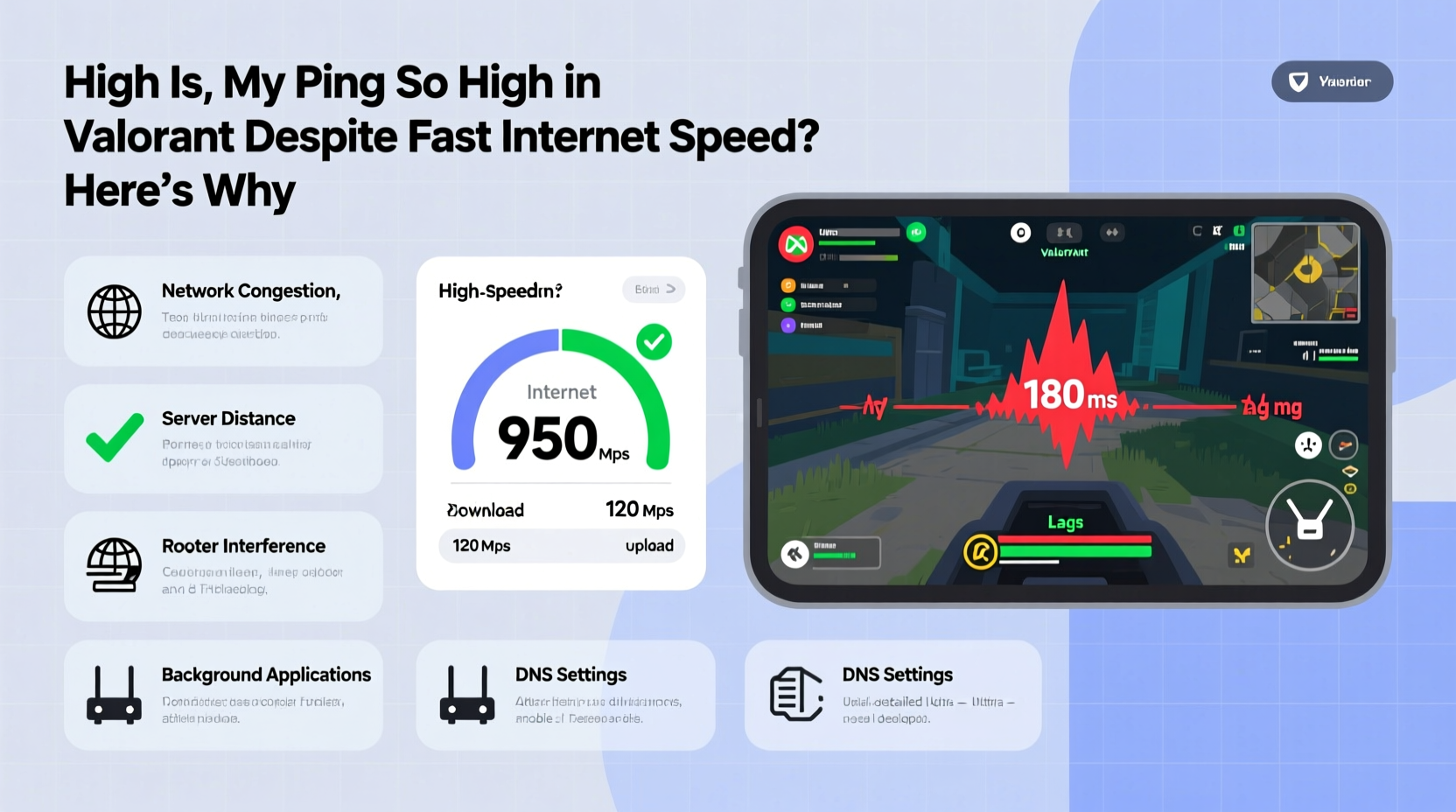
Many players assume that fast internet automatically means low latency. This misconception stems from conflating two separate network performance indicators. Download and upload speeds determine how quickly large files can be received or sent—important for streaming, downloading patches, or loading game assets. However, ping (measured in milliseconds) tracks round-trip time: how long it takes a small packet of data to travel from your computer to the Valorant server and back.
A connection with 500 Mbps download speed can still suffer from 120 ms ping if there are routing inefficiencies, network congestion, or hardware bottlenecks. For competitive shooters like Valorant, where reaction times often fall below 100 ms, even slight delays create tangible disadvantages. A player with 30 ms ping will register shots and movements faster than someone at 90 ms, regardless of their internet speed.
“Latency matters more than bandwidth in real-time games. It’s not about how much data you move—it’s about how fast you respond.” — Dr. Lena Torres, Network Performance Analyst at Esports Labs
Common Causes of High Ping Despite Fast Internet
Several behind-the-scenes factors can degrade your connection quality without affecting speed test results. These include:
- Network Congestion: Multiple devices using bandwidth simultaneously—even in the background—can delay game packets.
- Wi-Fi Interference: Walls, appliances, and neighboring networks on crowded channels disrupt signal consistency.
- Poor Routing Paths: Data may take inefficient routes between your ISP and Riot’s servers, increasing travel time.
- Background Applications: Cloud sync tools, updates, or streaming apps consume bandwidth silently.
- Server Distance: Physical proximity to Valorant’s regional servers directly impacts latency.
- Router Limitations: Older or underpowered routers struggle with traffic prioritization and sustained connections.
Riot Games operates dedicated servers in major regions such as North America, Europe, and Asia. If you're located far from these hubs—or misrouted due to ISP peering issues—you’ll experience higher baseline ping. Additionally, some ISPs use dynamic routing that shifts paths based on load, causing ping fluctuations during peak hours.
Step-by-Step Guide to Diagnose and Fix High Ping
Resolving high ping requires systematic troubleshooting. Follow this sequence to identify and eliminate root causes:
- Verify Your Current Ping in Game
Launch Valorant and check your in-game ping display (usually found in settings or scoreboard). Note whether it fluctuates or stays consistently high. - Run a Standalone Ping Test
Open Command Prompt (Windows) or Terminal (Mac), then type:ping 104.160.136.3(this is a known IP for Valorant NA servers)
Observe average response time and packet loss over 20 pings. - Switch to Ethernet
Disconnect from Wi-Fi and connect via an Ethernet cable. Retest ping. If it drops significantly, wireless interference was likely the culprit. - Reboot Networking Hardware
Power cycle your modem and router. Unplug for 30 seconds, then restart. This clears temporary routing glitches and resets DHCP leases. - Close Background Programs
Use Task Manager to end unnecessary processes—especially cloud backups, torrents, and video conferencing apps. - Enable QoS (Quality of Service)
Log into your router settings and prioritize your gaming device. Assign higher bandwidth priority to your PC’s IP address. - Change DNS Servers
Replace your ISP’s default DNS with faster alternatives like Google DNS (8.8.8.8) or Cloudflare (1.1.1.1). This can shorten domain resolution times. - Check for Firmware Updates
Visit your router manufacturer’s website to ensure the latest firmware is installed. Outdated firmware often lacks optimization for modern gaming traffic.
Do’s and Don’ts: Network Optimization Table
| Action | Do | Don't |
|---|---|---|
| Connection Type | Use wired Ethernet with Cat 6 or better cable | Rely solely on 2.4 GHz Wi-Fi near congested areas |
| Router Placement | Place centrally, elevated, away from metal objects | Hide behind TVs or inside cabinets |
| Bandwidth Usage | Limit active devices during matches | Stream 4K video while playing |
| Server Selection | Select the closest region in Valorant settings | Play on distant servers “for fun” |
| Security Software | Allow Valorant through firewall exceptions | Run aggressive real-time scanning during gameplay |
Mini Case Study: Reducing Ping from 110ms to 32ms
Consider the case of Jordan, a ranked Valorant player in Denver, Colorado. Despite having a 300 Mbps fiber-optic connection, Jordan consistently experienced 90–110 ms ping in competitive matches. Speed tests showed excellent throughput, but gameplay felt sluggish. After ruling out malware and background usage, Jordan tested with Ethernet and saw a modest drop to 80 ms. The breakthrough came when they accessed their router settings and discovered Quality of Service (QoS) was disabled. By enabling QoS and assigning highest priority to their gaming PC, ping stabilized around 65 ms. Further improvement occurred after switching to Cloudflare DNS and manually selecting the \"US Central\" server region in Valorant. Final in-game ping settled at 32–35 ms—transforming their aim accuracy and movement responsiveness. The key wasn’t upgrading internet speed but optimizing data flow efficiency.
Advanced Fixes: When Basic Steps Aren’t Enough
If standard methods fail, consider deeper interventions:
- Use a Gaming VPN: Some specialized services (like ExitLag or WTFast) reroute your traffic through optimized tunnels to game servers, bypassing congested ISP paths. While controversial in esports circles, they’re legal unless explicitly banned by the game’s terms.
- Upgrade Router Hardware: Invest in a gaming-focused router with MU-MIMO, beamforming, and built-in traffic shaping. Models like ASUS ROG Rapture or Netduma offer advanced features tailored for low-latency play.
- Contact Your ISP: Report persistent high ping, especially if traceroute reveals suboptimal routing. Some providers adjust peering agreements or assign static routes upon request.
- Check MTU Settings: Misconfigured Maximum Transmission Unit values can fragment packets. The optimal MTU for most Valorant connections is 1492 (PPPoE) or 1500 (Ethernet). Adjust via command line or router interface.
“We’ve seen players cut 40+ ms just by fixing MTU mismatches and switching to a better BGP route. It’s not magic—it’s network hygiene.” — Mark Chen, Lead Engineer at LowLatency Networks
FAQ
Can antivirus software increase my ping in Valorant?
Yes. Overly aggressive firewalls or real-time scanning can intercept and delay game packets. Ensure Valorant’s executable (VALORANT.exe) and its network components are added to your antivirus exclusion list.
Does my PC's performance affect ping?
Not directly. Ping is a network metric, not tied to CPU or GPU power. However, low frame rates can create perceived lag, making high ping feel worse. True network latency originates before data leaves your machine.
Is it better to use 5 GHz Wi-Fi for gaming?
Generally yes—5 GHz offers faster transmission and less interference than 2.4 GHz. But only if you're within close range of the router. Walls and distance weaken 5 GHz signals rapidly. For best results, use Ethernet; otherwise, stay within 10–15 feet of the router on 5 GHz.
Final Checklist: Reduce Your Valorant Ping Today
- ✅ Switch from Wi-Fi to wired Ethernet
- ✅ Reboot modem and router
- ✅ Close bandwidth-heavy background apps
- ✅ Set correct game region in Valorant settings
- ✅ Enable QoS on your router and prioritize your PC
- ✅ Change DNS to 1.1.1.1 or 8.8.8.8
- ✅ Update router firmware and network drivers
- ✅ Run ping and traceroute diagnostics
- ✅ Consider a gaming-optimized network tool if needed
Conclusion
High ping in Valorant despite fast internet isn’t a myth—it’s a symptom of deeper networking issues that speed tests don’t reveal. Bandwidth alone won’t win gunfights; responsiveness does. By understanding the difference between speed and latency, identifying hidden bottlenecks, and applying targeted fixes, you can reclaim the edge that lag has been stealing from your gameplay. Whether it’s switching cables, reconfiguring router settings, or choosing smarter routes to the server, each adjustment brings you closer to seamless, responsive combat. Don’t accept high ping as inevitable. Diagnose, optimize, and dominate.




 浙公网安备
33010002000092号
浙公网安备
33010002000092号 浙B2-20120091-4
Comments
No comments yet. Why don't you start the discussion?