
Ping is the measure of how quickly your device communicates with a server, typically expressed in milliseconds (ms). A low ping—under 30ms—is ideal for gaming, video calls, and real-time applications. When you're using an Ethernet connection, which should offer stable and fast performance, experiencing high ping or sudden lag spikes can be especially frustrating. Unlike Wi-Fi, Ethernet is supposed to provide a direct, interference-free link. So when latency issues occur, it points to underlying problems that need attention.
High ping on Ethernet doesn’t always mean your internet speed is slow. It reflects delay in data transmission, often caused by network congestion, hardware limitations, misconfigured settings, or background processes. This article breaks down the most common causes of high ping and lag spikes over wired connections and provides actionable, step-by-step solutions to restore smooth performance.
Understanding Ping and Latency in Wired Networks
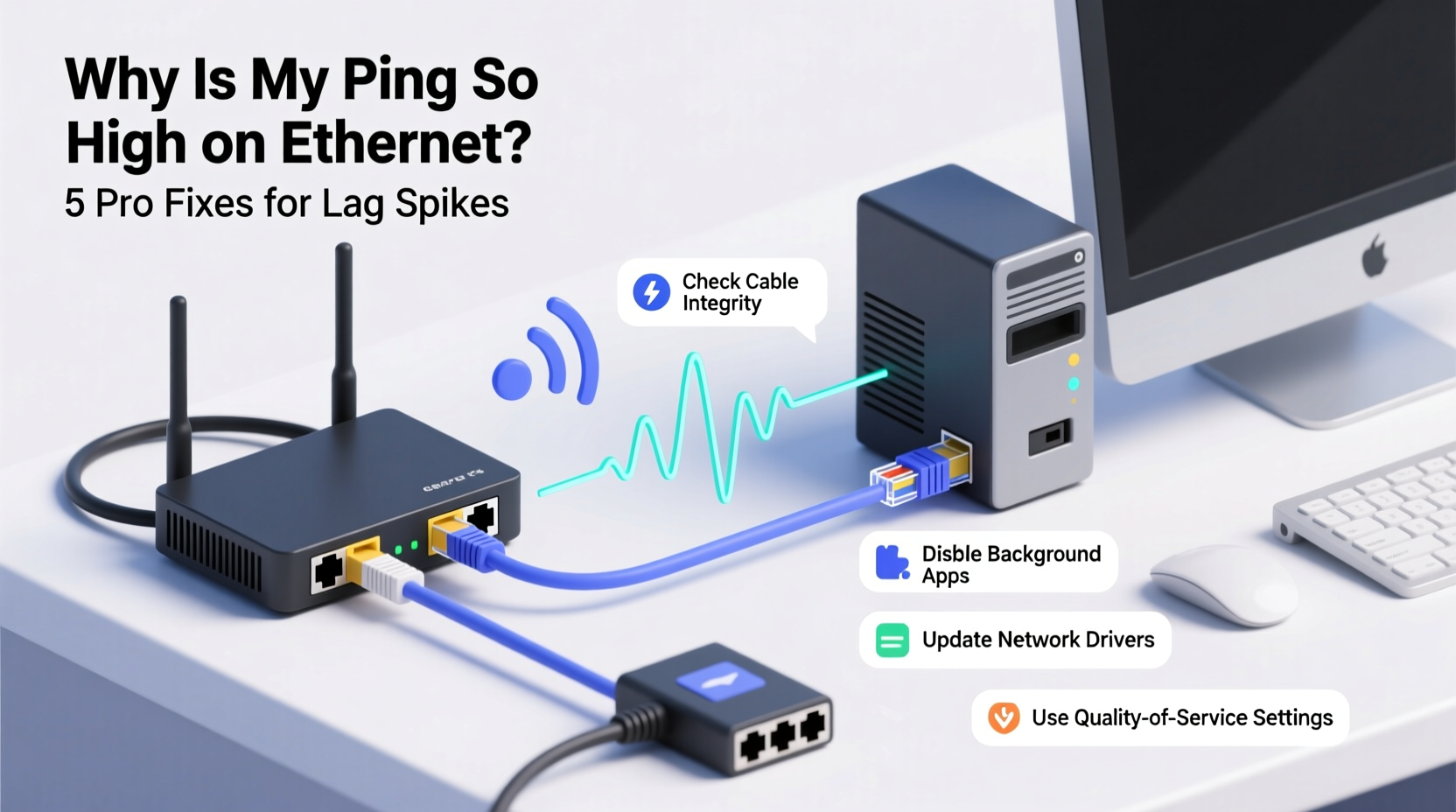
Latency, commonly referred to as \"ping,\" is the time it takes for a data packet to travel from your device to a server and back. While bandwidth determines how much data can be sent, latency determines how fast it gets there. Even with high-speed broadband, poor latency can disrupt real-time activities like online gaming, live streaming, or VoIP calls.
Ethernet connections are generally more reliable than Wi-Fi because they avoid radio interference, signal degradation, and channel congestion. However, several factors can still introduce delays:
- Network congestion due to multiple devices or bandwidth-heavy applications
- Outdated or faulty networking hardware
- Background downloads or automatic updates
- ISP routing inefficiencies or throttling
- Suboptimal router or modem configurations
Before assuming your ISP is at fault, it's important to isolate whether the issue lies within your local network or beyond. Tools like ping, tracert (Windows), or mtr (Linux/macOS) can help identify where delays occur.
ping -t 8.8.8.8 in Command Prompt) while performing normal tasks to detect intermittent lag spikes.
Common Causes of High Ping on Ethernet
Even with a wired connection, several technical and environmental factors can degrade performance. Identifying the root cause is essential before applying fixes.
1. Network Congestion
If multiple devices are streaming, downloading, or backing up data simultaneously, your router may struggle to manage traffic efficiently. This leads to packet queuing and increased latency, especially during peak usage hours.
2. Outdated or Overloaded Router/Modem
Routers have limited processing power and memory. Older models may not handle modern traffic loads well, leading to bufferbloat—a condition where excessive data is held in buffers, increasing response times.
3. Faulty or Low-Quality Ethernet Cables
Not all Ethernet cables are created equal. Using Cat5 instead of Cat6 or Cat7 can limit performance, especially over longer distances. Damaged cables with frayed wires or bent connectors can also cause packet loss and jitter.
4. Background Applications and System Resources
Automatic Windows updates, cloud sync services (like Dropbox or OneDrive), or peer-to-peer software (such as torrent clients) can consume bandwidth without your knowledge, spiking ping unpredictably.
5. ISP Throttling or Routing Issues
Some Internet Service Providers throttle specific types of traffic (e.g., gaming or streaming) during busy periods. Others use inefficient routing paths that add unnecessary hops between you and the destination server.
6. Full-Duplex vs. Half-Duplex Misconfiguration
Ethernet ports should operate in full-duplex mode, allowing simultaneous sending and receiving. If your connection defaults to half-duplex due to driver or switch issues, performance degrades significantly.
“Many users assume Ethernet means zero lag, but physical layer issues and internal network bottlenecks are often overlooked.” — David Lin, Senior Network Engineer at NetFlow Dynamics
Step-by-Step Fixes for High Ping and Lag Spikes
Follow this structured troubleshooting process to diagnose and resolve high ping on your Ethernet connection.
Step 1: Test Your Connection Isolation
- Disconnect all other devices from your network.
- Connect only your computer directly to the modem using Ethernet.
- Run a ping test to Google DNS:
ping 8.8.8.8 -n 50 - Check for consistency in response times and packet loss.
If ping remains high or unstable, the issue is likely local. If it improves, another device was consuming bandwidth.
Step 2: Inspect and Replace Ethernet Cables
Use a known-good Cat6 or higher cable. Avoid coiling excess length tightly, as this can induce crosstalk. Ensure connectors are fully seated and undamaged.
Step 3: Update Firmware and Drivers
- Visit your router manufacturer’s website to check for firmware updates.
- Update your network adapter drivers via Device Manager (Windows) or system preferences (macOS).
Step 4: Disable Energy-Efficient Ethernet (EEE)
This feature, designed to save power, can introduce micro-delays. Disable it:
- Open Device Manager → Network adapters.
- Right-click your Ethernet controller → Properties.
- Go to Power Management tab → Uncheck “Allow the computer to turn off this device.”
- Navigate to Advanced tab → Set “Energy Efficient Ethernet” to Disabled.
Step 5: Enable QoS (Quality of Service)
QoS prioritizes critical traffic like gaming or voice calls. In your router settings:
- Assign higher priority to your device’s MAC address.
- Limit bandwidth for non-essential devices or applications.
Step 6: Change DNS Servers
Default ISP DNS servers can be slow. Switch to faster alternatives:
| DNS Provider | Primary IP | Secondary IP |
|---|---|---|
| Google DNS | 8.8.8.8 | 8.8.4.4 |
| Cloudflare | 1.1.1.1 | 1.0.0.1 |
| OpenDNS | 208.67.222.222 | 208.67.220.220 |
To change DNS: Network Settings → Adapter Options → IPv4 Properties → Use custom DNS.
Step 7: Reset TCP/IP Stack
Corrupted network configurations can cause delays. Reset via Command Prompt (Admin):
netsh int ip reset
netsh winsock reset
ipconfig /flushdns
Restart your computer afterward.
Troubleshooting Checklist
Use this checklist to systematically eliminate sources of high ping:
- ✅ Perform a direct connection test (PC to modem)
- ✅ Replace Ethernet cable with a certified Cat6 or better
- ✅ Update router firmware and network adapter drivers
- ✅ Disable Energy Efficient Ethernet and Large Send Offload
- ✅ Run a continuous ping test during normal use
- ✅ Monitor bandwidth usage via Task Manager or router dashboard
- ✅ Change DNS to Cloudflare or Google
- ✅ Enable QoS and prioritize your device
- ✅ Reboot modem and router weekly
- ✅ Contact ISP if issues persist after local fixes
Real-World Example: Fixing Lag in Competitive Gaming
Consider Mark, a competitive *Valorant* player who noticed frequent lag spikes despite using Ethernet. His download speeds were strong (150 Mbps), but his ping fluctuated between 60ms and over 200ms during matches.
He followed the diagnostic steps:
- First, he disconnected all other devices—no improvement.
- He replaced his old Cat5e cable with a shielded Cat6 cable—ping dropped slightly but spikes remained.
- Running
ping -t 8.8.8.8, he noticed timeouts every 10–15 minutes. - Checking Task Manager, he found his NAS was running nightly backups at random times.
After scheduling backups for 3 AM and enabling QoS on his ASUS router to prioritize his PC, his ping stabilized at 28ms with zero packet loss. The fix wasn’t about speed—it was about traffic management and timing.
Do’s and Don’ts: Quick Reference Table
| Action | Do | Don't |
|---|---|---|
| Cable Choice | Use Cat6 or higher, under 100 ft | Avoid damaged or unshielded cables |
| Router Placement | Keep ventilated and away from metal objects | Don’t place inside cabinets or near microwaves |
| Updates | Regularly update firmware and drivers | Don’t ignore security patches |
| Background Apps | Pause sync tools during gaming | Don’t leave torrents running overnight |
| ISP Communication | Share ping logs and traceroute results | Don’t accept “everything looks fine” without evidence |
Frequently Asked Questions
Can a bad Ethernet port cause high ping?
Yes. A worn-out or dirty Ethernet port on your PC or router can lead to poor connectivity, packet loss, and inconsistent latency. Try a different port or test with another device to confirm.
Is my router causing lag even with Ethernet?
Absolutely. Routers manage all traffic—even wired. An outdated or overloaded router can bottleneck your connection. Consider upgrading to a model with Quality of Service (QoS), gigabit throughput, and modern processor support.
Does distance to the server affect ping?
Yes. Physical distance adds unavoidable latency. For example, connecting to a server in Europe from Australia will naturally have higher ping than a local one. Use in-game server selection to choose geographically closer options.
Final Steps and When to Escalate
If you’ve completed all the above steps and still experience high ping, gather evidence before contacting your ISP:
- Run a traceroute to identify where delays occur:
tracert google.com - Note consistent ping results and any packet loss.
- Test at different times of day to rule out peak congestion.
Provide your ISP with clear data. Vague complaints get generic responses. Instead, say: “I’m seeing 15% packet loss between hop 3 and hop 4 during evenings. Can you investigate routing?”
In some cases, switching ISPs or upgrading to a business-tier plan with service level agreements (SLAs) may be necessary for consistent low latency.
Conclusion: Take Control of Your Connection
High ping on Ethernet isn’t normal—and it’s rarely inevitable. With methodical troubleshooting, most latency issues can be resolved at home. From replacing aging cables to optimizing router settings and managing bandwidth hogs, the power to fix lag often lies in your hands.
Start with the basics: verify your hardware, eliminate background noise, and prioritize critical traffic. Small changes can yield dramatic improvements in responsiveness and reliability. Don’t settle for choppy gameplay or frozen video calls. Diagnose, act, and reclaim the performance your wired connection promises.




 浙公网安备
33010002000092号
浙公网安备
33010002000092号 浙B2-20120091-4
Comments
No comments yet. Why don't you start the discussion?