
Having a fast internet plan doesn’t guarantee a smooth online gaming experience. You might be paying for 500 Mbps fiber but still suffer from lag, rubberbanding, or disconnections in competitive games. The culprit? High ping. While download speed measures how quickly data reaches you, ping—measured in milliseconds (ms)—reflects the time it takes for your device to send a signal to a game server and receive a response. A low ping (under 30 ms) ensures responsive gameplay; anything over 100 ms can make games feel sluggish.
Understanding why your ping remains high despite fast speeds is essential for gamers who rely on real-time responsiveness. This article breaks down the hidden causes of high ping, offers practical optimization strategies, and provides a step-by-step guide to reclaim control over your gaming connection.
What Is Ping and Why Does It Matter?
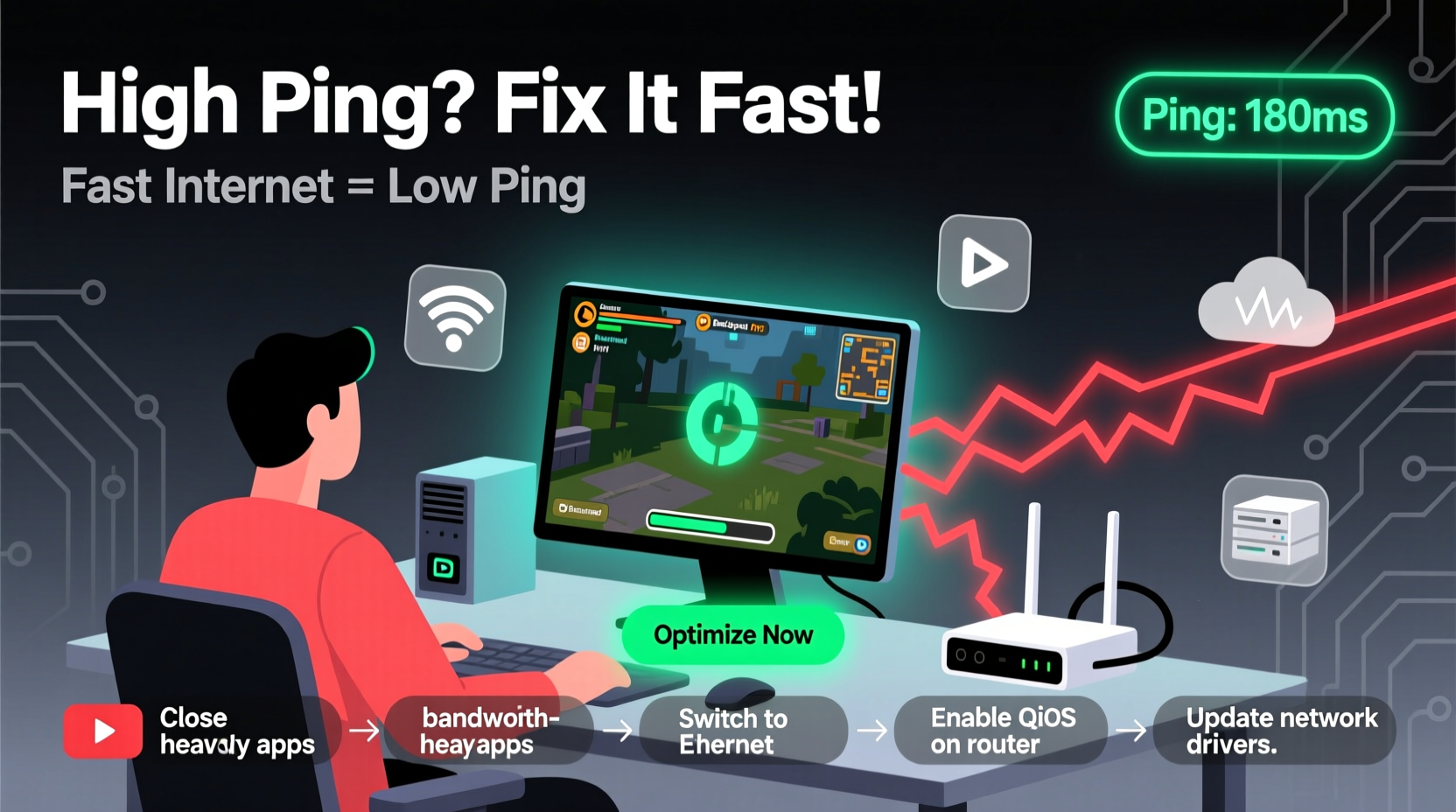
Ping is a network diagnostic tool that measures latency—the round-trip time for a small packet of data to travel from your device to a destination server and back. In gaming, this directly impacts how quickly your actions are registered. For example, when you click to shoot in a first-person shooter, your input travels to the game server. If the ping is high, there’s a delay between your action and the server acknowledging it, resulting in perceived lag.
Even with gigabit internet, high ping can stem from factors unrelated to bandwidth. Bandwidth determines how much data you can transfer per second, while latency determines how fast individual packets move. Think of bandwidth as the width of a highway and ping as the speed limit. A wide road doesn’t help if traffic moves slowly.
ping google.com -t in Command Prompt (Windows) or Terminal (macOS) to monitor real-time latency fluctuations.
Common Causes of High Ping Despite Fast Internet
High-speed internet doesn't eliminate network latency. Several behind-the-scenes issues can cause elevated ping:
- Network Congestion: Multiple devices streaming, downloading, or updating simultaneously consume bandwidth and increase router processing delays.
- Wi-Fi Interference: Wireless signals are vulnerable to interference from walls, appliances, neighboring networks, and physical distance from the router.
- Distant Game Servers: The farther the game server is geographically, the longer data must travel, increasing latency.
- Background Applications: Cloud backups, software updates, and peer-to-peer apps like torrent clients use bandwidth in the background.
- Router Quality and Placement: Outdated or poorly positioned routers struggle to maintain stable, low-latency connections.
- ISP Routing Inefficiencies: Some ISPs route traffic through suboptimal paths, adding unnecessary hops and delays.
- Packet Loss: When data packets fail to reach their destination, retransmissions increase effective ping.
“Many gamers assume speed is everything, but latency is the true bottleneck in real-time performance.” — Dr. Lin Zhao, Network Engineer at NetMetrics Lab
Step-by-Step Guide to Reduce Your Gaming Ping
Follow this structured approach to systematically identify and resolve high-ping issues:
- Restart Your Network Equipment: Power cycle your modem and router. This clears temporary glitches and resets active connections.
- Switch to Ethernet: Replace Wi-Fi with a wired Ethernet connection. Wired links offer lower latency, higher stability, and reduced interference.
- Close Background Applications: Shut down cloud sync tools, streaming apps, downloads, and auto-updaters during gaming sessions.
- Reboot Your Gaming Device: Clear memory leaks and background processes on your PC or console that may affect network stack performance.
- Test Ping to Game Server: Use
pingortracert(Windows) to measure latency to your game’s server IP. Compare results with in-game ping. - Update Firmware and Drivers: Ensure your router has the latest firmware and your network adapter uses up-to-date drivers.
- Enable QoS (Quality of Service): Prioritize gaming traffic in your router settings. Assign higher priority to your gaming device or specific ports used by games.
- Select Optimal Game Servers: Manually choose servers closest to your location instead of relying on automatic selection.
- Contact Your ISP: Report consistent high ping. Ask if they’re experiencing routing issues or throttling certain traffic types.
- Consider a Gaming VPN (Cautiously): Some gaming VPNs optimize routes to game servers, bypassing congested ISP paths—though results vary.
Tips for Long-Term Connection Optimization
Sustaining low ping requires ongoing maintenance and smart configuration. Implement these habits for lasting improvement:
- Use a Modern Router: Invest in a dual-band or tri-band router with MU-MIMO and beamforming for better handling of multiple devices.
- Position Router Centrally: Place your router in an open, central area, away from metal objects, microwaves, and thick walls.
- Limit Connected Devices: Disconnect unused smart home gadgets or mobile devices when gaming to reduce network load.
- Upgrade DNS Settings: Switch to faster DNS providers like Google DNS (8.8.8.8) or Cloudflare (1.1.1.1) to speed up domain resolution.
- Monitor for Packet Loss: Use tools like
ping -n 100 example.comto send 100 packets and check for lost responses.
Checklist: Quick Fixes for Immediate Ping Reduction
Run through this checklist before every serious gaming session:
- ✅ Connect via Ethernet cable
- ✅ Close all non-essential apps and browser tabs
- ✅ Disable automatic updates (Windows, Steam, Xbox Live, etc.)
- ✅ Restart modem and router
- ✅ Select the nearest game server manually
- ✅ Enable Game Mode on Windows or console
- ✅ Verify no one else is streaming 4K video or downloading large files
- ✅ Check for firmware updates on your router
Do’s and Don’ts: Managing Your Gaming Network
| Do | Don't |
|---|---|
| Use a wired Ethernet connection for critical gaming | Rely solely on Wi-Fi for competitive multiplayer games |
| Set up QoS to prioritize gaming traffic | Allow unlimited cloud backups during gameplay |
| Choose game servers with lowest ping manually | Assume automatic server selection is optimal |
| Update router firmware regularly | Use a router older than 5 years without testing performance |
| Use a surge protector for network equipment | Place router near sources of electromagnetic interference |
Real Example: Fixing High Ping in Competitive Apex Legends
Jamal, a ranked Apex Legends player in Chicago, had a 300 Mbps cable connection but consistently experienced 140+ ms ping during matches. Despite fast downloads, his shots often missed due to lag, and he was frequently kicked for high latency.
He followed a systematic approach: first switching from Wi-Fi to Ethernet, which dropped his ping to 90 ms. Next, he discovered his roommate was running a 4K Netflix stream on another TV. After pausing it, ping fell to 65 ms. He then accessed his router settings, enabled QoS, and prioritized his PC. Finally, he manually selected Atlanta servers instead of accepting the default East US region.
The combined changes reduced his average ping to 38 ms. His K/D ratio improved within two weeks, and he stopped experiencing disconnects. Jamal now runs the pre-game checklist religiously before every ranked session.
Frequently Asked Questions
Can a wired connection really reduce ping?
Yes. Ethernet eliminates Wi-Fi interference, signal degradation, and variable latency caused by wireless congestion. Most gamers see a 20–50 ms improvement simply by switching to wired, even if download speeds remain unchanged.
Does more bandwidth reduce ping?
Not directly. Bandwidth affects how much data you can transfer, but ping is about response time. However, insufficient bandwidth during peak usage can indirectly increase ping due to network congestion and queuing delays.
Is it safe to use a gaming VPN?
It depends. Reputable gaming VPNs like ExitLag or WTFast specialize in optimized routing to game servers and are generally safe. Avoid free or unknown services that may log data or inject malware. Always research privacy policies before use.
Expert Insight: The Hidden Layers of Internet Routing
Even with a direct line to your ISP, data rarely takes the most efficient path. ISPs often route traffic through intermediate hubs for cost or peering reasons, adding extra \"hops\" that inflate ping.
“The shortest path isn’t always the fastest. Network congestion at key interconnection points can add 40–60 ms of avoidable latency. Gamers should test different exit nodes if their ISP allows routing adjustments.” — Rajiv Mehta, Senior Network Architect at LatencyEdge Solutions
This explains why two users with identical internet plans in the same city might experience vastly different ping. One may benefit from favorable routing, while the other suffers from inefficient pathways.
Conclusion: Take Control of Your Gaming Experience
High ping with fast internet is a frustrating but solvable issue. Speed alone doesn’t define connection quality—latency, stability, and routing efficiency are equally critical. By diagnosing the root causes, implementing wired connections, managing network traffic, and optimizing hardware settings, you can achieve the responsive gameplay you pay for.




 浙公网安备
33010002000092号
浙公网安备
33010002000092号 浙B2-20120091-4
Comments
No comments yet. Why don't you start the discussion?