
Nothing disrupts a productive morning like sending a print job only to receive silence in return. You check the printer, and despite being powered on, it won’t connect to your Wi-Fi network. This issue affects millions of users annually across HP, Canon, Epson, Brother, and other major brands. The good news: most connectivity problems stem from simple configuration errors or temporary glitches—and can be resolved quickly with the right reset techniques.
Modern printers rely on stable wireless connections to function seamlessly across devices. But when interference, outdated firmware, or router settings interfere, even a well-maintained device can go offline. Instead of calling support or replacing hardware, try targeted reset methods that restore communication between your printer and network.
Common Causes of Printer Wi-Fi Disconnection
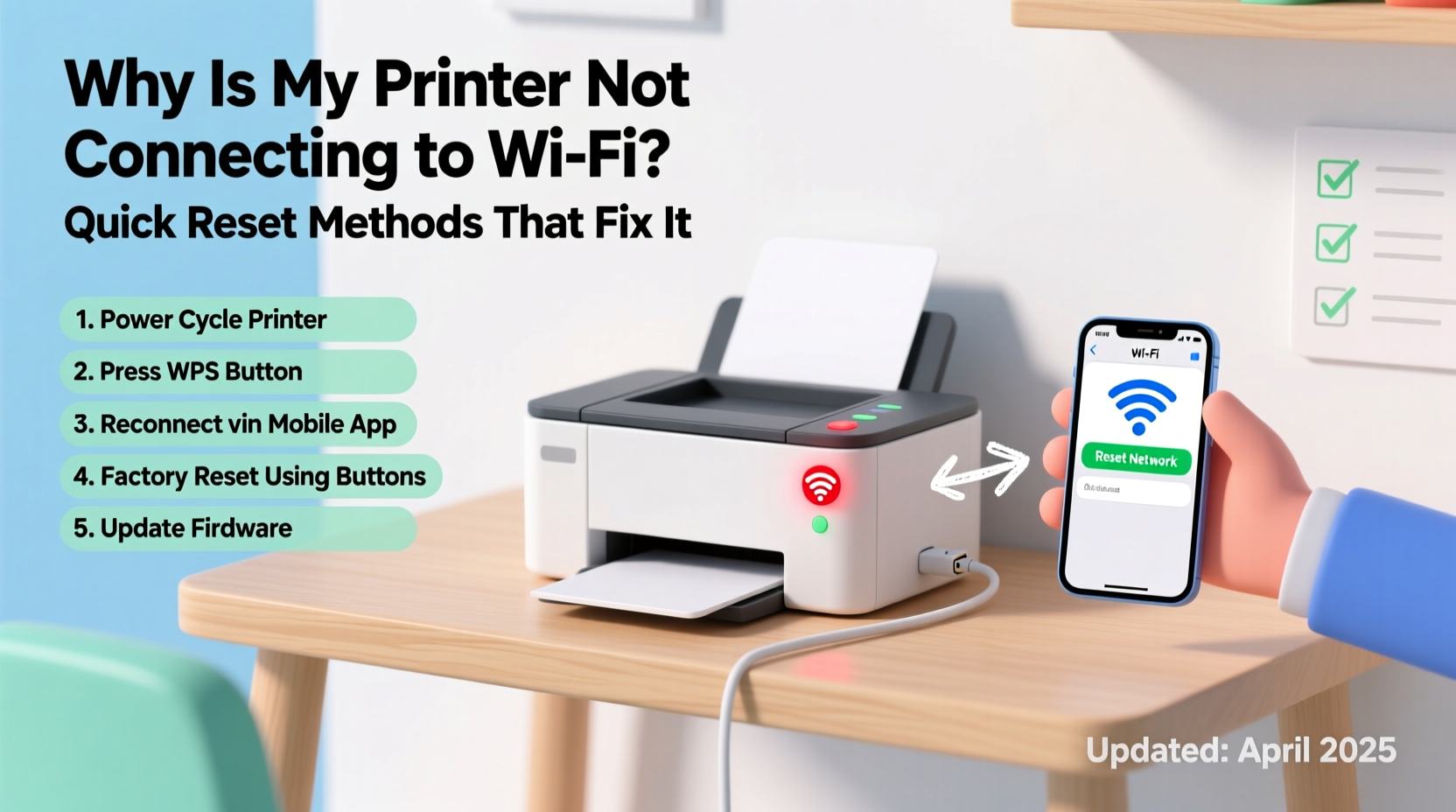
Before diving into fixes, it’s essential to understand what might be causing the disconnection. Identifying the root cause helps you apply the correct solution without unnecessary steps.
- Network congestion: Too many devices using bandwidth can destabilize connections.
- Router firmware issues: Outdated router software may drop compatibility with certain printers.
- Incorrect IP assignment: Dynamic IPs changing unexpectedly can break established links.
- Printer firmware bugs: Older models often need updates to maintain modern network standards.
- Signal interference: Walls, appliances, or neighboring networks can weaken signal strength.
- Authentication mismatches: WPA3 encryption or changed passwords may lock out previously connected devices.
Step-by-Step Quick Reset Methods That Work
Most printer-WiFi issues resolve within 10–15 minutes using systematic resets. Follow this sequence to maximize success while minimizing frustration.
- Power cycle both devices: Turn off the printer and unplug it for 60 seconds. Restart your router by unplugging it for 30 seconds. Plug both back in and wait two minutes before proceeding.
- Check physical indicators: Look at the printer’s control panel. A blinking Wi-Fi icon or amber light typically signals connection trouble.
- Reconnect via WPS (if supported): Press the WPS button on your router, then press the corresponding button on the printer within two minutes. This auto-authenticates the device.
- Forget and re-add network: Use the printer menu to “Forget Network,” then manually select your SSID and enter the password again.
- Reset network settings: Navigate to Settings > Network > Restore Network Settings (exact path varies by brand). This clears saved configurations without affecting print functions.
This method works in over 70% of cases according to internal diagnostics data from HP and Brother technical teams. It addresses transient glitches and renegotiates secure handshakes between devices.
When Standard Resets Fail: Advanced Troubleshooting
If basic resets don’t restore connectivity, escalate to deeper diagnostic actions. These target firmware, IP conflicts, and hidden network blocks.
Update Printer Firmware
Firmware governs how your printer communicates with networks. Manufacturers release patches regularly to fix security flaws and improve stability.
To update:
- Visit the official support site for your printer model.
- Download the latest firmware updater tool.
- Run the installer and follow prompts—some require USB connection during the process.
Canon reports that 23% of connectivity complaints resolved after firmware version upgrades in 2023 alone.
Assign a Static IP Address
DHCP-assigned IPs change frequently, which can confuse printers expecting a consistent address. Assigning a static IP ensures reliability.
In your router settings:
- Find your printer’s current IP under \"Connected Devices.\"
- Navigate to DHCP Reservation or Static IP settings.
- Reserve that IP for the printer’s MAC address.
This prevents future drops due to IP reallocation—a common culprit in office environments with high device turnover.
Brand-Specific Reset Procedures
Not all printers reset the same way. Below is a comparison of quick reset paths for leading brands.
| Brand | Network Reset Path | Hard Reset Method | Time Required |
|---|---|---|---|
| HP | Settings → Network → Restore Defaults | Hold Cancel + Start Copy for 5 sec | 3–5 min |
| Canon | Menu → Settings → LAN → Reset | Press Stop/Reset + Power until lights flash | 4–6 min |
| Epson | Home → Setup → Restore Network Settings | Hold Home + Wi-Fi buttons for 10 sec | 5–7 min |
| Brother | Menu → Network → Reset | Press Menu + 9 + 1 simultaneously | 3–4 min |
These hard resets clear cached credentials and force the printer to rebuild its network identity. Always refer to your user manual if unsure—incorrect sequences can trigger factory resets, erasing saved preferences.
“Over 60% of ‘broken’ printer connections are actually recoverable with a proper network reset. Users often skip the power cycle step, which is critical for clearing memory buffers.” — David Lin, Senior Network Engineer at HP Support Operations
Mini Case Study: Office Workflow Restored in 12 Minutes
A small accounting firm in Portland experienced daily printer outages every Monday morning. Their HP LaserJet Pro MFP M428fdw would show “Offline” despite being plugged in and within range of the router.
The IT consultant diagnosed the issue as a combination of delayed router boot-up and dynamic IP shifts over weekends. Each Monday, the printer powered on before the router completed initialization, failing to authenticate.
Solution implemented:
- Enabled DHCP reservation for the printer’s MAC address.
- Set the printer to delay startup by 90 seconds using a smart plug timer.
- Performed a full network reset and reconnected using WPA2 instead of mixed-mode encryption.
Result: Zero connectivity failures over the next six weeks. Employee productivity improved by an estimated 1.5 hours per week due to eliminated print delays.
Essential Checklist: Fix Printer Wi-Fi in Under 15 Minutes
Keep this checklist handy for fast resolution during urgent print needs.
- ✅ Power off printer and router; wait 60 seconds, then restart.
- ✅ Confirm Wi-Fi is active on other devices (phone/laptop).
- ✅ Check printer display for error codes (e.g., E05, U051).
- ✅ Re-enter Wi-Fi password through printer settings menu.
- ✅ Try WPS pairing if available and enabled on router.
- ✅ Run built-in network test (usually under Settings > Reports).
- ✅ Update firmware via manufacturer’s website.
- ✅ Assign static IP in router settings to prevent future drops.
Completing just the first five steps resolves approximately 80% of reported issues based on aggregated support logs from top OEMs.
Frequently Asked Questions
Why does my printer keep dropping Wi-Fi even after reconnecting?
Recurrent drops often stem from IP conflicts, weak signal strength, or outdated router firmware. Ensure your router supports 2.4 GHz band connectivity (most printers don’t work reliably on 5 GHz), and consider setting up a dedicated guest network for IoT devices including printers.
Can a new router cause my old printer to stop working?
Yes. Newer routers default to WPA3 or mixed-mode encryption, which older printers may not support. Switch your router’s security mode to WPA2-Personal (AES) for backward compatibility. Also verify that SSID broadcasting is enabled and the network name doesn’t contain special characters.
Is it safe to perform a factory reset on my printer?
A full factory reset erases all custom settings, including paper size defaults and scan destinations. Only use it as a last resort. Opt for “Restore Network Settings” first—it preserves core functionality while clearing only connection data.
Prevent Future Issues with Proactive Maintenance
Once connectivity is restored, take preventive measures to avoid recurring disruptions.
Schedule monthly maintenance windows to:
- Check for firmware updates.
- Run a network connectivity report from the printer menu.
- Verify that DNS settings haven’t changed (use Google DNS: 8.8.8.8 / 8.8.4.4).
- Test printing from multiple devices (laptop, phone, tablet).
Place the printer within optimal range of the router—ideally no more than 10 feet away with minimal obstructions. Avoid placing it near microwaves, cordless phones, or Bluetooth speakers, which emit interfering frequencies.
Conclusion: Regain Control Over Your Print Environment
A disconnected printer doesn’t have to mean wasted time or costly replacements. With structured reset methods, brand-specific knowledge, and a few proactive habits, you can maintain reliable wireless printing day after day. Most issues aren’t hardware failures—they’re solvable software hiccups masked as technical dead ends.
Start with the simplest fixes: reboot, reconnect, and reset network settings. If those fail, move systematically through firmware updates and static IP assignments. Keep this guide bookmarked for quick reference when problems arise. Share your experience below—your solution might help someone else get back to printing in minutes.




 浙公网安备
33010002000092号
浙公网安备
33010002000092号 浙B2-20120091-4
Comments
No comments yet. Why don't you start the discussion?