
If your printer shows as \"offline\" despite being connected to Wi-Fi, you're not alone. Thousands of users face this frustrating issue daily—especially with modern wireless printers that rely on complex network communication. The problem isn’t always a faulty device or broken connection. Often, it's a miscommunication between your computer, router, and printer. Understanding why this happens—and how to fix it—is essential for maintaining productivity at home or in the office.
This comprehensive guide breaks down the technical and practical reasons behind the \"printer offline\" message, even when Wi-Fi appears active. You’ll learn actionable steps to diagnose the root cause, reset communication pathways, and restore seamless printing—all without unnecessary guesswork or technician fees.
Understanding the “Offline” Status: What It Really Means
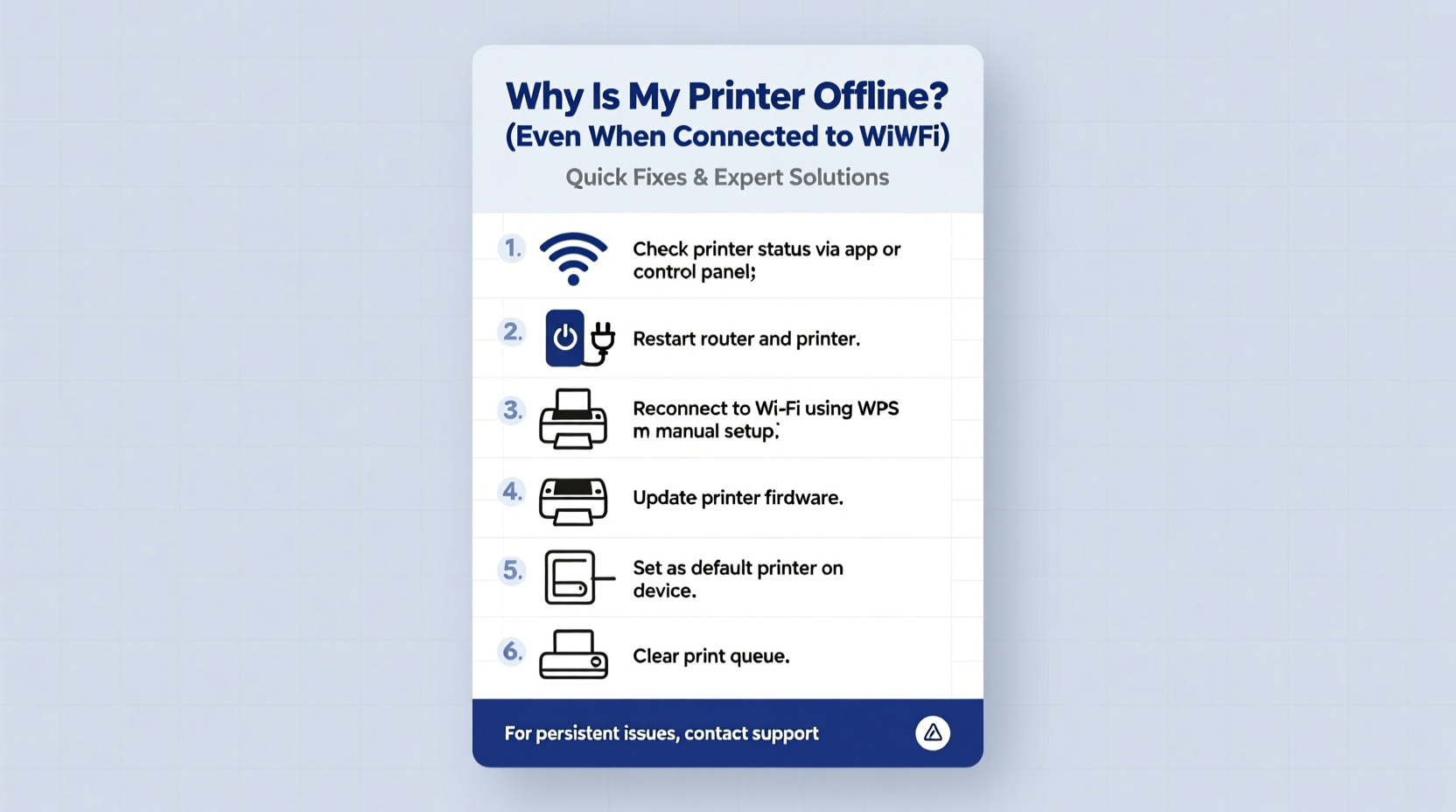
When a printer is labeled “offline,” it doesn't necessarily mean it’s disconnected from the network. Instead, it indicates that your operating system (Windows, macOS, etc.) cannot communicate with the printer at that moment. This could be due to software conflicts, IP address changes, firewall interference, or outdated drivers—even if the printer’s Wi-Fi light is solid green.
Modern printers use background services like Bonjour (on Mac) or Print Spooler (on Windows) to announce their availability. If these services fail or are blocked, the system assumes the printer is unreachable. Similarly, firewalls or antivirus programs might prevent discovery protocols from functioning properly, leading to false “offline” reports.
“Many so-called ‘offline’ issues are actually communication breakdowns between the OS and the printer—not hardware failures.” — David Lin, Network Infrastructure Specialist
The key is to verify whether the printer is truly unreachable or simply misreported. Start by checking the printer’s control panel: does it show a valid IP address? Can it ping other devices? These signs indicate the printer is online at the network level, meaning the fault lies elsewhere—likely in configuration or software.
Step-by-Step Troubleshooting Process
Follow this structured approach to systematically identify and resolve the issue. Skipping steps may lead to temporary fixes that return within hours.
- Verify Physical Connectivity: Ensure the printer is powered on, has paper and ink, and displays a stable Wi-Fi signal. Check the router’s connected devices list to confirm the printer appears.
- Restart All Devices: Power cycle the printer, computer, and router. Unplug each for 30 seconds before restarting. This clears cached errors and resets network handshakes.
- Check Printer Status in System Settings:
- On Windows: Go to Settings > Bluetooth & Devices > Printers & Scanners. Click your printer and ensure it says “Ready.” If not, select “See what’s printing” and clear any stuck jobs.
- On Mac: Open System Settings > Printers & Scanners. Right-click the printer and choose “Reset printing system” if unresponsive.
- Reconnect via IP Address (Manual Setup): Sometimes automatic discovery fails. Manually add the printer using its IP:
- Find the printer’s IP via its settings menu (usually under Network or Wireless).
- On Windows: Add a new printer → “Add via TCP/IP.” Enter the IP and install the correct driver.
- On Mac: Click the \"+\" under printers, choose IP tab, enter details, and select the appropriate protocol (HP JetDirect, Line Printer Daemon, etc.).
- Update or Reinstall Drivers: Outdated drivers often cause offline flags. Visit the manufacturer’s website (HP, Canon, Epson, Brother) and download the latest full-feature driver package.
- Disable Offline Mode: In Windows, open the print queue window and look for an option labeled “Use Printer Offline.” If checked, click it to disable.
Common Causes and Their Fixes
The following table outlines frequent culprits behind the offline status and targeted solutions:
| Cause | Symptoms | Solution |
|---|---|---|
| IP Address Change | Printer was working yesterday but now offline; Wi-Fi light steady | Assign static IP via router DHCP reservation; re-add printer using new IP |
| Outdated Driver | Frequent disconnections, slow response, error messages | Download latest driver from manufacturer site; uninstall old version first |
| Firewall Blocking Port | Can ping printer but can’t print; spooler service crashes | Add exceptions for printer software and ports (e.g., 9100, 515) in firewall |
| DNS or Router Glitch | Multiple devices affected; intermittent access | Restart router; flush DNS cache (ipconfig /flushdns on Windows) |
| Print Spooler Issues | Jobs stuck in queue; printer shows offline even after restart | Restart Print Spooler service or delete all files in C:\\Windows\\System32\\spool\\PRINTERS\\ |
Mini Case Study: Office Printer Suddenly Went Offline
A small marketing firm in Portland reported their HP LaserJet Pro MFP M428fdw suddenly appeared offline across all employee laptops. The printer’s Wi-Fi indicator was solid, and it could scan locally—but no one could print.
IT support first confirmed the printer had a valid IP (192.168.1.55). A ping test succeeded, ruling out physical disconnection. However, Windows machines showed “Printer Offline” in the queue. Investigation revealed that a recent Windows update had disabled the HP Universal Print Driver service.
The fix: uninstall the current driver, download the latest version directly from HP’s site, and reinstall using the TCP/IP method with the known IP. After setting a static IP on the router, the issue never recurred. This case highlights how software updates can silently disrupt printer communication—even when hardware remains intact.
Preventive Maintenance Checklist
To avoid recurring offline issues, implement this monthly maintenance routine:
- ✅ Restart the printer and router every 2–3 weeks
- ✅ Verify the printer’s IP hasn’t changed (check via control panel)
- ✅ Run a test print from different devices weekly
- ✅ Update printer firmware via the manufacturer’s utility app
- ✅ Clear the print spooler queue if jobs are stuck
- ✅ Confirm that antivirus or firewall isn’t blocking printer software
- ✅ Use WPA2/WPA3 encryption on Wi-Fi—avoid open or guest networks for printers
Advanced Fixes for Persistent Problems
If basic troubleshooting fails, consider deeper interventions:
Enable Bidirectional Communication
This allows your computer to detect the printer’s status in real time. To enable:
- Go to Control Panel > Devices and Printers.
- Right-click the printer and select Printer Properties.
- Navigate to the Ports tab.
- Ensure the correct TCP/IP port is selected and check “Enable bidirectional support.”
Use Manufacturer’s Diagnostic Tools
Most brands offer free utilities:
- HP: HP Smart App or HP Print and Scan Doctor
- Canon: Canon PRINT Inkjet/SELPHY or IJ Network Tool
- Epson: Epson Connect Printer Setup Utility
- Brother: Brother iPrint&Scan or BRAdmin Light
Switch to USB for Diagnosis
Temporarily connect the printer via USB. If it works, the issue is network-related. If it still shows offline, the problem may be driver corruption or internal software failure. This isolates the variable effectively.
FAQ: Common Questions Answered
Why does my printer keep going offline after a few hours?
This often occurs when the printer enters sleep mode too aggressively or loses its IP lease. Adjust the sleep timer in the printer’s settings and assign a static IP through your router to maintain consistent addressing.
Can a strong Wi-Fi signal still cause offline issues?
Yes. Even with strong signal bars, interference from neighboring networks (especially on crowded 2.4 GHz bands), or duplex mismatch can disrupt data flow. Try switching to a less congested channel via your router admin panel.
Is cloud printing a reliable alternative?
Google Cloud Print is discontinued, but most modern printers support vendor-specific cloud services (e.g., HP ePrint, Epson Connect). These can bypass local network issues entirely, allowing remote printing via email or mobile apps. However, they require internet access and may raise privacy concerns in sensitive environments.
Conclusion: Take Control of Your Printing Environment
A printer showing “offline” while connected to Wi-Fi is more than just a nuisance—it disrupts workflow, delays deadlines, and undermines confidence in digital systems. But as you’ve seen, most causes are solvable with methodical diagnosis and proper configuration.
The solution isn’t always technical. Sometimes it’s organizational: assigning static IPs, scheduling maintenance, or choosing the right network band. By combining smart setup practices with regular monitoring, you can eliminate surprise outages and enjoy consistent, reliable printing.




 浙公网安备
33010002000092号
浙公网安备
33010002000092号 浙B2-20120091-4
Comments
No comments yet. Why don't you start the discussion?