
It’s a common frustration: your Canon or HP printer appears connected to Wi-Fi, but your computer insists it’s “offline.” Despite blinking lights and a solid wireless signal, print jobs fail to process. This issue affects both home and office environments, disrupting productivity and causing unnecessary delays. The root cause isn’t always obvious—it could be a network glitch, outdated drivers, incorrect settings, or even firewall interference. Understanding the underlying reasons and applying targeted solutions can get your printer back online quickly and reliably.
Understanding the “Offline” Status
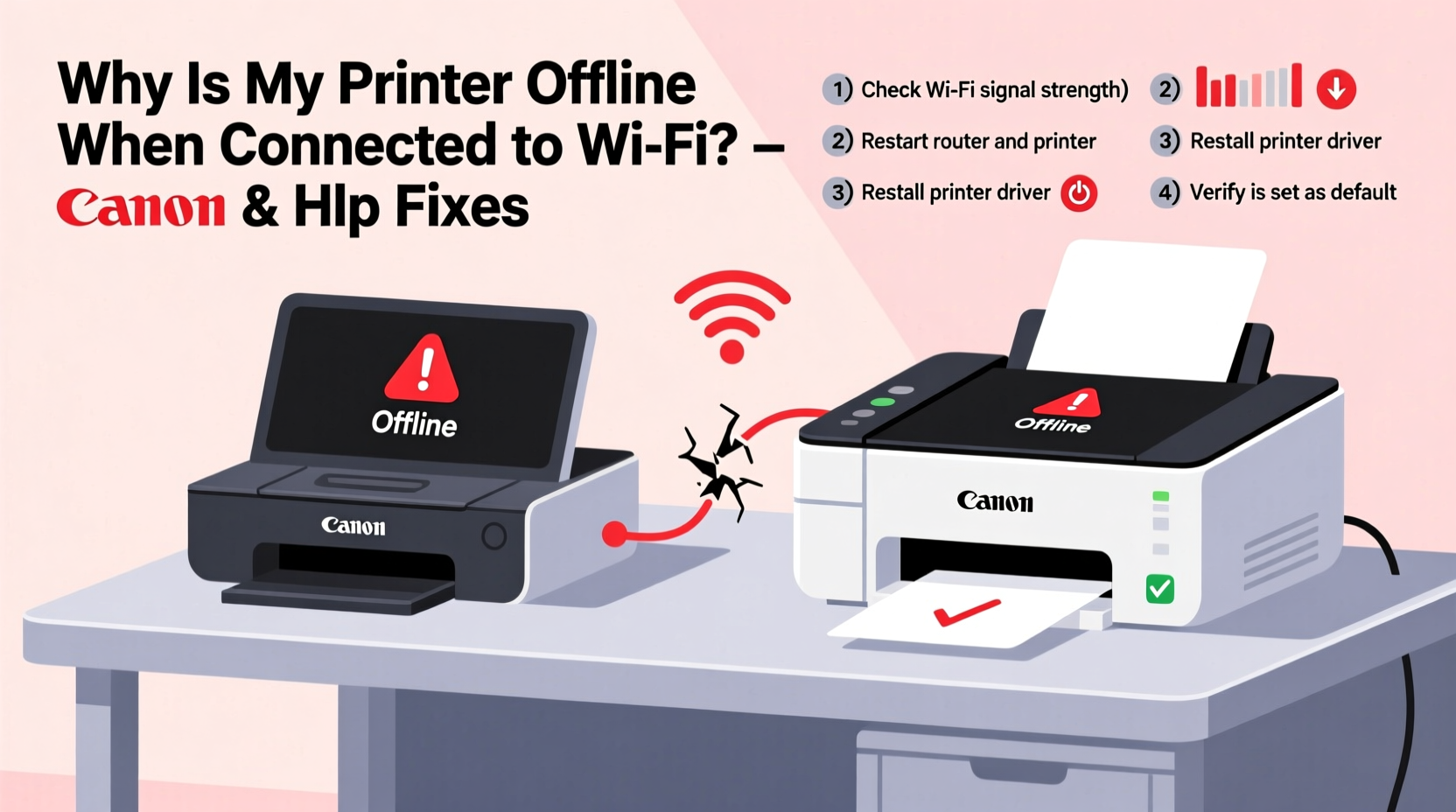
When a printer shows as “offline,” it means your operating system (Windows or macOS) cannot communicate with the device, even if the hardware is powered on and linked to the same Wi-Fi network. This miscommunication often stems from software-level disconnects rather than physical malfunctions. For Canon and HP printers—two of the most widely used brands—this issue frequently arises after router changes, power outages, driver updates, or firmware resets.
The key distinction lies in recognizing that “Wi-Fi connected” does not guarantee “print-ready.” A printer may maintain a network connection while failing to register properly with the host computer or mobile device. In many cases, the solution involves re-establishing trust between the machine, the network, and the operating system.
“Over 60% of ‘offline’ printer issues are resolvable without hardware replacement—most stem from configuration gaps or communication lags.” — IT Support Group, TechCare Solutions
Step-by-Step Troubleshooting Guide
Follow this structured approach to diagnose and resolve your printer’s offline status. Begin with basic checks before moving to advanced configurations.
- Verify Physical and Network Status
- Ensure the printer is powered on and not displaying error messages.
- Check the Wi-Fi indicator light (usually blue or white) to confirm network connectivity.
- Print a network configuration page via the printer’s control panel to verify IP address and SSID.
- Restart All Devices
- Turn off the printer, router, and computer.
- Wait 60 seconds, then power them back on in this order: router → printer → computer.
- This clears temporary network conflicts and refreshes DHCP assignments.
- Check Printer Queue and Status Settings
- On Windows: Open Settings > Devices > Printers & scanners. Click your printer and ensure “Use Printer Offline” is disabled.
- On macOS: Go to System Settings > Printers & Scanners. Right-click the printer and uncheck “Pause Printing” or “Set Offline.”
- Reconnect Printer to Network
- For Canon: Navigate to Setup > Wireless LAN Setup > Easy Wireless Connect or WPS method.
- For HP: Use HP Smart app or go to Settings > Network > Wireless Setup Wizard.
- Re-enter Wi-Fi credentials if prompted.
- Update or Reinstall Drivers
- Visit Canon Support or HP Support.
- Enter your printer model and download the latest full-feature driver.
- Uninstall old drivers first via Control Panel > Programs > Uninstall a Program (Windows) or drag from Applications folder (macOS).
Common Causes and Fixes for Canon vs. HP Printers
While both brands use similar networking principles, their interface designs and default behaviors differ slightly. Below is a comparative breakdown of frequent causes and brand-specific remedies.
| Issue | Canon Fix | HP Fix |
|---|---|---|
| Printer connected but not responding | Run \"LAN Check\" from maintenance menu; reset TCP/IP settings | Use HP Print and Scan Doctor tool to diagnose connection |
| IP address conflict | Assign static IP via printer menu under LAN settings | Enable DHCP reservation in router settings for printer MAC address |
| Firmware outdated | Download update from Canon website using USB or manual install | Update via HP Smart app or embedded web server (EWS) |
| Firewall blocking communication | Add ij.localhost exceptions to antivirus software | Allow HP services through Windows Defender Firewall |
| Multiple devices showing different statuses | Ensure all PCs use same driver version; remove duplicates | Delete old instances in Devices & Printers; re-add via network discovery |
Mini Case Study: Resolving an Office-Wide HP Printer Outage
A small accounting firm in Portland experienced recurring offline alerts with their HP OfficeJet Pro 9025e. Though the printer remained online for some users, others saw constant disconnections. Initial attempts to restart and reinstall failed. The IT consultant discovered that one user had manually set a static IP conflicting with the router’s DHCP range. After releasing the static assignment and enabling DHCP reservation via the router admin panel, the printer stabilized across all machines. Additionally, outdated drivers on two older laptops were updated, eliminating sporadic failures. Within 90 minutes, full functionality was restored without replacing any hardware.
This case highlights how seemingly random offline behavior can trace back to IP inconsistencies and software fragmentation—even in stable network environments.
Preventive Checklist for Ongoing Reliability
To minimize future disruptions, follow this routine maintenance checklist monthly or after any network change.
- ✅ Print a network configuration report to verify IP and signal strength
- ✅ Ensure all computers use the latest official driver version
- ✅ Confirm the printer appears in network discovery tools (e.g., Windows Network or Bonjour browser)
- ✅ Disable sleep mode or set wake-on-LAN if supported
- ✅ Run firmware updates at least once every six months
- ✅ Label the printer’s MAC address and IP on a sticker for quick reference
- ✅ Avoid using public or guest Wi-Fi networks for printing
Advanced Fixes: When Basic Steps Don’t Work
If standard troubleshooting fails, consider deeper technical interventions.
Reset Network Settings on the Printer
Both Canon and HP allow full network resets through internal menus:
- Canon: Settings > Device settings > Reset setting > Reset LAN
- HP: Settings > Network > Restore Network Settings
After resetting, reconfigure Wi-Fi from scratch.
Use the Printer’s Embedded Web Server (EWS)
Most modern printers have a built-in web interface accessible via browser:
- Find the printer’s IP address (from network config page).
- Type the IP into a browser (e.g., http://192.168.1.100).
- Navigate to network, security, or diagnostics tabs to adjust settings or run tests.
This method bypasses local software and provides direct access to device health metrics.
Switch to WPA2 Security (Avoid WEP or Open Networks)
Older encryption types like WEP can prevent reliable handshake protocols. Ensure your router uses WPA2-Personal (AES) or WPA3. Printers often fail silently on open or poorly secured networks.
Try USB or Ethernet as a Diagnostic Tool
Connect the printer directly via USB or Ethernet cable. If it prints successfully, the issue is isolated to Wi-Fi communication. This helps narrow down whether the problem is network-related or broader.
“Wireless printing depends on consistent two-way communication. If the printer doesn’t respond to status requests, the OS assumes it’s offline—even if it technically has internet access.” — Dr. Linda Reeves, Network Systems Engineer
Frequently Asked Questions
Why does my printer keep going offline randomly?
Random disconnections are often due to weak Wi-Fi signal, IP address conflicts, or power-saving modes. Disable automatic sleep settings on the printer and ensure it receives a strong, stable signal. Also, check for background updates or router firmware changes that might interrupt connectivity.
Can I use my Canon or HP printer on a dual-band router (2.4 GHz vs 5 GHz)?
Most Canon and HP printers only support 2.4 GHz networks. Even if your router broadcasts a combined SSID, ensure the printer connects to the 2.4 GHz band. Separate your bands in router settings if necessary to force correct association.
How do I know if my firewall is blocking the printer?
Symptoms include successful Wi-Fi connection but inability to send print jobs. Temporarily disable your firewall or antivirus suite and attempt a test print. If it works, add exceptions for the printer’s IP and related processes (e.g., hp-systray, canonmfnp). Re-enable protection afterward.
Conclusion
Dealing with an offline printer despite Wi-Fi connectivity is a solvable challenge. Whether you own a Canon PIXMA or an HP Envy, the path to resolution lies in systematic diagnosis—starting with simple restarts and progressing to driver updates, network resets, and configuration refinements. By understanding the difference between network presence and functional readiness, you regain control over your printing environment. Most importantly, preventive habits like regular updates and proper placement reduce future interruptions significantly.




 浙公网安备
33010002000092号
浙公网安备
33010002000092号 浙B2-20120091-4
Comments
No comments yet. Why don't you start the discussion?