
It’s a familiar frustration: you click “Print,” only to see the message “Printer Offline” — even though your printer is plugged in, powered on, and supposedly connected to Wi-Fi. This issue affects millions of home and office users every year, disrupting productivity and causing unnecessary delays. The good news is that most causes are fixable with methodical troubleshooting.
Modern wireless printers rely on a stable network connection, correct driver configuration, and proper communication between your device and the printing hardware. When any part of this chain fails, the system defaults to an “offline” status. Understanding the root cause — whether it's a software glitch, network interference, or misconfigured settings — is key to restoring functionality.
Understanding Why Printers Go Offline Despite Wi-Fi Connection
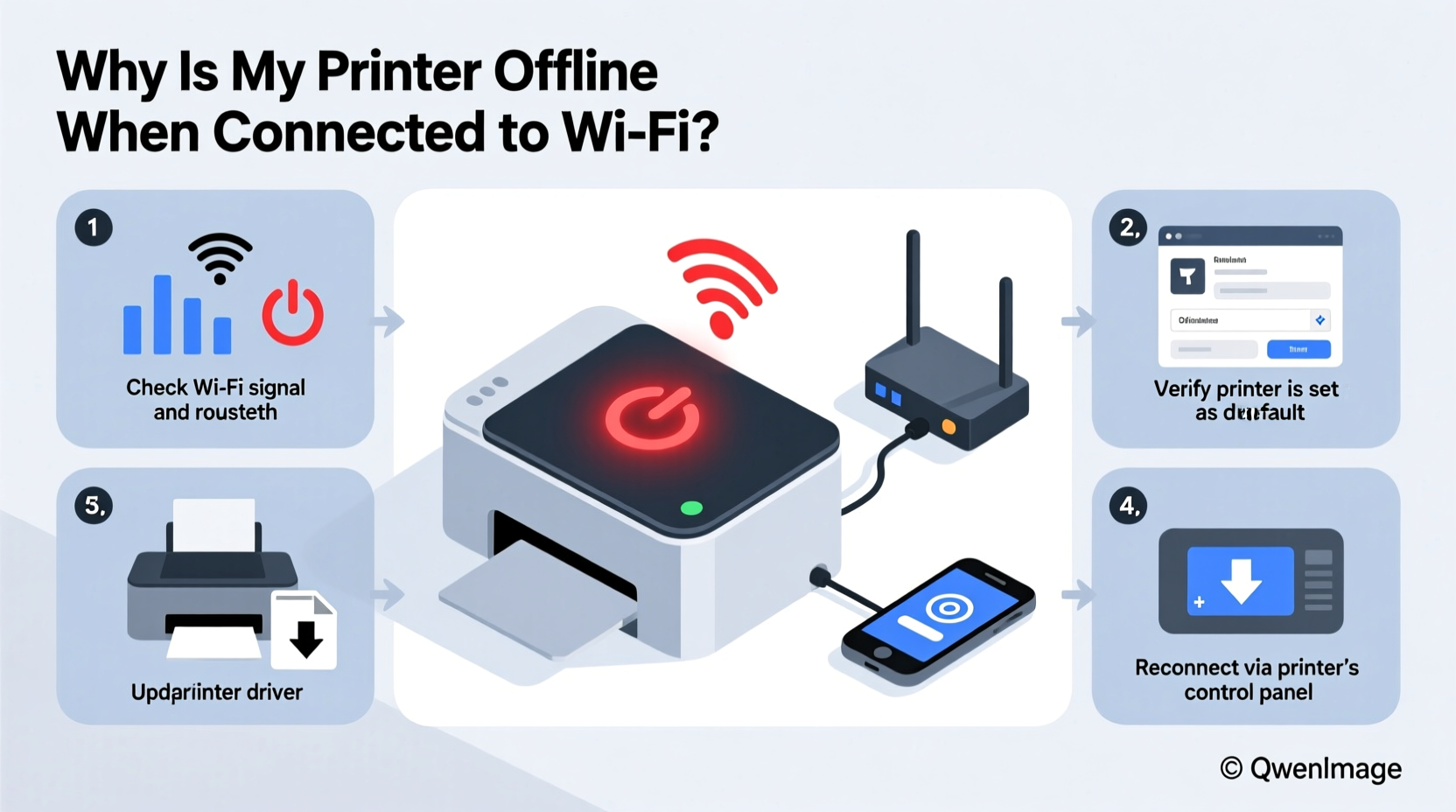
A printer labeled as “offline” while still connected to Wi-Fi doesn’t necessarily mean there’s no network signal. It often indicates a breakdown in communication between your computer (or mobile device) and the printer. Common culprits include:
- IP address changes: Routers assign dynamic IP addresses, which can change after a reboot, breaking existing connections.
- Firewall or security software: Overprotective firewalls may block print spooler services.
- Outdated or corrupt drivers: Printer drivers act as translators; if outdated, they fail to communicate properly.
- Printer sleep mode: Energy-saving features can make a printer appear offline until manually woken.
- Network congestion or interference: Other devices or physical obstructions weaken Wi-Fi signals.
- Spooler service failure: The Windows Print Spooler manages print jobs — if stopped, printing halts entirely.
Resolving the issue requires checking both hardware and software layers systematically.
Step-by-Step Guide to Restore Your Printer Online Status
Follow this structured approach to diagnose and resolve the offline status efficiently.
- Verify Physical Connections and Power Status
Ensure the printer is powered on and not in sleep or idle mode. Press a button on the control panel to wake it. Check for blinking lights indicating network activity. If using Ethernet, confirm the cable is securely connected.
- Check Wi-Fi Signal Strength at the Printer
Weak signal strength leads to intermittent communication. Move the printer closer to the router or eliminate physical barriers like walls or metal objects. Use your printer’s built-in network menu (via display screen) to check signal strength — ideally above -70 dBm.
- Confirm Printer Is Connected to the Correct Network
If your router broadcasts dual bands (2.4 GHz and 5 GHz), ensure the printer is on 2.4 GHz, as many older models don’t support 5 GHz networks. Access the printer’s network settings through its menu and verify SSID matches your intended network.
- Reboot All Devices
Turn off the printer, router, and computer. Wait 60 seconds, then power them back on in this order: router → printer → computer. This resets network handshakes and clears temporary glitches.
- Check Printer Status in Operating System
On Windows: Open Settings > Devices > Printers & scanners. Click your printer and ensure it says “Ready.” If it shows “Offline,” right-click and select “See what’s printing,” then go to Printer > Use Printer Offline (make sure it’s unchecked).
On macOS: Go to System Settings > Printers & Scanners. Right-click the printer icon and ensure “Pause Printing” is not enabled.
- Restart the Print Spooler Service (Windows)
Press Win + R, type
services.msc, and press Enter. Scroll down to “Print Spooler,” right-click it, and select Restart. If it’s not running, click Start. You can also open Command Prompt as admin and run:net stop spooler
net start spooler - Update or Reinstall Printer Drivers
Visit the manufacturer’s website (HP, Canon, Epson, Brother, etc.) and download the latest driver for your exact model. Uninstall the current driver first via Control Panel > Programs > Uninstall a Program or Devices & Printers > Remove device.
- Add Printer Manually Using IP Address
Find your printer’s IP address via its network settings menu. On Windows: Go to Printers & scanners > Add device > “The printer that I want isn’t listed” > Add using TCP/IP. Enter the IP address and install the appropriate driver.
Troubleshooting Checklist: Quick Actions to Try First
- ✅ Printer powered on and not in sleep mode
- ✅ Wi-Fi light solid (not blinking)
- ✅ Connected to 2.4 GHz network (not 5 GHz)
- ✅ “Use Printer Offline” disabled in OS
- ✅ Print Spooler service running (Windows)
- ✅ Firewall temporarily disabled for testing
- ✅ Latest drivers installed from manufacturer site
- ✅ Printer reachable via ping test (use Command Prompt:
ping [printer IP])
Common Mistakes That Keep Printers Offline
Even tech-savvy users fall into traps that prolong downtime. Avoid these frequent errors:
| Mistake | Why It Causes Problems | How to Fix |
|---|---|---|
| Assuming Wi-Fi = automatic printing | Connection doesn’t guarantee bidirectional communication | Manually verify printer status and add via IP if needed |
| Using generic drivers from Windows Update | May lack full functionality or stability | Download model-specific drivers from manufacturer |
| Ignoring firmware updates | Old firmware can have bugs affecting connectivity | Check manufacturer portal for firmware upgrades |
| Placing printer behind large appliances or thick walls | Signal degradation disrupts data flow | Relocate printer within optimal range of router |
Real Example: Resolving a Persistent HP OfficeJet Offline Issue
Sarah, a remote project manager, relied on her HP OfficeJet Pro 8025 for daily client reports. One Monday morning, she encountered the “Printer Offline” error despite seeing the Wi-Fi icon lit on the device. She tried printing from her laptop and phone — both failed.
She followed basic steps: restarted the printer and router, checked for paper jams (none), and verified the network name. Still offline. Then she opened Windows Settings and noticed the printer was grayed out. Upon opening the print queue, she found “Use Printer Offline” was accidentally enabled — possibly triggered during a previous failed print attempt.
After unchecking the option and restarting the Print Spooler, her printer reappeared as “Ready.” She printed a test page successfully. To prevent recurrence, she pinned the printer shortcut and disabled automatic sleep mode via the HP Smart app.
This case highlights how a minor software flag can mimic a major hardware failure — reinforcing the need for systematic diagnosis.
“Many ‘offline’ printer issues aren’t about connectivity at all — they’re about status flags stuck in error states. Resetting the spooler and verifying printer properties often resolves the issue without touching the network.” — James Lin, Network Support Specialist at TechFlow Solutions
Advanced Fixes for Stubborn Connectivity Issues
If standard steps fail, consider deeper interventions:
Assign a Static IP Address to Your Printer
DHCP-assigned IPs can change, breaking saved connections. Assigning a static IP ensures consistency.
- Access your router’s admin page (usually http://192.168.1.1 or similar).
- Log in and navigate to DHCP settings or connected devices.
- Find your printer by MAC address and reserve its current IP so it never changes.
- Alternatively, configure the static IP directly on the printer’s network menu.
Disable Bidirectional Support (If Causing Conflicts)
Sometimes, two-way communication fails due to protocol mismatches.
On Windows: Go to Devices & Printers > Right-click printer > Printer Properties > Ports tab. Uncheck “Enable bidirectional support” and try printing again.
Test Across Devices and Networks
Try printing from another computer, tablet, or smartphone. If it works elsewhere, the issue lies with the original device’s configuration. If not, the problem is likely with the printer or network.
You can also connect the printer via USB temporarily to isolate Wi-Fi issues.
Reset Printer Network Settings
Most printers allow a network reset via their control panel. For example:
- HP: Settings > Network > Restore Network Settings
- Canon: Setup > Device settings > Reset setting > LAN settings reset
- Brother: Menu > Network > TCP/IP > Reset
After resetting, reconnect the printer to Wi-Fi as if setting it up for the first time.
Frequently Asked Questions
Why does my printer keep going offline randomly?
Random disconnections are often due to weak Wi-Fi signal, IP conflicts, or energy-saving modes. Ensure strong signal strength, assign a static IP, and disable auto-off or deep sleep settings in the printer menu.
Can antivirus software block my wireless printer?
Yes. Some security suites include firewall components that restrict local network services, including printing. Temporarily disable the firewall to test. If printing works, adjust settings to allow the Print Spooler and related services.
Is it better to use USB instead of Wi-Fi for reliability?
For single-device setups, USB offers more consistent performance. However, Wi-Fi enables multi-device access and mobility. Use Wi-Fi for shared environments but consider USB for mission-critical or high-volume printing needs.
Conclusion: Take Control of Your Printing Workflow
A wireless printer showing “offline” despite Wi-Fi connectivity is a solvable problem — not a reason to replace hardware. By understanding the interplay between network stability, driver integrity, and system settings, you regain reliable access to essential printing functions.
The key is patience and precision: follow each step deliberately, document changes, and test frequently. Most issues stem from small oversights — a forgotten checkbox, a changed IP, or an outdated driver — rather than fundamental failures.




 浙公网安备
33010002000092号
浙公网安备
33010002000092号 浙B2-20120091-4
Comments
No comments yet. Why don't you start the discussion?