
It’s a common frustration: your printer is connected to Wi-Fi, powered on, and showing no error lights—yet Windows 11 insists it’s “offline.” You click print, the job queues, but nothing happens. This issue disrupts workflows, delays important documents, and often leaves users confused about where the breakdown occurs. The truth is, “printer offline” doesn’t always mean the device is disconnected. It can be a software miscommunication, network glitch, or configuration oversight. Understanding the root causes—and knowing how to resolve them systematically—can save time and eliminate unnecessary service calls.
Understanding the \"Offline\" Status in Windows 11
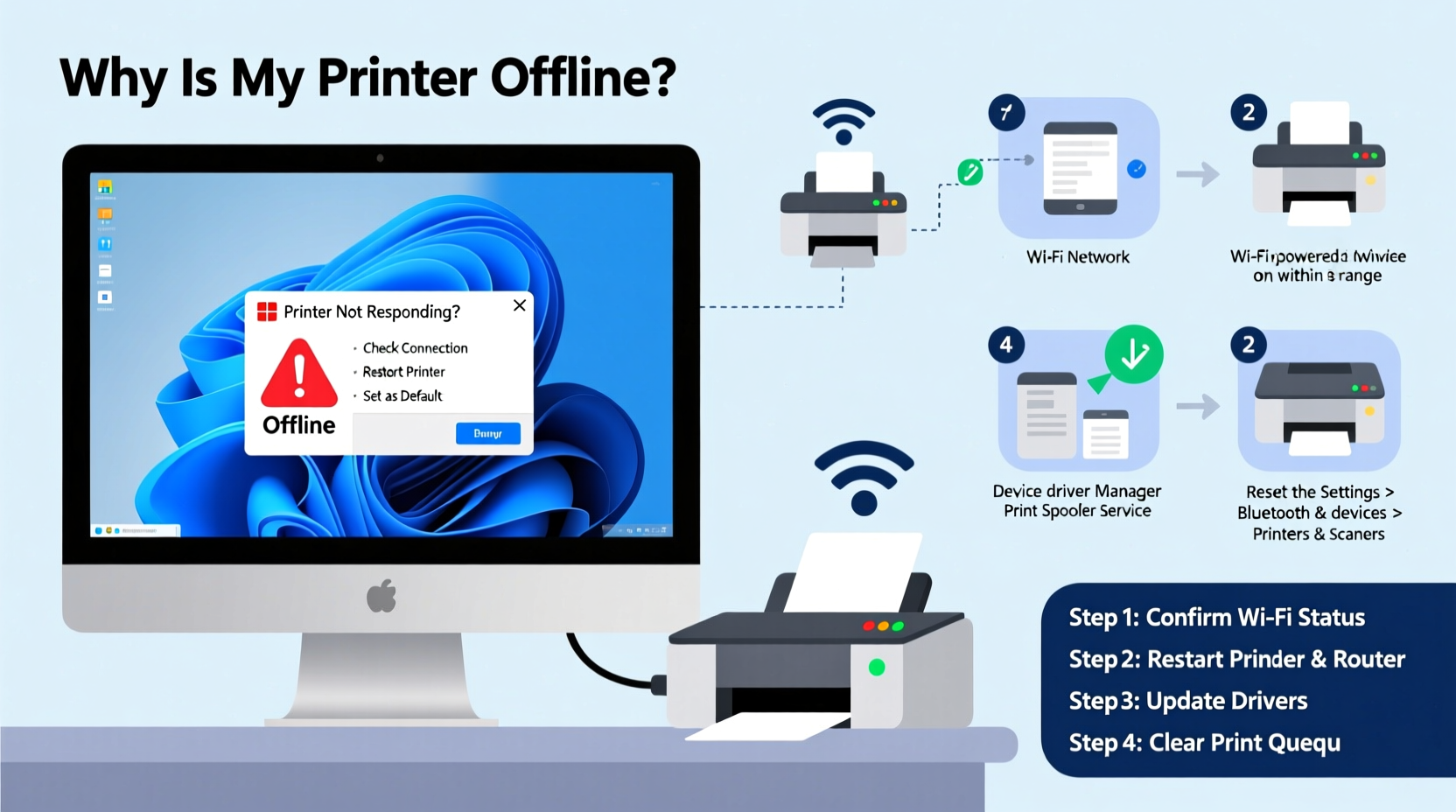
In Windows 11, the “printer offline” message typically appears when the operating system cannot establish a reliable communication channel with the printer, even if both are on the same network. This status does not necessarily reflect the physical state of the printer. A printer may be fully operational, printing test pages, and connected to Wi-Fi, yet still appear offline in the Devices & Printers menu or during a print attempt.
The discrepancy arises because Windows relies on background services like the Print Spooler and network discovery protocols to maintain active connections. If any component in this chain fails—such as IP address changes, firewall interference, or outdated drivers—the OS assumes the printer is unreachable.
“Many 'offline' printer issues stem from communication gaps between Windows and networked devices, not hardware failure.” — David Lin, Network Infrastructure Analyst at TechFlow Solutions
Common Causes of Wi-Fi Printer Offline Errors
Several factors can trigger the offline status. Identifying which one applies to your situation is the first step toward resolution.
- IP Address Changes: Routers often assign dynamic IP addresses. If your printer’s IP changes, Windows may lose track of it.
- Print Spooler Issues: The spooler service manages print jobs. If it crashes or hangs, printers may go offline.
- Outdated or Corrupted Drivers: Incompatible or old drivers prevent proper communication.
- Firewall or Antivirus Blocking: Security software can restrict printer communication ports.
- Wi-Fi Signal Instability: Weak or intermittent signal prevents consistent connectivity.
- Incorrect Default Printer Settings: Windows may default to an unavailable printer instance.
- Printer Not Set to Auto-Online Mode: Some printers require manual resetting to online status after boot.
Step-by-Step Guide to Restore Your Printer Online
Follow this structured troubleshooting sequence to methodically resolve the issue. Start with basic checks before moving to advanced fixes.
- Verify Physical and Network Status
- Ensure the printer is powered on and has paper/ink.
- Check the printer’s display for Wi-Fi signal strength.
- Print a network configuration page (usually found in settings) to confirm its current IP address.
- Restart All Devices
- Turn off the printer, router, and computer.
- Wait 30 seconds, then power them back on in order: router → printer → PC.
- This resets network handshakes and clears temporary glitches.
- Check Printer Status in Windows
- Open Settings > Bluetooth & devices > Printers & scanners.
- Select your printer and click “See what’s printing.”
- If “Use Printer Offline” is checked, uncheck it immediately.
- Clear the Print Queue
- In the print queue window, go to Printer > Cancel All Documents.
- Restart the Print Spooler service:
- Press Win + R, type
services.msc, and press Enter. - Find “Print Spooler,” right-click, and select Restart.
- Navigate to C:\\Windows\\System32\\spool\\PRINTERS and delete all files (this clears stuck jobs).
- Press Win + R, type
- Re-add the Printer
- In Printers & scanners, remove the existing printer entry.
- Click “Add device” and wait for Windows to rediscover it.
- If not found, choose “Add manually” and enter the printer’s IP address.
- Update or Reinstall Drivers
- Visit the manufacturer’s website (HP, Canon, Epson, etc.).
- Download the latest driver for your model and Windows 11.
- Install using “Custom” or “Advanced” mode to avoid bloatware.
Tips for Preventing Future Offline Issues
Once your printer is working again, implement these habits to reduce recurrence.
| Action | Benefit | Frequency |
|---|---|---|
| Assign a static IP to your printer | Prevents connection loss due to IP changes | One-time setup via router settings |
| Enable automatic driver updates | Ensures compatibility with OS updates | Enable in Windows Update settings |
| Run monthly printer maintenance | Cleans internal components and resets errors | Monthly |
| Keep firmware updated | Fixes bugs and improves network stability | Check quarterly via printer menu |
Real Example: Fixing a Persistent Offline Issue
Sarah, a freelance graphic designer, faced recurring offline alerts with her HP Envy 6055 despite being on the same Wi-Fi network as her Windows 11 laptop. She could ping the printer’s IP successfully, ruling out total network failure. However, every morning, the printer appeared offline until she manually restarted both devices.
After investigation, she discovered that her router assigned a new IP to the printer nightly due to a short DHCP lease time. By logging into her router (via 192.168.1.1), she reserved the printer’s current IP based on its MAC address. She also reinstalled the latest HP Smart app and set the printer as default. Since then, the printer reconnects automatically each day without intervention.
Sarah’s case highlights how seemingly random offline behavior often traces back to overlooked network settings rather than faulty hardware.
Frequently Asked Questions
Why does my printer keep going offline even after reconnecting?
This usually points to unstable network communication. Check for IP address changes, weak Wi-Fi signal near the printer, or interference from other wireless devices. Assigning a static IP and ensuring strong signal strength (minimum 2 bars on the printer display) resolves most cases.
Can antivirus software cause my printer to go offline?
Yes. Some security suites block network printing ports (like port 9100) to prevent unauthorized access. Temporarily disable your antivirus and test printing. If it works, adjust the firewall settings to allow your printer’s IP and the “Print Spooler” process through the exceptions list.
Is it better to connect via Wi-Fi or USB for reliability?
USB offers more stable, direct communication and bypasses network variables. However, Wi-Fi provides convenience and mobility. For mission-critical printing, use USB. For shared or multi-device environments, optimize your Wi-Fi setup with a dedicated 2.4 GHz network (less interference) and QoS settings prioritizing printer traffic.
Final Checklist: Restore Printer Connectivity Fast
When your printer suddenly goes offline, run through this concise checklist:
- ✅ Confirm printer is powered on and connected to Wi-Fi.
- ✅ Restart printer, router, and Windows 11 PC.
- ✅ Open print queue and uncheck “Use Printer Offline.”
- ✅ Clear stuck print jobs and restart Print Spooler service.
- ✅ Reinstall the latest driver from the manufacturer’s site.
- ✅ Assign a static IP to the printer via router settings.
- ✅ Test with a direct print command (e.g., print a document or webpage).
“Over 70% of ‘offline’ printer reports we handle are resolved by resetting the spooler and ensuring IP consistency.” — IT Support Team, NexaOffice Solutions
Conclusion: Take Control of Your Printing Environment
Your Wi-Fi printer shouldn’t be a source of daily frustration. While Windows 11 simplifies device integration, it doesn’t eliminate the need for proactive maintenance and smart configuration. By understanding how network dynamics, driver health, and system services interact, you gain the ability to diagnose and fix issues quickly—without resorting to guesswork or expensive support plans.
Start by applying the steps outlined here: verify connectivity, reset key services, update drivers, and lock down your printer’s network identity. These actions form the foundation of a reliable printing experience. Once resolved, adopt preventive practices like regular firmware updates and network monitoring to keep disruptions at bay.




 浙公网安备
33010002000092号
浙公网安备
33010002000092号 浙B2-20120091-4
Comments
No comments yet. Why don't you start the discussion?