
Nothing disrupts productivity like sending a print job only to pull out a perfectly blank sheet. Whether you're at home preparing an important document or in the office handling last-minute reports, a printer that outputs nothing despite full cartridges is both baffling and frustrating. More often than not, the root cause lies not in hardware failure but in miscommunication between the printer and its ink system—especially when ink detection errors are involved. These issues can stem from clogged nozzles, outdated firmware, incorrect cartridge installation, or even protective tape left on new cartridges. The good news: most of these problems are fixable without replacing the entire device.
Understanding why your printer produces blank pages—and why it sometimes falsely reports low or missing ink—is essential for restoring reliable performance. This guide walks through the technical realities behind these malfunctions, offers actionable fixes, and equips you with diagnostic tools to prevent recurrence.
Common Causes of Blank Page Printing
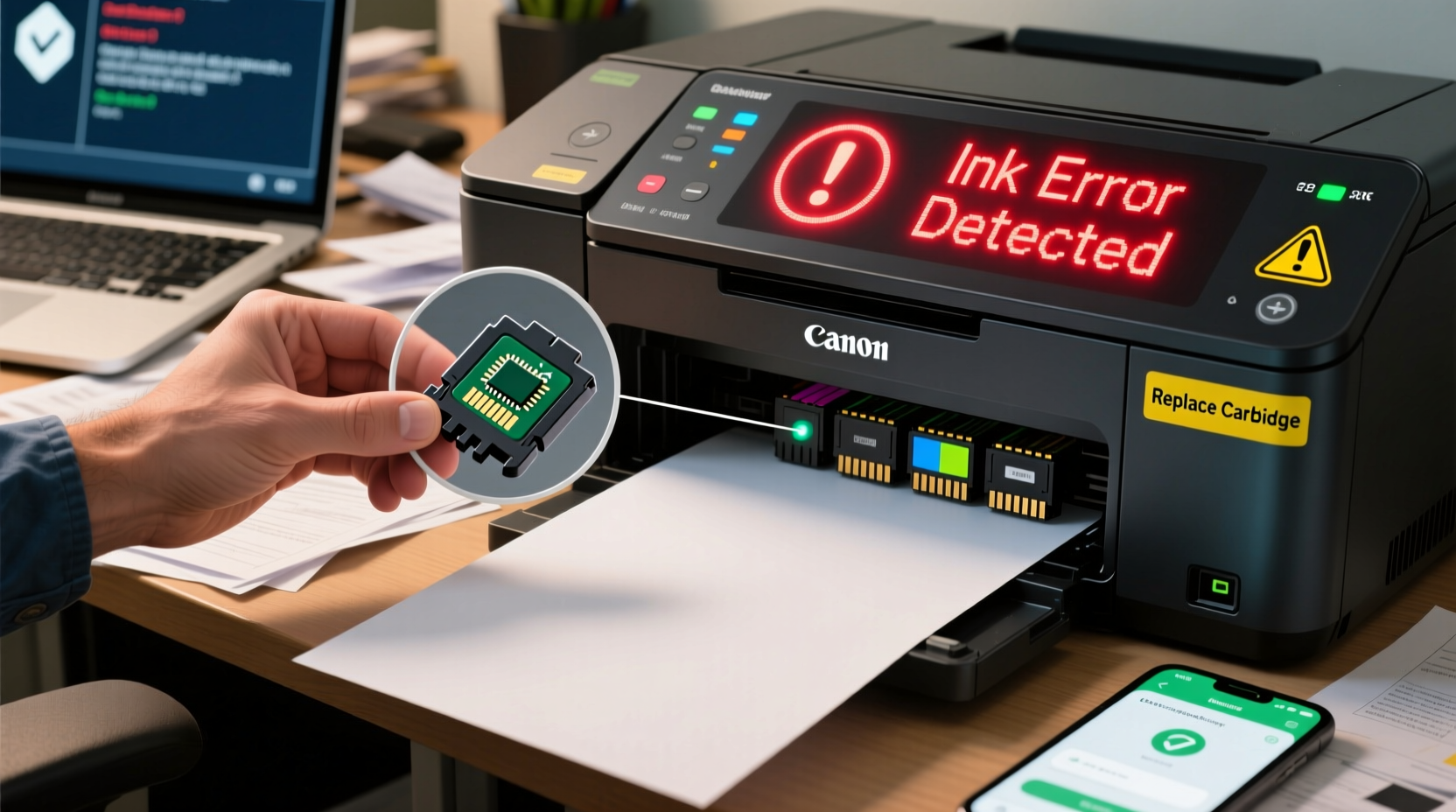
Before diving into complex diagnostics, it’s crucial to identify what might be causing your printer to produce blank output. While ink levels are an obvious suspect, they’re not always the culprit. Here are the most frequent causes:
- Clogged print heads: Ink residue dries over time, especially if the printer sits idle for weeks, blocking the nozzles that deliver ink to paper.
- Empty or improperly installed cartridges: Even if the display says \"ink present,\" physical dislodgement or faulty seating can interrupt ink flow.
- Protective tape still attached: New ink cartridges often come with a plastic strip covering the nozzle. Forgetting to remove it results in zero ink delivery.
- Firmware or driver glitches: Software bugs may misread ink levels or fail to initiate the print head priming sequence.
- Ink detection sensor failure: Printers use optical or electrical sensors to detect cartridge presence and ink volume. Dust, corrosion, or manufacturing defects can impair their function.
- Incorrect print settings: Accidentally selecting \"Print in Grayscale\" when using black ink only—or enabling \"Background Graphics\" suppression—can result in seemingly blank pages.
Step-by-Step Guide to Diagnose and Fix Blank Page Issues
Troubleshooting should follow a logical progression—from simple checks to deeper interventions. Follow this timeline to systematically eliminate potential causes:
- Verify basic setup: Ensure the printer is powered on, connected (via USB or Wi-Fi), and has paper loaded. Check for error lights or messages on the control panel.
- Inspect cartridges: Open the access door and confirm cartridges are fully seated. Look for any visible tape or plastic seals—remove them if present.
- Run a nozzle check: Access your printer’s maintenance menu (usually under Settings > Printer Preferences > Maintenance) and select “Print Nozzle Check.” This prints a pattern showing which nozzles are firing. Gaps indicate clogs.
- Clean the print heads: Use the built-in cleaning utility. Most printers offer 1–3 cleaning cycles. Wait 10 minutes between attempts to avoid overheating.
- Manually clean cartridges (if accessible): Remove cartridges and gently wipe the copper contacts and nozzles with a lint-free cloth slightly dampened with distilled water. Avoid touching nozzles directly.
- Check ink levels via software: Open your printer’s status monitor (e.g., HP Smart, Epson Status Monitor, Canon IJ Utility) to see reported ink levels. Discrepancies here suggest detection issues.
- Reinstall or reset cartridges: Power off the printer, remove all cartridges, wait 30 seconds, then reinsert them firmly until they click. Power back on.
- Update firmware and drivers: Visit the manufacturer’s website, enter your model number, and download the latest firmware and driver updates.
If blank pages persist after these steps, the issue likely involves either defective cartridges or deeper mechanical failure—such as a failed printhead assembly or internal pump malfunction.
Understanding and Resolving Ink Detection Errors
Ink detection errors occur when your printer fails to recognize a cartridge—even if it’s full and properly installed. These errors manifest as warnings like “Ink Not Recognized,” “Cartridge Missing,” or “Replace Cartridge” despite recent installation. They’re particularly common with third-party or refilled cartridges, but even OEM units can trigger false alerts.
Detection systems vary by brand:
- HP: Uses embedded microchips in cartridges to communicate ink level and authenticity.
- Epson: Relies on optical sensors and counter-based estimation rather than chips, making it more prone to false “empty” readings.
- Canon: Combines chip data with usage tracking; older models may reject remanufactured cartridges outright.
When detection fails, the printer may refuse to print altogether or default to a “safe mode” that blocks color printing—even if black ink is available.
“In modern printers, ink detection isn’t just about volume—it’s tied to security protocols designed to protect print quality and discourage third-party use.” — David Lin, Printer Systems Engineer at TechPrint Labs
How to Bypass or Fix Detection Errors
While manufacturers discourage workarounds, several safe methods can resolve detection issues:
- Reset the cartridge chip (if supported): Some third-party cartridges come with resettable chips. Use a chip resetter tool or press the reset button (if available).
- Cover the sensor window: On certain Epson models, placing a small piece of tape over the optical sensor window tricks the system into bypassing the empty alert (use cautiously and temporarily).
- Use compatible mode: In printer settings, disable “Cartridge Protection” or enable “Continue Printing” when warnings appear.
- Realign the cartridge contacts: Bent or dirty metal contacts on the cartridge or inside the printer can break communication. Clean with isopropyl alcohol and a cotton swab.
Do’s and Don’ts: Best Practices for Reliable Printing
| Do | Don't |
|---|---|
| Run a nozzle check monthly if the printer is used infrequently | Leave cartridges out of the printer for extended periods |
| Store unused cartridges upright in a cool, dark place | Touch the nozzles or electrical contacts with bare fingers |
| Use genuine or reputable third-party inks for critical jobs | Mix different ink types (dye-based vs. pigment) in the same printer |
| Update printer firmware regularly | Ignore recurring blank page warnings—they often worsen over time |
| Keep the printer powered on to allow automatic maintenance cycles | Turn off the printer using the power switch instead of letting it sleep |
Real-World Example: A Home Office Recovery
Sarah, a freelance graphic designer in Portland, faced a crisis when her Epson WorkForce WF-7720 began printing blank pages just before a client deadline. She replaced the black cartridge twice, assuming it was defective, but the problem persisted. Frustrated, she nearly ordered a new printer—until she remembered reading about nozzle clogs.
She accessed the maintenance menu and ran a nozzle check. The pattern showed no black ink output. After two automated cleanings with no improvement, she removed the black cartridge and wiped the contacts. Still nothing. Then, recalling that Epson printers perform deep cleans less frequently, she initiated a “Power Cleaning” cycle from the utility software. The printer hummed for several minutes, ejecting waste ink. When she ran another nozzle check, the black lines appeared fully restored. Her next print job came out perfectly.
The issue wasn’t the ink level or cartridge—it was dried ink blocking the printhead. Regular maintenance could have prevented the downtime.
Essential Checklist: Restore Your Printer in 10 Minutes
Keep this checklist handy for quick recovery when blank pages strike:
- ✅ Confirm paper is loaded and printer is online
- ✅ Open cartridge access and inspect for protective tape
- ✅ Ensure cartridges are snapped securely into place
- ✅ Run a nozzle check from the printer’s maintenance menu
- ✅ Perform one round of print head cleaning
- ✅ Restart the printer and try a test print
- ✅ Check ink levels in printer software
- ✅ Update printer drivers if error persists
- ✅ Manually clean cartridge contacts with isopropyl alcohol
- ✅ Consider cartridge replacement if all else fails
Frequently Asked Questions
Why does my printer say it’s out of ink when the cartridge is full?
Printers estimate ink levels using internal counters or optical sensors, neither of which are perfectly accurate. Third-party cartridges may lack proper chip programming, leading to false “empty” warnings. You can often override these by pressing “Continue” or “Ignore,” though doing so repeatedly may risk print quality degradation.
Can I print if one cartridge is empty?
It depends on your printer model. Many modern printers block all printing if any cartridge is empty, even if you only need black text. However, some allow monochrome printing with only black ink. Check your user manual or settings for “Print in Grayscale Using Black Ink Only” options.
Will cleaning the print head waste a lot of ink?
Yes, each cleaning cycle uses a small amount of ink to flush the nozzles. Manufacturers design this process conservatively, but repeated cleanings can deplete cartridges. Limit cleaning to 2–3 cycles; if clogs persist, consider professional service or manual deep cleaning.
Conclusion: Take Control of Your Printing Experience
Blank pages and ink detection errors don’t have to mean expensive replacements or endless tech support calls. With a methodical approach, most issues can be diagnosed and resolved in under an hour. The key is understanding that printing technology relies on both hardware precision and software coordination—when one fails, the other suffers. Regular maintenance, awareness of your printer’s quirks, and timely intervention turn occasional glitches into manageable hiccups.
Start today by running a nozzle check and updating your printer’s firmware. Keep spare cartridges on hand, store them properly, and never underestimate the power of a simple cartridge reseat. Your printer is designed to last—give it the care it needs to perform when you need it most.




 浙公网安备
33010002000092号
浙公网安备
33010002000092号 浙B2-20120091-4
Comments
No comments yet. Why don't you start the discussion?