
Nothing disrupts productivity faster than a printer that refuses to print anything but blank pages. Whether you're preparing an important work document, printing school assignments, or sending out personal photos, encountering this issue can be frustrating. The good news is that in most cases, the problem isn't permanent hardware failure—it's often something simple and fixable with basic troubleshooting.
Printers are complex devices that rely on precise coordination between mechanical parts, ink or toner systems, software drivers, and communication protocols. When one element fails or misbehaves, it can result in output that looks correct on screen but appears completely blank on paper. Understanding the root causes—and knowing which steps to take first—can save you time, money, and stress.
Common Causes of Blank Page Printing
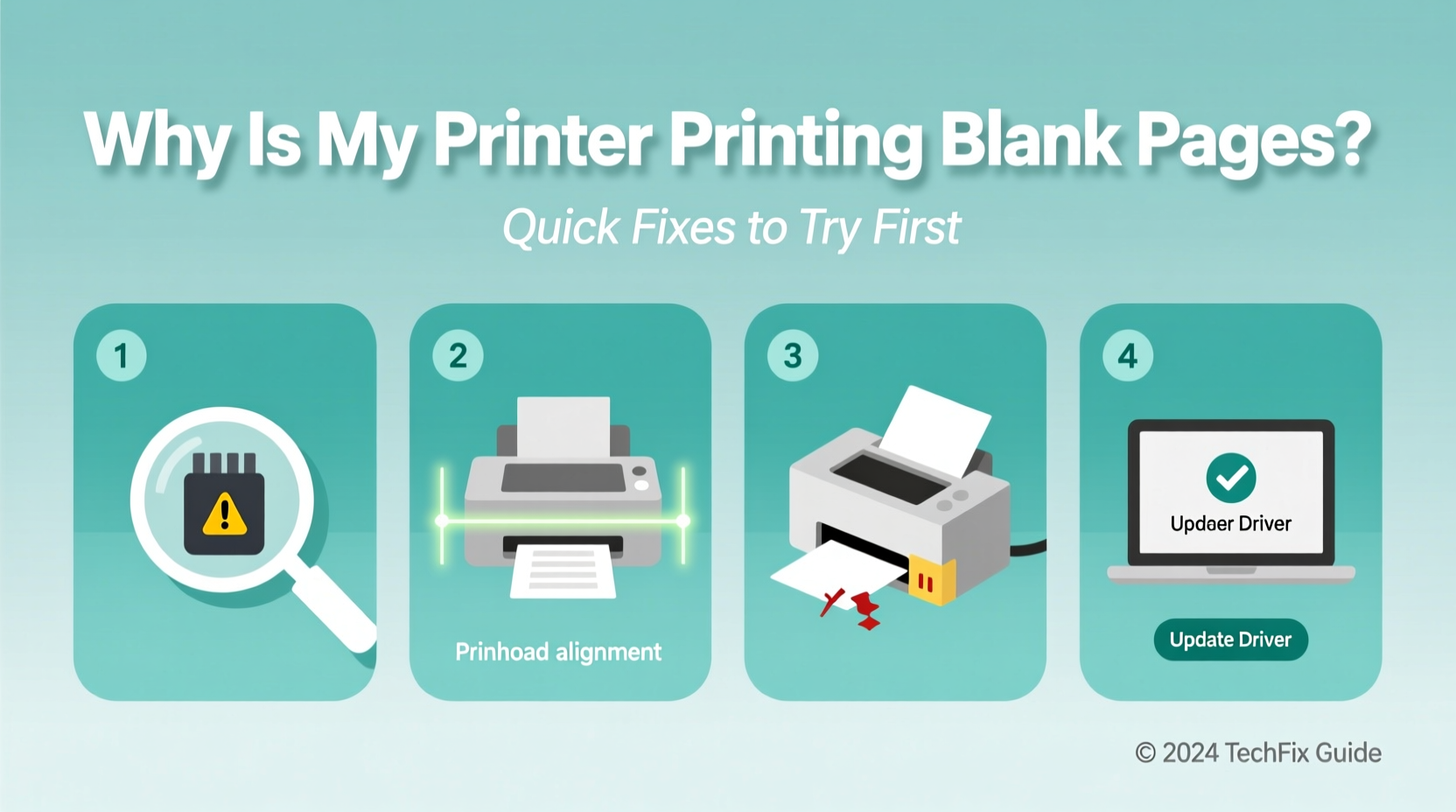
Before diving into solutions, it’s essential to understand what might be causing your printer to produce blank pages. The cause typically falls into one of four categories: ink/toner issues, connectivity problems, software glitches, or mechanical faults.
- Empty or clogged ink cartridges: Even if your printer shows ink levels as adequate, nozzles may be blocked, preventing ink from reaching the paper.
- Incorrect print settings: Accidental changes in settings like \"Print in Grayscale,\" \"Draft Mode,\" or \"Background Graphics\" can result in seemingly blank output.
- Driver or software conflicts: Outdated, corrupted, or mismatched printer drivers can interfere with data transmission from your computer to the printer.
- Communication errors: USB, Wi-Fi, or network connection problems can lead to incomplete data transfer, resulting in blank sheets.
- Faulty printhead alignment: Misaligned printheads may fail to deposit ink properly, especially after cartridge replacement.
- Sleep mode or power-saving features: Some printers enter low-power states that affect performance until fully awakened.
Identifying which category your issue belongs to is the first step toward resolution. Most users don’t need technician-level expertise—just systematic testing and observation.
Step-by-Step Troubleshooting Guide
When faced with blank page output, follow this logical sequence of checks and actions. Start simple and move toward more involved solutions only if necessary.
- Check for visible ink or toner: Open the printer and inspect cartridges. Shake ink cartridges gently (if liquid-based) to redistribute ink. For laser printers, ensure the toner cartridge isn’t empty or improperly seated.
- Run a nozzle check: Most inkjet printers have a built-in diagnostic tool under maintenance settings. This prints a pattern showing which nozzles are firing. Missing lines indicate clogs.
- Clean the printhead: Use the printer’s self-cleaning function via its menu or software interface. Run 1–2 cycles, then test again. Avoid excessive cleaning, which wastes ink.
- Verify print preview: Before printing, always check the preview in your application (Word, PDF reader, etc.). If the preview shows content, the file isn’t the issue.
- Restart both devices: Power down the printer and computer completely. Wait 30 seconds, then restart both. This clears temporary memory and resets connections.
- Update or reinstall drivers: Visit the manufacturer’s website, download the latest driver for your model and OS, and install it fresh.
- Try a different device: Connect another laptop or phone to the printer. If it prints successfully, the original device likely has a configuration issue.
- Inspect paper type settings: Ensure the correct paper size and type (plain, photo, etc.) are selected. Mismatches can cause improper feeding or ink application.
This methodical approach eliminates guesswork and isolates variables efficiently. Many users resolve the issue within the first three steps.
Quick Fixes Checklist
Keep this checklist handy for fast reference when your printer starts producing blank pages:
- ✅ Perform a nozzle check (inkjet models)
- ✅ Clean printheads using built-in utility
- ✅ Check ink/toner levels and replace if needed
- ✅ Restart printer and connected device
- ✅ Print a test page from the printer’s control panel
- ✅ Verify that “Print Blank Pages” isn’t enabled (common in PDF settings)
- ✅ Update or reinstall printer drivers
- ✅ Try printing from a different app or device
- ✅ Ensure correct paper is loaded and not damp or damaged
- ✅ Disable any “Economy Mode” or “Toner Save” settings
Completing even half of these steps often resolves the issue. The key is consistency—don’t skip verification steps just because one seems unlikely.
Do’s and Don’ts When Dealing With Blank Page Issues
| Do’s | Don’ts |
|---|---|
| Always run a test print from the printer itself | Don’t assume the ink level indicator is accurate |
| Clean printheads regularly if used infrequently | Don’t use third-party solvents to unclog nozzles unless recommended |
| Store spare cartridges upright in a cool, dry place | Don’t leave cartridges outside the printer for extended periods |
| Use genuine manufacturer cartridges when possible | Don’t ignore firmware update notifications |
| Check print queue for stuck jobs or error messages | Don’t repeatedly send print commands during a jam or error |
Following best practices prevents many common issues before they arise. For example, printers left idle for weeks are prone to dried ink clogs—especially in dry climates. Regular light usage keeps internal mechanisms lubricated and nozzles clear.
Real-World Example: Office Printer Mystery Solved
A small marketing firm in Austin reported sudden blank page output across all staff computers. The HP LaserJet MFP had been working fine for months. IT support initially suspected a toner failure, but inspection revealed the cartridge was still half-full.
The team ran a test print from the control panel—success. That ruled out hardware failure. Next, they tried printing from a manager’s laptop: blank page again. They checked the print settings in Adobe Acrobat and discovered that “Print As Image” was disabled and “Background Graphics” was unchecked—both required for full-page rendering in their design-heavy PDFs.
After enabling these options, documents printed normally. The root cause? A recent software update had reset default PDF printing preferences system-wide. No hardware repair, no cartridge replacement—just a forgotten setting.
This case illustrates how easily software configurations can mimic hardware failure. Always verify the source of the print command before assuming mechanical fault.
“Over 60% of ‘printer not printing’ issues we see are actually software or settings-related. The hardware is rarely the culprit.” — David Lin, Senior Field Technician at PrintCare Solutions
When to Seek Professional Help
If you’ve completed all basic troubleshooting and still get blank pages, consider deeper issues:
- Persistent printhead failure: If cleaning doesn’t restore nozzle function, the printhead may need replacement—especially in older inkjet models.
- Firmware corruption: Some printers fail to initialize properly due to corrupted internal software. Reflashing firmware may be required.
- Internal sensor malfunction: Paper feed sensors or ink detection systems can fail, leading to incorrect behavior.
- Power supply issues: Inconsistent voltage delivery can prevent components from activating during print jobs.
At this stage, consult the manufacturer’s support line or an authorized service center. Attempting disassembly without proper tools or knowledge can void warranties or cause further damage.
Frequently Asked Questions
Why does my printer print blank pages even with full ink?
Full ink doesn’t guarantee functionality. Nozzles can become clogged with dried ink, especially if the printer sits unused for weeks. Additionally, air bubbles in the cartridge or faulty electrical contacts between the cartridge and printer can prevent ink flow. Run a nozzle check and cleaning cycle to diagnose.
Can a software update cause blank page printing?
Yes. Operating system updates or new printer driver installations can reset default settings, disable background printing, or introduce compatibility bugs. Always check print dialog settings after an update and reinstall drivers if needed.
My wireless printer prints blank pages only from my phone—what should I do?
This suggests a mobile-specific issue. Try printing from another app (e.g., Google Docs instead of Notes). Also, ensure you’re not using “Save as PDF” accidentally. Reinstall the printer’s mobile app or use AirPrint (iOS) or Mopria (Android) for standardized output.
Final Thoughts and Action Plan
Blank page printing is a common but solvable issue. Most cases stem from overlooked settings, minor clogs, or temporary communication glitches—not catastrophic failure. By following a structured approach—starting with the simplest explanations—you can restore functionality quickly and avoid unnecessary expenses.
Remember: printers are designed for regular use. Infrequent operation increases the risk of mechanical and chemical degradation, especially in ink-based systems. Make it a habit to print a test page once a week if your printer isn’t used daily. This keeps components active and prevents drying.




 浙公网安备
33010002000092号
浙公网安备
33010002000092号 浙B2-20120091-4
Comments
No comments yet. Why don't you start the discussion?