
Printing blank pages when your ink levels are full can be one of the most frustrating tech issues at home or in the office. You've replaced cartridges, checked settings, and still get nothing but plain sheets. This problem doesn’t always mean hardware failure—often, it's a solvable issue rooted in clogged nozzles, outdated drivers, incorrect settings, or internal software glitches. Understanding the underlying causes and knowing which fixes to apply can save time, money, and unnecessary cartridge replacements.
Common Causes Behind Blank Page Printing
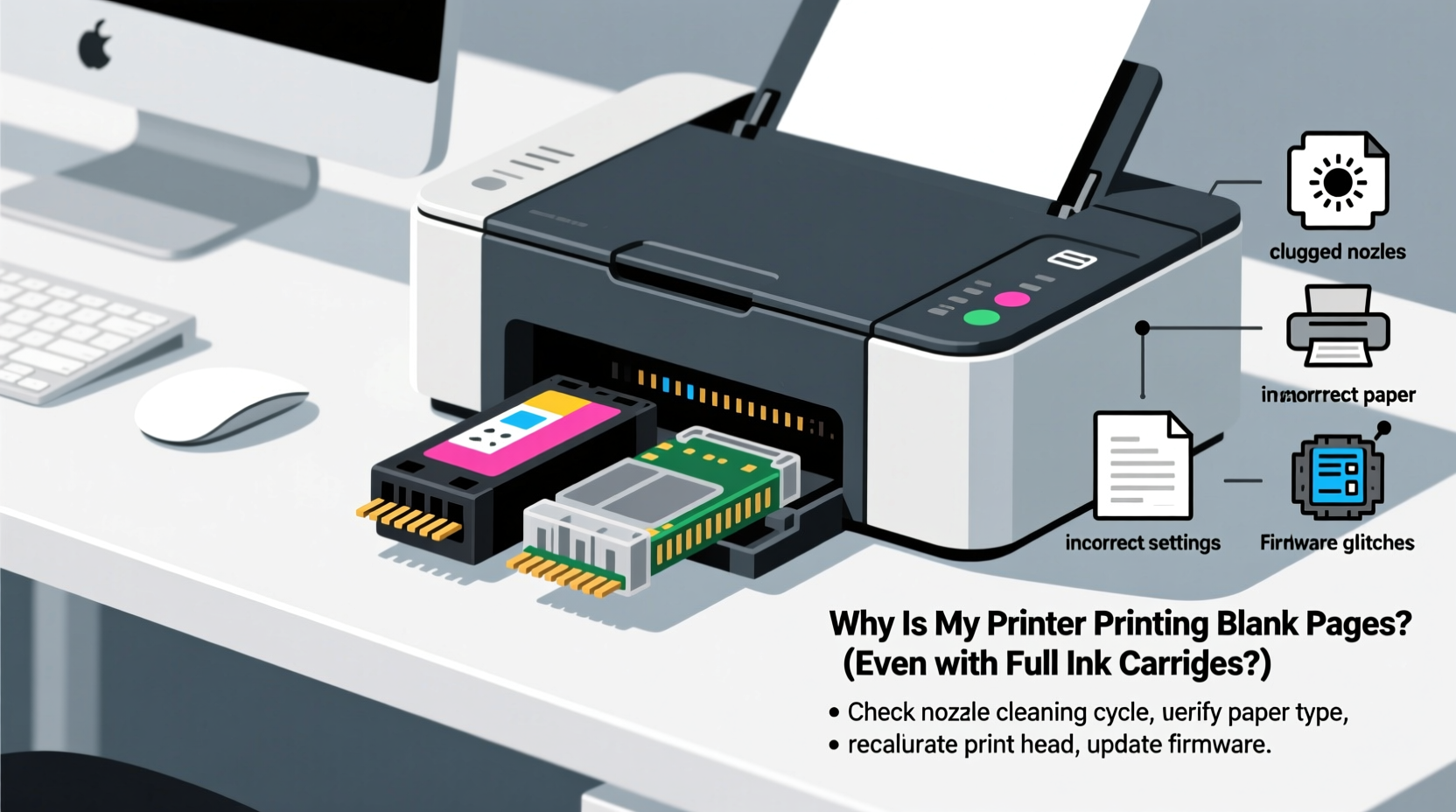
Before diving into solutions, it’s essential to identify what might be causing your printer to output blank pages despite having fresh or full ink cartridges. Several factors—both mechanical and digital—can contribute to this behavior.
- Clogged print heads: Ink residue can dry inside nozzles, especially if the printer hasn't been used for days or weeks.
- Incorrect print settings: Accidental grayscale mode, draft quality, or background printing options may suppress visible output.
- Faulty or misaligned cartridges: Even full cartridges can fail due to poor seating or manufacturing defects.
- Outdated or corrupted drivers: Printer drivers act as communication bridges between your computer and device. If they’re outdated, commands may not process correctly.
- Stuck print jobs: A jammed document in the queue can cause subsequent prints to appear blank or not print at all.
- Firmware bugs: Some printers have known firmware issues that interfere with proper ink distribution.
“Many users assume an empty cartridge is the culprit, but over 60% of ‘blank print’ cases stem from clogged nozzles or configuration errors.” — James Lin, Senior Technician at PrintCare Labs
Step-by-Step Troubleshooting Guide
Follow this systematic approach to diagnose and resolve the issue efficiently. Start with basic checks before moving to advanced interventions.
- Verify the Problem: Print a test page directly from the printer’s control panel (not through your computer). If the test page prints normally, the issue lies in your computer or software setup.
- Check Print Settings: Open your document, go to Print > Properties or Preferences, and confirm:
- Ink levels are being read correctly.
- Color printing is enabled (not grayscale-only).
- Eco-mode or draft mode is disabled.
- The correct paper size and type are selected.
- Run Nozzle Check and Alignment: Most printers offer built-in diagnostic tools. Access them via the printer software on your PC or the device menu. A nozzle check reveals whether ink is properly ejecting from each color.
- Perform a Deep Cleaning Cycle: If nozzles appear clogged, initiate a deep cleaning cycle. Note: This uses more ink, so avoid overuse. Wait 10–15 minutes after cleaning before testing again.
- Reinstall Cartridges: Power off the printer, remove each cartridge, inspect contacts for smudges, gently wipe with a lint-free cloth, then reinsert firmly until clicked into place.
- Update Drivers and Firmware: Visit the manufacturer’s website (HP, Canon, Epson, Brother, etc.), enter your model number, and download the latest driver and firmware updates.
- Clear Print Queue: On Windows, press Win + R, type
services.msc, find “Print Spooler,” right-click and restart it. Delete any stuck jobs under Control Panel > Devices and Printers > your printer > See What’s Printing.
Advanced Hacks for Stubborn Cases
If standard troubleshooting fails, consider these lesser-known but effective techniques used by repair technicians and IT professionals.
Manual Print Head Soaking (For Inkjet Models)
When automatic cleaning doesn’t work, manual intervention may be necessary. This method works best for printers with removable print heads (common in older Epson and Canon models).
- Power down and unplug the printer.
- Remove the print head according to the user manual.
- Submerge the nozzle plate in warm distilled water or a 50/50 mix of water and isopropyl alcohol for 10–15 minutes.
- Gently wipe with a soft, lint-free cloth.
- Reinstall and run multiple alignment cycles.
Note: Do not use this method on thermal print heads or laser printers. Only attempt if you're comfortable with hardware handling.
Bypass Ink Level Sensors (Temporary Fix)
Some printers refuse to print—even with functional cartridges—if the chip reports low ink. You can override this:
- On HP printers, hold the \"Resume\" or \"Cancel\" button for 5 seconds during startup to bypass ink warnings.
- Use third-party software like InkTool (for Epson) to reset counters—proceed with caution and backup firmware.
- For refilled cartridges, ensure chips are reset or compatible with your model.
Print in Safe Mode (Windows)
To rule out software conflicts:
- Boot into Safe Mode with Networking.
- Open Notepad, type a few lines, and try printing.
- If it works, a background application (antivirus, firewall, or graphics suite) may be interfering.
Do’s and Don’ts When Dealing With Blank Page Issues
| Do’s | Don’ts |
|---|---|
| Run regular nozzle checks every 1–2 weeks if usage is low | Leave cartridges outside the printer for extended periods |
| Store spare cartridges upright in a cool, dry place | Shake ink cartridges vigorously—they contain foam to regulate flow |
| Use genuine or high-quality compatible inks | Ignore firmware update notifications—they often include print stability fixes |
| Keep printer powered on (modern printers auto-clean periodically) | Manually force printhead movement with power on—risk of misalignment |
| Clean electrical contacts with isopropyl alcohol and cotton swabs | Use tap water for cleaning—minerals can clog nozzles permanently |
Real Example: How Sarah Fixed Her Office Printer in 20 Minutes
Sarah, an administrative assistant at a small law firm, faced daily complaints about blank pages from their shared HP OfficeJet Pro 9025. Cartridges were replaced monthly, yet documents came out completely blank. Initial checks showed full ink levels and no error messages.
She followed a structured approach:
- Ran a self-test page from the printer menu—printed fine, ruling out hardware failure.
- Checked her laptop’s print settings and discovered “Grayscale” was accidentally enabled across all documents.
- Further investigation revealed a group policy setting applied during a recent network update forced monochrome printing unless manually overridden.
By adjusting the default preferences and informing IT to revise the policy, Sarah resolved the issue without replacing parts or calling support. The root cause? A hidden software setting, not ink or hardware.
“Most printer problems aren’t mechanical—they’re misconfigurations hiding in plain sight.” — Sarah Nguyen, Administrative Tech Lead
Essential Checklist: Fix Blank Page Printing Fast
Use this checklist the next time your printer produces blank output:
- ✅ Print a test page from the printer’s control panel
- ✅ Confirm ink cartridges are properly seated and recognized
- ✅ Run a nozzle check pattern via printer software
- ✅ Perform at least two deep cleaning cycles (wait 10 mins between)
- ✅ Check for grayscale, eco-mode, or background printing settings
- ✅ Update printer drivers and firmware
- ✅ Restart the print spooler service and clear pending jobs
- ✅ Try printing from another device or USB connection
- ✅ Inspect for physical blockages near output tray or rollers
- ✅ Contact manufacturer support if all else fails
Frequently Asked Questions
Can a full ink cartridge still cause blank pages?
Yes. Even with full ink, clogged nozzles, faulty electrical contacts, or internal sensor errors can prevent ink ejection. The ink level indicator measures volume, not functionality.
Why does my printer print blank pages only in color mode?
This typically points to a clogged cyan, magenta, or yellow nozzle. Run a color-specific nozzle check and perform targeted cleanings. Also verify that color cartridges aren’t depleted or improperly installed.
Is it safe to refill ink cartridges?
Refilling can work but carries risks: poor seals, incompatible ink formulations, and chip incompatibility. Use reputable refill kits and avoid mixing brands. For mission-critical printing, stick to OEM cartridges.
Final Thoughts and Call to Action
Blank pages don’t automatically mean your printer is broken or out of ink. More often than not, the solution lies in simple diagnostics, updated software, or minor maintenance. By understanding how print heads function, recognizing misleading settings, and applying strategic cleaning methods, you regain control over your printing environment.
Don’t rush to replace cartridges or buy a new machine. Instead, methodically test, clean, and recalibrate. These habits extend your printer’s lifespan and reduce waste. If this guide helped you solve your printing issue, share it with others facing the same frustration. Have a unique fix that worked for you? Leave a comment below—your insight could help someone else skip hours of troubleshooting.




 浙公网安备
33010002000092号
浙公网安备
33010002000092号 浙B2-20120091-4
Comments
No comments yet. Why don't you start the discussion?