
There’s nothing more frustrating than installing a brand-new ink cartridge only to find that your printed documents still come out faint, streaky, or uneven. Faded text undermines professionalism, especially when you're printing contracts, reports, or school assignments. While it may seem logical to assume the issue lies with the ink, the root cause often extends beyond the cartridge itself. Modern printers are precision instruments, and multiple factors—from clogged nozzles to incorrect settings—can interfere with print quality. Understanding these variables is key to restoring sharp, consistent output.
This article dives deep into the most common reasons behind faded printing despite having fresh ink, offering practical diagnostics, expert-backed solutions, and preventive strategies to keep your printer performing at its best.
Understanding How Inkjet Printers Work
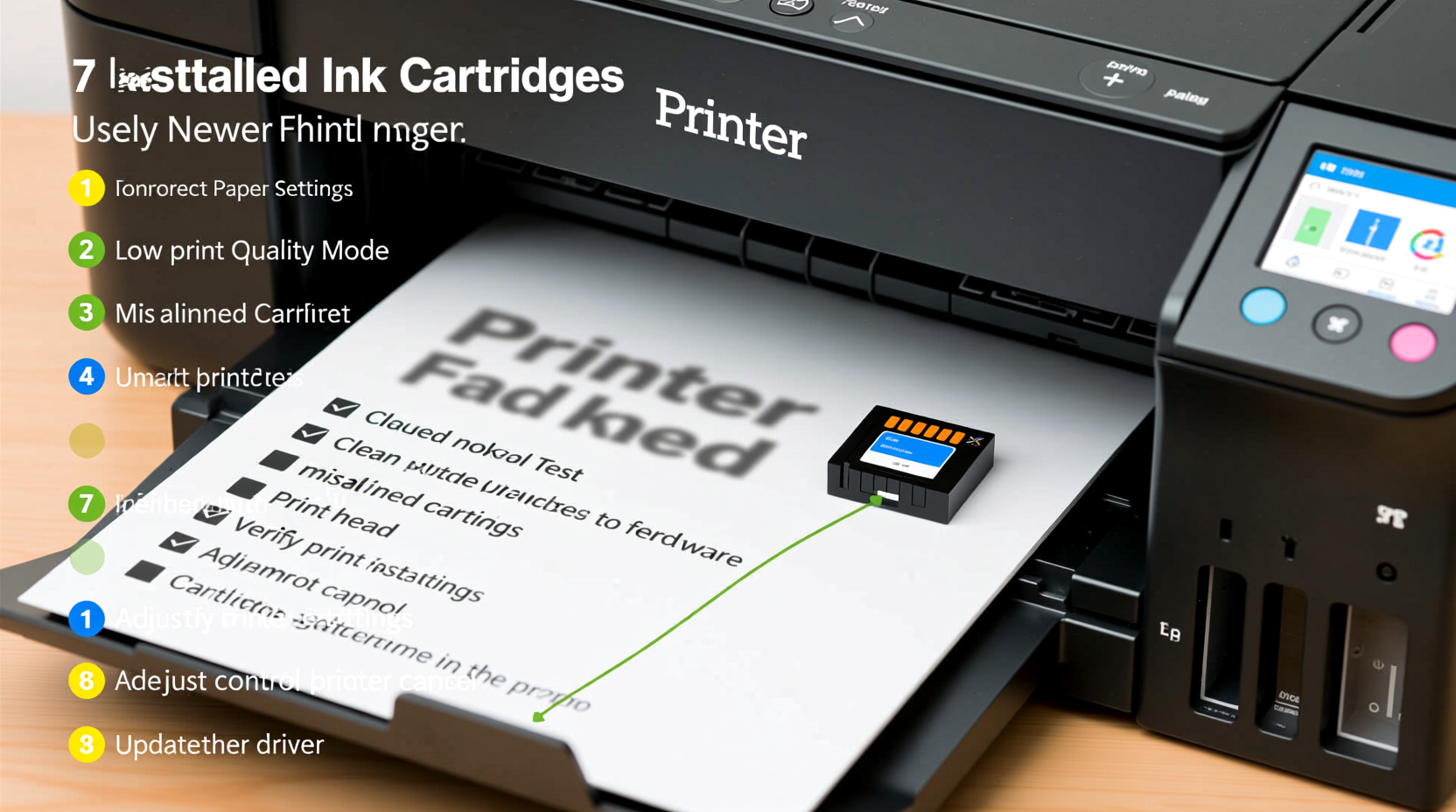
To troubleshoot effectively, it helps to understand the mechanics behind inkjet printing. Unlike laser printers that use toner and heat, inkjet printers propel microscopic droplets of liquid ink through tiny nozzles onto paper. These nozzles, arranged in precise patterns on the print head, must fire consistently to produce clean lines and solid text. Even minor disruptions—such as dried ink residue, air bubbles, or misalignment—can result in gaps, fading, or blurry characters.
Modern cartridges often integrate the print head (especially in consumer models), meaning any contamination or defect in this assembly directly affects print performance. Additionally, many printers rely on firmware-controlled calibration routines to maintain optimal alignment between color and black cartridges. When these systems fail or are neglected, faded output becomes inevitable—even with full ink levels.
Common Causes of Faded Printing Despite New Ink
Fresh ink doesn’t guarantee flawless results. Below are the top technical and operational culprits behind faded text, ranked by frequency and impact.
1. Clogged or Partially Blocked Nozzles
The most frequent reason for faded or inconsistent printing is nozzle clogging. Ink dries quickly when exposed to air, particularly if the printer sits idle for several days. Even new cartridges can suffer from micro-blockages if stored improperly or if the protective tape wasn’t fully removed during installation.
Clogs prevent certain nozzles from ejecting ink, leading to missing lines or faint patches. This is especially noticeable in text-heavy documents where uniform density matters.
2. Improper Cartridge Installation
A seemingly “new” cartridge may not be making proper electrical or mechanical contact. If the cartridge isn’t seated correctly in its slot, the printer may not recognize it fully or may deliver inconsistent voltage to the print head, resulting in weak ink ejection.
Additionally, some third-party or remanufactured cartridges have incompatible chips or seals, which can trigger false ink-level readings or suboptimal performance—even if the physical ink reservoir is full.
3. Incorrect Print Settings
Many users overlook the role of software settings. Printing in \"Economy,\" \"Draft,\" or \"Low Quality\" mode conserves ink but sacrifices clarity. These modes reduce ink saturation deliberately, leading to visibly faded output. Similarly, selecting the wrong paper type (e.g., printing on plain paper using photo-paper settings) disrupts how the printer applies ink, causing smudging or absorption issues.
4. Print Head Misalignment
After replacing a cartridge, the print head may require realignment. Misaligned heads cause colors or black ink to shift slightly, creating double images, blurred edges, or uneven coverage. While this is more apparent in graphics, it also degrades text sharpness over time.
5. Low Battery or Power Issues (for Portable/USB-Powered Printers)
Some compact or USB-powered printers depend on stable power delivery. A weak laptop battery, faulty USB cable, or underpowered port can lead to inconsistent voltage supply, affecting the print head’s ability to fire ink accurately. This often manifests as fading on one side of the page or intermittent blank lines.
6. Environmental Factors
High humidity causes paper to absorb moisture, altering how ink adheres and dries. Conversely, extremely dry environments accelerate ink evaporation in the nozzles. Both conditions degrade print quality regardless of ink freshness.
“Even with genuine OEM cartridges, environmental stress and infrequent use are the silent killers of print quality.” — Daniel Reeves, Senior Technician at PrintCare Labs
Step-by-Step Guide to Diagnose and Fix Faded Printing
Follow this structured troubleshooting process to identify and resolve the issue efficiently.
- Run a Nozzle Check
Access your printer’s maintenance menu (usually via printer software or control panel) and select “Print Nozzle Pattern.” Examine the output for gaps, streaks, or missing lines. If defects appear, proceed to cleaning. - Perform a Print Head Cleaning Cycle
Use the built-in cleaning function. Most printers allow 2–3 cycles before advising manual intervention. Wait 10–15 minutes between cycles to let ink re-saturate the nozzles. - Reinstall the Cartridge
Power off the printer, remove the cartridge, inspect contacts for dust or residue, then reinsert firmly until it clicks. Ensure the protective tape is completely removed. - Check Print Settings
In your print dialog box, confirm that:- Print quality is set to “Normal” or “Best”
- Correct paper type is selected (e.g., Plain Paper, Premium Matte)
- Economy/Draft mode is disabled
- Run Print Head Alignment
After cleaning and reinstalling, initiate an alignment procedure. The printer will print a test pattern and prompt you to select the clearest option. - Test with Different Paper
Try a fresh ream of standard copy paper. Avoid recycled or textured sheets during diagnosis, as they absorb ink differently. - Update Printer Firmware and Drivers
Visit the manufacturer’s website and install the latest drivers. Outdated firmware can cause communication errors between the computer and printer.
When to Consider Manual Cleaning or Professional Help
If automated cleaning fails after three attempts, consider manual intervention. However, proceed with caution—aggressive handling can damage delicate components.
To manually clean the print head:
- Remove the cartridge and locate the print head (on the bottom of the cartridge or inside the printer).
- Dampen a lint-free cloth or cotton swab with distilled water or isopropyl alcohol (70%).
- Gently wipe the nozzle plate and electrical contacts. Do not scrub.
- Place the cartridge on a damp paper towel (nozzle-side down) for 5–10 minutes to loosen dried ink.
- Reinstall and run another nozzle check.
Note: Avoid tap water, which contains minerals that can clog nozzles further. Also, never immerse the cartridge in liquid.
If problems persist, the print head may be permanently damaged—especially in older printers. In such cases, replacement or professional servicing may be cost-effective depending on the model.
Prevention Checklist: Maintain Consistent Print Quality
Proactive care prevents most fading issues. Follow this checklist monthly:
- ✅ Print at least one test page weekly to keep nozzles active
- ✅ Store spare cartridges upright in a cool, dark place
- ✅ Use genuine or reputable third-party ink compatible with your model
- ✅ Keep printer covered when not in use to reduce dust exposure
- ✅ Replace ink cartridges before they run completely dry
- ✅ Clean exterior vents and paper feed rollers every 2 months
- ✅ Monitor ink levels via printer software, not just visual estimation
Do’s and Don’ts of Ink Management
| Do | Don’t |
|---|---|
| Shake new cartridges gently before installation (if recommended by manufacturer) | Shake cartridges vigorously—this can introduce air bubbles |
| Run automatic maintenance routines monthly | Ignore printer alerts about alignment or low ink |
| Use the same brand/type of paper regularly for consistent results | Mix glossy and plain paper without adjusting settings |
| Store opened paper in sealed containers to prevent moisture absorption | Leave paper trays exposed in humid basements or bathrooms |
| Power down the printer properly instead of unplugging abruptly | Cut power during print jobs—this can misalign heads |
Real Example: Sarah’s Home Office Dilemma
Sarah, a freelance writer, replaced her Epson EcoTank cartridge after noticing grayish, washed-out text on client manuscripts. Despite the new tank being full, the problem persisted. She assumed the ink was defective and considered returning it.
Instead, she ran a nozzle check and discovered missing lines in the black ink pattern. After two cleaning cycles and a head alignment, her prints returned to normal. Later, she realized she hadn’t used the printer for nearly three weeks while traveling. The lesson? Even high-capacity ink systems require regular use to stay functional.
Now, Sarah schedules a weekly “maintenance print” of a single-page document to keep her system primed—saving time, ink, and frustration.
Frequently Asked Questions
Can I fix faded printing without wasting ink on cleaning cycles?
Yes. Start with non-consumptive steps: check print settings, reseat the cartridge, and inspect for paper jams. Only initiate cleaning cycles if the nozzle check confirms blockages. Some printers offer “deep cleaning” options—use them sparingly, as they consume significant ink.
Why does only black text appear faded, even though color prints look fine?
This typically indicates a clog or weak connection in the black ink channel. Since black is used most frequently in documents, partial drying is common. Run a targeted black ink cleaning cycle if available, or perform a full head cleaning.
Is it worth repairing a printer that keeps having print quality issues?
It depends on the age and repair cost. If your printer is over three years old and requires repeated cleanings or part replacements, investing in a new model with better self-maintenance features may be more economical. Modern printers often include automatic clog detection and periodic priming.
Conclusion: Take Control of Your Print Quality
Faded text isn’t a life sentence for your printer. With systematic troubleshooting and consistent maintenance, you can restore crisp, reliable output—even with new ink. Remember: print quality depends on more than just ink volume. It’s a balance of hardware condition, software settings, environmental factors, and usage habits.
Start applying these insights today. Run a nozzle check, review your settings, and establish a simple maintenance routine. Small actions prevent big frustrations down the line.




 浙公网安备
33010002000092号
浙公网安备
33010002000092号 浙B2-20120091-4
Comments
No comments yet. Why don't you start the discussion?