
If you’ve ever settled in for a movie night only to be interrupted by endless spinning wheels and frozen screens, you’re not alone. Buffering on your Roku device can turn a relaxing evening into a frustrating tech puzzle. While occasional delays are normal during peak internet hours, constant buffering suggests deeper issues with your network, device settings, or streaming habits. The good news? Most of these problems are fixable with the right approach. Understanding the root causes—and applying targeted solutions—can restore smooth playback and get you back to uninterrupted viewing.
Understanding How Streaming Works on Roku
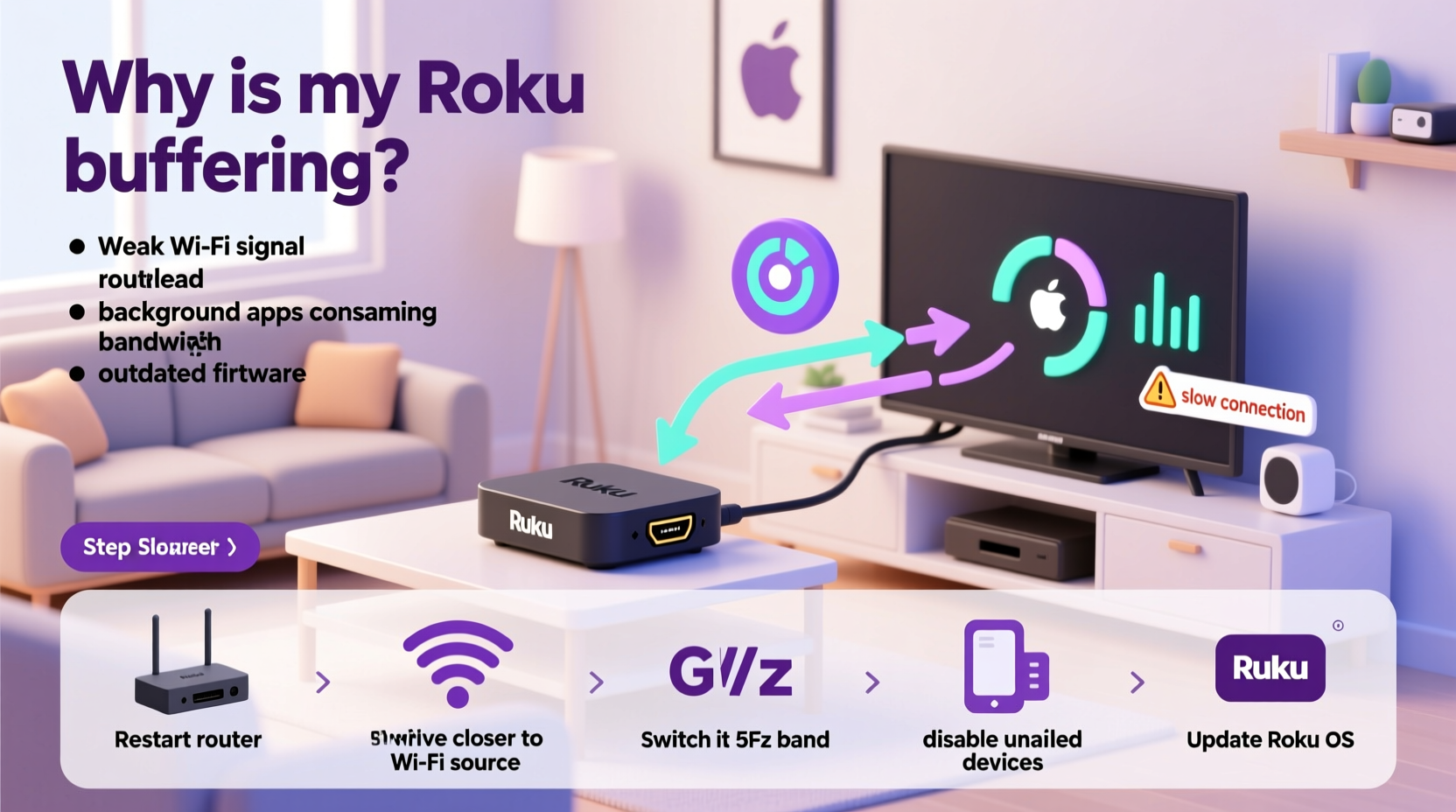
Roku devices rely entirely on your home Wi-Fi network to deliver video content from platforms like Netflix, Hulu, Disney+, and Prime Video. When you press play, the app requests data from the service’s server. That data travels through your router, across your local network, and into your Roku, where it’s decoded and displayed on your TV. This process happens in real time, requiring a consistent flow of data. If that flow is disrupted—even briefly—the player pauses to \"buffer,\" downloading more data before resuming playback.
Buffering becomes a problem when it happens repeatedly or lasts longer than a few seconds. This usually indicates one or more bottlenecks: insufficient bandwidth, network congestion, weak signal strength, or hardware limitations. Unlike traditional cable TV, streaming is highly dependent on both internet quality and device performance. Even if your plan promises high speeds, factors like distance from the router, interference from other devices, or outdated firmware can degrade actual performance.
Common Causes of Constant Buffering on Roku
Before diving into fixes, it's essential to pinpoint what’s causing the issue. Below are the most frequent culprits behind persistent buffering:
- Slow or inconsistent internet speed: Your ISP may advertise high speeds, but real-world performance can vary due to network congestion, throttling, or infrastructure limitations.
- Wi-Fi signal interference: Walls, appliances, and even neighboring networks can weaken your signal, especially if your Roku is far from the router.
- Network congestion: Multiple devices streaming, gaming, or downloading simultaneously consume bandwidth and slow down available speeds for your Roku.
- Outdated Roku software: Firmware updates often include performance improvements and bug fixes. An outdated system may struggle with modern streaming demands.
- Router limitations: Older routers may lack support for modern Wi-Fi standards (like 802.11ac or Wi-Fi 6), limiting throughput and range.
- ISP throttling during peak hours: Some providers reduce bandwidth for high-data activities like video streaming when their networks are under heavy load.
- Hardware issues: While rare, aging Roku devices or failing internal components can contribute to playback instability.
“Streaming quality isn’t just about internet speed—it’s about consistency. A fluctuating connection will always cause buffering, even if average speeds look good.” — David Lin, Network Performance Analyst at Broadband Insights Group
Step-by-Step Guide to Diagnose and Fix Buffering Issues
Follow this systematic approach to identify and resolve the source of your Roku buffering problems.
- Test your internet speed directly on the Roku. Navigate to Settings > Network > Check Connection. This test shows your current download speed as seen by the device. Compare it to your plan’s advertised speed. If it’s significantly lower, the issue lies in your network.
- Restart your Roku and router. Power cycle both devices: unplug them for 30 seconds, then plug them back in. This clears temporary glitches and resets network connections.
- Move closer to your router or use a wired connection. If possible, connect your Roku to the router via Ethernet using an adapter. Wired connections eliminate Wi-Fi interference and provide the most stable experience.
- Switch to the 5 GHz Wi-Fi band. If your router supports dual-band, ensure your Roku is connected to the 5 GHz network instead of 2.4 GHz. The 5 GHz band offers faster speeds and less interference, though it has shorter range.
- Reduce network congestion. Pause downloads, cloud backups, or other streaming devices while watching on Roku. Schedule large downloads for off-peak hours.
- Update your Roku’s software. Go to Settings > System > System Update and check for updates. Install any available patches.
- Change your DNS settings. In Settings > Network > Edit Connection, switch to a public DNS like Google (8.8.8.8 / 8.8.4.4) or Cloudflare (1.1.1.1). This can improve domain resolution speed and bypass ISP-related slowdowns.
- Reposition your router. Place it centrally in your home, elevated, and away from metal objects, microwaves, or thick walls that block signals.
- Upgrade your router if necessary. Routers older than 3–4 years may not support modern streaming needs. Consider investing in a Wi-Fi 6 model with strong range and QoS (Quality of Service) features.
- Factory reset your Roku as a last resort. If all else fails, go to Settings > System > Advanced System Settings > Factory Reset. Reconnect and reconfigure your device from scratch.
Optimizing Roku Settings for Better Performance
Beyond network fixes, adjusting your Roku’s internal settings can significantly improve streaming efficiency.
| Setting | Action | Benefit |
|---|---|---|
| Screen Mirroring | Turn off if not in use | Reduces background network usage |
| Automatic Software Updates | Keep enabled | Ensures latest performance patches |
| Power Saving Mode | Set to “Never” sleep during viewing | Prevents interruptions from standby cycles |
| HDMI Link (CEC) | Disable if causing conflicts | Eliminates handshake delays with TV |
| Streaming Quality | Select “Auto” or manually limit to 1080p if 4K buffers | Reduces bandwidth demand |
Additionally, consider uninstalling unused channels. While they don’t consume bandwidth directly, they can run background processes or receive push notifications that slightly impact system resources. Keep only the apps you actively use.
Real-World Example: Fixing a Persistent Buffering Problem
Sarah, a remote worker and avid streamer in Austin, Texas, noticed her Roku Ultra started buffering every evening around 7 PM. Her internet plan was 100 Mbps, and she had no issues during the day. After testing, she found her Roku reported only 8 Mbps during peak hours. She followed the diagnostic steps: restarted her router, switched to 5 GHz Wi-Fi, and paused her son’s online gaming console. Speed improved slightly, but buffering persisted.
The breakthrough came when she used her phone to run a speed test near the Roku. It showed similar slowdowns, confirming the issue wasn’t device-specific. She called her ISP, who acknowledged network congestion in her neighborhood during evenings. They offered no immediate fix, so Sarah upgraded her router to a mesh Wi-Fi 6 system. She also enabled Quality of Service (QoS) settings to prioritize her Roku’s MAC address during streaming hours. Within days, buffering dropped from 5–6 times per show to nearly zero. Her solution combined hardware upgrades with smart network management—a practical blueprint for others facing similar issues.
Checklist: Quick Actions to Stop Roku Buffering Now
Use this checklist to rapidly address and prevent buffering:
- ✅ Restart your Roku and router
- ✅ Run a network speed test on the Roku device
- ✅ Connect via Ethernet if possible
- ✅ Switch to 5 GHz Wi-Fi network
- ✅ Close other streaming or downloading devices
- ✅ Update Roku software to latest version
- ✅ Change DNS to 8.8.8.8 (Google) or 1.1.1.1 (Cloudflare)
- ✅ Reposition router for better signal coverage
- ✅ Limit streaming quality to 1080p during peak times
- ✅ Enable QoS on your router to prioritize Roku traffic
Frequently Asked Questions
Why does my Roku buffer only at certain times of day?
This typically points to network congestion either on your home network or your ISP’s infrastructure. Evening hours see higher usage across neighborhoods, leading to slower speeds. Your ISP might also throttle bandwidth during peak demand. Testing at different times and contacting your provider can help confirm this.
Can a VPN cause my Roku to buffer more?
Yes. While Roku doesn’t natively support VPN apps, using a router-level VPN encrypts all traffic and routes it through a remote server, which can reduce effective speed and increase latency. If you’re using a VPN, try disabling it temporarily to see if streaming improves.
Does the age of my Roku affect buffering?
Indirectly, yes. Older models (like Roku 1, 2, or 3) have slower processors and limited memory, making them less capable of handling high-bitrate 4K streams or complex app interfaces. While they can still function, upgrading to a newer model like the Roku Streaming Stick 4K+ often resolves persistent performance issues.
Conclusion: Take Control of Your Streaming Experience
Constant buffering on your Roku isn’t something you have to live with. With a methodical approach, most issues can be diagnosed and resolved using simple tools and adjustments. Start with the basics—restart your devices, test your speed, and optimize your Wi-Fi. Then move to advanced tweaks like DNS changes, QoS settings, or hardware upgrades if needed. Streaming should be seamless, not stressful. By understanding how your network and Roku interact, you gain the power to create a smoother, more reliable entertainment experience.




 浙公网安备
33010002000092号
浙公网安备
33010002000092号 浙B2-20120091-4
Comments
No comments yet. Why don't you start the discussion?